The Outer Worlds 2 expands on Obsidian’s signature mix of witty writing and flexible gameplay, but like any ambitious RPG, players often want more control—whether to tweak visuals, fix a bug, or just experiment with game mechanics. Unfortunately, the console isn’t active by default. The good news? A simple community mod makes it possible to unlock the developer console and access a wide range of commands.
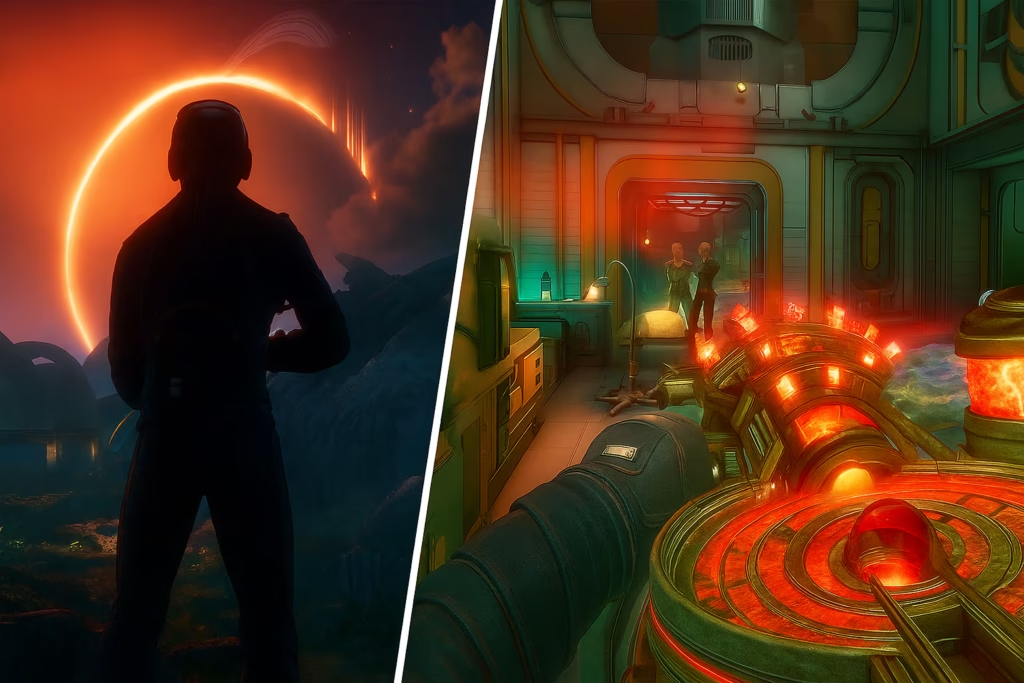
How the Console Enabler Mod Works in The Outer Worlds 2
Unlike some RPGs that allow debug mode via a launch parameter, The Outer Worlds 2 requires a third-party tool. The mod that enables console commands is called Console Enabler and BP ModLoader, created by KeinZantezuken and available on Nexus Mods.
The mod not only activates the developer console but also serves as a Blueprint (BP) mod loader, meaning it supports other mods built for this same framework—like FreeCam and Teleport utilities.
Tip: Always download the most recent version of the mod and double-check it’s marked as safe before installation. The current build (v0.0.1) is verified and malware-free.
Step-by-Step: How to Enable the Developer Console
Follow these steps carefully to get the console working in your game:
- Download the Mod Files
- Visit the Console Enabler and BP ModLoader page on Nexus Mods.
Download the following:SML.zipConsoleEnabler.zip
- Visit the Console Enabler and BP ModLoader page on Nexus Mods.
- Locate the Game Installation Folder
- Navigate to your The Outer Worlds 2 directory, typically found under:
…\Arkansas\Content\Paks
- Navigate to your The Outer Worlds 2 directory, typically found under:
- Create a “~mods” Folder
- Inside the Paks directory, create a new folder named:
~mods
- Inside the Paks directory, create a new folder named:
- Copy the Mod Files
- Extract all files from both downloaded archives and place them into the
~modsfolder you just created.
- Extract all files from both downloaded archives and place them into the
- Launch the Game
- Start The Outer Worlds 2 as usual.
- Open the Console
- Once in-game, press the tilde (~) key on your keyboard.
If it doesn’t open:- Switch to the English (US) keyboard layout.
- Check the mod’s README to rebind the console key if necessary.
- Once in-game, press the tilde (~) key on your keyboard.
After this setup, the console should appear successfully in-game.
How to Use Console Commands
With the console unlocked, you can now execute commands that adjust gameplay, modify inventory, or trigger debug actions.
Locating Command Lists
Inside your ~mods directory, you’ll find a Cheats subfolder.
This folder contains multiple text files—each outlining available console commands, their arguments, and expected input format.
The file titled “How to read cheats.txt” is particularly important. It explains how to interpret command syntax correctly, since many use technical parameters.
Understanding Command Syntax
Commands follow a simple rule:
Each argument is separated by a space, and data types (like integers or booleans) must be entered precisely.
Example:
LootTableDebug MyTable 1 2Breakdown:
- Command:
LootTableDebug - Arguments:
MyTable(string),1(integer),2(integer)
Common Data Types
| Type | Example Input | Description |
|---|---|---|
| bool | True / False | Enables or disables a feature |
| int32 | 1–9999 | Whole numbers for quantities |
| float | 0.1–2.0 | Decimal values for scaling effects |
Popular Working Console Commands
Not every debug command works in the final build, but several useful ones do:
| Command | Function | Example Usage |
|---|---|---|
AddCurrency | Adds Bits (in-game money) | AddCurrency 5000 1 |
GiveSkills | Sets all skill categories to 20 | GiveSkills |
LootTableDebug | Tests or spawns specific loot tables | LootTableDebug MyTable 3 2 |
AddTraitDebug / TraitAddDebug | Attempts to add character traits (not always functional) | AddTraitDebug Trait_Brave |
Note: The
Godcommand currently doesn’t work in the retail version, and trait-related commands may require a future update or custom mod extension.
Console Not Opening? Here’s What to Do
If pressing the tilde key doesn’t open the console:
- Switch your keyboard layout to English (US).
- Verify you placed all extracted files directly in
~mods, not inside a subfolder. - Re-read the console keybinding instructions from the mod’s README.
If commands don’t execute:
- Ensure your syntax matches exactly (case-sensitive).
- Some commands are context-dependent and will only work in specific areas or states (e.g., during combat or dialogue).
Unlocking console commands in The Outer Worlds 2 gives you unprecedented control over the game—letting you experiment, troubleshoot, or just have fun breaking the rules. While the official release doesn’t include developer tools, the Console Enabler and BP ModLoader mod bridges that gap neatly.
Read More:
- The Outer Worlds 2: How to Find de Vries’ Safe Room
- How to Upgrade Companions in The Outer Worlds 2 and Boost Their Abilities Fast
- All The Outer Worlds 2 Keybinds – Full PC and Controller Controls Guide
Just remember: because this involves third-party tools, always back up your save files before experimenting with console commands or mods. Play Now!

