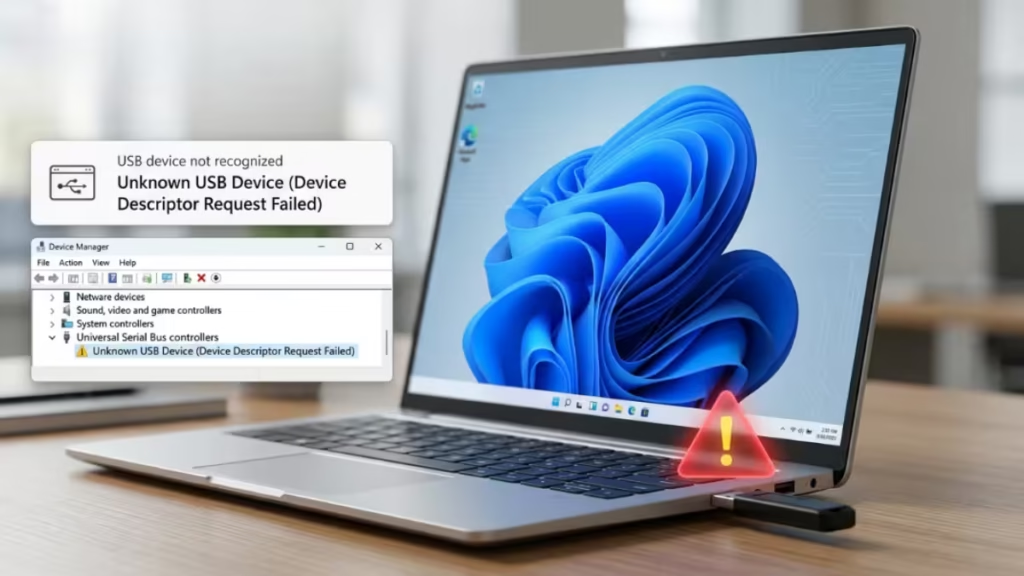
When you plug in a USB flash drive, Android phone, or external hard drive and Windows throws an Unknown USB Device (Device Descriptor Request Failed) error, the device stops working. Windows shows this error under Universal Serial Bus controllers in Device Manager, and the device status reads: "Windows has stopped this device because it has reported problems. (Code 43)." Here are the six fixes that resolve this error for most people, in order of success rate.
What Causes Unknown USB Device (Device Descriptor Request Failed)
The device descriptor holds the basic identification data Windows needs to load the correct driver. When Windows cannot read it, the device shows up as unknown. Common causes include:
- Corrupted or outdated USB drivers after a Windows update
- USB power management settings cutting power to the port prematurely
- Fast Startup skipping a full driver reload during boot
- A faulty USB port, cable, or hub creating an unstable connection
- The Plug and Play service stuck or disabled
Fix 1: Run Quick Physical Checks First
Before touching any settings, rule out hardware as the cause.
- Unplug the USB device, wait 10 seconds, and plug it back in. Try a rear USB port if you used a front one, since rear ports deliver more stable power.
- Plug a different working USB device into the same port. If that device also fails, the port itself is faulty.
- Test the original device on a different USB port, then on a different computer if possible.
- If you use a USB hub, bypass it and connect directly to the computer instead.
Fix 2: Uninstall and Reinstall USB Drivers
Corrupted USB drivers after Windows updates or improper shutdowns are the most common cause of this error. Uninstalling them forces Windows to rebuild the USB controller stack from scratch on reboot.
- Right-click the Start button and select Device Manager.
- Expand Universal Serial Bus controllers.
- Right-click each driver listed there and select Uninstall device. Check Delete the driver software for this device if that option appears.
- After uninstalling all USB drivers, right-click Universal Serial Bus controllers and select Scan for hardware changes.
- Restart your PC and plug the USB device back in.
If the error keeps returning every time you replug the device, the port may be stuck trying to identify a device that already unplugged. Uninstall the device in Device Manager, physically unplug the USB, scan for hardware changes, then plug it back in.
Fix 3: Disable USB Selective Suspend
USB Selective Suspend lets Windows cut power to individual USB ports to save energy. When a device draws more power than the port expects, Windows suspends the port and the device fails to respond.
- Press
Win + Xand click Power Options. - Click Additional power settings (or Choose power plan on Windows 11).
- Next to your active power plan, click Change plan settings, then Change advanced power settings.
- Expand USB settings, then expand USB selective suspend setting.
- Set the value to Disabled and click Apply, then OK.
- Restart your PC and test the USB device.
Fix 4: Disable Fast Startup
Fast Startup saves part of the Windows kernel to disk on shutdown, letting the next boot skip the full driver reload. USB drivers sometimes fail to reload correctly when this happens, which triggers this error consistently after every shutdown.
- Press
Win + R, typecontrol panel, and hit Enter. - Click Hardware and Sound, then Power Options.
- On the left, click Choose what the power buttons do.
- Click Change settings that are currently unavailable.
- Under Shutdown settings, uncheck Turn on fast startup (recommended).
- Click Save changes and restart your PC.
Fix 5: Restart the Plug and Play Service
The Plug and Play (PnP) service handles automatic detection and driver loading for hardware devices. When it stops running or gets stuck, newly connected USB devices appear as unknown regardless of driver condition.
- Press
Win + R, typeservices.msc, and press Enter. - Scroll down, locate Plug and Play, and double-click it.
- If Startup type shows Manual and Status shows Running, change Startup type to Disabled and click Stop. Click Apply, switch it back to Manual, and click Start. Click Apply and OK.
- If Startup type shows Disabled and Status shows Stopped, switch to Manual, click Start, then click Apply and OK.
- Restart your PC and reconnect the USB device.
Fix 6: Enable Enhanced Power Management via Registry
If the fixes above don't resolve it, this registry tweak stops Windows from cutting power to the USB port too aggressively, which is a common root cause of this error.
Create a System Restore point before proceeding, since incorrect registry edits can affect your system.
- Right-click the unknown USB device in Device Manager and select Properties.
- Go to the Details tab, choose Device instance path from the dropdown, right-click the value, and select Copy.
- Press
Win + R, typeregedit, and press Enter to open Registry Editor. - Navigate to
HKEY_LOCAL_MACHINE\SYSTEM\CurrentControlSet\Enum, paste the device instance path you copied, and press Enter. Then open the Device Parameters subkey. - In the right pane, right-click, select New > DWORD (32-bit) Value, and name it
EnhancedPowerManagementEnabled. Set its value to 0. - Close Registry Editor, unplug the USB device, and reboot your PC.
- Reconnect the device after restart.
Most Unknown USB Device errors clear up with a port change, a driver reinstall, or disabling USB Selective Suspend and Fast Startup. If the error persists after those, the registry fix for enhanced power management resolves it in most remaining cases. If it still continues, the USB port, cable, or the device itself is likely at fault.
Frequently Asked Questions
What does Unknown USB Device (Device Descriptor Request Failed) mean?
It means Windows sent a request to read the device descriptor, the identification data every USB device must provide, and the device either did not respond or responded with corrupted data. Windows cannot load a driver without this information, so it marks the device as unknown.
Why does the error come back every time I replug the device?
This usually means the USB port got stuck trying to detect a device that was removed without being ejected first. Uninstall the device in Device Manager, unplug it, scan for hardware changes, and replug it to break the loop.
Does this error damage my USB drive or its data?
No, the error itself does not damage data. If the drive already has file system corruption, though, back up its data and run Windows error checking to catch issues early.
When should I replace the USB device?
If the device fails on multiple computers across multiple ports, the internal firmware or hardware is damaged, and replacement is the only fix at that point.