When configuring DFS Replication (DFSR) in Windows Server, the New Replication Group Wizard can fail with an error stating there are insufficient permissions to create the replication group. Since DFSR configuration is stored entirely in Active Directory, this error can surface for several different underlying reasons, not just account permissions. Working through the fixes below in order isolates the actual cause instead of guessing.
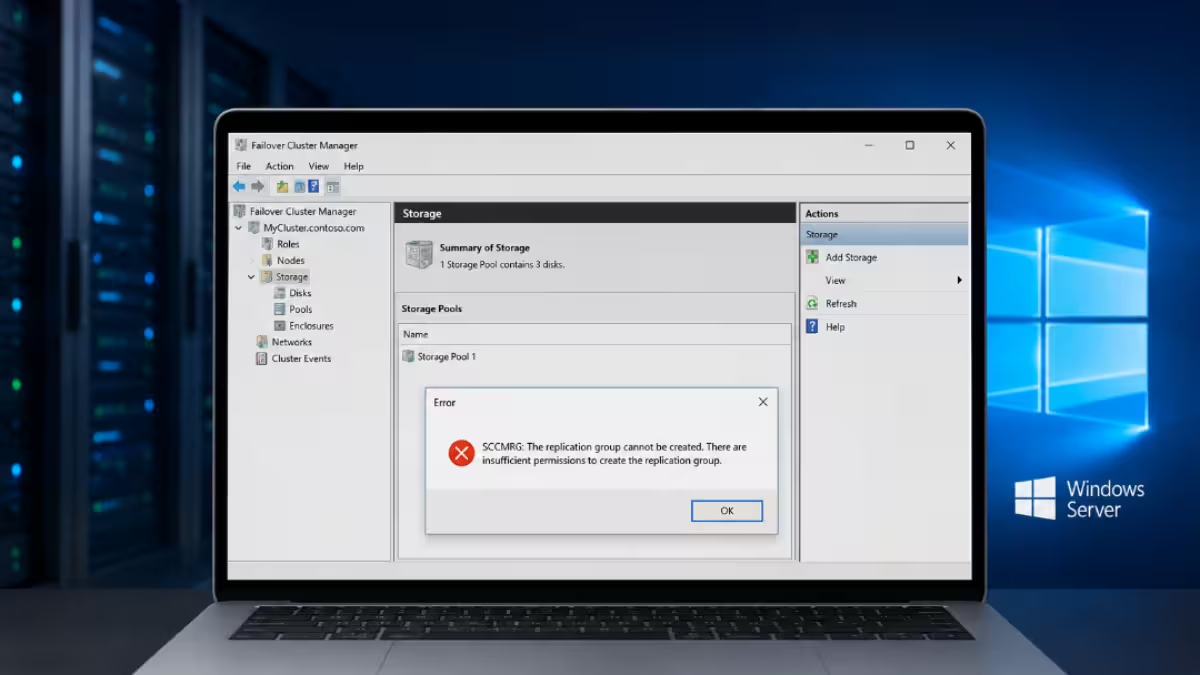
Why the Replication Group Cannot Be Created
- Active Directory replication is unhealthy, so the DFSR configuration cannot be written or read correctly across domain controllers.
- Orphaned DFSR objects from a previously deleted replication group are still present in AD and conflict with the new one.
- DNS resolution between the servers or to a writable domain controller is failing.
- The DFS Replication service is stopped or disabled on one or more participating servers.
- The account creating the group lacks write access to the DFSR-GlobalSettings container in Active Directory.
Fix 1: Confirm Active Directory Replication Is Healthy
This comes first because every other fix depends on AD replication working correctly. If AD itself is inconsistent across domain controllers, permissions fixes or service restarts won’t hold.
- Open Command Prompt as administrator.
- Run
repadmin /replsummaryand check for reported failures. - If failures show up, resolve them before continuing.
- Force replication with
repadmin /syncall /AdeP. - Wait a few minutes, then retry creating the replication group.
Fix 2: Remove Orphaned DFSR Objects Left by a Previous Replication Group
If a replication group was deleted incorrectly in the past, leftover objects in AD can silently block a new group with the same or a related name.
- Open Active Directory Users and Computers.
- Enable Advanced Features from the View menu.
- Navigate to the DFSR configuration container under the domain’s System container.
- Delete any obsolete DFS Replication objects tied to the failed or old group.
- Allow AD replication to finish before retrying.
Fix 3: Verify DNS Resolution Between All DFS Servers
DFSR needs reliable name resolution to reach domain controllers and replication partners. A broken DNS record on even one server can cause the wizard to fail.
- On each server, run
nslookup <ServerName>for every other server in the group. - Run
ping <ServerName>to confirm connectivity. - Confirm every server points to a domain DNS server, not a public or ISP DNS.
- Run
ipconfig /flushdnsto clear stale entries. - Retry creating the replication group.
Fix 4: Make Sure the DFS Replication Service Is Running
The wizard depends on the DFS Replication service being active on every server that will join the group. If it’s stopped anywhere, the group creation fails even when AD and DNS are fine.
- Press
Win + R, typeservices.msc, and hit Enter. - Locate DFS Replication in the list.
- Set Startup type to Automatic and start the service if it’s stopped.
- Repeat on all participating servers.
- Retry creating the replication group.
Fix 5: Grant the Right Permissions on DFSR-GlobalSettings
If the first four checks pass and the error still points to permissions, the account itself doesn’t have write access to the DFSR configuration in AD.
Fastest option: Sign in with a Domain Admin or Enterprise Admin account, open DFS Management as administrator, and run the wizard again.
If Domain Admin access isn’t available:
- Open ADSI Edit on a domain controller and connect to the Default naming context.
- Navigate to
CN=DFSR-GlobalSettings,CN=System,DC=yourdomain,DC=com. - Open Properties > Security tab.
- Add the account or group and grant Create All Child Objects and Write permissions.
- Wait for AD replication to complete, then retry.
Most cases of this error trace back to AD replication health or leftover DFSR objects rather than the account itself, even though the error message points straight at permissions. Working through the AD and DNS layers first before touching account rights saves time and avoids masking a deeper replication problem with a permissions workaround that only holds temporarily.
Frequently Asked Questions
Do I need Domain Admin permissions to create a DFSR replication group?
Not always. A Domain Admin or Enterprise Admin account works immediately, but an account can also be delegated Create All Child Objects and Write permissions specifically on the DFSR-GlobalSettings container.
Why does the error mention insufficient permissions when my account is already an admin?
The error text is generic. It can appear due to unhealthy AD replication, orphaned DFSR objects, DNS failures, or a stopped DFS Replication service, not just account rights.
How do I check if the DFS Replication service is running?
Open Services (services.msc) and look for DFS Replication, or run sc query DFSR from an elevated Command Prompt. It should show as Running with Automatic startup.
Can leftover objects from a deleted replication group cause this error?
Yes. If a previous replication group wasn’t removed cleanly, its DFSR objects can remain in [Active Directory](https://www.fdaytalk.com/best-password-policy-software-active-directory/) and conflict with a new group creation attempt.
Related Guides
- System Guard Enabled but Not Running in Windows Server [Fixed]
- How to Activate Windows Server 2022 Datacenter Offline
- ReFS Boot Windows Server: Resilient File System Boot Support in 2026
- How to Recover Windows Server 2019 Product Key Without Original Email
- How to Downgrade Windows Server 2025 to 2022 Activation for Hyper-V VMs

