Vivaldi 8.0 is the biggest update the browser has shipped in years. The company describes it as the most significant design overhaul in the browser’s history, and after reviewing what actually changed, that claim holds up. This release brings a completely reworked interface, six new preset layouts, and a theming system that spans the entire browser window from edge to edge.
Here is exactly what changed in Vivaldi 8.0 and how to get it installed on your PC.
What’s New in Vivaldi 8.0
Unified Design Interface
The most significant change in Vivaldi 8.0 is the new interface system, which the team calls “Unified.” Previously, the browser divided its interface into separate layers: tabs, toolbars, panels, and content each had their own visual region. That separation made the overall layout feel fragmented.
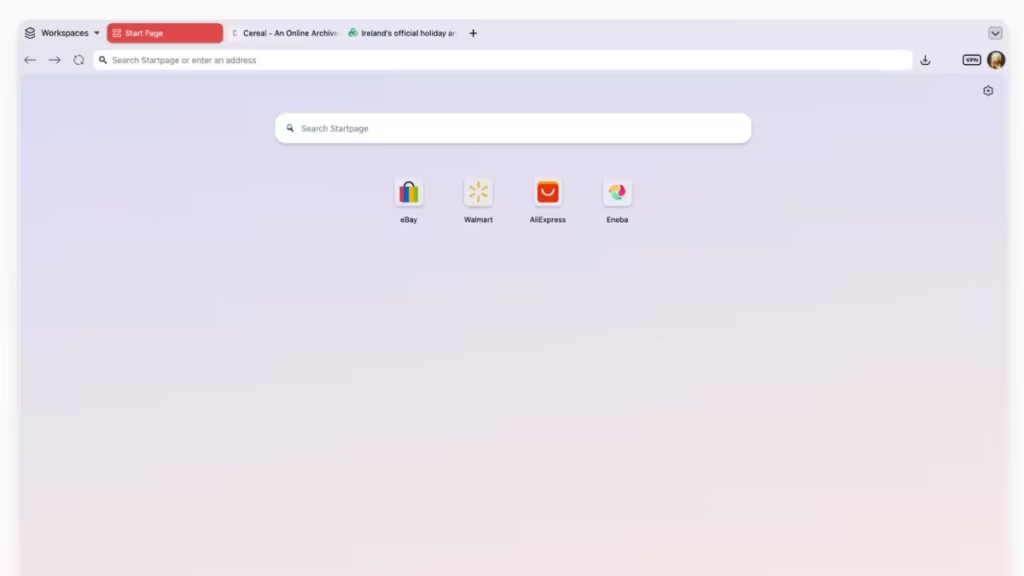
With the Unified design, all toolbars now sit on a single continuous surface that wraps the entire browser window. Elements no longer occupy isolated layers. When you apply a theme, it flows through the full window without interruption. A dark theme stays dark all the way through. A warm theme carries that tone into every corner of the interface.
Backgrounds can now extend from the tab bar through panels and edges without any visual breaks. Wallpapers feel like part of the environment rather than decoration, especially when combined with translucency and blur effects.
Six Preset Layouts in Vivaldi 8.0
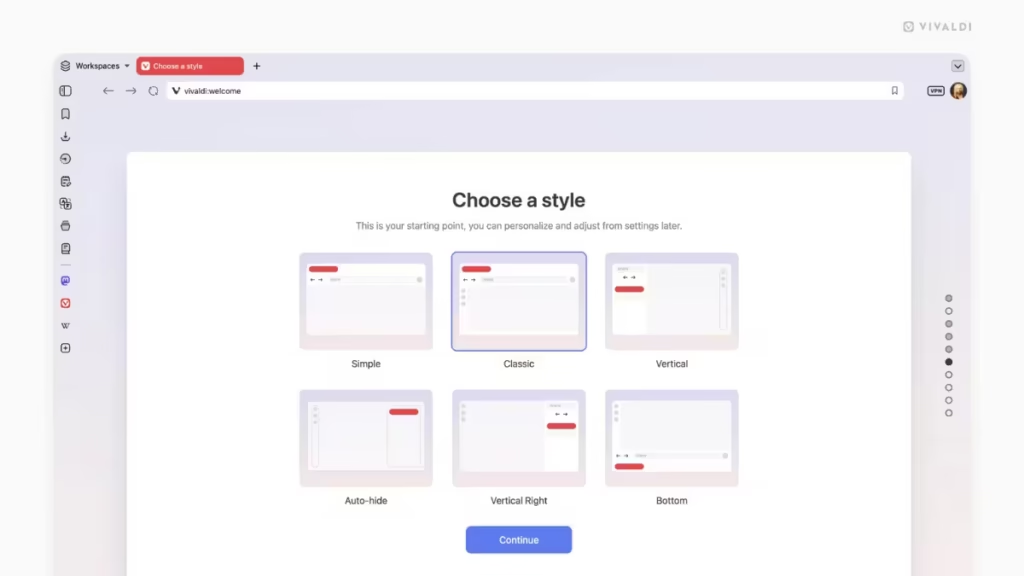
Vivaldi 8.0 introduces six preset layouts you can select during onboarding or later from Settings → Appearance → Layout:
- Simple: Tabs on top, minimal interface, clean and focused.
- Classic: The familiar Vivaldi setup with toolbar, panels, and all controls in their standard positions, now wearing the Unified design.
- Vertical Right: Tabs on the right side of the screen, URL bar on top, panels on the left.
- Vertical Left: Tabs and address bar on the left. Works especially well on wide monitors where horizontal screen space would otherwise go unused.
- Auto Hide: Toolbar, tab bar, panel, and address bar step aside while you browse. They reappear the moment your cursor reaches any edge of the screen.
- Bottom: Tab bar and address bar move to the bottom of the screen.
Each layout is a starting point, not a limit. You can continue adjusting settings after picking one.
New Default Themes
Vivaldi 8.0 ships with new default themes including Zen, Soria Moria, Sunset Forest, and Kawaii Clouds, alongside updated light and dark base themes. If none of these work for you, over 7,000 community themes are available at themes.vivaldi.net. Users who prefer their existing custom theme can keep it by going to Settings → Themes → Editor → Coloring mode and selecting the legacy option.
Privacy Focus, No AI Tracking
Vivaldi has not added AI features that monitor your browsing behavior or serve content based on usage data. The browser does not treat your data as inventory. That puts it in a different category from several mainstream browsers that have added behavior-based AI features in recent updates. If you already use a VPN for privacy while browsing, Vivaldi’s built-in tracking protection works alongside it as an additional layer.
How to Download and Install Vivaldi 8.0 on Windows
Installing Vivaldi 8.0 takes only a few minutes. Follow these steps:
- Go to the official Vivaldi download page at vivaldi.com/download.
- Click Download under the Windows section. The installer file is approximately 100 MB.
- Open the downloaded
.exefile once it finishes downloading. - The installer runs automatically. Vivaldi does not require administrator privileges for a standard user installation.
- After the install finishes, Vivaldi launches and shows you the new layout picker.
- Select one of the six preset layouts or skip to continue with the default Classic layout.
Direct download (Windows 64-bit): Vivaldi.8.0.4033.26.x64.exe
Vivaldi 8.0 supports Windows 10 and later (64-bit), macOS, and Linux.
For Android: Available on the Google Play Store.
For iOS: Available on the App Store.
How to Switch Layouts After Installing Vivaldi 8.0
You can change your layout at any time after installation:
- Open Vivaldi and click the Vivaldi menu in the top-left corner.
- Go to Settings → Appearance → Layout.
- Click any of the six layout options to preview and apply it instantly.
If you updated from an older version and want to return to your previous look, go to Settings → Themes → Editor → Coloring mode and switch back to the legacy coloring mode.

