The Office Deployment Tool is the most reliable way to install Visio in environments where the standard installer fails. IT admins and advanced users rely on this tool to avoid MSI conflicts, control update channels, and deploy Office and Visio together without setup errors. If you manage multiple PCs or keep hitting Visio installation failures with Microsoft 365, this method gives you full control over the installation process.

This guide applies to Windows 11 24H2/25H2 and Microsoft 365 builds released in 2026.
Quick Fix Checklist (Start Here)
Before trying advanced troubleshooting, confirm these five things:
- You are signed in with the correct Microsoft account.
- Your Office and Visio versions match (both 32-bit or both 64-bit).
- No old MSI-based Office version is installed.
- Your firewall or proxy is not blocking downloads.
- Your Visio license is properly linked to your account.
If any one of these fails, Visio installation will fail.
Why Visio Won’t Install with Microsoft 365
In most cases, installation fails because of one of these four reasons:
- Office and Visio use different installer types.
- Bit version mismatch (32-bit vs 64-bit).
- MSI-based Office conflicts with Click-to-Run.
- The Visio license is not attached to the same account.
Microsoft 365 uses Click-to-Run technology. If your system still has an older MSI-based Office edition installed, Visio will not install.
Check If Your Subscription Includes Visio
Visio is not included in most Microsoft 365 plans. It is sold separately.
To verify:
- Go to Microsoft365.com.
- Sign in.
- Click Profile > My Microsoft Account > Services & Subscriptions.
- Look for Visio in your product list.
If you don’t see it, you need to purchase:
- Visio Plan 2 (Desktop + Web)
- Visio Plan 1 (Web only)
- Visio 2021/2019 (One-time purchase)
Choose the Right Version of Visio
Your license determines how you can use Visio.
| Plan/Version | Desktop App | Web Version | Best For |
|---|---|---|---|
| Visio Plan 1 | No | Yes | Browser editing |
| Visio Plan 2 | Yes | Yes | Full features |
| Visio 2021/2019 | Yes | No | One-time purchase |
If you only have Plan 1, you cannot install the desktop app.
Make Sure Visio Is Linked to Your Account
Even if you purchased Visio, it must be attached to the same Microsoft account used for Office.
To confirm:
- Open Word or Excel.
- Go to File > Account > View Account.
- Check under Subscriptions.
If Visio does not appear, sign out and sign back in using the correct account (work, school, or personal).
How to Download and Install Visio Properly
Once your license is confirmed:
- Visit Microsoft365.com.
- Sign in.
- Select Install Office > Other install options.
- Locate Visio in your products.
- Choose language.
- Select 32-bit or 64-bit (must match Office).
- Click Install.
Installation should now proceed without conflict.
Update Microsoft 365 Before Installing Visio
An outdated Office 365 installation can block Visio setup. Update Office first:
- Open Word or Excel.
- Go to File > Account.
- Under Product Information, click Update Options > Update Now.
- Wait for the update to complete.
- Restart your PC and try installing Visio again.
This step resolves conflicts caused by version mismatches between your Office build and the Visio installer.
Why MSI and Click-to-Run Conflicts Block Visio Installation
This is the most common hidden cause of installation failure.
- Microsoft 365 uses Click-to-Run.
- Older Office 2016/2019 perpetual versions often use MSI.
- MSI and Click-to-Run cannot run together.
If you installed Office years ago using a DVD or offline installer, it is likely MSI-based.
Fix: Uninstall the old Office completely before installing Visio.
You can remove it from: Control Panel > Programs > Uninstall a Program.
After removal, restart your PC and try again.
Match Office and Visio Bit Versions
If Office is 64-bit, Visio must be 64-bit.
To check your Office version:
- Open Word.
- Go to File > Account > About Word.
- Look for 32-bit or 64-bit in the version string.
Then download the matching version of Visio. Mixing versions always triggers setup errors.
Fix “Unable to Download Required File”
If you see this error:
- Disable VPN temporarily.
- Switch networks.
- Check firewall or proxy rules.
- Make sure ports 80 and 443 are open.
Corporate firewalls often block Office CDN downloads.
If the error shows code 30183-2016 (403), a corporate firewall or proxy is actively blocking the Office CDN. This is not a license issue. Contact your IT team to whitelist Microsoft’s Office CDN endpoints, or try installing from a network outside your organization (such as a personal hotspot) to confirm the block.
How to Install Visio Using the Office Deployment Tool
If you manage multiple systems, use the Office Deployment Tool (ODT).
ODT allows you to:
- Install Office and Visio together
- Specify version and update channel
- Avoid installer conflicts
Always download the latest version of ODT from Microsoft before deploying.
Create a file named configuration.xml and paste this config:
<Configuration>
  <Add OfficeClientEdition="64" Channel="Current">
    <Product ID="O365ProPlusRetail">
      <Language ID="en-us" />
    </Product>
    <Product ID="VisioProRetail">
      <Language ID="en-us" />
    </Product>
  </Add>
  <Updates Enabled="TRUE" Channel="Current" />
  <Display Level="None" AcceptEULA="TRUE" />
</Configuration>
Change OfficeClientEdition to "32" if your Office installation is 32-bit.
Then run:
setup.exe /configure configuration.xmlMake sure you download the latest ODT version from Microsoft before running this command. Using an outdated ODT binary is one of the most common reasons the command fails silently.
System Requirements
Before installing Visio, confirm your system meets these minimums:
| Requirement | Minimum |
|---|---|
| Processor | 1.6 GHz, dual-core |
| RAM | 4 GB |
| OS | Windows 10 or Windows 11 |
| Display | 1280 × 1024 with True Color |
| Graphics | DirectX 10 or later |
| Free disk space | 4 GB |
Low-spec systems may fail during setup.
What If Your Subscription Doesn’t Include Visio?
If your Microsoft 365 plan does not include Visio, you have three options:
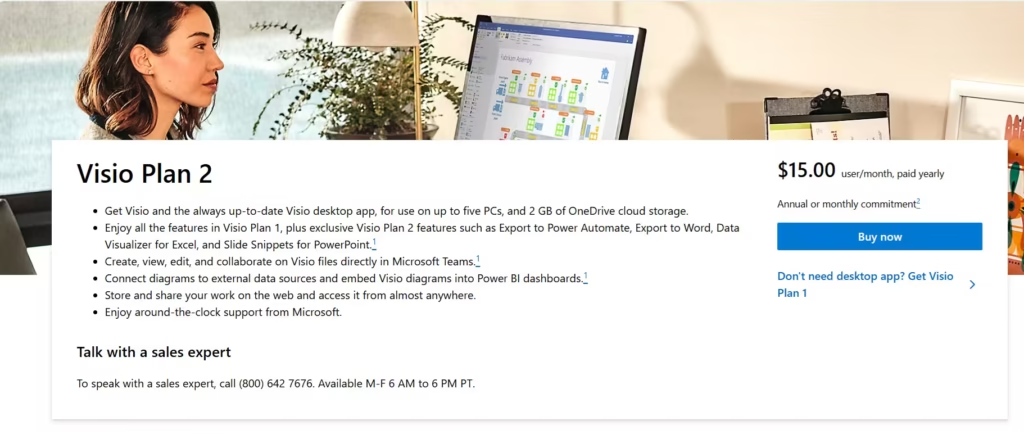
- Visio Plan 2 — Includes the full desktop app and the web version. Best for users who need the complete feature set.
- Visio Plan 1 — Web version only. No desktop installation. Lower cost.
- Visio 2021 or 2019 (one-time purchase) — Desktop app only, no web version. Good if you prefer a perpetual license over a subscription.
All three are available at microsoft.com/visio/
Frequently Asked Questions
Why can’t I install Visio with Office 365?
You can’t install Visio with Office 365 if there is an installer conflict (MSI vs Click-to-Run), a bit-version mismatch (32-bit vs 64-bit), or the Visio license is not linked to the same Microsoft account.
Can I install Visio alongside Microsoft 365 Apps?
Yes, you can install Visio alongside Microsoft 365 Apps if both use Click-to-Run and match the same bit version. MSI-based Office installations will block Visio setup.
Does Visio Plan 1 allow desktop installation?
No. Visio Plan 1 only supports the web version. To install the Visio desktop app, you need Visio Plan 2 or a one-time purchase version.
Why do I see “We can’t install the same version of Office and Visio”?
This error appears when one product uses MSI and the other uses Click-to-Run. Both Office 365 and Visio must use Click-to-Run to install together.
How do I check whether my Office is 32-bit or 64-bit?
Open Word, go to File > Account > About Word, and check the bit version listed. Visio must use the same bit version to install successfully.
What causes the “Unable to download a required file” Visio error?
This error usually occurs due to blocked network access. VPNs, firewalls, proxies, or restricted corporate networks can prevent Visio from downloading required files. Error code 30183-2016 (403) specifically points to a network or firewall block at the CDN level.
Can I install Visio without uninstalling Office 365?
Yes, as long as Office 365 and Visio are both Click-to-Run and use the same bit version. Older MSI-based Office versions must be removed first.
Does Visio work with Microsoft 365 Family?
No. Microsoft 365 Family does not include Visio desktop rights. You must purchase Visio separately to install it.
Is Visio included with Office 365 subscriptions?
No. Visio is sold separately and must be purchased as Visio Plan 2, Visio Plan 1 (web only), or a standalone version like Visio 2021.
What is the fastest way to fix Visio installation errors?
The fastest fix is to remove any MSI-based Office versions, match the Office and Visio bit versions, and reinstall Visio using the same Microsoft account.

