Your phone already includes spam filters that work better than most paid caller ID apps. Turn them on, add a carrier filter, and change how you handle unknown numbers. This guide walks through every setting for iPhone and Android, plus the habits that keep scammers from confirming your number is active.
Why Do Spam Calls Keep Coming After You Block the Number?
Spam callers rotate numbers and fake the caller ID, so a single block rarely changes anything.
Scammers use cheap internet-based numbers and often copy your area code and prefix to look local. The number on your screen may belong to an unrelated person who has no idea their number is in use. Because of this, you get better results from filters that judge call patterns than from blocking numbers one by one. Both iPhone and Android include those filters, so jump to the section for your phone.
How to Stop Spam Calls on Android Using the Google Phone App
Android handles spam filtering through the dialer app, and Google’s Phone app gives the most complete controls.
Turn On Caller ID and Spam Protection
- Open the Phone app by Google.
- Tap the menu icon (three horizontal lines) at the top left and select Settings.
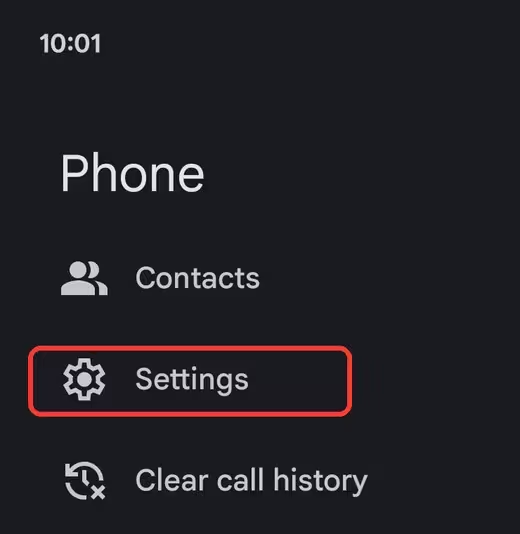
- Open Caller ID and spam under Call Assist.
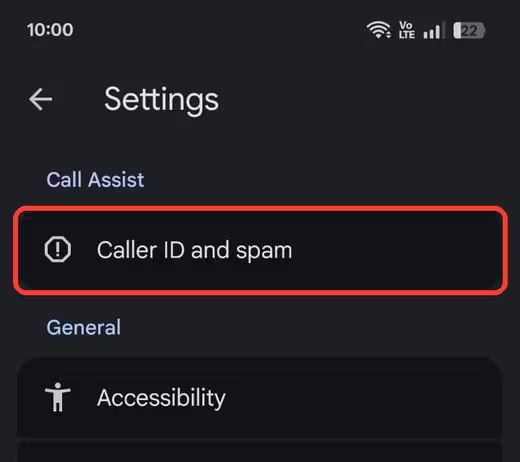
- Turn on See caller and spam ID so the app warns you before you answer a suspected spam call.
- Turn on Filter spam calls so the app silences suspected junk calls automatically.
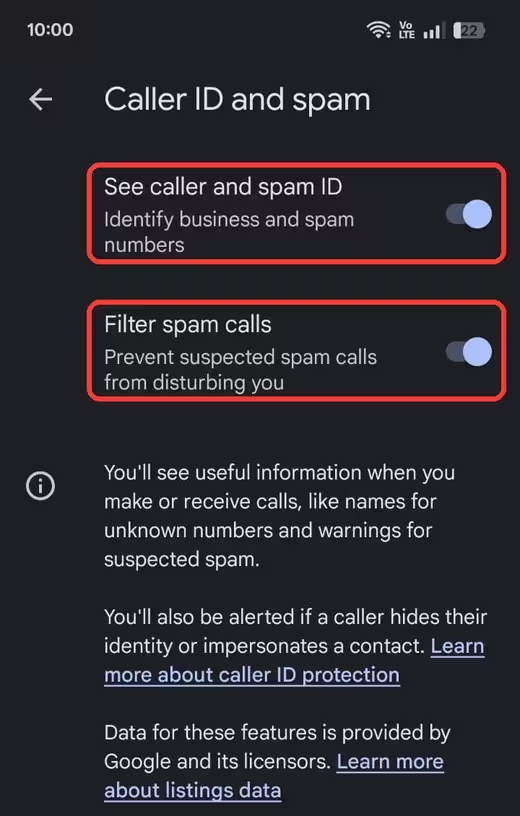
These features need Android 6.0 or newer and the latest Phone app set as your default dialer. Filtered calls still show in your call history, so you can check for a wrongly flagged number. If your phone ships with a different dialer, look for a similar option in its settings, or install Google’s Phone app and make it the default.
Use Call Screening on Pixel and Samsung
Call screening goes a step further and asks the caller to state their reason before your phone rings.
- Pixel 6 or newer: Open the Phone app, go to Settings > Spam and Call Screen, then open Call Screen and choose your options.
- Supported Samsung phones: Open the Phone app, tap the three-dot icon at the top right, go to Settings, and select Call screening.
Menu names change slightly between manufacturers and app versions, so search the Phone app settings for “spam” or “screen” if you do not see these exact labels.
How to Stop Spam Calls on iPhone Using Call Filtering
iPhone gives you three separate tools: a spam filter, an unknown caller list, and call screening. Use them together.
Silence Calls Your Carrier Flags as Spam
- Open Settings and tap Apps, then Phone.
- Scroll to Call Filtering and turn on Spam.
Calls that your carrier identifies as junk no longer ring. They go to voicemail and appear in a Spam list inside the Phone app.
Sort Unknown Callers Into Their Own List
In the same Call Filtering section, turn on Unknown Callers. Missed calls and voicemails from numbers outside your contacts move into a separate Unknown Callers list. If a number belongs there, use Mark as Known to move it back to your normal call log.
Pick a Screening Level for Unsaved Numbers
Scroll to Screen Unknown Callers in the Phone settings and choose one of three options:
- Never: Every call rings, the default behavior.
- Ask Reason for Calling: Your iPhone asks the caller why they are calling, and you read a live transcript before deciding to answer.
- Silence: Your iPhone mutes every call from a number you have not saved and sends it to voicemail.
Ask Reason for Calling suits most people because you still see real callers. Call screening is limited to select countries and requires iOS 26 or newer. Apple also pauses screening for 24 hours after you call emergency services, and it does not screen calls while you roam.
Silence also sends first-time calls from real people, such as a new doctor or a delivery driver, to voicemail. Save those numbers to Contacts before you pick it.
How to Block Spam Calls at the Carrier Level
Phone filters only see calls that reach your device, while your carrier can stop or label high-risk calls before that point.
Many carriers turn on basic spam protection by default, while others hide it behind a toggle. Open your carrier’s app or online account and look for a spam, scam, or call protection setting. If you take calls from unknown businesses often, start with labeling only. Move to full blocking after you confirm it does not catch legitimate callers.
Does the Do Not Call Registry Stop Spam Calls?
Registering at DoNotCall.gov reduces legal telemarketing calls from companies that follow the rules.
It does not stop criminal scammers or spoofed robocalls, since they ignore the registry. You can still report violations to the FTC, and those reports help regulators and carriers spot abusive calling patterns. If you live outside the US, check whether your country runs a similar registry.
What Should You Do When a Spam Call Rings?
How you react to a spam call matters as much as your settings.
- Let unknown numbers go to voicemail unless you expect a call.
- Do not press 1, 9, or any “remove me” key. Pressing a key tells the caller your number is live.
- Do not call back a number that rang once and hung up.
- Never share verification codes, card numbers, passwords, or your Social Security number on an unexpected call.
- Do not install a remote access app because a caller says your phone or account has a problem.
- Hang up on callers who claim to represent a bank or company, then call the official number on the company’s website or your card.
What to Do If You Already Answered a Spam Call
Answering a call alone does not hack your phone, so the damage depends on what you shared or approved afterward.
- Hang up and do not call the number back.
- If you shared card or bank details, contact your bank through its official app or the number on your card.
- If you read out a verification code, change the password on that account and review recent logins.
- If the caller sent a link or asked you to install an app, do not open the link again and remove any app or profile you installed.
- Report the call to the FTC or your local regulator, then block the number.
How to Stop Spam Calls That Get Past Every Filter
If calls continue after you enable every filter, switch to a contacts-only routine for a week.
Let only your contacts and favorites ring and send everything else to voicemail. On iPhone, set Screen Unknown Callers to Silence to do this. On Android, use call screening if your phone offers it. Then record a voicemail greeting that asks legitimate callers to leave their name and reason. Save numbers you rely on, such as your doctor, bank, school, and delivery services, so they still reach you. Treat a new phone number as a last resort, because banks, two-factor authentication, and account recovery often depend on your old one.
Frequently Asked Questions
Can I block every spam call permanently?
No. You can cut them sharply with device filters, carrier blocking, and voicemail screening, but spoofed and rotating numbers mean a few will always slip through.
Do spam call filters block real calls?
Sometimes. Filters occasionally flag a legitimate business or a new number, so check your spam list, filtered calls, and voicemail every few days.
Should I answer and tell spammers to stop calling?
No. Answering a robocall or scam call confirms your number is active and can bring more calls.
Why do spam calls show my own area code?
Scammers use neighbor spoofing, which makes the caller ID look local so you pick up. The displayed number usually belongs to someone unrelated.
Do I need Truecaller or another paid app?
Most people do not. The built-in iPhone and Android filters, plus your carrier’s spam protection, cover the same ground without a subscription. If you add a third-party app, read its privacy policy before you grant access to your call data.
