Accidentally closed Microsoft Edge and lost all your tabs? Whether it was a crash, a forced Windows restart, or a misclick, Edge has built-in tools to recover your entire session in seconds. This guide covers every method, from a single keyboard shortcut to fixing cases where Edge refuses to restore tabs automatically.
Method 1: Enable Automatic Session Restore on Startup
This one-time setting tells Edge to reopen all previous tabs every time you launch the browser.
- Open Microsoft Edge.
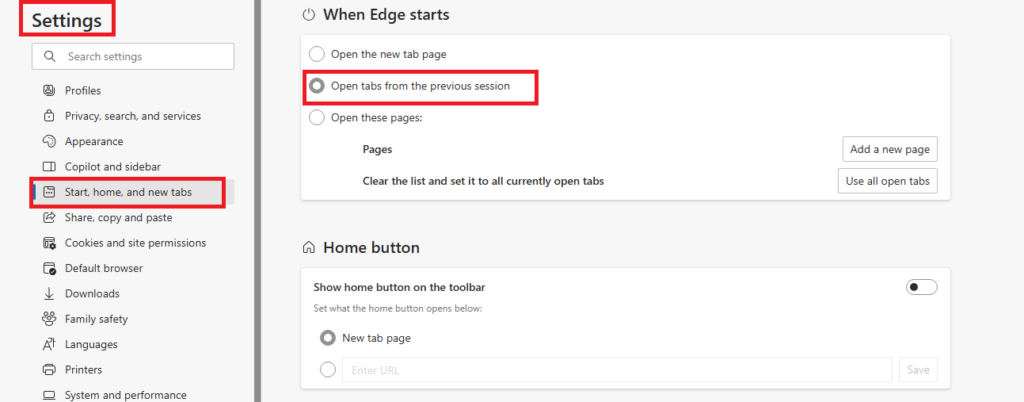
- Click the three-dot menu (…) in the top-right corner and select Settings.
- Go to Start, home, and new tabs.
- Under When Edge starts, select Open tabs from the previous session.
Once enabled, Edge automatically reopens your last session after any shutdown, restart, or forced closure. This is the most reliable method to prevent tab loss long-term.
Note for Windows 11 users: Windows 11 also has its own “Continue where you left off” option under Settings > System > Multitasking, but this controls app resume, not Edge tabs specifically. Use the Edge setting above for browser session recovery.
Method 2: Restore Tabs After a Crash or Unexpected Restart
When Edge closes unexpectedly, it usually detects this on the next launch and offers to recover your session.
- Launch Microsoft Edge.
- If a Restore pages? prompt appears at the top of the browser, click Restore.
If the prompt does not appear:
- Press Ctrl + Shift + T (Windows) or Command + Shift + T (macOS).
- Press the shortcut repeatedly to reopen multiple closed tabs and windows in order.
Method 3: Restore Tabs Using History
If the keyboard shortcut does not bring back what you need, the history panel lets you pick specific tabs or entire sessions manually.
- Open Microsoft Edge.
- Click the three-dot menu and select History, or press Ctrl + H.
- Select Recently closed.
- Click any individual tab, a full closed window, or your entire previous session to reopen it.
This method works well when you know the site name or remember roughly when a window was closed.
Method 4: Reopen a Closed Tab Using the Right-Click Menu
For quick single-tab recovery without shortcuts:
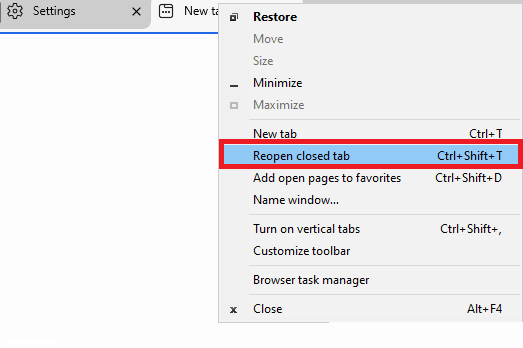
- Right-click on any open tab or on the empty area of the tab bar.
- Click Reopen closed tab.
- Repeat to restore additional tabs in sequence.
Method 5: Restore Tabs from Another Device via Sync
If you use Edge on more than one computer, sync lets you reopen tabs that were open on a different device.
- Sign in to Edge with the same Microsoft account on all devices.
- Go to Settings > Profiles > Sync.
- Make sure Open tabs is toggled on.
- Open History > Tabs from other devices.
- Click any tab to open it locally.
Method 6: Use a Session Manager Extension (Optional)
If you regularly work with large numbers of tabs, a session manager extension provides a manual backup layer.
Popular options:
- Tab Session Manager: Saves and names sessions; restores them on demand.
- OneTab: Collapses all tabs into a list you can restore individually or all at once.
These tools are useful when Edge’s built-in recovery fails or when you want to save a specific group of tabs for later.
Fixing Microsoft Edge When It Does Not Restore Tabs Automatically
If automatic restoration is not working, work through the following fixes in order.
Fix 1: Confirm the Startup Setting Is Still Enabled
Go to Settings > Start, home, and new tabs and verify Open tabs from the previous session is selected. Windows updates occasionally reset this setting without warning.
Fix 2: Turn Off Startup Boost Temporarily
Startup Boost can interfere with session recovery on some systems by loading Edge in the background before the restore process runs correctly.
- Go to Settings > System and performance.
- Turn off Startup boost.
- Fully close Edge, reopen it, and test whether session restore works.
Fix 3: Check for a Corrupted Profile
A corrupted Edge profile can block session recovery entirely.
- Click your profile icon in the top-right corner of Edge.
- Select Add profile and create a temporary new profile.
- Test whether session restore works on the new profile.
If it does, migrate your bookmarks and data to the new profile and remove the damaged one.
Fix 4: Avoid Using Disk Cleanup Tools Before Checking Session Files
Third-party disk cleaners and some Windows cleanup tools delete Edge’s session files stored in the browser’s local app data. Avoid running these tools without checking which Edge data they are configured to remove.
Fix 5: Verify Sync Is Active
If you rely on synced tabs from another device:
- Confirm you are signed into your Microsoft account in Edge.
- Go to Settings > Profiles > Sync and verify Open tabs shows as enabled.
- If sync shows an error, disconnect and reconnect your Microsoft account.
Fix 6: Recover Tabs When Edge Won’t Open After a Crash
If Edge fails to launch at all after a crash, you can manually access recent session data.
- Press Win + R, type
%LocalAppData%\Microsoft\Edge\User Data\Default, and press Enter. - Look for files named Current Session, Last Session, or Current Tabs.
- These files contain your session state. Relaunching Edge normally after the crash usually reads them automatically. If not, removing any
lockfilein this folder and restarting Edge can allow recovery to proceed.
Why Microsoft Edge Sometimes Loses Open Tabs
Edge may fail to restore sessions for the following reasons:
- The startup restore setting is disabled or was reset by a Windows update.
- Windows forced a restart during a system update, skipping Edge’s normal shutdown routine.
- Sync disconnected or failed silently.
- The Edge user profile became corrupted.
- A disk cleanup tool removed session files from Edge’s local app data folder.
Keeping automatic session restore enabled and avoiding aggressive cleanup tools prevents the majority of tab loss.
FAQs: Restore Last Session in Microsoft Edge
How do I restore my last session in Microsoft Edge?
Enable Open tabs from the previous session in settings or press Ctrl + Shift + T to reopen closed tabs and windows.
Can Edge restore tabs after a crash?
Yes. Edge usually displays a restore prompt after a crash. If it does not appear, use the keyboard shortcut or open History.
Why didn’t Edge restore my tabs automatically?
Startup restore may be disabled, a Windows update forced closure, sync disconnected, or the user profile became corrupted.
How do I reopen a closed window in Edge?
Open History → Recently closed or press Ctrl + Shift + T multiple times.
Does Edge save open tabs automatically?
Yes, when Open tabs from the previous session remains enabled.
Can I restore tabs from another computer?
Yes. Enable sync and open History → Tabs from other devices.
What is the fastest way to restore a closed tab?
Use Ctrl + Shift + T (Windows) or Command + Shift + T (macOS).
Will restoring many tabs slow Edge?
Edge loads tabs progressively, so performance impact remains minimal on modern systems.
Enabling automatic session restore and syncing tabs across devices gives Edge two independent layers of protection against accidental tab loss. For heavy workflows with dozens of open tabs, adding a session manager extension provides a third backup that operates entirely within your control.

