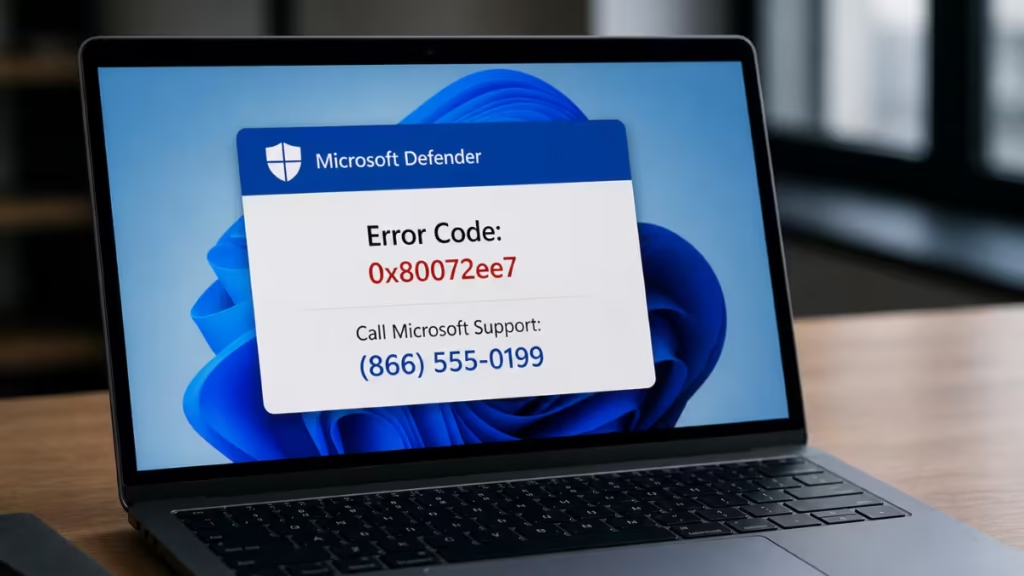
If your screen froze and showed an error like Error Code 0x002E880x with a phone number to call, that is not Microsoft. That is a tech support scam, and calling that number puts your personal information, finances, and device at serious risk.
This guide explains exactly what this scam looks like, how it works, and what to do if you already called.
Yes, the Microsoft Defender Error Code Is a Scam
The error code and phone number you see on screen are fake. Scammers design these pop-ups to look like real Windows security alerts from Microsoft Defender. They copy Microsoft's branding, use urgent language, and display convincing-looking error codes like 0x002E880xdocvulp6s73fe9r80 to make the message seem legitimate.
Here is the single most important rule to remember: Microsoft error and warning messages never include a phone number. If you see a phone number on an error screen, it is a scam, every time, with no exceptions.
Microsoft does not send unsolicited messages or make unsolicited calls to offer tech support. If you did not contact Microsoft first, Microsoft will not contact you.
How the Microsoft Defender Error Code Scam Works
Scammers use several methods to put that fake error on your screen.
Web-based pop-ups are the most common trigger. A malicious ad on a website redirects your browser to a scam page. The page displays a fake blue screen or a fake Microsoft Defender alert, sometimes locking the browser in full-screen mode so it looks like a real system error. The page may also play an audio warning to increase the sense of panic.
Unsolicited phone calls work differently. The scammer calls you directly and claims to be from Microsoft or a Microsoft partner. They may already know your name from public phone directories, and they might correctly guess your operating system to appear more credible.
Once they have your attention, the goal is always the same: get you on a call with a fake technician who can take control of your device.
Email and text phishing round out the attack methods. Scammers send messages that appear to come from Microsoft, warning you about a security issue and asking you to call a support number or click a link.
What Happens When You Call the Number
When you call, a person identifying themselves as a Microsoft Defender employee or technician answers. They may give a name, an employee ID number, and a direct callback number to seem legitimate. None of that information is real or verifiable.
The scammer will then:
- Ask you to install remote access software such as AnyDesk, TeamViewer, or a similar tool
- Use that remote access to show you fabricated "evidence" of infections or critical errors on your PC
- Charge you a fee to fix problems that do not exist
- Steal personal and financial information while they have access to your screen
- Install actual malware, ransomware, or keyloggers running in the background
At worst, they drain bank accounts, steal identity documents, or lock your files behind ransomware. Many victims do not realize what happened until days or weeks later.
Warning Signs That Confirm It Is a Scam
Any one of these signs is enough to confirm the error is fake:
- The error message includes a phone number
- The error appeared inside a browser window, not as a Windows system notification
- The browser went full-screen and you could not close it or open Task Manager
- An audio message played telling you to call immediately
- The caller asked you to install software to give them remote access
- The caller asked for payment by gift card, wire transfer, or cryptocurrency
- The caller pressured you to act immediately and told you not to close the screen
Real Windows security alerts from Windows 11's built-in antivirus appear as system toast notifications in the bottom-right corner of the screen. They open Windows Security when you click them. They never display a phone number and never ask you to call anyone.
What to Do If You Already Called
If you called the number and spoke with someone, act immediately. The steps below cover the most critical actions in order of priority.
Step 1: Disconnect Remote Access
If you installed any remote access software during the call, close it immediately and disconnect your PC from the internet. Go to your installed apps list and uninstall every application the caller asked you to install.
Step 2: Run a Full Microsoft Defender Scan
Running a Microsoft Defender virus scan is the fastest way to check whether the scammer installed anything malicious during the session. Open Windows Security, go to Virus and threat protection, and run a Full scan. Remove anything the scan flags before moving on.
Step 3: Change Your Passwords
Change the passwords on every account you accessed while the scammer had remote control of your device. Start with your Microsoft account, email, and banking. Enable multi-factor authentication on all of them if you have not already done so.
Step 4: Contact Your Bank or Credit Card Provider
If you paid anything during the call, contact your credit card company or bank immediately. Explain what happened and ask them to reverse the charges. They will likely cancel and replace your affected cards to prevent the scammers from using them again.
Step 5: Consider Resetting Your Device
If you are still seeing pop-ups, fake error messages, or unusual activity after running a scan, resetting your device may be the safest option. Go to Settings > System > Recovery and choose Reset this PC. This removes any software the scammers installed during their access window.
If Windows is not loading correctly after the incident, see the guide on how to fix "Your PC Did Not Start Correctly" on Windows 11 for recovery options.
How to Remove Malware After a Tech Support Scam
Disconnecting the scammer's access is step one. Cleaning up what they left behind is step two.
Run a Microsoft Defender virus scan with the latest definitions before doing anything else. Open Windows Security, confirm the definitions are current, then run a Full scan rather than a Quick scan. A Full scan checks every file on the drive.
After the scan, apply all pending Windows updates. Go to Settings > Windows Update and install everything available. Security updates patch the vulnerabilities scammers use to install persistent tools.
Watch for processes consuming unusual CPU or memory after the incident. Some background processes spike CPU legitimately, but a process that appeared after the scammer's session and refuses to stop is a red flag. If your PC feels sluggish and slow in a way it did not before the call, a follow-up scan and a Windows reset are both reasonable responses.
How to Protect Yourself From Future Scams
The best protection is knowing what real Microsoft security alerts look like and what they never do.
Real Windows security alerts:
- Appear as system notifications in the bottom-right corner of the screen
- Open Windows Security or a specific Settings panel when clicked
- Never display a phone number
- Never play audio warnings
- Never lock your browser or prevent you from closing a window
Use Microsoft Edge for browsing. Edge blocks known tech support scam sites through Microsoft Defender SmartScreen and stops the pop-up dialog loops these pages use to prevent you from closing the tab. If you encounter a suspicious site in Edge, go to Settings and More > Help and Feedback > Report unsafe site to flag it for Microsoft.
Keep Windows 11's built-in antivirus updated and running. It blocks most scam redirect pages before they fully load. You do not need third-party software to catch these threats, but you do need to keep Windows Security active and current.
Never download software based on instructions from an unsolicited caller or a browser pop-up. Download software only from the Microsoft Store or official Microsoft partner websites.
Slow down when something creates panic. Scammers deliberately manufacture urgency to stop you from thinking clearly. A real security problem on your PC will still be there after you take a breath, close the browser, and investigate on your own terms.
How to Report the Microsoft Defender Error Code Scam
Reporting these scams helps Microsoft and law enforcement identify and shut down scam operations.
- Report to Microsoft: Go to microsoft.com/reportascam and submit the phone number, any names or employee IDs the scammer used, and a description of what happened.
- Report to the FBI: File a complaint at ic3.gov, the FBI's Internet Crime Complaint Center. Include phone numbers, names, callback numbers, and all communications from the scammer. Keep all original records.
- Report to the FTC: Visit reportfraud.ftc.gov to file a report with the Federal Trade Commission. The FTC uses these reports to track patterns and pursue enforcement actions.
- Contact local law enforcement: For significant financial losses or confirmed identity theft, file a police report with your local law enforcement agency. Keep copies of everything.
Frequently Asked Questions
Is Error Code 0x002E880x a real Microsoft error?
No. There is no legitimate Microsoft error with that code or format. Any screen showing this code alongside a phone number is a fabricated scam alert designed to scare you into calling a fake technician.
Does Microsoft ever call you about a virus on your PC?
No. Microsoft does not make unsolicited calls to provide technical support. If you receive a call like this, hang up immediately. Microsoft will never call you to report a problem on your device unless you initiated a support request first.
What if I gave the scammer remote access to my PC?
Disconnect the session immediately, run a Microsoft Defender virus scan, change all your passwords, and call your bank. Consider resetting your device if suspicious activity continues after the scan.
Can the scammer access my PC again after I disconnected?
Yes, if they installed remote access software or malware during the session. Uninstall every application they asked you to install and run a full security scan to remove any remaining threats. A Windows reset eliminates anything a scan misses.
What if I paid the scammer?
Contact your credit card company or bank immediately to dispute the charges and cancel the affected cards. Report the incident to the FTC at reportfraud.ftc.gov and to the FBI at ic3.gov.
Why do these fake error codes look so convincing?
Scammers copy the visual style of real Windows error notifications, use hex-formatted strings that look like legitimate error codes, and trigger the alerts at moments when your browser is already open. The format mimics real stop codes like those behind actual CRITICAL_SERVICE_FAILED errors on Windows 11 or DPC Watchdog Violation BSODs, which makes the fakes harder to dismiss at first glance.