If Grindr keeps showing Error 14 or Error 76itwkq6 on your iPhone, you are not alone. These errors usually appear during login, account verification, or app loading and prevent the app from working normally on iOS devices.
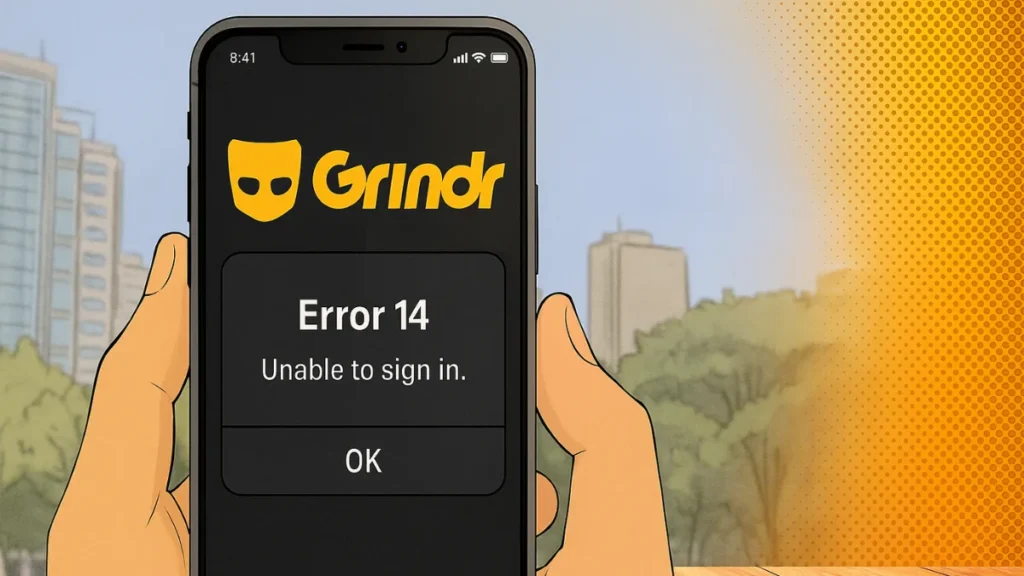
This guide explains what these errors mean, why they happen, and how to fix them step by step on iOS, using proven methods that work on the latest iPhone models and iOS versions.
Check Grindr Server Status First (Important)
Before changing anything on your iPhone, first confirm whether Grindr is experiencing a service outage.
How to check
- Search “Grindr down” on Google
- Check the official Grindr server status on the Grindr Status page (status.grindr.com), or on Downdetector and other outage trackers
- Look for recent posts on social platforms mentioning login or server issues
If Grindr’s servers are down, no fix on your device will work. In that case, wait until services are restored and try again later.
For example, a January 29, 2026 incident on the official Grindr Status page reported a profile grid outage that disrupted messaging and media before services were restored.
Step-by-Step Fix for Grindr Error 14 and 76itwkq6 on iOS
Follow these solutions in order. Stop once the issue is resolved.
1. Force Close Grindr and Restart Your iPhone
Temporary memory or session glitches often trigger these errors.
Steps
- Swipe up from the bottom (or double-press Home button)
- Swipe Grindr away to close it completely
- Restart your iPhone
- Open Grindr and try logging in again
This clears temporary session conflicts.
2. Switch Internet Connection (Very Important)
Network restrictions are one of the most common causes.
Try this
- Switch from Wi-Fi to mobile data
- Or switch from mobile data to a different Wi-Fi network
- Avoid public, office, or college Wi-Fi
Many public networks block Grindr traffic, which leads to Error 14 or 76itwkq6.
3. Disable VPN, iCloud Private Relay, and DNS Apps
Grindr actively restricts suspicious or masked IP connections.
Turn off
- VPN apps
- iCloud Private Relay
- Ad-blocking DNS or firewall apps
After disabling them:
- Restart your iPhone
- Open Grindr again
This alone fixes the issue for many users.
4. Update Grindr to the Latest Version
Older app versions often fail to communicate properly with updated servers.
Steps
- Open the App Store
- Search for Grindr
- Tap Update if available
Always keep the app updated, especially after iOS updates.
5. Offload and Reinstall Grindr (Safe Method)
If cached app data is corrupted, reinstalling helps.
Steps
- Go to Settings → General → iPhone Storage
- Select Grindr
- Tap Delete App
- Restart your iPhone
- Reinstall Grindr from the App Store
This removes corrupted data and resets the app connection.
6. Check Date, Time, and Region Settings
Incorrect system time can break secure authentication.
Steps
- Go to Settings → General → Date & Time
- Enable Set Automatically
- Go to Settings → General → Language & Region
- Ensure the region matches your actual location
Then reopen Grindr.
7. Reset Network Settings (Last Resort)
If nothing else works, reset your network configuration.
Steps
- Go to Settings → General → Transfer or Reset iPhone
- Tap Reset → Reset Network Settings
- Reconnect to Wi-Fi or mobile data
This does not erase personal data but removes saved networks.
How to Prevent Grindr Error 14 and 76itwkq6 in the Future
- Avoid using VPNs while logging in
- Do not switch locations rapidly
- Keep Grindr and iOS updated
- Use stable mobile data or trusted Wi-Fi
- Avoid repeated login attempts in a short time
Following these tips reduces the chance of account or IP restrictions.
When to Contact Grindr Support
If the error continues after all fixes, your account may need manual verification.
Contact support if:
- The error appears on multiple networks
- Reinstalling does not help
- The issue persists for more than 24–48 hours
Grindr Error 14 and 76itwkq6 on iOS are frustrating but fixable. In most cases, switching networks, disabling VPNs, and reinstalling the app solves the problem quickly.
If the issue continues, it is likely server-related or requires help from Grindr support.
FAQs
What causes Grindr Error 14 on iPhone?
It usually happens due to server authentication failures, unstable networks, VPN interference, or corrupted app data.
What does 76itwkq6 mean on Grindr?
It is a network or server-side error that prevents Grindr from establishing a stable session.
Does reinstalling Grindr fix these errors?
Yes. Reinstalling clears corrupted cache and often resolves both errors.
Can VPNs cause Grindr login errors?
Yes. VPNs and private relays are one of the most common causes.
Is my Grindr account banned?
Not usually. These errors are mostly technical and temporary.
If this guide helped you, bookmark it and check back — we update it whenever Grindr changes its login or server behavior.

