If you want to run Ubuntu on your Windows 11 PC but are unsure where to start, this guide covers two reliable methods:
- Install Ubuntu using WSL (Windows Subsystem for Linux) — runs inside Windows, no partitioning needed.
- Install Ubuntu alongside Windows 11 (dual boot) — gives you the full Ubuntu desktop experience.
Both methods work on Windows 11 in 2026. Pick the one that fits your use case.
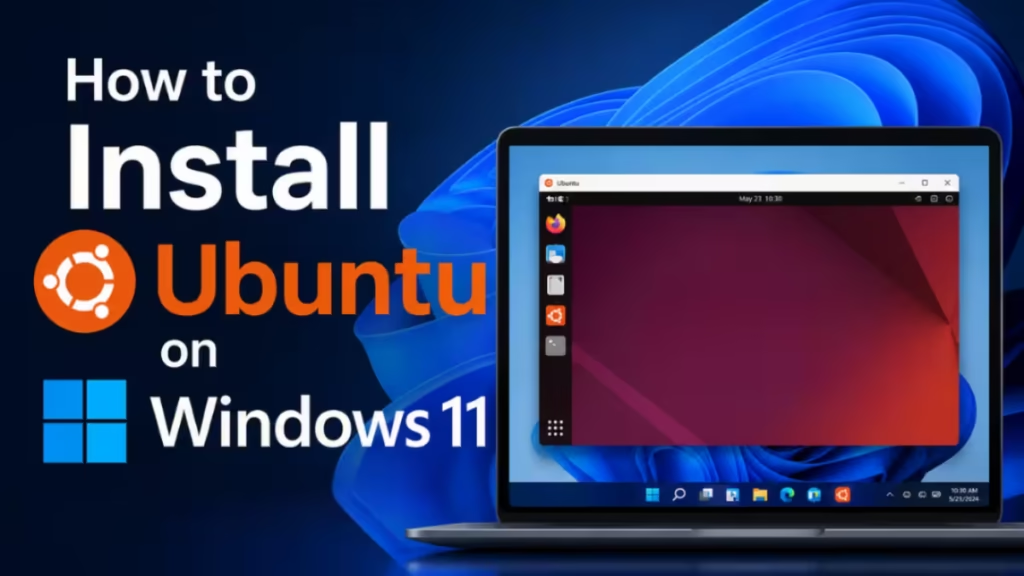
Method 1: Install Ubuntu on Windows 11 Using WSL (Easiest Way)
WSL lets you run Ubuntu directly inside Windows like any other application. No hard drive partitioning required.
Requirements: Windows 11 with virtualization enabled in BIOS/UEFI (most modern PCs have this on by default).
Step 1: Open PowerShell as Administrator
Press Win + X and select Terminal (Admin) or Windows PowerShell (Admin).
Step 2: Install WSL and Ubuntu
Run the following command:
wsl --installThis automatically installs WSL 2 and the latest Ubuntu LTS version. If WSL is already installed and you want to add Ubuntu:
wsl --install -d UbuntuTo install a specific Ubuntu version (for example, 24.04):
wsl --install -d Ubuntu-24.04To see all available Linux distributions:
wsl --list --onlineIf you already have WSL installed, keep it updated with:
wsl --updateStep 3: Restart Your Computer
Restart your PC after the installation finishes. This is required for WSL components to activate.
Step 4: Launch Ubuntu
After rebooting, search for Ubuntu in the Start menu and open it. The first launch takes a few minutes to complete setup. Create your Linux username and password when prompted.
Step 5: Update Ubuntu Packages
Run these commands inside your Ubuntu terminal:
sudo apt update && sudo apt upgrade -yDone. You now have Ubuntu running inside Windows 11.
Bonus: WSL also supports Linux GUI apps through WSLg — no extra setup needed on Windows 11. You can run graphical Linux applications directly on your desktop.
Method 2: Dual Boot Ubuntu and Windows 11 (Full Desktop Install)
Dual boot gives you the complete Ubuntu desktop environment with full hardware access. When you start your PC, a boot menu lets you choose Windows 11 or Ubuntu.
Important: Back up your files before proceeding. This method involves partitioning your hard drive.
Step 1: Download the Ubuntu 26.04 LTS ISO
Visit ubuntu.com/download/desktop and download the Ubuntu 26.04 LTS (Resolute Raccoon) ISO file. This is the latest long-term support release as of April 2026, supported until April 2031.
Minimum system requirements for Ubuntu 26.04 LTS:
- 2 GHz dual-core processor or better
- 6 GB RAM minimum
- 25 GB free disk space
Step 2: Create a Bootable USB Drive
- Insert a USB drive with at least 8 GB of storage.
- Download Rufus (free, Windows-only) or balenaEtcher.
- Open Rufus, select your USB drive, choose the Ubuntu ISO file, and click Start.
- In Rufus, select GPT partition scheme and UEFI target system — required for Windows 11 PCs.
Step 3: Free Up Disk Space in Windows 11
- Press Win + X and open Disk Management.
- Right-click your main drive (usually C:).
- Select Shrink Volume and free at least 30 GB for Ubuntu (40 GB or more is recommended for comfortable use).
Step 4: Boot from the USB Drive
- Restart your PC.
- Press F12, F2, or Del at startup to open the boot menu (the key varies by manufacturer).
- Select your USB drive from the boot menu.
Step 5: Install Ubuntu
- From the Ubuntu boot screen, select Install Ubuntu.
- When asked about the installation type, choose Install Ubuntu alongside Windows Boot Manager. This is the safest option and preserves your existing Windows installation.
- Assign the free space you created in Step 3 to Ubuntu.
Step 6: Finish Setup
- Enter your name, username, and password.
- Wait for the installation to complete, then restart your PC.
- Remove the USB drive when prompted.
On the next boot, you will see the GRUB boot menu. Use the arrow keys to select Windows 11 or Ubuntu, then press Enter.
Which Ubuntu Installation Method Is Best for You?
Choose WSL if:
- You need Ubuntu for coding, development, or learning Linux commands.
- You want to avoid partitioning your hard drive.
- You want a quick, reversible setup with no risk to Windows.
Choose dual boot if:
- You want the full Ubuntu 26.04 desktop environment.
- You plan to use Ubuntu as a daily driver for development or productivity.
- You want maximum performance from Linux applications.
First Things to Do After Installing Ubuntu
Keep your system updated:
sudo apt update && sudo apt upgrade -yInstall software from the Ubuntu Software Center or via the terminal using apt install.
Learn essential commands: ls, cd, pwd, mkdir, apt install, sudo.
WSL file access: Your Windows C: drive is available inside Ubuntu at /mnt/c/. From Windows File Explorer, access Ubuntu files at \\wsl$\Ubuntu\.
GRUB boot menu: If you dual booted and see the GRUB menu on startup, that is normal. It lets you choose your operating system on every boot.

