LineageOS 24 is the custom ROM’s build of Android 17. It keeps the project’s Google-free approach, adds a new image editor, and introduces a browser-based installer that cuts out most of the desktop setup. This guide covers what the release includes, which phones can run it, and how to install or upgrade.
What Is LineageOS 24 and What Changed From LineageOS 23.2?
LineageOS 24 is the open-source Android distribution rebuilt on top of Android 17, with the project’s own apps and privacy-first defaults layered over it.
The ROM strips out manufacturer skins and most bloatware, then adds its own tools for gallery, camera, music, browsing and updates. Some apps that depend heavily on Google services may misbehave, but most everyday apps run normally. Compared with LineageOS 23.2, version 24 moves to Android 17 and adds the Canvas editor, streamed updates and the WebUSB installer. The 24.0 branch matches the stability and feature level of 23.2, so it works as a straight upgrade path rather than a preview.
LineageOS 24 Supported Devices List (Official Builds by Brand)
More than 150 phones, tablets and handhelds already have 24.0 builds, and maintainers keep adding more as their device trees meet the project’s requirements.
Most entries moved over from 23.2. Find your brand in the table below.
| Brand | Examples with 24.0 builds |
|---|---|
| Pixel 4 through Pixel 10, Pixel 10 Pro Fold, Pixel 10a, Pixel Fold, Pixel Tablet | |
| OnePlus | OnePlus 7 through 13, OnePlus 15, OnePlus 15T, Nord CE4, Nord N10, Pad 2 Pro, Pad 3 Pro |
| Samsung | Galaxy S20 series, S22 series, S23, Note20 series, A52, A72, A73, Tab S7 and S7+ |
| Motorola | moto g series, edge 20, 30 and 40 families, ThinkPhone, moto e7 plus |
| Xiaomi | Xiaomi 12, 12S, 13, Mi 10 variants, POCO F3, F5, F5 Pro, F6 Pro, Redmi Note 8 and 9 |
| Sony | Xperia 1 II to VI, Xperia 5 II to V, Xperia 10 IV, V and VII |
| Realme | Realme 9 5G, 9 Pro 5G, 10 Pro 5G, GT7 Pro, Q5 |
| Handhelds and others | AYN Odin 2, AYN Thor, Retroid Pocket 6, Razer Edge, Fairphone 4 and 5, Nothing Phone (1), Amazon Fire Max 11, Solana Saga |
A few devices debut with LineageOS 24 and have no earlier build on this branch. These include the Pixel 10 family, OnePlus 15, OnePlus 15T, AYN Thor, Amazon Fire Max 11, Realme GT7 Pro and the Galaxy Tab S7+.
Phones Not Supported on LineageOS 24 (Kernel 4.4 and 4.9 Stay on 22.2)
Devices that run Linux kernel 4.4 or 4.9 will not get LineageOS 23.2 or 24.0 official builds.
The team calls those older kernels too hacky to carry forward, so it accepts only LineageOS 22.2 submissions for them. LineageOS 22.2 still gets monthly builds and security patches until Google stops publishing Android 15 bulletins. If your phone falls in this group, stay on 22.2 and expect support there.
LineageOS 24 also sets a higher bar for kernels. Shipping kernels need 1:1 eBPF backports and must build without GCC.
New Features in LineageOS 24: Canvas Editor, Streamed Updates and More
The release focuses on a visual refresh of the built-in apps, faster updates and easier installation.
Material Design 3 Expressive across the apps
Most core apps now follow Google’s Material Design 3 Expressive style. That covers the Updater and Setup Wizard, with new layouts and smoother animations.
Canvas image editor
Canvas is a new app that handles basic edits such as cropping, white balance and filters. It sits beside the Glimpse gallery and the Aperture camera, so you can capture, browse and edit without installing anything extra.
Streamed updates in the Updater
The redesigned Updater streams updates by default. On phones with A/B partitions, this shortens install time noticeably, the same way Pixel phones handle OTA updates. On phones without A/B partitions, the Updater refreshes the recovery partition on the first boot after a successful update. Tablet and TV layouts also look better.
Jelly browser PWA shortcuts
Jelly now creates PWA-style apps through its shortcut system. You can pin a website as an app-like icon without visiting a third-party app store.
Twelve music player upgrades
Twelve loads large libraries faster, adds a Most Played view for albums and genres, improves Jellyfin support and fixes a bug that left tracks stuck when audio offload was on.
Smaller changes worth knowing
- Catapult, the Android TV launcher, shows a battery indicator on handhelds and gets new icons and animations.
- Etar (calendar) and Seedvault (backup) track their newest upstream versions.
- System WebView updates to version 155.0.8059.30.
- Setup Wizard gives device maintainers hooks to add their own setup pages for peripherals.
- Security patches from August 2025 to October 2026 reach LineageOS 18.1 through 24.0.
LineageOS 24 Install Requirements and Pre-Flash Checklist
A few minutes of preparation prevents most failed installs.
- Back up photos, messages and app data off the device. Seedvault can handle app backups.
- Confirm your model and codename on the wiki, because similar-looking variants use different builds.
- Charge the phone to at least 50%.
- Use a quality USB cable and a direct port on your computer, not a hub.
- Download every file from the official LineageOS pages and keep them in one folder.
- Read the device guide start to finish. Android’s partition schemes changed from system-as-root to A/B to dynamic partitions to Virtual A/B, so steps from an older phone or video may no longer apply.
How to Install LineageOS 24 With the WebUSB Flash Tool
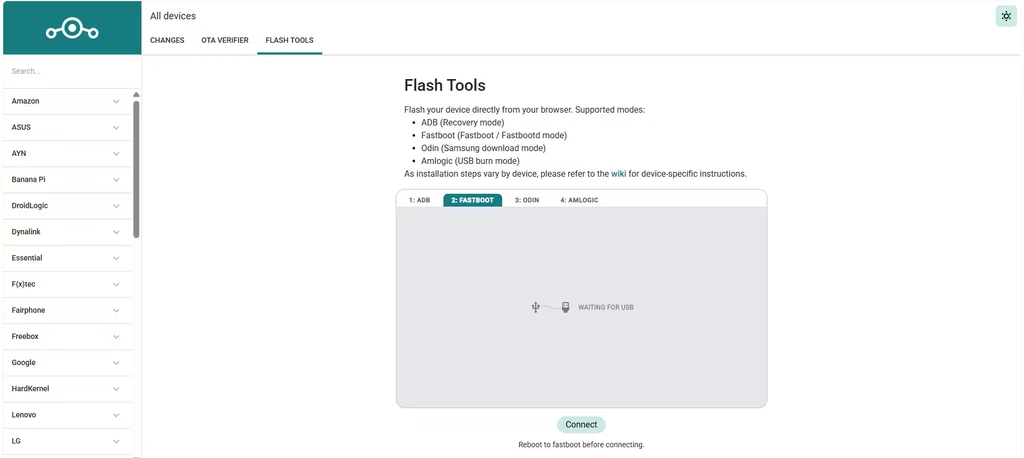
The new WebUSB flasher at flash.lineageos.org lets a Chromium-based browser talk to your phone directly, so you skip installing platform tools on your computer.
The link opens the Flash Tools tab on the LineageOS download site. The tool has one tab per protocol: ADB for recovery mode, Fastboot for fastboot or fastbootd mode, Odin for Samsung download mode, and Amlogic for USB burn mode. It adds an option and does not replace the device guides on the wiki, which stay the default method. Compatibility depends on your device, browser, operating system and USB cable.
- Open your device page on the LineageOS Wiki and confirm it lists a 24.0 build. Unlock the bootloader if the guide says to.
- Back up your data. A clean install wipes the phone.
- Connect the phone with a reliable USB cable and open flash.lineageos.org in Chrome, Edge, Brave or another Chromium browser.
- Boot the phone into the mode your guide specifies, such as fastboot, recovery or Samsung download mode.
- Pick the matching protocol tab in the tool, then click Connect and allow the browser to access the USB device. The Fastboot tab asks you to reboot to fastboot before you connect, and it shows “Waiting for USB” until it detects the phone.
- Follow the on-screen prompts. The tool flashes the required images and the ROM for you.
- Reboot when the tool finishes and complete the setup wizard.
How to Install LineageOS 24 Manually With ADB Sideload
The classic method still works on every supported device and gives you more control when something goes wrong.
- Install the latest Android SDK Platform-Tools on your computer.
- Download the LineageOS 24 build and the matching recovery image for your device from the official download page. Some devices also need
boot.img,vendor_boot.imgordtbo.imgfrom the same folder. - Boot to the bootloader and flash the recovery with
fastboot flash recovery recovery.img. Devices withvendor_bootneedfastboot flash vendor_boot vendor_boot.imginstead, as the wiki specifies. - Boot into recovery and choose Factory Reset, then Format data/factory reset.
- Choose Apply Update, then Apply from ADB.
- Run
adb sideloadfollowed by the name of the LineageOS zip file. - If you want Google apps, sideload a compatible Android 17 package before the first reboot. Recovery warns about signature verification for add-ons. Confirm the prompt to continue.
- Choose Reboot system now. The first boot takes several minutes.
If the sideload progress in your terminal stops around 47% and prints an error such as adb: failed to read command: Success, the transfer has usually finished. Check the phone’s recovery screen before you retry.
How to Upgrade to LineageOS 24 Without Wiping Data
Your starting point decides the steps.
If you already run an official LineageOS build, open your device page on the wiki and follow the Upgrade to a higher version of LineageOS guide. You do not need to wipe the phone unless the guide says so. Devices with big changes, such as a new partition layout, may require a wipe.
If you run an unofficial build or stock firmware, follow the full installation guide for your device. That route wipes your data.
If you installed Google apps on the previous version, flash the Android 17 package before you boot into the new system.
LineageOS 24 vs 23.2: Which Version Should You Install?
LineageOS 24 brings Android 17 and a longer list of refreshed apps, while LineageOS 23.2 stays on Android 16.
The maintainers say the two branches match in features and stability. Choose 24 if your device has a build and you want the newest Android base plus Canvas and the streamed Updater. Stay on 23.2 if your device has not moved yet.
Frequently Asked Questions
Does LineageOS 24 include Google apps?
No. LineageOS ships without Google Mobile Services. You can add a compatible Google apps package for Android 17 if you rely on the Play Store.
Will I lose my data when I upgrade?
An upgrade from an official LineageOS build keeps your data unless your device’s wiki page asks for a wipe. A switch from stock firmware or an unofficial ROM needs a clean install.
Which browsers work with the WebUSB flasher?
WebUSB needs a Chromium-based browser such as Chrome, Edge or Brave. Firefox and Safari do not support it.
Is the WebUSB installer safer than ADB and Fastboot?
It does not remove the risk. The tool uses the same flashing protocols, so a wrong file or wrong device selection still causes problems. Back up first and follow the prompts carefully.
Can I install LineageOS 24 on my old phone?
Check the device list on the wiki. Phones with kernel 4.4 or 4.9 stay on LineageOS 22.2, and newer phones appear on 24.0 as maintainers finish their builds.
Do I need a computer?
Yes. Both the browser flasher and the ADB method need a PC or Mac with a USB connection to the phone.

