Ollama lets you download and run large language models like Llama 3, Mistral, and Gemma directly on your Windows PC. Your prompts never leave your machine, there are no token fees, and the models work offline after the initial download. This article covers the full setup process on Windows 10 and Windows 11, including GPU acceleration, daily commands, and fixes for the most common errors.
Ollama System Requirements for Windows
Check these before you download anything.
- OS: Windows 10 version 22H2 or later, or Windows 11
- RAM: 8 GB minimum, 16 GB recommended
- Storage: 300 MB for the Ollama app, plus model storage. A 7B model needs around 4 GB, a 13B model around 8 GB, and a 34B model around 19 GB
- Storage type: SSD strongly recommended. Models load significantly faster from solid state drives
- GPU (optional): NVIDIA GTX 1000 series or newer with driver version 527 or higher. AMD GPU support uses DirectML on Windows. Ollama bundles its own CUDA runtime, so you do not need to install the CUDA Toolkit separately
- Internet: Required only for the initial app download and model pulls
CPU-only setups work fine for testing and lighter workloads. A compatible NVIDIA or AMD GPU speeds up inference by 5 to 10 times compared to CPU alone.
How to Download and Install Ollama on Windows
Follow these steps in order.
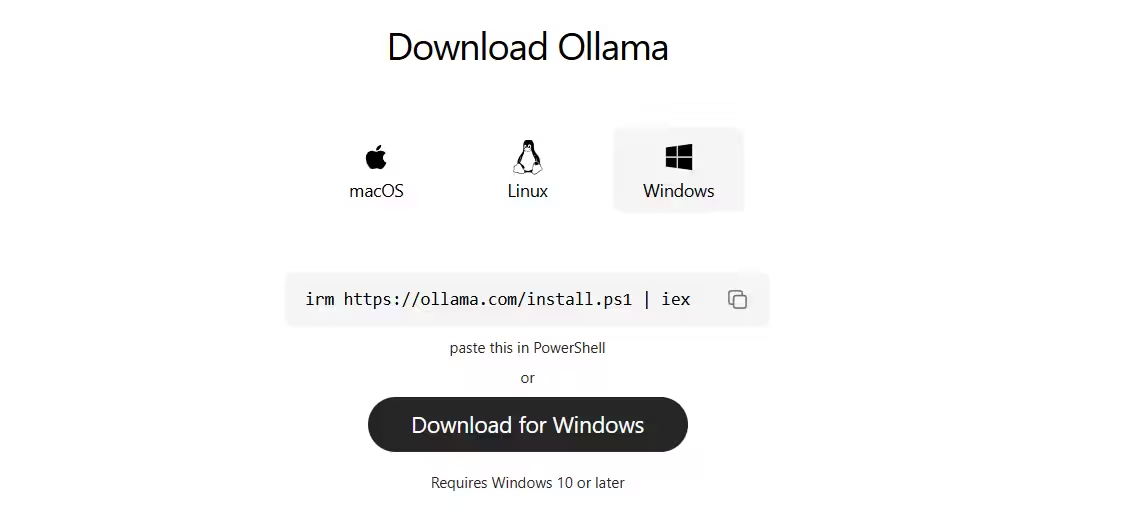
- Open your browser and go to ollama.com/download.
- Click the Windows button to download the
.exeinstaller file. - Locate the downloaded file and double-click it to launch the installer.
- Click through the prompts the same way you would for any standard Windows application. The installer adds Ollama to your PATH automatically.
- Wait for the installer to finish. Ollama starts running in the background and places an icon in your system tray.
If the installer does not launch, right-click the .exe file and choose Run as administrator. Some antivirus tools flag new unsigned installers. If your antivirus blocks the process, pause it briefly during installation, then re-enable it afterward.
How to Verify Ollama Is Running on Windows
Open Command Prompt or PowerShell and run:
ollama --versionThis prints the installed version number. If you see a version string, Ollama installed correctly and the PATH update worked.
You can also confirm the background service is active by looking for the Ollama icon in the Windows system tray (bottom-right corner of the taskbar). If the icon is present, the service is running.
To check the Ollama logs on Windows, press Win + R, type explorer %LOCALAPPDATA%\Ollama, and press Enter. This opens the folder where Ollama stores its log files.
How to Run Your First AI Model with Ollama on Windows
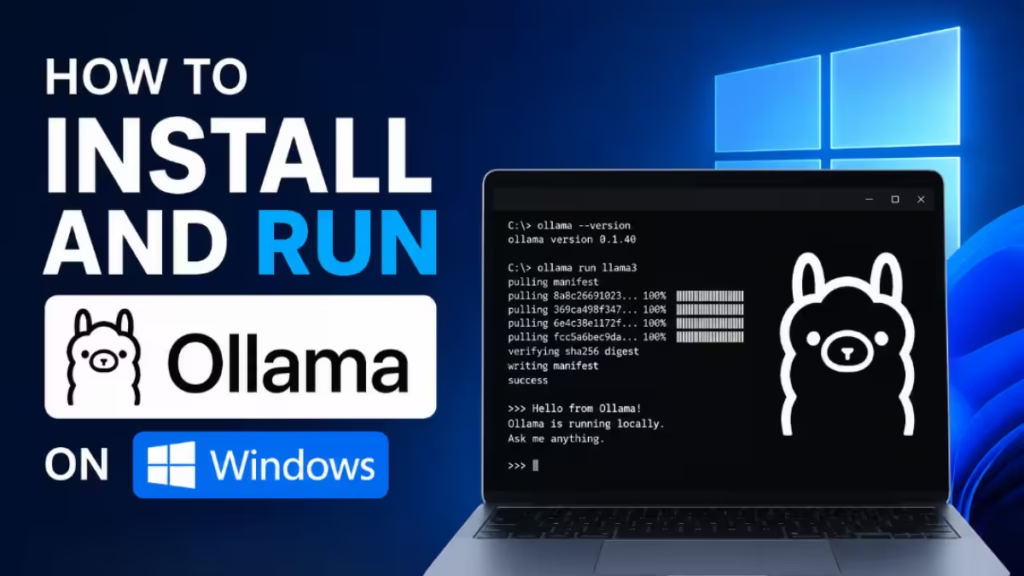
Pull and run a model with a single command. Open Command Prompt or PowerShell and run:
ollama run llama3The first run downloads the model file. The llama3 model is around 4.7 GB, so download time depends on your connection speed. After the download finishes, Ollama drops you into an interactive chat prompt. Type a question and press Enter to get a response. Type /bye to exit the session.
To pass a one-off prompt without entering the chat interface, use:
ollama run llama3 "Explain what an API is in simple terms"To start with a smaller, faster model instead, use llama3.2:1b (around 1.3 GB) or mistral (around 4.1 GB).
How to Enable GPU Acceleration on Windows
Ollama detects a compatible GPU automatically on installation. To confirm whether your GPU is active, run a model with the --verbose flag:
ollama run llama3 --verboseLook for a gpu layers value in the output. If it shows a number greater than 0, GPU acceleration is active. If it shows 0, the model is running on CPU only.
NVIDIA GPU Setup
Ollama supports NVIDIA GPUs with compute capability 5.0 or higher (GTX 1000 series and newer). The minimum driver version required is 527.
To check your current driver version, right-click the desktop, open NVIDIA Control Panel, and look under System Information. If your driver version is below 527, download the latest Game Ready or Studio driver from nvidia.com/drivers and install it. After updating, restart Ollama by right-clicking the system tray icon and choosing Quit, then relaunch Ollama from the Start menu.
AMD GPU Setup
On Windows, Ollama uses DirectML for AMD GPU acceleration rather than ROCm (which is Linux-only). Make sure your AMD drivers are up to date via the AMD Software: Adrenalin Edition app or from amd.com/support. Ollama detects DirectML-compatible AMD GPUs automatically.
Useful Ollama Commands for Windows
These cover everyday use once Ollama is running.
ollama list                   # Show all downloaded models
ollama pull mistral           # Download a model without running it
ollama run llama3             # Start an interactive chat
ollama run llama3 "prompt"    # Run a single prompt and exit
ollama rm llama3              # Remove a model to free disk space
ollama ps                     # Show currently loaded models
ollama stop llama3            # Unload a model from memory
Remove models you no longer use with ollama rm. Each model takes several gigabytes, and clearing unused ones keeps your drive healthy.
To use Ollama via its REST API, it listens locally at http://localhost:11434 by default. You can send requests to this endpoint from any local application or tool that supports HTTP.
How to Fix Ollama Not Working on Windows
1. Error: 'ollama' is not recognized as an internal or external command
This means Windows cannot find the Ollama binary in your PATH. Close and reopen Command Prompt or PowerShell first. If the error persists, re-run the Ollama installer. The installer writes the binary path to %LOCALAPPDATA%\Programs\Ollama and updates your user PATH automatically. After reinstalling, open a fresh terminal window and try again.
If the error continues after reinstalling, add the path manually:
- Press
Win + Sand search for Environment Variables. - Click Edit the system environment variables.
- Under User variables, click Path, then Edit.
- Click New and paste:
%LOCALAPPDATA%\Programs\Ollama - Click OK on all dialogs and open a new terminal.
2. Ollama tray icon is not visible after install
The Ollama process may not have started automatically. Open the Start menu, search for Ollama, and click to launch it. If it does not appear in the Start menu, navigate to %LOCALAPPDATA%\Programs\Ollama in File Explorer and run ollama app.exe directly.
3. GPU not detected, model running on CPU only
Run ollama run llama3 --verbose and check gpu layers. If it shows 0:
- For NVIDIA cards, update your driver to version 527 or higher from nvidia.com/drivers.
- After updating, quit Ollama from the system tray and relaunch it.
- Run the verbose command again to confirm
gpu layersis now greater than 0.
4. Error: listen tcp 127.0.0.1:11434: bind: address already in use
Another process is already using port 11434, which is Ollama's default port. Open Task Manager, find any existing ollama.exe process, and end it. Then relaunch Ollama from the system tray or Start menu.
5. Windows Defender flags the Ollama installer
Windows SmartScreen may block the installer on first run. Click More info on the SmartScreen warning, then click Run anyway. Download the installer directly from ollama.com/download to make sure you have the legitimate file.
6. Model download fails or stops mid-way
Check that Windows Defender Firewall is not blocking Ollama. Open Windows Security, go to Firewall and network protection, then Allow an app through firewall, and add ollama.exe from %LOCALAPPDATA%\Programs\Ollama if it is not already listed.
Frequently Asked Questions
Does Ollama work without a GPU on Windows?
Yes. Ollama runs on CPU alone. CPU-only setups generate around 7 to 12 tokens per second on modern hardware, which works fine for testing and lighter tasks. A compatible GPU speeds things up significantly.
How do I know if Ollama is running on Windows?
Look for the Ollama icon in the Windows system tray. If the icon is visible, the service is active. You can also open Command Prompt and run ollama list to confirm the CLI responds.
Can I run Ollama offline on Windows?
Yes, once you have downloaded a model with ollama pull or ollama run, it runs fully offline. No internet connection is required for inference.
How much RAM do I need to run Ollama on Windows?
8 GB is the minimum. 16 GB lets you run 7B and 8B models comfortably. 32 GB opens up 13B and some 34B models. If you have a GPU, VRAM also matters. 8 GB VRAM handles 7B models fully on GPU.
Where does Ollama store models on Windows?
Models are stored in %HOMEPATH%\.ollama\models by default. Press Win + R, type explorer %HOMEPATH%\.ollama, and press Enter to open the folder.
Can I use Ollama with Open WebUI on Windows?
Yes. Open WebUI is a browser-based chat interface that connects to Ollama's local API at http://localhost:11434. Install Open WebUI via Docker Desktop on Windows, and it will detect Ollama automatically.
How do I update Ollama on Windows?
Download the latest installer from ollama.com/download and run it over your existing installation. The installer updates the binary without removing your downloaded models.