The CRITICAL_PROCESS_DIED error in Windows 11 appears when a core system process crashes unexpectedly, also shown on screen as stop code 0xEF (0x000000EF). Windows stops instantly to protect the system, which results in a Blue Screen of Death (BSOD). This error usually points to corrupted system files, faulty drivers, recent updates, or hardware instability.
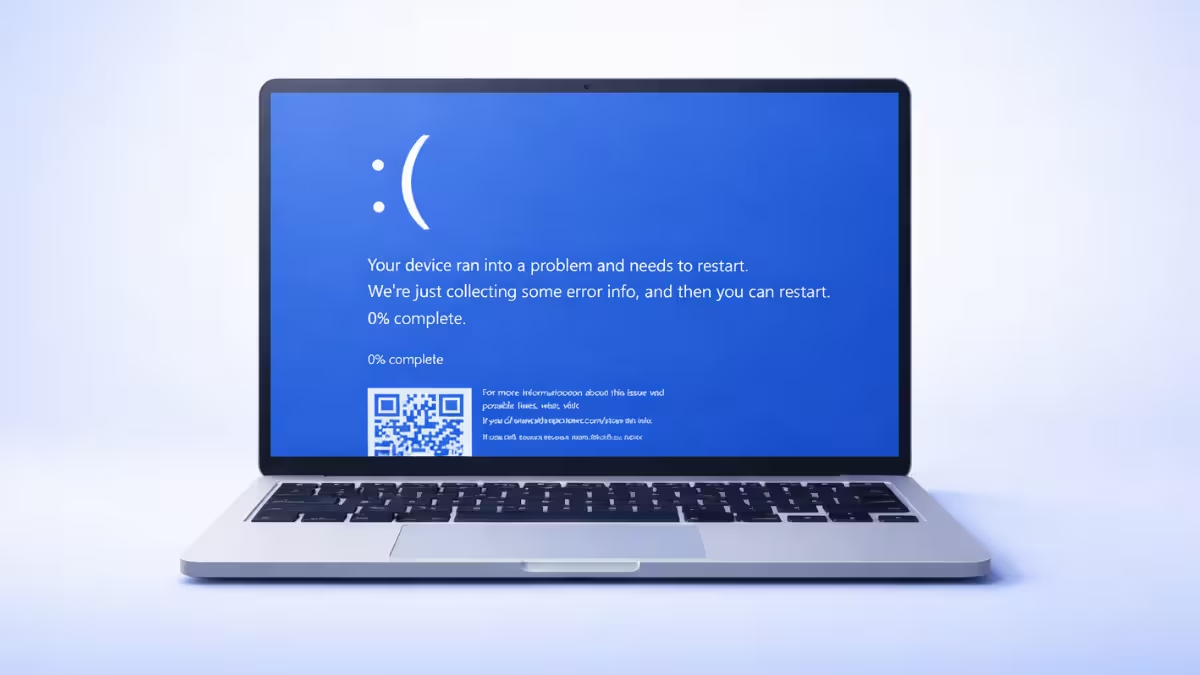
This guide walks you through safe, proven steps to fix the issue, whether Windows still boots or fails to start.
What CRITICAL_PROCESS_DIED Means in Windows 11
Windows relies on protected system processes to keep the operating system running. When one of these processes terminates or becomes corrupted, Windows shuts down immediately and shows the CRITICAL_PROCESS_DIED stop code.
This error commonly appears:
- After a Windows update
- After a driver change
- During heavy tasks like gaming
- During system startup
What Causes Critical Process Died on Windows 11
Each cause tends to show a different pattern, which helps narrow down the fix before you start.
- Corrupted system files: a forced shutdown or an update that got interrupted midway is the most common trigger
- Faulty or incompatible drivers: the timing usually lines up with a driver install or a new game added to the PC
- A recent Windows update: the crashes weren’t happening before, and they started right after a patch installed
- Hardware instability: the PC freezes at unpredictable moments regardless of what program is open, not just during one specific task
Fix CRITICAL_PROCESS_DIED If Windows Boots Normally
If you can reach the desktop, start here.
Step 1: Run System File Repair Tools
Corrupted system files are one of the most common causes.
- Right-click Start → select Windows Terminal (Admin)
- Run this command:
DISM /Online /Cleanup-Image /RestoreHealthsfc /scannowThese tools repair damaged Windows components and restore missing system files.
Step 2: Check the System Drive for Errors
Disk errors can crash system processes.
- Open Windows Terminal (Admin)
- Run:
chkdsk C: /f- Type Y when prompted and restart
Windows scans and repairs file system issues during reboot.
Step 3: Update or Roll Back Drivers
Faulty drivers often trigger this BSOD, including anti-cheat drivers such as Riot Vanguard’s vgk.sys.
- Right-click Start → Device Manager
- Expand Display adapters, Network adapters, and Storage controllers

- Right-click each device → Update driver
- If the error started after a driver update:
- Open Properties → Driver → Roll Back Driver
To test for this, avoid launching any game that requires anti-cheat software for a day or two of normal PC use. A driver like Riot Vanguard’s vgk.sys only loads once its game starts, so if the system runs without a single crash during that window, launching the game again and seeing the error return confirms the anti-cheat driver as the trigger.
Restart after changes.
Step 4: Uninstall Recent Windows Updates
Some updates introduce compatibility issues.
- Open Settings → Windows Update
- Go to Update history
- Select Uninstall updates
- Remove the most recent quality update
- Restart the system
Step 5: Scan for Malware
Malware can interfere with protected system processes.
- Open Windows Security
- Go to Virus & threat protection
- Select Scan options
- Run a Full scan
- Remove detected threats and restart
Back Up Your BitLocker Recovery Key Before You Continue
Getting locked out of your own drive is a real possibility here: several of the steps ahead, including system repairs, a BIOS update, or booting from a USB drive, can unexpectedly prompt for your BitLocker recovery key, and there’s no way past that screen without it.
If you can still reach the desktop, back up the recovery key from your Microsoft account or a second device using the official BitLocker recovery key page, and suspend BitLocker protection before making further changes.
Fix CRITICAL_PROCESS_DIED If Windows Does Not Boot
If Windows crashes during startup or loops into BSOD, use recovery tools.
Step 6: Enter Windows Recovery Environment (WinRE)
- Power on the PC
- Force shut down when the Windows logo appears
- Repeat three times
- Windows opens Automatic Repair
Step 7: Run Startup Repair
- Select Troubleshoot
- Go to Advanced options
- Choose Startup Repair
- Let Windows fix boot-level problems automatically
Step 8: Boot Into Safe Mode
Safe Mode loads minimal drivers.
- In Advanced options, open Startup Settings
- Click Restart
- Press 4 or 5 to enter Safe Mode
- Remove recently installed drivers, apps, or updates
Restart normally afterward.
Step 9: Repair Windows Offline Using Command Prompt
Use this if Safe Mode fails.
- Open Advanced options → Command Prompt
- Run:
chkdsk C: /f /rsfc /scannow /offbootdir=C:\ /offwindir=C:\WindowsThese commands repair Windows even when it cannot load.
How to Fix Critical Process Died After All Other Methods Fail
Reset Windows 11 Without Losing Files
Use this only as a last step.
- Open Troubleshoot → Reset this PC
- Select Keep my files
- Follow on-screen instructions
Windows reinstalls system files while preserving personal data.
How to Confirm the Fix Worked
A single successful startup doesn’t confirm the fix, since this error doesn’t always crash the PC every time even when the underlying problem is still there.
Run the PC through its normal routine for at least a few days, restarting it several times and opening the same apps and games you use regularly, before treating the issue as resolved. If the same CRITICAL_PROCESS_DIED stop code appears again during that stretch, the repair didn’t fully address the root cause and an earlier step needs another pass.
Is CRITICAL_PROCESS_DIED a Virus?
No. CRITICAL_PROCESS_DIED is not a virus.
It is a Windows protection mechanism that prevents further system damage when a critical failure occurs.
Frequently Asked Questions
What causes the Critical Process Died error in Windows 11?
The Critical Process Died error in Windows 11 occurs when a core system process crashes or terminates unexpectedly, usually due to corrupted system files, faulty drivers, failed Windows updates, disk errors, malware, or unstable hardware such as RAM or storage devices.
Is Critical Process Died a hardware or software issue?
Critical Process Died is most commonly a software-related issue, caused by damaged system files or drivers, but it can also occur due to hardware problems like failing SSDs, bad RAM, overheating, or unstable BIOS settings.
Can a Windows update cause the Critical Process Died error?
Yes, a faulty or incompatible Windows update can trigger the Critical Process Died error by breaking driver compatibility or corrupting system files, especially after feature updates or cumulative quality updates.
How do I fix Critical Process Died if Windows 11 won’t boot?
If Windows 11 won’t boot, you can fix Critical Process Died by entering the Windows Recovery Environment, running Startup Repair, booting into Safe Mode, or repairing system files using offline SFC and CHKDSK commands.
Does Critical Process Died mean Windows files are corrupted?
In many cases, yes. The error often indicates corrupted or missing Windows system files, which can usually be repaired using DISM and System File Checker commands.
Can faulty drivers trigger Critical Process Died in Windows 11?
Yes, outdated, incompatible, or corrupted drivers, especially graphics, storage, network, or anti-cheat drivers, can cause the Critical Process Died stop code by crashing essential Windows processes.
Is Critical Process Died a virus or malware?
No, Critical Process Died is not a virus. However, malware infections can damage system files or interfere with protected Windows processes, indirectly causing this BSOD error.
Will resetting Windows 11 fix the Critical Process Died error?
Resetting Windows 11 can fix Critical Process Died if the issue is caused by deep system corruption, but it should only be used as a last resort after trying file repair, driver fixes, and update rollbacks.
Can Critical Process Died happen during gaming?
Yes, Critical Process Died can occur during gaming due to GPU driver crashes, anti-cheat driver conflicts, overheating, unstable overclocking, or excessive system load that forces a critical Windows process to fail.
Will I lose my data because of the Critical Process Died error?
No, the error itself does not delete files. Data loss only occurs if Windows must be reset with the “Remove everything” option, which is avoidable in most cases.
The CRITICAL_PROCESS_DIED error looks severe, but it is usually fixable without reinstalling Windows. System file repairs, driver checks, and update rollbacks resolve most cases. Hardware issues should only be suspected if the error continues after software repairs.

