The CS2 MTU error prevents Counter-Strike 2 from connecting to Steam servers even when your internet works normally for other games and apps. Players often see this error suddenly after years of smooth gameplay, which makes the problem frustrating and confusing.
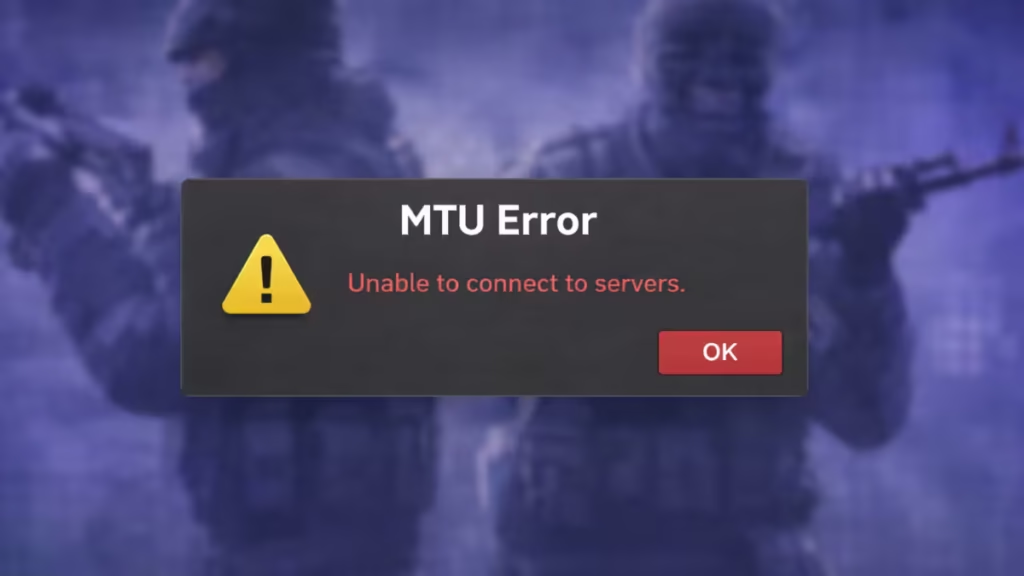
This issue usually happens when your network’s Maximum Transmission Unit (MTU) value conflicts with your ISP, router, or Windows network adapter. When CS2 sends packets larger than your connection supports, the game blocks the connection and shows the error.
Many users report that the error appears:
- After router changes or resets
- After Windows updates
- After ISP routing changes
- When switching between wired and mobile networks
Fix 1: Find the Correct MTU Value for Your Connection
Do not assume that 1500 works for every connection. Many DSL, PPPoE, satellite, and regional ISPs require lower MTU values such as 1492, 1480, or 1472.
How to detect the best MTU:
- Press Windows + R.
- Type:
cmd- Right-click Command Prompt and choose Run as administrator.
- Run this command:
ping google.com -f -l 1472- If you see “Packet needs to be fragmented,” reduce the number:
ping google.com -f -l 1464- Keep lowering until the ping succeeds without fragmentation.
- Add 28 to the working number to calculate your MTU.
Example:
- Working size: 1464
- MTU = 1464 + 28 = 1492
Fix 2: Set MTU Manually on Your Router
Once you find the correct MTU, apply it on your router.
- Open your browser.
- Enter your router IP (usually
192.168.1.1or192.168.0.1). - Log in to router settings.
- Open WAN / Internet Settings.
- Locate the MTU field.
- Enter your calculated MTU value.
- Save changes and reboot the router.
After reboot, restart your PC and launch CS2.
Fix 3: Set MTU on Windows Network Adapter
If your router does not allow MTU changes, configure it directly on Windows.
- Open Command Prompt as Administrator.
- Type:
netsh interface ipv4 show subinterfaces- Note your active network name.
- Run:
netsh interface ipv4 set subinterface "Ethernet" mtu=1492 store=persistent- Replace Ethernet with your adapter name and adjust MTU if needed.
- Restart your PC.
Fix 4: Reset Network Stack Completely
Corrupt network cache can trigger MTU errors.
- Open Command Prompt as Administrator.
- Run:
ipconfig /flushdns
netsh winsock reset
netsh int ip reset- Restart your computer.
Fix 5: Disable IPv6 Temporarily
Some ISPs route traffic incorrectly through IPv6 tunnels.
- Open Network Settings.
- Click Change adapter options.
- Right-click your active adapter → Properties.
- Uncheck Internet Protocol Version 6 (IPv6).
- Click OK and restart.
Fix 6: Remove VPNs and Virtual Adapters
VPN drivers override MTU and routing tables.
- Uninstall any VPN software.
- Disable virtual adapters such as TAP, WireGuard, or Hamachi.
- Restart Windows.
Fix 7: Test With Mobile Hotspot Correctly
If hotspot shows the same error:
- Turn off USB tethering drivers.
- Reconnect hotspot using Wi-Fi only.
- Restart network adapters before testing.
If hotspot works after cleanup, your main ISP routing likely causes the issue.
Fix 8: Check ISP MTU Restrictions
Some ISPs enforce strict MTU limits that override router settings. Call your ISP and ask:
“What MTU value does my connection require?”
Apply the value they recommend.
Fix 9: Verify CS2 Firewall Permissions
- Open Windows Security.
- Go to Firewall & Network Protection.
- Click Allow an app through firewall.
- Ensure cs2.exe and Steam.exe allow both Private and Public networks.
When the Error Still Does Not Go Away
If none of the above fixes resolve the problem:
- Your ISP routing may block fragmented packets.
- Steam backend routing may temporarily fail in your region.
- Your modem firmware may require an update.
In these cases, only ISP intervention or router replacement fully resolves the issue.
The CS2 MTU error usually comes from a mismatched packet size between your PC, router, and ISP. Correcting the MTU value solves the problem in most cases. Always test multiple MTU values instead of forcing 1500 blindly.
Once configured properly, CS2 reconnects normally without further network drops.

