Apple’s new iPhone Mirroring feature lets you control your iPhone directly from your Mac. You can open apps, reply to messages, and interact with your phone without touching it.
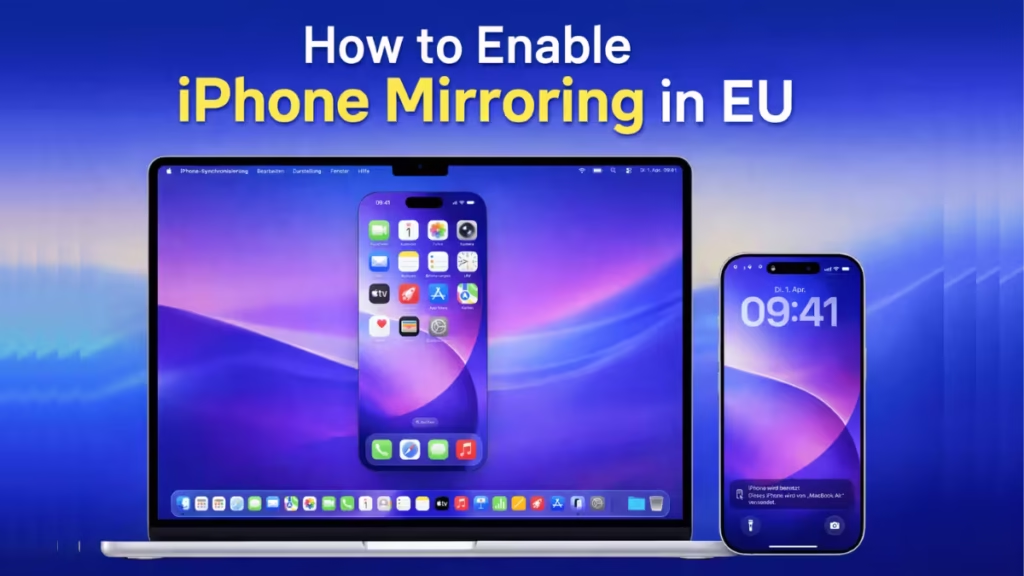
However, Apple currently disables this feature in most EU countries. You may install the latest macOS and iOS updates but still won’t see the iPhone Mirroring option.
What Is iPhone Mirroring?
iPhone Mirroring is different from regular AirPlay screen casting.
With iPhone Mirroring:
- You control your iPhone from your Mac
- You open apps and tap the screen remotely
- You receive notifications on your Mac
- Your iPhone stays locked while mirroring
Apple introduced this feature in recent macOS and iOS versions.
See also: Windows 11 KB5074157 Update Brings Start Menu, Taskbar, and Bluetooth Fixes
Why iPhone Mirroring Is Disabled in the EU
Apple disabled iPhone Mirroring in EU countries due to regulatory uncertainty related to the Digital Markets Act (DMA). Apple fears the law may require it to open this feature to non-Apple devices.
As a result:
- macOS hides the iPhone Mirroring app in many EU regions
- Even fully updated Macs cannot activate it
- The feature appears automatically outside the EU
This restriction comes from Apple, not from device limitations.
Check If Your Mac Supports iPhone Mirroring
Before trying any workaround, confirm your hardware and software compatibility.
Requirements
- macOS Tahoe / macOS 15 or newer
- iOS 18 or newer
- Same Apple ID on Mac and iPhone
- Bluetooth and Wi-Fi enabled
- Signed into iCloud on both devices
If you meet these requirements and still don’t see iPhone Mirroring in Applications or Control Center, your region blocks the feature.
Method 1: Use a Non-EU Apple ID (Limited Success)
You can activate iPhone Mirroring by signing in with a non-EU Apple ID (US, Brazil, etc.) on both the Mac and iPhone.
Steps
- Sign out of your current Apple ID on both devices.
- Sign in using a non-EU Apple ID.
- Restart both devices.
- Open Applications → iPhone Mirroring on Mac.
- Pair your iPhone when prompted.
Important Risks
- You may lose access to local apps and subscriptions.
- App Store region change can cancel active subscriptions.
- Wallet balance may disappear.
- Purchases may not transfer across regions.
Apple can also disable the feature again based on location detection.
Use this method only if you fully understand the risks.
Method 2: Travel Outside the EU (Temporary Activation)
You may notice iPhone Mirroring activates automatically when you travel outside the EU (UK, Switzerland, Norway, USA).
What happens
- macOS enables the feature after connecting in a non-EU location.
- The feature may disappear again after returning home.
This method works only temporarily and depends on Apple’s regional checks.
Method 3: Scripts and System Modifications (Not Recommended)
Some community tools attempt to bypass the region lock using scripts or system changes.
Why you should avoid this
- Scripts modify system permissions.
- macOS updates can break the hack.
- Security and privacy risks increase.
- Apple may block the workaround later.
For a production system or daily workstation, this approach is unsafe.
EU-Supported Alternatives to iPhone Mirroring
If your goal is simple screen sharing and not full phone control, you can still mirror your iPhone safely.
Option 1: AirPlay Screen Mirroring
- Connect iPhone and Mac to the same Wi-Fi network.
- Open Control Center on iPhone.
- Tap Screen Mirroring.
- Select your Mac.
This mirrors the display but does not allow phone control.
Option 2: USB-C / Lightning to HDMI Adapter
- Connect your iPhone directly to a monitor or TV.
- Use Apple’s official adapter for stability.
- Works without internet.
Option 3: Third-Party Mirroring Apps
Apps like AirScreen or Reflector can mirror iPhone screens to PCs and Macs with limitations.
FAQs
Why is iPhone Mirroring in EU blocked?
Apple disables iPhone Mirroring in the EU due to regulatory concerns related to the Digital Markets Act, not because of device limitations.
Can I enable iPhone Mirroring in EU using a US Apple ID?
Yes. You can activate iPhone Mirroring by signing in with a non-EU Apple ID on both your Mac and iPhone, but this may affect purchases and subscriptions.
Does iPhone Mirroring work when traveling outside the EU?
Yes. you may activate automatically when you travel outside the EU, such as the UK, Switzerland, Norway, or the USA.
Is iPhone Mirroring the same as AirPlay screen mirroring?
No. iPhone Mirroring lets you control your iPhone from a Mac, while AirPlay only mirrors the screen without interaction.
Can Apple block iPhone Mirroring again after enabling it?
Yes. Apple can disable iPhone Mirroring again based on region detection or account changes.
Is it safe to use scripts to unlock iPhone Mirroring in EU?
No. Scripts modify system behavior and can create security risks or break after macOS updates.
What is the safest alternative to iPhone Mirroring in EU?
AirPlay screen mirroring provides the safest way to mirror your iPhone display on a Mac in the EU.
Which macOS version supports iPhone Mirroring?
iPhone Mirroring requires macOS 15 or newer and iOS 18 or newer on compatible devices.
If Apple changes its regional policy in future updates, the feature may become available officially.

