Laptop batteries slowly lose capacity over time, which is why a device that once lasted all day may now drain much faster. Windows 11 does not show battery health directly in Settings, but it does provide reliable built-in tools to check your battery’s condition accurately.
This guide explains all working methods to check battery health on Windows 11, including the official Windows battery report and optional tools for easier analysis.
Method 1: Check Battery Health Using Windows Battery Report (Recommended)
Windows includes a hidden but powerful battery diagnostic tool that generates a detailed health report in HTML format.
Steps to Generate Battery Report
- Press
Windows + Sand type Command Prompt - Right-click Command Prompt and select Run as administrator
- Enter the following command and press Enter:
powercfg /batteryreport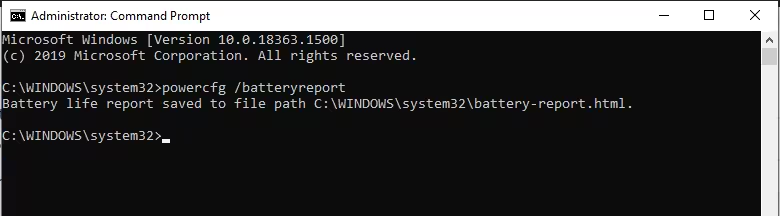
- Windows will display the file location, usually:
C:\Users\YourUsername\battery-report.html- Open File Explorer, go to that location, and double-click the file
Alternative: You can run the same command in Windows Terminal (Admin) or PowerShell (Admin) if you prefer either of those over Command Prompt. The output is identical.
Note for multi-battery devices: Some 2-in-1s, detachables, and business laptops report more than one battery entry in the Installed Batteries section, such as a main pack and a keyboard base battery. If your report lists multiple batteries, check the Design Capacity and Full Charge Capacity for each one separately. A single weak pack can still hurt overall runtime even if the other battery looks healthy.
Pro tip: To limit the report to recent data only, use the
/durationswitch. For example:
powercfg /batteryreport /duration 14This generates a report using only the last 14 days of data, which is useful after a Windows update or a change in charging habits.
How to Understand Battery Health in the Report
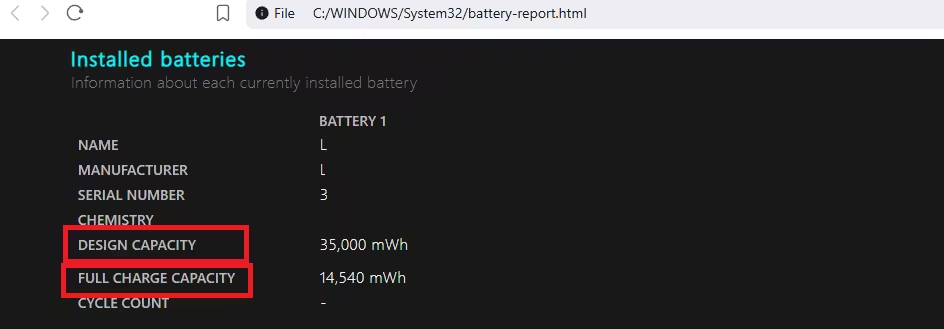
Your Windows 11 battery report shows two key values inside the Installed batteries section. These numbers help you understand how much capacity your laptop battery has lost over time.
What the values mean:
- Design Capacity: The original battery capacity when your laptop was new
- Full Charge Capacity: The maximum charge your battery can hold today
Windows calculates battery health using this simple formula:
(Full Charge Capacity / Design Capacity) x 100
Example from a real battery report:
- Design Capacity: 48,000 mWh
- Full Charge Capacity: 38,000 mWh
- Battery Health: approximately 79%
Instead of calculating this manually every time, use the Battery Health Calculator below to get instant and accurate results.
Battery Health Calculator (Windows 11)
Enter the Design Capacity and Full Charge Capacity from your Windows 11 battery report. Click the button to calculate battery health instantly.
How to Read Your Windows 11 Battery Report
The battery report contains more than just capacity numbers. Here is what each section means.
Installed Batteries
This section shows your battery’s manufacturer, chemistry type (usually Lithium-Ion or Lithium-Polymer), Design Capacity, Full Charge Capacity, and Cycle Count.
Cycle Count is the total number of times your battery has gone through a full drain-and-recharge cycle from 0% to 100%. Most laptop batteries are rated for 300 to 1,000 or more full cycles before significant wear sets in, depending on the battery chemistry and manufacturer. If the Cycle Count field shows a blank or a dash, it means your battery’s firmware or ACPI drivers are not reporting that value to Windows. This is normal on many laptops and does not indicate a problem. In that case, rely on the capacity comparison to measure health.
Recent Usage
This section logs every switch between battery power and AC power over the last 72 hours. It helps you spot sudden, large power drops that are not explained by normal usage.
Battery Usage
This section shows a graph of how your battery drained over the last few days. Steep vertical drops on the graph indicate rapid drain, which can point to a power-hungry background app or a failing battery cell.
Usage History
This is a week-by-week breakdown of time spent on battery versus time spent plugged into AC power. It helps you understand your actual usage patterns over time.
Battery Capacity History
This is the most important long-term section. It shows a timeline of how your Full Charge Capacity has declined compared to your Design Capacity over months and years.
A gradual, steady decline is completely normal. A sudden sharp drop over just a few weeks is not. A sharp drop can indicate a failing battery cell, a firmware issue, or a driver problem worth investigating.
Battery Life Estimates
This section compares the runtime Windows currently estimates against estimates calculated from earlier capacity data, split by scenario such as active use and standby. If the current estimate is noticeably lower than the estimate based on Design Capacity, your battery has likely lost enough capacity to shorten daily runtime. Treat this figure as a practical guide rather than an exact number, since screen brightness, background apps, and power mode all affect real-world results.
Method 2: Save Battery Report to a Specific Location (Optional)
This method is useful if you cannot find the report file in the default location.
Command:
powercfg /batteryreport /output "C:\battery-report.html"The report saves directly to the C drive, making it easier to locate.
Method 3: Check Battery Usage in Windows 11 Settings (Basic Info Only)
This method does not show health percentage, but it helps identify abnormal battery drain.
Steps:
- Press
Windows + I - Go to System > Power & battery
- Scroll to Battery usage
You can see:
- App-wise battery drain
- Usage history
- Charging behavior
This is useful for troubleshooting fast battery drain but does not show battery wear or capacity loss.
Method 4: Use PC Health Check App (If Installed)
Some Windows 11 systems include PC Health Check, which may show battery capacity information in a simple format.
Steps:
- Search PC Health Check in the Start menu
- Open the app
- Check the Battery section (availability varies by system)
Note: This tool is not installed by default on all PCs, and battery capacity data only appears for devices older than three years.
Method 5: Use Third-Party Battery Health Tools (Optional)
If the built-in report feels too technical, a few free third-party tools present the same information in a simpler layout.
- BatteryInfoView
- HWMonitor
- BatteryCare
These tools show:
- Battery wear level
- Charge cycles
- Current capacity
Windows’ built-in report remains the most accurate source.
Battery Health Status Guide
Use this table to quickly match your calculated percentage to a condition rating.
| Battery Health | Condition |
|---|---|
| 90-100% | Excellent |
| 80-89% | Good |
| 60-79% | Fair |
| Below 60% | Replacement recommended |
How to Calibrate Your Laptop Battery
Calibration does not restore lost capacity, but it helps Windows estimate your remaining charge more accurately.
Consider calibrating if the battery percentage jumps suddenly, for example from 40% straight to 10%, if it stays stuck at one number for a long time, if the laptop shuts down before reaching 0%, or if Windows reports a full charge but runtime is much shorter than the battery report suggests.
- Charge the laptop to 100% and leave it plugged in for another 30 to 60 minutes
- Temporarily disable sleep and hibernation in power settings so the laptop can discharge fully
- Use the laptop on battery power until it shuts down or reaches a critically low level
- Leave it powered off for a short period, then charge it back to 100% without interruption
- Re-enable your normal sleep, hibernation, and battery saver settings
Some manufacturers, including Lenovo, HP, Dell, Asus, and Acer, include their own calibration or diagnostic tools inside their support apps or BIOS/UEFI settings. Use those when available, especially on newer laptops with charge-limiting or adaptive charging features.
When to Replace Your Laptop Battery
Watch for these signs that your battery needs replacement:
- Battery health drops below 60-80%
- Battery percentage drops in large chunks (for example, from 80% straight to 40% with no warning)
- Laptop shuts down unexpectedly even when Windows shows remaining charge
- Cycle count exceeds 800 to 1,000 full cycles
- Runtime has dropped to the point where it disrupts your daily workflow
- Battery Capacity History in the report shows a sudden sharp drop instead of a gradual decline (this points to a failing cell, not normal aging)
If your laptop is still under warranty and battery health has dropped significantly, contact your manufacturer before paying for a replacement. Many OEMs cover battery replacement under warranty if capacity falls below 80% within the coverage period.
Safety note: Stop using the laptop immediately if the battery is swollen, if the trackpad or keyboard has started lifting, if the case has separated, or if you notice a chemical smell. Power the laptop down, unplug it, avoid pressing on the chassis, and arrange service through the manufacturer or a qualified repair provider rather than continuing to use it.
Tips to Maintain Battery Health on Windows 11
A few daily habits slow down long-term capacity loss more than anything else.
Keep charge between 20% and 80%: Draining to 0% or staying plugged in at 100% stresses lithium-ion cells. The 20-80% range reduces chemical wear and extends battery life.
Avoid heat: Heat degrades battery cells faster than almost anything else. Do not leave your laptop in a hot car or use it on soft surfaces that block cooling vents.
Reduce screen brightness: Your display is the largest power draw on most laptops. Lowering brightness reduces the charge cycles you burn through daily.
Enable Battery Saver: Windows pauses background syncing and limits heavy background activity in Battery Saver mode. Configure it to activate automatically under Settings > System > Power & battery.
Limit background apps: Open Task Manager (Ctrl + Shift + Esc) and check the Power Usage and Power Usage Trend columns to identify which apps drain the most energy. Close anything you are not actively using.
Update Windows and drivers: Software updates often include power management improvements. Keep your Windows 11 installation, chipset drivers, and firmware current.
Use your laptop manufacturer’s battery conservation mode: If you own a Dell, Lenovo, HP, or Asus laptop, check the included software for dedicated battery care settings:
- Lenovo Vantage includes a Conservation Mode that caps charging at 60% to reduce chemical stress
- Dell Power Manager offers Peak Shift and Battery Extender modes
- HP Support Assistant provides a Battery Health Manager with options to limit maximum charge
- Asus Armoury Crate and MyASUS include a Battery Health Charging feature with customizable charge limits
These OEM conservation modes are among the most effective tools for extending long-term battery life, especially if you mostly work at a desk with the laptop plugged in. When these modes are active, your Full Charge Capacity will appear lower than your true maximum in the battery report. Temporarily disable them if you want an accurate baseline reading.
Frequently Asked Questions
How do I check battery health on Windows 11?
Generate a battery report using the built-in powercfg /batteryreport command in Command Prompt. The report shows design capacity, current full charge capacity, cycle count, and battery usage history.
Does Windows 11 show battery health percentage?
No. Windows 11 does not display battery health percentage directly in Settings. Use the battery report or a third-party tool to calculate it.
What is the Windows 11 battery report?
The Windows 11 battery report is an HTML file generated by the system that provides detailed battery information, including capacity loss, charge cycles, recent usage, and estimated battery life.
Where is the battery report saved in Windows 11?
By default, Windows saves the battery report at C:\Users\YourUsername\battery-report.html. Use the /output switch to save it to a custom location.
What is a good battery health percentage for a laptop?
Above 80% is considered good. Below 60% is a strong signal that replacement is needed for reliable performance.
Can I check battery health using Windows 11 Settings?
Windows 11 Settings only show battery usage and app drain history. They do not provide health percentage or capacity data.
Does this work on Windows 10?
Yes. The powercfg /batteryreport command works identically on Windows 10. Run it in an elevated Command Prompt or PowerShell window and open the generated HTML file the same way.
Is PC Health Check accurate for battery health?
PC Health Check can show basic battery capacity on some systems, but it is not available on all Windows 11 devices and does not provide the level of detail the battery report does.
Are third-party battery health tools safe to use?
Reputable tools like BatteryInfoView and HWMonitor are generally safe, but Windows’ built-in battery report remains the most reliable and accurate source.
Can battery calibration improve battery health?
No. Calibration (draining to 0% and charging fully to 100%) can make your on-screen percentage more accurate, but it cannot reverse physical chemical degradation or restore lost capacity. It corrects the accuracy of the percentage reading, not the actual health.
What is the difference between powercfg /batteryreport and powercfg /energy?
The battery report (powercfg /batteryreport) focuses on your battery’s physical condition: capacity, cycle count, and long-term wear history. The energy report (powercfg /energy) focuses on real-time system behavior: identifying software, drivers, or devices that are actively draining your battery or blocking proper power management. Both are useful and work well together.
How do I monitor battery health over time?
Generate a new battery report every two to three months and compare the Full Charge Capacity values across reports. A steady decline is normal. If the number drops sharply between reports, that is worth investigating. You can also use powercfg /energy and powercfg /sleepstudy for a fuller picture of how your system manages power.
How often should I check battery health on Windows 11?
Checking once every two to three months is enough to track degradation and plan for replacement before the battery causes problems.
Why does my Windows 11 laptop battery drain faster over time?
Battery drain increases due to natural aging, reduced cell capacity, background apps, high screen brightness, and heat exposure.
Can battery health be improved on Windows 11?
Battery health cannot be restored once it degrades. You can slow further wear by avoiding constant full-charge cycles, reducing heat, enabling Battery Saver, and using your OEM’s battery conservation mode if available.
Windows 11 does not display battery health directly in Settings, but the built-in battery report tool provides accurate and detailed information about battery condition, capacity loss, and usage history. Checking this report every two to three months helps you track degradation early and decide when battery replacement becomes necessary.
Read More

