Running Windows 11 and Linux on the same computer gives you the flexibility of Windows software alongside the power of a Linux environment. A dual boot setup installs both operating systems on separate partitions and lets you choose which one to load each time you turn on your PC.
This guide walks through the entire process, from preparing Windows to booting into Linux for the first time.
Back Up Your Data First
Resizing partitions carries a small risk of data loss if the process gets interrupted.
Copy important files to an external drive or cloud storage before you begin. This step takes a few minutes and protects you if anything goes wrong during partitioning.
Install Windows 11 First, Then the Partition for Linux
Windows 11 must go on the drive first if you’re setting up both operating systems from scratch.
The Windows Boot Manager tends to overwrite other bootloaders during installation. Installing Windows first and Linux second avoids this conflict entirely, since most Linux installers detect Windows automatically and set up a dual boot menu for you.
Disable Fast Startup in Windows 11
Fast Startup can prevent Linux from safely accessing the Windows partition.
- Open Control Panel and go to Power Options.
- Select Choose what the power buttons do.
- Click Change settings that are currently unavailable.
- Uncheck Turn on fast startup.
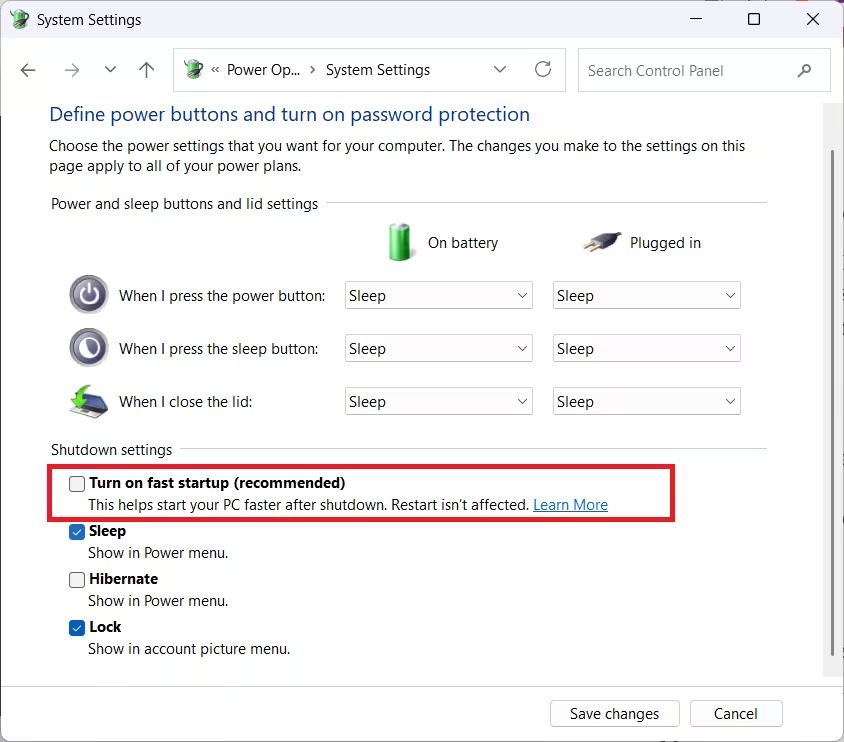
- Click Save changes.
If the “Change settings that are currently unavailable” link or the Fast Startup checkbox doesn’t appear, your system likely has hibernation turned off already. Fast Startup can’t run without hibernation, so it’s already disabled in that case, and you can skip this step.
Turn Off BitLocker Encryption
BitLocker can block Linux from reading or resizing your Windows partition.
- Open Settings and go to Privacy & Security.
- Select Device Encryption.
- Turn off encryption if it’s active.
You can turn BitLocker back on after your dual boot setup is complete, but leaving it on during installation often causes partition errors.
Check If Your PC Uses UEFI or Legacy BIOS
Most modern Linux distributions expect UEFI boot mode to match Windows.
- Press
Win + R. - Type
msinfo32and press Enter. - Check the BIOS Mode field in the System Summary window.
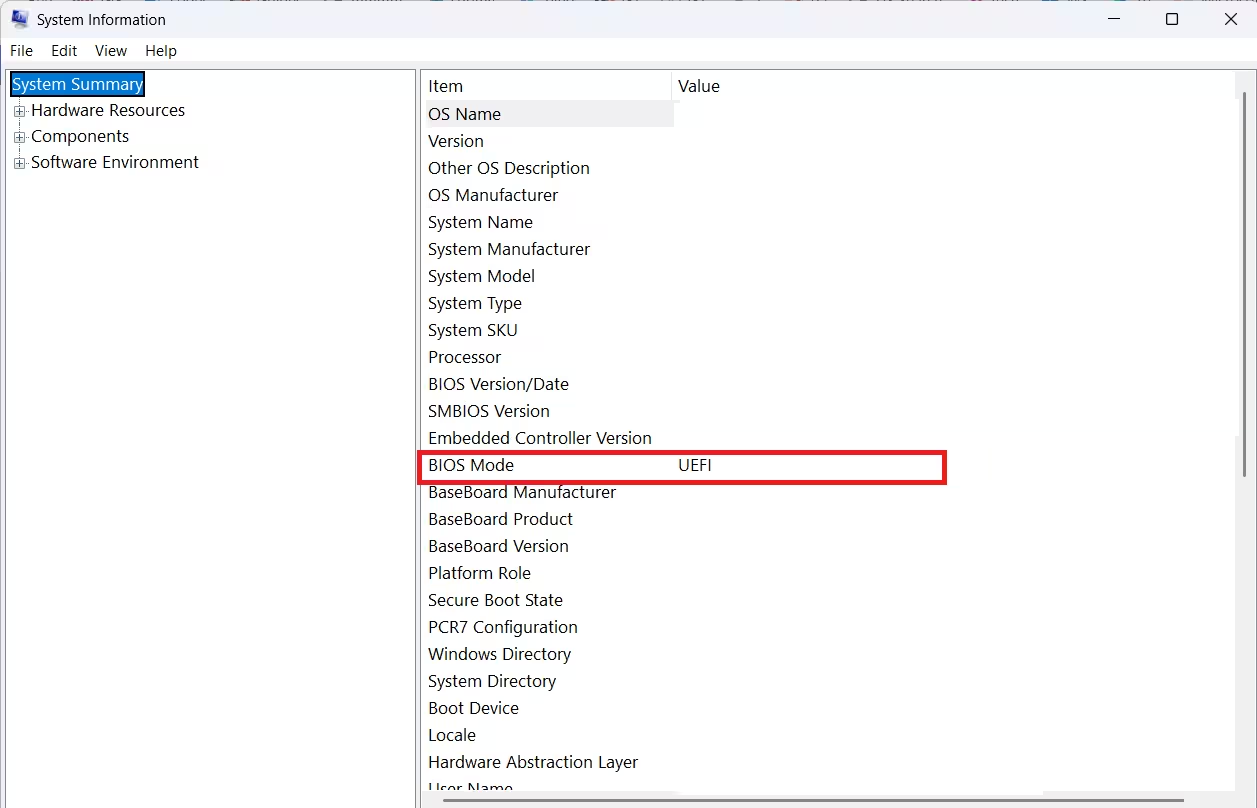
If it says UEFI, you’re set. If it says Legacy, you’ll need to install Linux in the same mode or convert Windows to UEFI before continuing.
Shrink the Windows Partition to Free Space for Linux
Linux needs its own dedicated space on the drive, separate from your Windows files.
- Press
Win + Xand select Disk Management. - Right-click your main Windows partition and choose Shrink Volume.
- Enter the amount of space you want to free up for Linux, ideally 50GB or more.
- Click Shrink to confirm.
This creates unallocated space without deleting any existing files.
Create a Bootable USB Drive for Linux
You need a USB installer to load the Linux setup on your PC.
- Download the ISO file for your chosen distribution, such as Ubuntu, Fedora, or Linux Mint, from its official site.
- Open Rufus and select the USB drive that’s at least 8GB.
- Select the ISO file you downloaded.
- Click Start to begin flashing.
Boot From the USB Drive in BIOS or UEFI Settings
Your PC needs to load the Linux installer instead of Windows to begin setup.
- Restart your computer and press the key that opens your BIOS or UEFI settings, commonly
F2,F12,Del, orEscdepending on your manufacturer. - Disable Secure Boot here if your distribution doesn’t support it.
- Set the USB drive as the first boot device.
- Save the changes and restart.
Install Linux Alongside Windows
The installer handles most of the partitioning work automatically when it detects an existing Windows installation.
When the Linux installer loads, look for an option labeled Install alongside Windows Boot Manager. This is the simplest path and requires no manual partitioning. If this option doesn’t appear, choose manual partitioning and assign the unallocated space you created earlier to a root partition and a swap partition.
- Confirm the installation location.
- Set your username and password.
- Let the installer finish.
It will typically install the GRUB bootloader to the same EFI partition Windows already uses.
Boot Into GRUB and Choose Windows or Linux
Once installation finishes and your PC restarts, you should see the GRUB menu.
This menu lets you choose between Windows and Linux each time you start your computer. If Windows loads automatically without showing the menu, check your BIOS boot order and make sure GRUB is set as the default boot entry. From Linux, running sudo update-grub in the terminal can also fix a missing or misconfigured boot menu.
Access Windows Files From Linux
Most Linux distributions can read your Windows partition without any extra setup.
Open your file manager in Linux and look for the Windows drive under Devices or Other Locations. Linux mounts NTFS partitions automatically in most modern distributions, so you can browse, copy, and open Windows files directly from Linux. Writing to the Windows partition works too, though it’s best to close Windows fully (not just sleep it) before making changes, since Fast Startup or hibernation can leave the partition in a state Linux won’t touch for safety.
Windows can’t read Linux partitions the same way. If you need to move files from Linux to Windows, keep them on the NTFS partition or use a shared folder instead of the Linux root partition.
Fix Secure Boot SBAT Errors After a Windows Update
Some Windows updates can break your Linux boot entry through a Secure Boot component called SBAT.
Microsoft has pushed updates that revoke older boot signatures for security reasons, and this can affect dual boot systems running older Linux ISOs. If you see a message like “Verifying shim SBAT data failed: Security Policy Violation” after a Windows update, your GRUB bootloader is being blocked by the new SBAT policy rather than actually broken.
If Windows hasn’t restarted to finish installing the update yet, open Command Prompt as admin and run this command to opt out before it applies:
reg add HKEY_LOCAL_MACHINE\SYSTEM\CurrentControlSet\Control\SecureBoot\SBAT /v OptOut /d 1 /t REG_DWORDIf the update has already applied and you’re locked out of Linux, follow these steps:
- Disable Secure Boot in your BIOS temporarily.
- Boot into Linux.
- Run this command:
sudo mokutil --set-sbat-policy delete- Restart into Linux again to apply the change.
- Reboot once more.
- Turn Secure Boot back on in your BIOS.
Your dual boot menu should load normally after that.
Frequently Asked Questions
Do I need to disable Secure Boot to dual boot Linux with Windows 11?
Not always. Distributions like Ubuntu and Fedora support Secure Boot out of the box. Only disable it if your chosen distribution specifically requires that step during installation.
Will dual booting delete my Windows files?
No, as long as you shrink the Windows partition correctly and don’t format the wrong drive during Linux installation. Shrinking a volume only creates unallocated space and doesn’t touch existing files.
Can I remove Linux later and keep only Windows?
Yes. You can delete the Linux partitions through Windows Disk Management and then repair the Windows Boot Manager using a Windows recovery USB to remove the GRUB menu.
How much disk space does Linux need for a dual boot setup?
At least 20GB is enough for a minimal install, but 50GB or more is recommended if you plan to install additional software or store files within Linux.
Related Partition & Disk Management
- How to Use Disk Management in Windows 11: Create, Delete, Format Partitions
- Fix MBR2GPT “Last Partition Too Close to the End of the Disk” Error
- How to Install Windows 10 on GPT Partition Without Errors
Linux on Windows

