Windows requires a GPT partition scheme for Secure Boot, which is a mandatory requirement for Windows 11. If your disk uses MBR, the built-in MBR2GPT tool can convert it to GPT without data loss. However, some users run the validation command and get a disk layout validation failure. The actual cause, buried in the log file, reads:
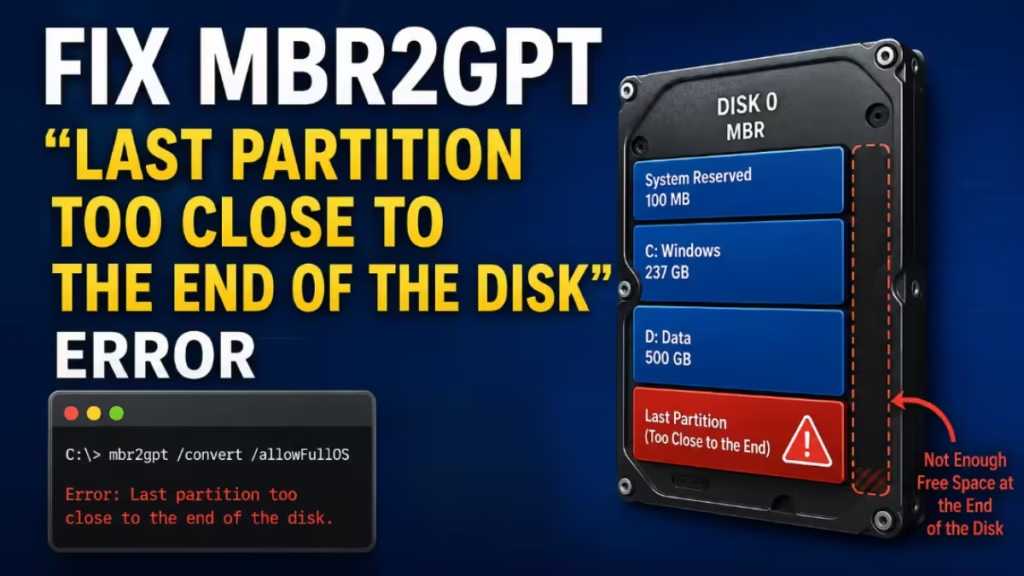
Last partition too close to the end of the disk. Should end at offset 1000204869120 or below, found at 1000204886016
The numeric values vary by system, but the fix follows the same logic in every case. This guide walks you through each working solution.
What Causes the MBR2GPT Last Partition Too Close to the End of the Disk Error
Before MBR2GPT converts a disk, it runs a geometry check. One part of that check confirms that the disk has enough free, unpartitioned space at both ends to write GPT headers:
- Front of the disk: 16 KB + 2 sectors (for the Primary GPT header and partition entries)
- End of the disk: 16 KB + 1 sector (for the Secondary GPT, which acts as a backup)
When partitions extend all the way to the end of the disk, there is no room for the Secondary GPT. The tool blocks the conversion and logs the error. The fix in every case is to create that unallocated space.
Step 1: Read the Exact Error in the Log File
The MBR2GPT command line only shows a generic failure message. The specific error lives in a log file.
- Open File Explorer and navigate to
C:\Windows. - Search for the file named setupact.
- Right-click it and select Open with > Notepad.
- Scroll to the bottom of the file.
- Find the line that starts with
ValidateLayout:and note the two offset values shown.
Subtract the two numbers to find the exact byte gap your disk is missing. For example:
- Should end at: 1000204869120
- Found at: 1000204886016
- Difference: 16,896 bytes (approximately 16 KB)
Keep this number handy. You will use it in Fix 1 below.
Fix 1: Shrink the Last Partition
This is the most reliable fix and works in the majority of cases.
- Press Windows + X and select Disk Management.
- Identify the last partition on the disk. In most cases, this is the Recovery partition.
- Right-click that partition and select Shrink Volume.
- In the "Enter the amount of space to shrink in MB" field, enter a value slightly above 17 MB (rounding up from the ~16 KB gap the log reported). If your log shows a larger gap, calculate the equivalent in MB and add a small buffer.
- Click Shrink.
After the shrink completes, run the validation command again:
mbr2gpt /validate /disk:0 /allowFullOSIf validation passes, run the conversion:
mbr2gpt /convert /disk:0 /allowFullOSFix 2: Align the Disk Partitions
If the validation still fails after shrinking, one or more partitions may have an alignment issue. Misaligned partitions can push the last partition slightly beyond the allowed boundary.
- Download and install MiniTool Partition Wizard (free edition).
- Launch the tool and locate your target disk in the disk map.
- Right-click the disk (not a specific partition) and select Align All Partitions.
- Click OK to confirm.
- Click Apply to save the changes.
Once alignment completes, run the MBR2GPT validation again to check whether the error clears.
Fix 3: Delete the Recovery Partition
If the last partition on your disk is the Recovery partition and the previous fixes did not resolve the error, you can delete it before converting.
Important: Back up any data you want to keep before deleting any partition. The Recovery partition stores Windows recovery tools. Windows may recreate it automatically after conversion. If it does not, you can recreate it manually.
- Open Disk Management.
- Right-click the Recovery partition at the end of the disk.
- Select Delete Volume and confirm.
- Run
mbr2gpt /validate /disk:0 /allowFullOSto check whether validation now passes.
Fix 4: Use a Third-Party Disk Converter Tool
If none of the above fixes work, a third-party conversion tool bypasses the strict geometry checks that MBR2GPT enforces.
EaseUS Partition Master and NIUBI Partition Editor are two tools that handle this conversion reliably, even when the last partition sits close to the disk boundary.
Using EaseUS Partition Master:
- Launch EaseUS Partition Master and click Disk Converter.
- Select Convert MBR to GPT.
- Choose your target disk and follow the on-screen steps to complete the conversion.
Both tools convert the disk without deleting your data. Make sure your motherboard supports UEFI mode before you start, as GPT requires UEFI to boot.
Quick Fixes for MBR2GPT Last Partition Too Close to the End of the Disk
| Fix | When to Try It |
|---|---|
| Shrink the last partition | First step for almost every case |
| Align disk partitions | Log error persists after shrinking |
| Delete the Recovery partition | Last partition is Recovery and shrink did not help |
| Use a third-party tool | All other fixes failed |
The MBR2GPT "last partition too close to the end of the disk" error always comes down to one thing: insufficient unallocated space at the end of the drive for the Secondary GPT header. Shrinking the last partition by the exact byte gap shown in the setupact log resolves the issue in most cases. If that does not work, aligning partitions or removing the Recovery partition clears the remaining edge cases.
For systems where MBR2GPT keeps failing regardless, a third-party tool like MiniTool Partition Wizard or EaseUS Partition Master completes the conversion without the strict geometry checks. Once your disk converts to GPT, your system meets the Secure Boot requirement for Windows 11.
Frequently Asked Questions
Why does MBR2GPT fail?
MBR2GPT fails when the disk does not meet its validation requirements. Common causes include more than three primary partitions, logical partitions on the disk, or insufficient unallocated space at the beginning or end of the disk. The exact reason is always recorded in C:\Windows\setupact.log.
Will I lose data when converting MBR to GPT?
MBR2GPT is a non-destructive tool. It converts the partition table without touching the data inside your partitions. That said, always back up important files before any partition or disk operation.
What happens if I delete the Recovery partition?
Windows may recreate the Recovery partition automatically during or after the conversion. If it does not, the rest of your system will still work normally. You can use Windows installation media for recovery if needed.
Related Guides
- How to Repair Master Boot Record (MBR) on Windows 10
- How to Convert MBR to GPT Without Losing Data in Windows 11/10
- One of Your Disks Is at Risk SMART Event on Windows 11: How to Fix It
- Unrecognized partition found, index 1 disk layout validation failed [Fixed]
- How to Run Disk Cleanup on Windows 11 (9 Methods)