Microsoft has released Windows 11 KB5077181, the February 2026 Patch Tuesday update for versions 25H2 and 24H2. This cumulative security update includes important fixes, quality improvements, Secure Boot updates, AI component upgrades, and new features like Cross Device Resume and Smart App Control changes.
What Is Windows 11 KB5077181?
Windows 11 KB5077181 is a mandatory cumulative security update released on February 10, 2026 .
It applies to:
- Windows 11 Version 25H2
- Windows 11 Version 24H2
After installing the update:
| Version | New Build Number |
|---|---|
| 25H2 | 26200.7840 |
| 24H2 | 26100.7840 |
The update installs automatically through Windows Update unless updates are paused.
Key Improvements and Fixes in KB5077181
This update includes fixes from previous January preview updates and new security improvements .
1. Gaming Fix – Full-Screen Experience Detection
Microsoft fixed an issue that incorrectly determined device eligibility for full-screen gaming mode .
This improves compatibility for systems using modern GPU configurations.
2. WPA3 Wi-Fi Connectivity Fix
The update fixes a networking issue that prevented some devices from connecting to WPA3-Personal Wi-Fi networks after installing KB5074105.
If your PC failed to connect to secure Wi-Fi networks in January, this update resolves the problem.
3. Secure Boot Certificate Update (Important)
Microsoft warns that Secure Boot certificates will begin expiring starting June 2026.
KB5077181 includes targeting data that allows eligible devices to safely receive new Secure Boot certificates through future updates. Enterprise administrators should review Microsoft’s Secure Boot guidance to avoid boot-related disruptions.
AI Component Updates
KB5077181 updates several built-in Windows AI components used by modern system features:
| AI Component | Version |
|---|---|
| Image Search | 1.2601.1268.0 |
| Content Extraction | 1.2601.1268.0 |
| Semantic Analysis | 1.2601.1268.0 |
| Settings Model | 1.2601.1268.0 |
These components support on-device AI models bundled in modern Windows updates.
Servicing Stack Update (SSU)
This release includes KB5077869 (Build 26100.7839) servicing stack update .
Servicing stack updates ensure Windows can install future updates reliably. You cannot uninstall the SSU separately once installed.
New Features Rolling Out in KB5077181
1. Cross Device Resume (Android Integration)
Microsoft is expanding Cross-Device Resume, allowing users to continue activities from an Android phone on a Windows 11 PC.
You can now:
- Resume Spotify playback
- Continue Word, Excel, PowerPoint sessions
- Resume supported Android browser sessions
This feature rolls out gradually and may not be available on all devices at once.
2. Storage Settings Now Require Administrator Approval
To protect critical system files, Windows now displays a User Account Control (UAC) prompt when users open Storage settings.
This change helps prevent unauthorized deletion of system data.
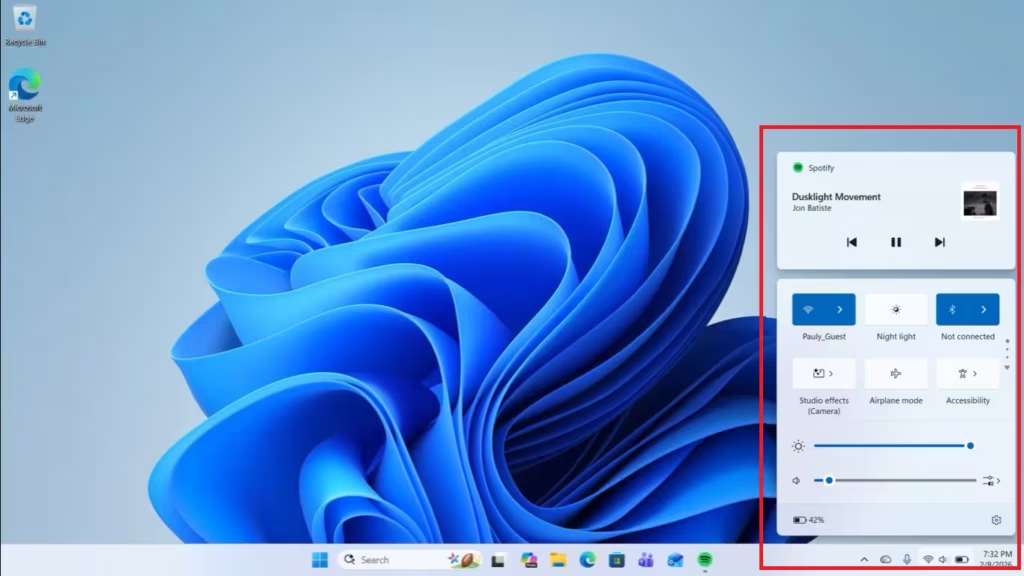
3. System Tray and Quick Settings Enhancements
Microsoft is improving the system tray and Quick Settings experience with several usability upgrades:
- Privacy icons now appear when the microphone or location is in use
- Scrollable Quick Settings layout for easier access to toggles
- Drag-and-drop reordering of Quick Settings tiles
- Built-in media playback controls inside Quick Settings
- Adjust volume by hovering over the volume icon and scrolling
- Win + A opens Quick Settings instantly
- Tray icons can be customized via Taskbar settings
4. Notification Center and Focus Improvements
Additional refinements include:
- Notification Center and calendar now open on the currently active monitor
- Quick access to Focus sessions
- One-click Do Not Disturb toggle from the clock and calendar panel
5. Accessibility and Login Fixes
The update also resolves several reliability issues:
- Fixes an issue where Narrator failed to start after installing Windows from an ISO file
- Fixes a bug where the password icon might not appear on the lock screen
Download Windows 11 KB5077181 Offline Installer (.msu)
Microsoft provides direct download links via the Update Catalog.
You can download:
- x64 installer (~4479 MB)
- ARM64 installer (~4183 MB)
Offline installers are useful if:
- Windows Update fails
- You manage multiple PCs
- You perform manual deployment
However, Windows Update remains the recommended method.
How to Install KB5077181
Method 1: Windows Update (Recommended)
- Open Settings
- Go to Windows Update
- Click Check for updates
- Restart when prompted
The update takes approximately 10 minutes on a high-speed connection.
Method 2: Microsoft Update Catalog
- Visit Microsoft Update Catalog
- Search for KB5077181
- Download the correct architecture (.msu)
- Run the installer manually
Can You Uninstall KB5077181?
You can remove the LCU using DISM if needed .
However:
- You cannot uninstall the Servicing Stack Update separately.
- Security updates cannot be removed after 10 days.
Known Issues
Microsoft reports no known issues with this update at release time .
However, installation failures may occur on some systems.
If Installation Fails:
Use Media Creation Tool for an in-place upgrade:
- Choose “Keep personal files and apps”
- Complete upgrade
- Update installs cleanly
Should You Install KB5077181?
Yes.
This update:
- Fixes WPA3 Wi-Fi issues
- Resolves NVIDIA black screen problems
- Updates Secure Boot certificates
- Improves Smart App Control
- Adds Cross Device Resume
- Enhances system security
Security updates should not be delayed unless you run a mission-critical production system.
Windows 11 KB5077181 delivers both security fixes and meaningful feature upgrades. It improves Android integration, Smart App Control flexibility, gaming compatibility, and long-term Secure Boot reliability.
If you run Windows 11 25H2 or 24H2, install this update as soon as possible to stay protected and stable.

