You prefer Google Maps, but your car keeps launching Apple Maps. Every time you tap an address or ask Siri for directions, the wrong app takes over. Apple does not give most iPhone users a single switch to fix this, yet a few small changes make Google Maps the easy choice on your dashboard.
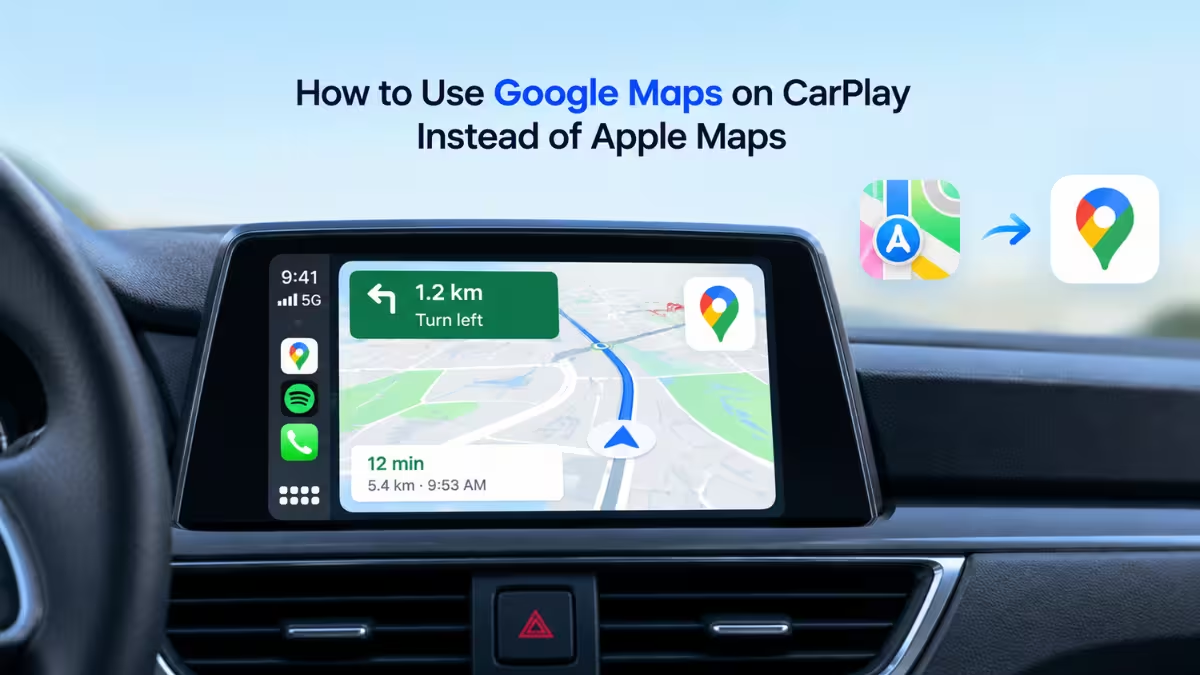
This guide walks through each one, from installing the app to tuning it for the road.
How to Add Google Maps to CarPlay and Move It to the Top
Start with the basics. Install Google Maps from the App Store, then check that CarPlay actually lists it.
- Open Settings on your iPhone and tap General, then CarPlay.
- Select your car.
- Scroll to the bottom of the app list and tap the green plus icon beside Google Maps if it is not on your car screen yet.
Once Google Maps appears, drag it to the top of the list. The first page of your CarPlay home screen gets the most taps, so the top slot saves you a swipe every trip.
How to Make Siri Use Google Maps in CarPlay
Siri picks Apple Maps unless you say otherwise. The fix costs you three extra words. End your request with “on Google Maps,” for example, “Hey Siri, navigate to the airport on Google Maps.”
It feels clunky at first. After a week of repeating it, most drivers do it on autopilot. Leave the app name out and Siri falls back to Apple Maps again.
Stop CarPlay From Reopening Apple Maps
If you forget to name the app, this habit works as a backup. CarPlay often reopens the navigation app you used most recently. If Apple Maps sneaks back in after an iOS update, open Google Maps on the car screen and run a short route. That nudges CarPlay to remember your choice for the next drive. Apple does not document this behavior, so treat it as a helpful pattern, not a guarantee.
How to Add the Google Maps Widget to Your CarPlay Dashboard
Widgets let you start a trip without hunting for the icon.
- Go back to Settings > General > CarPlay and pick your car.
- Tap Widgets instead of Apps.
- Add the Google Maps widget.
Some cars also show a split-screen dashboard with a small map on the left. Swipe right to reach that panel. Start one route in Google Maps and it should claim that mini-map from then on.
Save Home and Work Addresses in Google Maps for One-Tap Routes
Saved places turn a multi-step search into one tap. In the Google Maps app on your iPhone:
- Open Google Maps and tap your profile picture in the top-right corner.
- Go to Settings > Location & privacy.
- Scroll to Home and work addresses.
- Use the three-dot menu beside each entry to add or edit the address.
Both shortcuts then appear in Google Maps on CarPlay, ready for your commute.
Download Google Maps Offline for CarPlay Road Trips
Cell coverage drops on highways, in mountains and in remote areas. Offline maps keep your route working when the signal disappears.
Open Google Maps, tap your profile picture and choose Offline maps. Pick the regions you plan to drive through. Download over Wi-Fi, because maps for big cities eat a lot of mobile data.
Change Map View and Day/Night Mode in CarPlay
In Google Maps on your car screen, tap the compass button to switch between north-up and heading-up views. North-up shows the map in a fixed orientation. Heading-up rotates the map so the road ahead always points up the screen.
You can also let CarPlay swap between light and dark themes on its own. On your car screen, open CarPlay Settings > Appearance and choose the automatic option. Your screen then dims at night and stays easy on your eyes.
How to Set Google Maps as the Default Navigation App (EU and Japan)
Local regulations in the EU and Japan let iPhone owners pick their own default navigation app. If you live in one of those regions, open Settings > Apps > Default Apps and choose Google Maps as your navigation app. Siri requests, tapped addresses and CarPlay then use Google Maps without any extra wording.
Everyone else has to rely on the tricks above, since Apple has not offered the option elsewhere.
Should You Delete Apple Maps From Your iPhone?
You can. Press and hold the Apple Maps icon on your iPhone and remove it. That clears it from your CarPlay screen too. But deleting the app does not make Siri choose Google Maps for you. Siri may ask which app you mean or run a web search instead. Naming the app in your request stays the most reliable method.
CarPlay Google Maps Setup Checklist
- Install Google Maps and add it to CarPlay if it is missing.
- Move it to the top of your CarPlay app list.
- Add the Google Maps widget to your dashboard.
- Say “on Google Maps” at the end of every Siri navigation request.
- Save your home and work addresses.
- Download offline maps for regions you drive through.
- Turn on automatic day and night themes.
Make Google Maps Your Everyday CarPlay App
Apple Maps has come a long way, but you should not have to use it if you prefer Google Maps. Spend five minutes on these settings while you sit in your driveway. Your car will then open the map you trust, and your voice commands will land in the right app.
Frequently Asked Questions
Can you set Google Maps as the default CarPlay app outside the EU and Japan?
No. Outside those regions, Apple Maps stays the default. You can still make Google Maps the easy choice by naming it in Siri requests, placing it at the top of your CarPlay home screen and adding its widget.
Does Siri work with Google Maps on CarPlay?
Yes, as long as you name the app. Add “on Google Maps” to the end of your request. Without it, Siri opens Apple Maps.
Why does Apple Maps open again after an iOS update?
An update can reset which navigation app CarPlay favors. Open Google Maps on your car screen and run a short route to bring it back to the front.
Can I keep both Apple Maps and Google Maps on CarPlay?
Yes. Both apps can sit on your CarPlay home screen. Pick the one you want for each trip and name it when you talk to Siri.
