Old versions of Microsoft Word still work on modern systems — but not perfectly. If Word 2003 freezes on Windows 11, especially when you click Save As, Insert Picture, or try to browse folders, you’re facing a compatibility conflict.
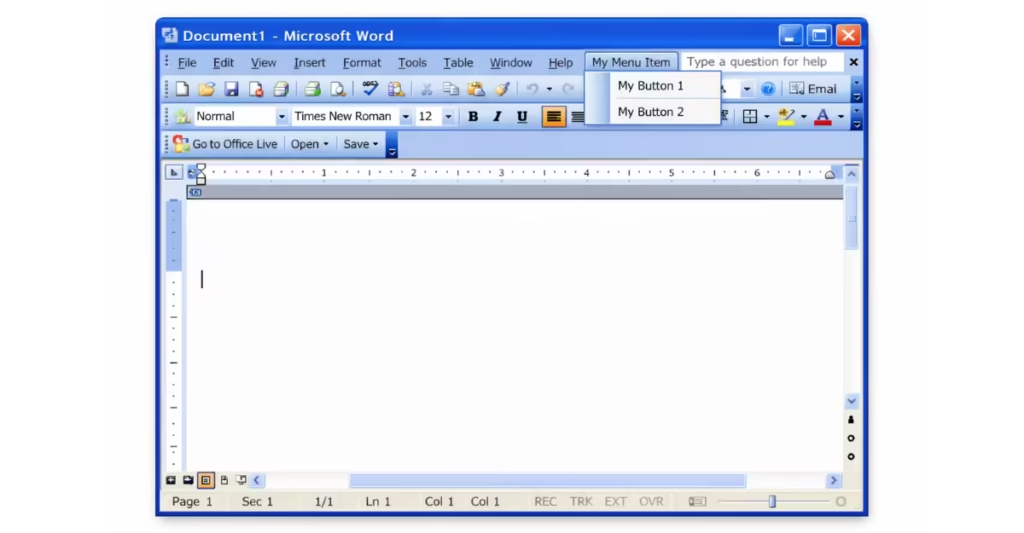
Word 2003 was designed for Windows XP-era file systems. Windows 11 uses a completely different file dialog framework and cloud folder redirection. When Word tries to load those outdated components, it stops responding.
You don’t need to uninstall Office or downgrade Windows. This guide shows you exactly how to fix Word 2003 not working on Windows 11 and restore full functionality step by step.
Why Word 2003 Freezes on Windows 11
Microsoft Office 2003 was built for Windows XP and Windows 7.
Windows 11 uses a modern file picker system and cloud folder redirection (OneDrive). Word 2003 still tries to load legacy file dialog components.
When those old components fail to load, Word freezes during:
- Save As
- Insert Picture from File
- Open dialog
- Browse locations
This is not a hardware issue. It is a file dialog compatibility conflict.
Fix 1 — Install Office 2003 Service Pack 3 (Critical)
Most DVD versions of Office 2003 do NOT include Service Pack 3.
Without SP3, Word has file system access problems on modern Windows.
What to do:
- Download Office 2003 Service Pack 3 (SP3) from Microsoft Update Catalog.
- Install it.
- Restart your computer.
- Test Save As again.
This step fixes many freezing issues immediately.
Do not skip this.
Fix 2 — Disable OneDrive Folder Redirection
Windows 11 redirects Desktop and Documents to OneDrive by default.
Word 2003 struggles with cloud-synced folders.
Turn it off:
- Click the OneDrive cloud icon in the system tray.
- Open Settings.
- Go to Sync and Backup → Manage Backup.
- Turn Desktop OFF.
- Close Word.
- Reopen Word and test Save As.
Also test saving to a pure local path like:
C:\Docs
or
C:\Temp
Avoid OneDrive paths while testing.
Fix 3 — Run Word in Compatibility Mode
Force Word to behave like it’s running on an older Windows version.
Do this:
- Open:
C:\Program Files (x86)\Microsoft Office\Office11\ - Right-click WINWORD.EXE.
- Click Properties.
- Open Compatibility tab.
- Select:
- Windows XP (Service Pack 3)
OR - Windows 7
- Windows XP (Service Pack 3)
- Check “Run this program as administrator.”
- Click Apply → OK.
Open Word again and test Save As.
Fix 4 — Start Word Without Add-ins
Sometimes old templates or add-ins cause the freeze.
- Press Win + R.
- Type: winword /a
- Press Enter.
This launches Word without add-ins.
Test Save As again.
Fix 5 — Use a Local Folder Only
Even if OneDrive is enabled, you can bypass it.
Save files directly to:
- C:\Temp
- C:\LocalDocs
- Any folder not synced to OneDrive
If Save As works there, the issue is folder redirection.
If Nothing Works — Use a Virtual Machine
If Windows 11 continues blocking file dialogs, run Word 2003 inside:
- Windows 10
- or Windows 7
Using:
- Oracle VM VirtualBox
Word 2003 works perfectly inside older Windows environments.
This is the most stable long-term solution.
Important: Office 2003 Is No Longer Supported
Microsoft stopped supporting Office 2003 years ago.
That means:
- No security updates
- No compatibility fixes
- More issues with future Windows 11 updates
If you rely on it daily, consider:
- Running it in a VM
- Or upgrading to a newer version of Word
Word 2003 freezes on Windows 11 because it depends on legacy file dialog components that modern Windows builds no longer support properly. When you click Save As or try to browse folders, the old file system calls conflict with Windows 11’s newer framework, causing Word to hang. Installing Service Pack 3, disabling OneDrive folder redirection, running compatibility mode, and saving to a local folder fix the issue in most cases.
If the problem continues, run Word 2003 inside a Windows 10 or Windows 7 virtual machine for a stable setup. Office 2003 no longer receives updates, so compatibility issues may increase over time. Apply the fixes above and you can continue using Word 2003 on Windows 11 without changing your workflow.

