If your printer suddenly prints a page that says “PCL XL Error” instead of your document, the printer cannot understand the print command sent by your computer. This issue appears most often on HP LaserJet printers using the PCL6 driver.
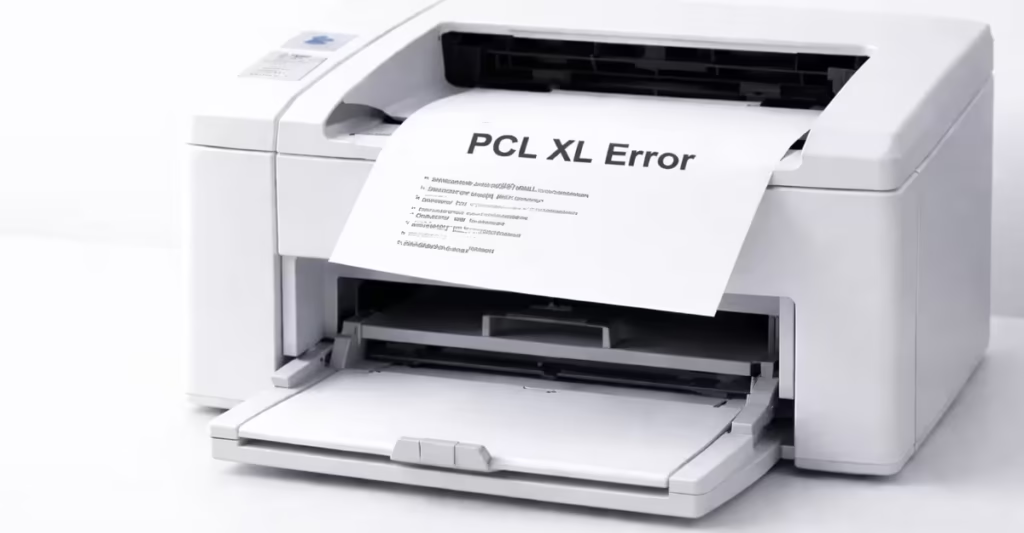
A PCL XL error usually happens because of driver corruption, incompatible fonts, or incorrect printing settings. Fortunately, you can fix the problem with a few simple adjustments.
What Is a PCL XL Error?
PCL stands for Printer Command Language, a system that printers use to interpret print instructions.
PCL XL (also called PCL6) is a newer version designed for faster printing and better graphics handling. However, if the printer driver sends commands the printer cannot process, the printer stops the job and prints an error page instead.
You might see messages like:
PCL XL Error
Subsystem: KERNEL
Error: IllegalOperatorSequence
Operator: ...
Position: ...
How to Fix PCL XL Error
Follow these fixes one by one until the printer starts working normally.
1. Clear the Print Queue
A corrupted print job often triggers PCL XL errors.
Steps
- Open Control Panel
- Go to Devices and Printers
- Right-click your printer
- Select See what’s printing
- Click Cancel All Documents
- Restart the printer
- Send a new test print
This removes corrupted jobs that may cause the error.
2. Change Printer Driver from PCL6 to PCL5
The PCL6 driver causes most PCL XL errors. Switching to PCL5 usually resolves the problem.
Steps
- Open Devices and Printers
- Right-click your printer
- Click Printer Properties
- Select Advanced
- Click New Driver
- Choose HP PCL5 driver
Print a test document after switching the driver.
3. Update the Printer Driver
Outdated drivers often send incompatible commands to the printer.
Steps
- Open Device Manager
- Expand Print queues
- Right-click your printer
- Click Update driver
- Choose Search automatically for drivers
You can also download the latest driver from the printer manufacturer’s website.
4. Adjust Printer Font Settings
Some documents use fonts the printer cannot process. Adjusting font settings fixes this issue.
Steps
- Open Devices and Printers
- Right-click your printer
- Select Printing Preferences
- Go to Advanced
- Change the following settings:
| Setting | Value |
|---|---|
| TrueType Font | Download as Softfont |
| Send TrueType as Bitmap | Enabled |
Click Apply and try printing again.
5. Rename Printer GPD Files
Corrupted configuration files may trigger PCL XL errors.
Steps
- Open File Explorer
- Navigate to:
C:\Windows\System32\spool\drivers\x64\3- Find files ending with .gpd
- Rename them (for example
file.gpd.old) - Restart your computer
Windows will rebuild the configuration files automatically.
6. Reinstall the Printer Driver
If the issue continues, reinstall the driver completely.
Steps
- Open Device Manager
- Expand Print queues
- Right-click your printer
- Click Uninstall device
- Restart the PC
- Reconnect the printer
Windows will install the driver again.
7. Run the Windows Printer Troubleshooter
Windows includes a built-in tool that fixes common printer problems.
Steps
- Open Settings
- Go to System → Troubleshoot
- Click Other troubleshooters
- Select Printer
- Run the troubleshooter
Additional Tips to Prevent PCL XL Errors
Follow these best practices to avoid future printing problems:
- Always use the latest printer driver
- Avoid printing extremely large PDF files
- Restart the print spooler if printing stops
- Keep printer firmware updated
- Print a simple text file first if a document fails
The PCL XL Error usually points to a driver or configuration issue, not a hardware failure. Clearing the print queue, switching to the PCL5 driver, or reinstalling the printer driver fixes the problem in most cases.
If the error continues after trying these methods, update the printer firmware or contact the printer manufacturer’s support team.