Microsoft’s April 2026 Patch Tuesday update KB5083769 introduced a new Remote Desktop security warning, but the warning itself is now broken for many users. If you use two monitors with different display scaling and the RDP popup shows overlapping text or cut-off buttons after installing this update, you are hitting a confirmed Microsoft bug. Here is exactly what is happening and how to fix it.
Microsoft released KB5083769 on April 13, 2026 for Windows 11 24H2 and 25H2. Along with general security patches, the update added new Remote Desktop Protocol (RDP) safeguards specifically to counter a spoofing vulnerability tracked as CVE-2026-26151. This vulnerability lets attackers misuse RDP files to steal credentials or hijack remote sessions.
To block this, Microsoft added a new warning popup that appears every time you open an RDP file. The warning asks you to confirm the connection before it proceeds. The security intent is solid, but the implementation has a rendering bug.
Remote Desktop Warning Window Not Displaying Correctly After KB5083769
Microsoft confirmed this in the KB5083769 release notes. After installing the update, the warning window that appears when you open an RDP file does not render correctly on multi-monitor setups where each display runs a different scaling level.
For example, if you set one monitor to 100% scale and another to 125%, Windows renders the warning across those conflicting DPI environments and produces:
- Overlapping text inside the warning window
- Partially hidden or clipped buttons
- Buttons that your mouse cannot reach or click properly
The update affects Windows 11 versions 23H2, 24H2, and 25H2. Enterprise users and anyone relying on pre-configured RDP files hit this most frequently, but home users with dual monitors at different scales face the same problem.
Microsoft has not released a patch for this yet, but two workarounds are available right now.
Fix 1: Match Display Scaling Across All Monitors (Recommended)
This is the primary workaround Microsoft recommends. Setting all displays to the same scale value eliminates the DPI conflict that breaks the warning window.
- Open Settings from the Start menu.
- Go to System > Display.
- Click on your first monitor.
- Note the Scale percentage under Scale and Layout.
- Click on your second monitor.
- Change its Scale value to match the first monitor.
- Repeat for any additional monitors connected to your PC.
- Close Settings and open your RDP file again.
The warning window should now render cleanly with all text and buttons fully visible.
Note: Matching scale values may make text or icons appear larger or smaller on one of your monitors depending on the resolution difference. This is a temporary trade-off until Microsoft ships a proper fix.
Fix 2: Use the Keyboard to Bypass the Broken Window
If you cannot change your display scaling right now, or if the warning window still appears broken, the keyboard works even when your mouse cannot reach hidden buttons.
- When the broken warning window appears, press Tab to cycle keyboard focus between the available buttons.
- Watch for the highlighted selection to move between options.
- Press Spacebar to activate the currently highlighted button.
This lets you confirm or dismiss the RDP warning without needing to click anything.
How to Check If KB5083769 Is on Your System
If you are not sure whether this update is already installed:
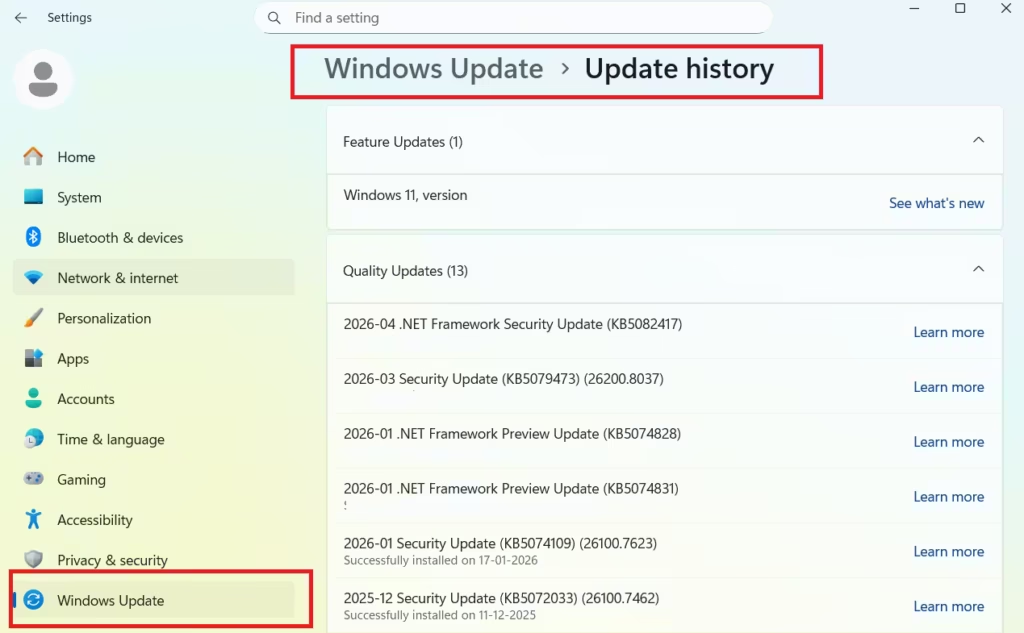
- Open Settings > Windows Update > Update history.
- Scroll through the list and look for KB5083769.
- If it appears, the bug may affect your next RDP session on a multi-monitor setup.
Microsoft acknowledged the bug in the official KB5083769 release notes and confirmed it will release a fix in a future Windows update. The company is investigating the issue. No out-of-band emergency patch is available yet. A future optional update, potentially KB5083631 which Microsoft expects to bring performance improvements to 24H2 and 25H2, may include this fix.
KB5083769 adds real security improvements to Remote Desktop, but the new warning window breaks on dual-monitor setups with mismatched scaling. Until Microsoft pushes a proper fix, set all your monitors to the same scale value in Display Settings. If that is not possible, use Tab and Spacebar to interact with the broken popup. Neither workaround is perfect, but both get you back into Remote Desktop without waiting for the patch.
Have you hit this issue on your setup? Let us know in the comments.

