Microsoft's April 2026 cumulative update (KB5083769) is causing three problems on certain Windows 11 machines: a BitLocker recovery screen on startup, multiple unexpected reboots during installation, and outright installation failures with specific error codes. If your system uses default settings, you're likely fine. If you use custom BitLocker policies, read this before you update.
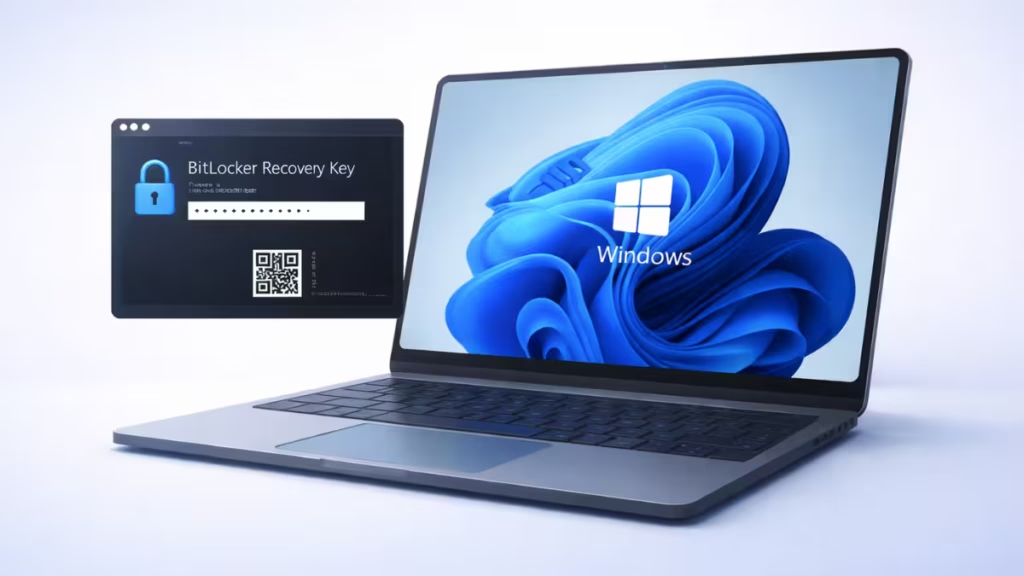
BitLocker Recovery Screen
This is the most disruptive issue. After installing KB5083769, some users are greeted with a BitLocker recovery prompt before Windows even loads — a jarring experience if you don't have your recovery key handy.
Why it happens
The problem is triggered by a specific combination of conditions:
- BitLocker is enabled on the system drive
- A custom Group Policy setting is active that affects TPM platform validation
- Secure Boot PCR7 binding shows "Not Possible"
When all three conditions are present, the update causes Windows to treat the boot environment as changed, prompting a recovery key request.
See also: BitLocker Vulnerability CVE-2026-27913 Lets Attackers Bypass Security – Fix Now
Microsoft has acknowledged the issue and is rolling out a server-side fix. In most cases, the BitLocker recovery key is required only once.
How to prevent it before updating
If you want to avoid the recovery screen entirely, follow these steps before installing the update:
- Open Group Policy Editor — press
Win + R, typegpedit.msc, and hit Enter. - Navigate to:
Computer Configuration > Administrative Templates > Windows Components > BitLocker Drive Encryption > Operating System Drives- Open "Configure TPM platform validation profile for native UEFI firmware configurations" and set it to Not Configured.
- Apply the change immediately:
gpupdate /force- Temporarily suspend BitLocker:
manage-bde -protectors -disable C:- Install the update, then re-enable BitLocker:
manage-bde -protectors -enable C:This restores Windows to its default secure configuration and prevents the update from triggering a recovery prompt.
Multiple Reboots During Installation
Some users report their PC restarting three or four times during installation — far more than the single reboot a standard Windows update requires. In some cases, machines get temporarily stuck on update screens before eventually completing.
The likely culprit is a simultaneous .NET Framework update that installs alongside KB5083769. Microsoft is still investigating whether the additional reboots are a bug or expected behavior for this combination. Either way, if your machine reboots more than once, let it finish — don't force a shutdown.
Installation Errors
A smaller group of users can't install the update at all. The most commonly reported error codes are:
0x800736b30x800f09910x800f081f0x800719e40x800f08230x80071a2d
These typically point to missing system components, update conflicts, or corrupted files. Running the Windows Update Troubleshooter or a DISM/SFC scan resolves most cases.
System Fixes and Enhancements in KB5083769
Despite the rough rollout for some users, the update carries meaningful improvements:
- SMB compression over QUIC — more reliable file sharing over internet connections
- Remote Desktop phishing protection — stronger defenses against credential-harvesting attacks
- Reset This PC fix — resolves failures in the reset/recovery flow
- Secure Boot certificate updates — better handling of certificate chain improvements
Should You Install It?
Install now if your system uses default BitLocker settings (or no BitLocker at all) and you haven't had recent update failures. The security improvements are worth it.
See also: Restore Last Session in Microsoft Edge: Recover Closed Tabs and Windows Instantly
Wait a few days if you rely on BitLocker with custom Group Policy configurations, or if you've hit installation errors recently. A broader fix is already rolling out from Microsoft's side.
If you do hit the BitLocker recovery screen, enter your recovery key — your data is not at risk. The key is stored in your Microsoft account under account.microsoft.com/devices/recoverykey if you don't have it written down.
FAQs
Does KB5083769 trigger BitLocker recovery on all PCs?
No. The issue affects only a limited number of systems with specific BitLocker Group Policy configurations and TPM validation settings. Most users with default settings will not experience this problem.
Why does Windows 11 KB5083769 ask for a BitLocker recovery key?
The update changes boot validation measurements when certain TPM and Secure Boot policies are enabled. This makes Windows treat the system as modified, which triggers the BitLocker recovery prompt.
Is it normal for KB5083769 to reboot multiple times?
No. Windows updates usually require only one reboot. However, KB5083769 may restart multiple times due to a simultaneous .NET Framework update or installation dependencies.
What should I do if KB5083769 fails to install?
If the update fails with error codes like 0x800f081f or 0x800736b3, run system repair tools such as SFC and DISM. These tools fix corrupted system files and allow the update to install properly.
Has Microsoft fixed the KB5083769 BitLocker issue?
Yes. Microsoft has acknowledged the issue and already started rolling out a server-side fix. This should prevent the BitLocker recovery screen on affected systems.
Is my data safe if BitLocker recovery appears after the update?
Yes. Entering the BitLocker recovery key unlocks your system without affecting your data. The prompt is a security measure, not a data loss event.