OpenAI Codex CLI is a coding agent that runs directly in your terminal. It reads your project files, edits code, and executes commands without leaving your command line. If you spend a lot of time switching between a browser, an editor, and a terminal, Codex CLI keeps that workflow in one place.
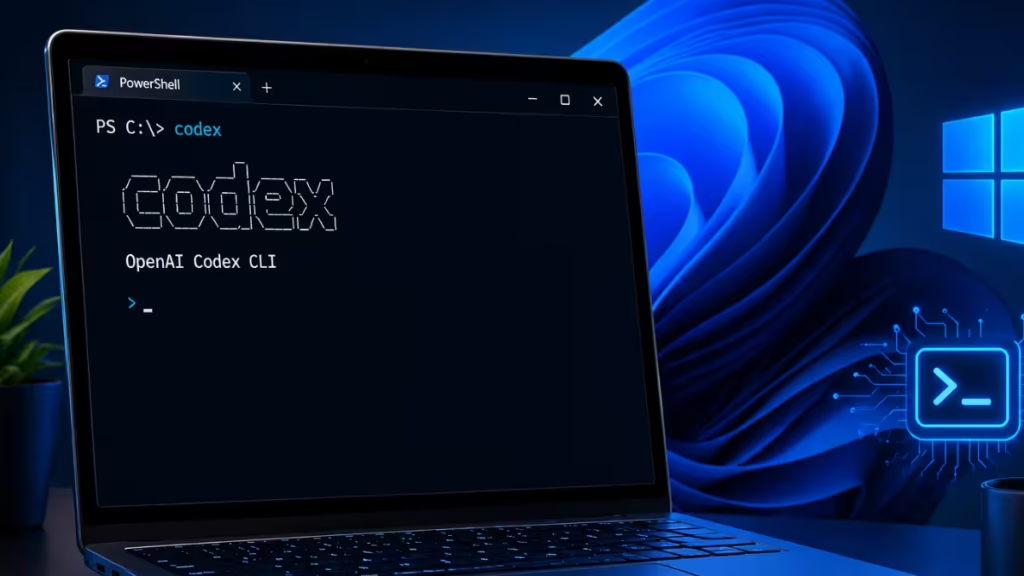
This guide walks you through installing Codex CLI on Windows 11, signing in, and running your first session.
What You Need Before You Start
Before you install Codex CLI, check these two requirements:
- A supported ChatGPT plan: Codex CLI requires a ChatGPT Plus, Pro, Business, Edu, or Enterprise subscription. If you use the free tier, you will need to upgrade or use an OpenAI API key instead.
- Node.js installed on your PC: The installer uses npm, which comes bundled with Node.js. If you do not have Node.js, download the LTS version from nodejs.org and install it. Open a terminal after installation and run
node -vto confirm it works.
How to Install OpenAI Codex CLI on Windows 11
Codex CLI installs as a global npm package. Open PowerShell or Windows Terminal and run:
npm i -g @openai/codexnpm downloads and installs the package globally. The process takes under a minute on most connections.
To confirm the installation worked, run:
codex --versionWindows 11 supports Codex CLI natively in PowerShell. If you need a Linux-native environment for your project, use WSL2 instead and run the same install command inside your WSL terminal.
How to Sign In and Run Codex CLI
Once installed, start Codex CLI by running:
codexThe first time you run this command, Codex prompts you to authenticate. You have two options:
- Sign in with your ChatGPT account if you have an active Plus, Pro, Business, Edu, or Enterprise plan.
- Enter an OpenAI API key if you prefer to connect via the API directly.
After you authenticate, Codex opens an interactive terminal UI (TUI). From here, you type prompts and Codex reads your project files, suggests changes, and runs commands based on what you ask.
What Can You Do with OpenAI Codex CLI
- Switch models: Type
/modelinside a session to switch between GPT-5.4, GPT-5.3-Codex, and other available models. You can also adjust the reasoning level from the same menu. - Attach images: You can upload screenshots or design specs alongside your prompt. Codex reads the image and uses it as context when generating or editing code.
- Run a code review: Ask Codex to review your code before you commit. A separate Codex agent checks your changes and flags issues.
- Search the web: Codex can search the web to pull in current information during a task, which is useful when you need documentation or package details.
- Use MCP tools: Codex supports Model Context Protocol (MCP), which connects it to third-party tools and external context sources.
- Control approval mode: Before Codex edits files or runs commands, you can set an approval mode that decides how much it does automatically versus what it asks you to confirm first.
How to Upgrade Codex CLI
OpenAI releases new versions of Codex CLI regularly. To upgrade to the latest version, run:
npm i -g @openai/codex@latestRun this command periodically to stay on the most recent build. Check the Codex CLI changelog on GitHub for details on what each release changes.
If you run into issues after installation, confirm that your Node.js version is current and that your ChatGPT plan includes Codex access. Both are the most common reasons the setup does not work on the first try.
FAQs
Is OpenAI Codex CLI free to use on Windows 11?
Codex CLI requires a ChatGPT Plus, Pro, Business, Edu, or Enterprise plan. The free ChatGPT tier does not include Codex CLI access. You can also use an OpenAI API key as an alternative.
Does OpenAI Codex CLI work on Windows 11 without WSL?
Yes. Codex CLI runs natively in PowerShell on Windows 11 using the Windows sandbox. You only need WSL2 if your project requires a Linux-native environment.
What Node.js version does Codex CLI require?
Codex CLI installs via npm, which comes with Node.js. Always install the latest LTS version from nodejs.org to avoid compatibility issues.
How do I update OpenAI Codex CLI to the latest version?
Run npm i -g @openai/codex@latest in your terminal. This overwrites your current installation with the newest release.
Why does Codex CLI fail to start after installation on Windows 11?
The two most common causes are an outdated Node.js version and a ChatGPT plan that does not include Codex access. Verify both before troubleshooting further.

