The DPC Watchdog Violation error (stop code 0x00000133) is a Blue Screen of Death (BSOD) that crashes Windows when a Deferred Procedure Call (DPC) routine takes too long to complete. Windows uses DPC to handle time-sensitive tasks like hardware interrupts. When a driver or hardware component stalls that process beyond the allowed limit, the system halts to prevent further damage.
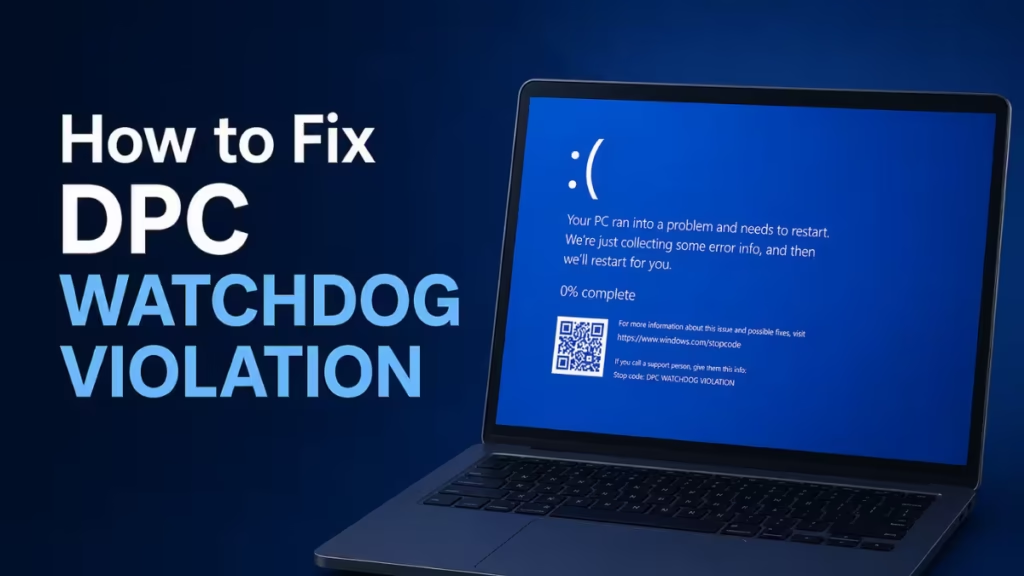
Common triggers include outdated or incompatible storage drivers, unsupported SSD firmware, conflicting software, and corrupted system files. This guide walks you through every proven fix, starting with the quickest checks.
Fix 1: Disconnect All Non-Essential External Devices
External peripherals, especially USB accessories, can conflict with DPC routines and trigger the crash.
- Shut down your PC completely.
- Unplug all external devices: USB drives, external hard drives, printers, hubs, and docking stations.
- Leave only your keyboard and mouse connected.
- Boot Windows and check if the BSOD returns.
If the system stays stable, reconnect devices one at a time to identify the culprit.
See also: How to Fix CRITICAL_SERVICE_FAILED (0x5A) on Windows 11 Without Safe Mode
Fix 2: Switch to the Standard SATA AHCI Controller Driver
An incompatible SATA controller driver (such as iaStorA.sys from Intel Rapid Storage Technology) is one of the most common causes of this error. Switching to Windows' built-in Standard SATA AHCI Controller driver often resolves it.
- Press Win + X and select Device Manager.
- Expand IDE ATA/ATAPI controllers.
- Right-click your SATA controller and select Properties.
- Click the Driver tab, then click Driver Details.
- Check if the driver file listed is
iaStorA.sys. If it is, proceed. If you seestorahci.sys, try updating it automatically and restart. - Close the Driver Details window and click Update Driver.
- Select Browse my computer for driver software.
- Select Let me pick from a list of available drivers on my computer.
- Choose Standard SATA AHCI Controller and click Next.
- Restart your PC.
Fix 3: Update Your SSD Firmware
Outdated SSD firmware causes storage-level stalls that trigger the DPC Watchdog Violation. Manufacturers release firmware updates to fix exactly these kinds of stability issues.
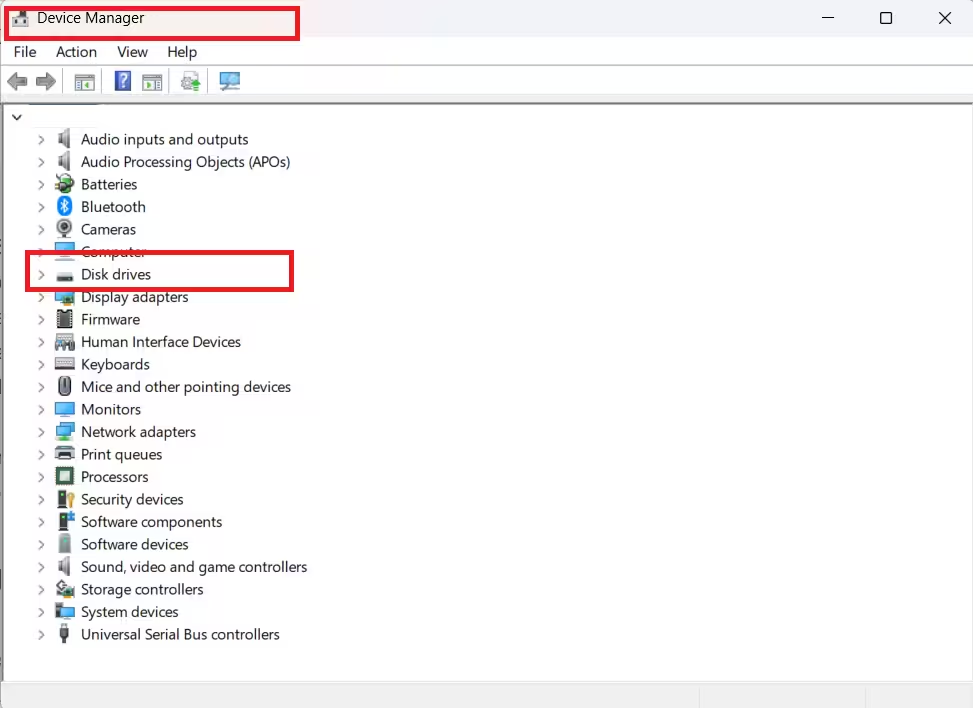
Step 1: Find your SSD model
- Press Win + X and select Device Manager.
- Expand Disk drives.
- Note the full model name of your SSD.
Step 2: Download and install the firmware update
- Go to your SSD manufacturer's support website (Samsung, Crucial, WD, Kingston, etc.).
- Search for your SSD model.
- Download the latest firmware update tool.
- Run the tool and follow the on-screen instructions to update the firmware.
- Restart your PC after the update completes.
Note: Back up important data before updating SSD firmware. While rare, firmware updates carry a small risk of data loss if interrupted.
Fix 4: Run SFC to Repair Corrupted System Files
Corrupted Windows system files can cause DPC routine failures. The System File Checker (SFC) scans and repairs them automatically.
- Press Win + S, type cmd, right-click Command Prompt, and select Run as administrator.
- Type the following command and press Enter:
sfc /scannow- Wait for the scan to finish. This can take 10 to 20 minutes.
- If SFC finds and repairs corrupted files, restart your PC.
- If SFC cannot repair all files, run DISM to fix the Windows image first:
DISM /Online /Cleanup-Image /RestoreHealth- After DISM completes, run
sfc /scannowagain.
Fix 5: Run CHKDSK to Fix Disk Errors
Bad sectors or file system errors on your storage drive can cause the crash. CHKDSK scans and repairs these issues.
- Press Win + S, type cmd, right-click Command Prompt, and select Run as administrator.
- Type the following command and press Enter:
chkdsk C: /f /r- When prompted to schedule the scan on next restart, press Y and then Enter.
- Restart your PC. CHKDSK runs before Windows loads and fixes any detected errors.
Replace
C:with the correct drive letter if Windows is installed on a different drive.
Fix 6: Boot into Safe Mode to Isolate the Problem
Safe Mode loads Windows with only essential drivers and services. If your PC runs without crashing in Safe Mode, the issue is driver or software-related.
- Hold Shift and click Restart from the Start menu.
- Go to Troubleshoot > Advanced options > Startup Settings > Restart.
- Press 5 or F5 to boot into Safe Mode with Networking.
- Use your PC normally and check if the BSOD appears.
If the system is stable in Safe Mode, a third-party driver or application is causing the crash. Use this mode to update drivers or uninstall recently added software.
Fix 7: Remove Conflicting Software
Software conflicts, particularly between two antivirus programs running at the same time, can trigger the DPC Watchdog Violation error.
- Press Win + I to open Settings.
- Go to Apps > Installed apps (Windows 11) or Apps & features (Windows 10).
- Look for any software you installed just before the BSOD started appearing.
- Click the app and select Uninstall.
- If you have two antivirus programs installed, uninstall one. Windows Defender handles protection on its own.
- Restart your PC and check for stability.
Fix 8: Check Event Viewer to Find the Faulty Driver
Event Viewer logs system errors and can point you directly to the driver or process that caused the crash.
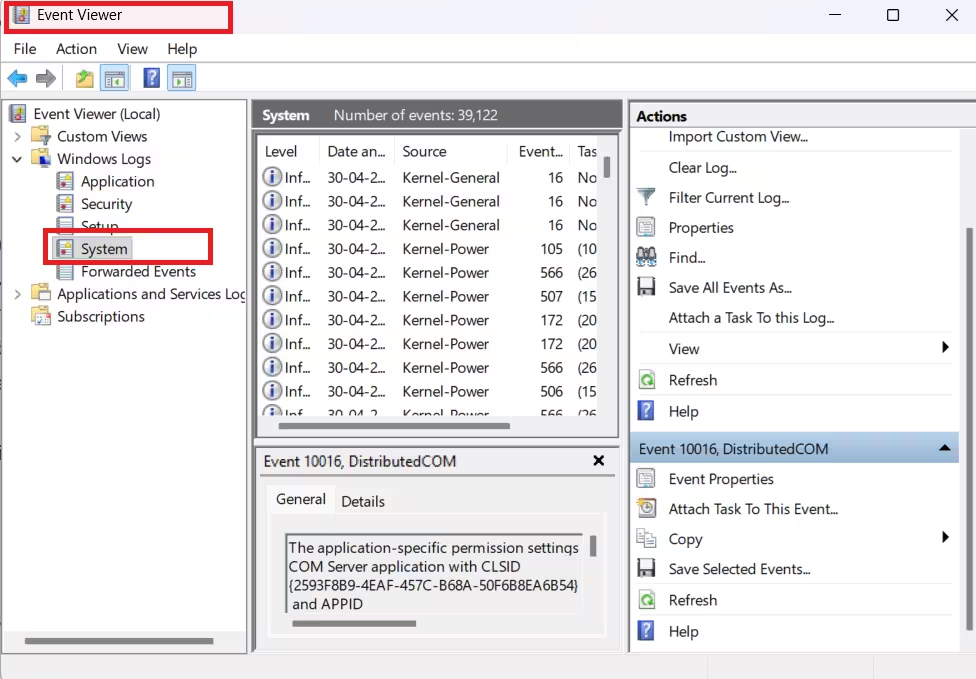
- Press Win + X and click Event Viewer.
- In the left panel, expand Windows Logs and click System.
- In the center panel, look for entries marked Error or Warning that occurred around the same time as the BSOD.
- Click a relevant entry and read the details at the bottom of the panel.
- Note any driver name or module referenced in the error details.
Once you identify the driver, update or uninstall it through Device Manager.
See also: Windows 12 Release Date: Features & What to Expect
Fix 9: Update Chipset Drivers and BIOS
Outdated chipset drivers and an old BIOS version can cause hardware-level timing issues that lead to DPC violations.
Update chipset drivers:
- Identify your motherboard or laptop manufacturer (Dell, HP, ASUS, Lenovo, etc.).
- Visit their official support website and enter your device model.
- Download and install the latest chipset driver.
- Restart your PC.
Update BIOS:
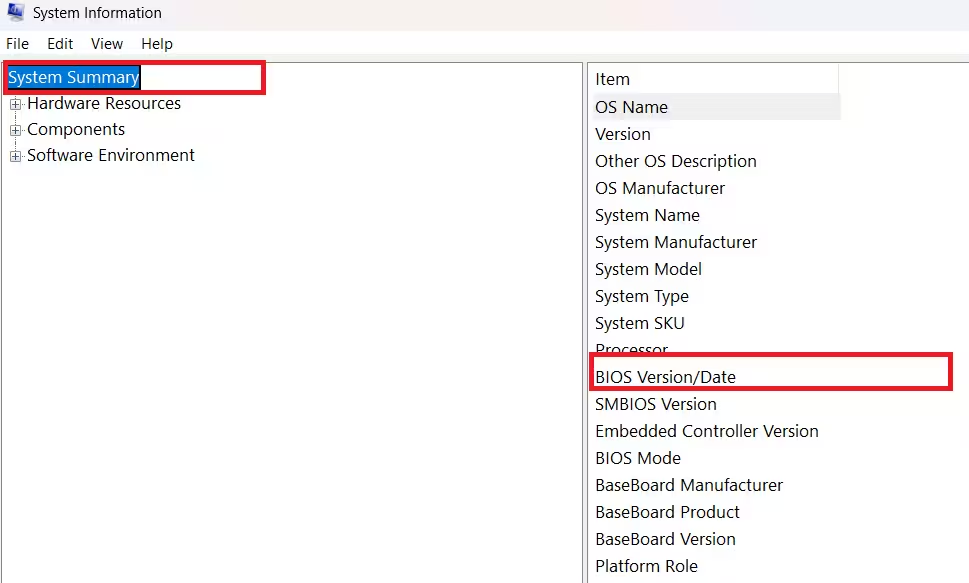
- Press Win + R, type msinfo32, and press Enter.
- Note the BIOS Version/Date listed under System Summary.
- Go to your motherboard or laptop manufacturer's support site.
- Download the latest BIOS update if a newer version exists.
- Follow the manufacturer's instructions carefully. Do not interrupt a BIOS update.
Only update the BIOS if you are comfortable with the process. An interrupted BIOS update can make a system unbootable.
Fix 10: Perform a Clean Boot
A clean boot starts Windows with only Microsoft services and drivers, which helps you isolate a third-party service causing the crash.
- Press Win + R, type msconfig, and press Enter.
- Click the Services tab.
- Check Hide all Microsoft services, then click Disable all.
- Click the Startup tab, then click Open Task Manager.
- Disable every startup item in Task Manager.
- Close Task Manager, click OK in System Configuration, and restart.
- If the BSOD does not appear, re-enable services one at a time to find the cause.
The DPC Watchdog Violation BSOD is almost always caused by a driver or firmware issue rather than a hardware failure. Start by disconnecting external devices and switching to the Standard SATA AHCI Controller driver, as those two fixes resolve the error for most users. If the crash continues, work through the remaining fixes in order, since SFC, CHKDSK, and driver updates together cover the majority of remaining cases. If nothing works after all these steps, test your RAM with Windows Memory Diagnostic and consider whether your SSD may be failing.
FAQs: DPC Watchdog Violation on Windows 10 and 11
What causes DPC Watchdog Violation on Windows 10 and 11?
The most common causes are outdated or incompatible storage drivers, unsupported SSD firmware, conflicting software (such as two antivirus programs), and corrupted Windows system files.
Can a DPC Watchdog Violation fix itself?
No. The error will keep crashing your system until you update the faulty driver, fix the SSD firmware, or remove the conflicting software causing it.
Is DPC Watchdog Violation a hardware or software problem?
In most cases it is a software or driver problem. Hardware failure (such as a failing SSD or faulty RAM) is only the cause in rare situations where all driver and software fixes have failed.
Does reinstalling Windows fix DPC Watchdog Violation?
A clean Windows install can fix it if corrupted system files or a bad driver are the cause. However, if the root cause is outdated SSD firmware or a BIOS issue, the error will return after reinstalling unless you address those first.
How do I know which driver is causing DPC Watchdog Violation?
Open Event Viewer, go to Windows Logs > System, and check entries marked Error or Warning at the time of the crash. The error details will name the driver or module responsible.
![Windows Booting from D Drive Instead of C Drive [Fixed]](https://img.fdaytalk.com/wp-content/uploads/2026/06/Windows-Booting.avif)
![WiFi Disconnects When Laptop Is Locked on Windows 11/10 [Fixed]](https://img.fdaytalk.com/wp-content/uploads/2026/06/WiFi-Disconnects.avif)