Azure retired support for TLS 1.0 and TLS 1.1 on February 3, 2026. If your storage account still shows the notification “Please upgrade your minimum TLS version to 1.2,” you need to act before your client connections start failing. This guide covers whether your existing TLS 1.2 cipher suite still works, how to detect which TLS versions your clients use, how to enforce TLS 1.2 on your storage account, and which cipher suites Microsoft recommends for long-term compatibility.
Does TLS_RSA_WITH_AES_256_CBC_SHA256 Still Work With Azure Storage?
Yes, for now. TLS_RSA_WITH_AES_256_CBC_SHA256 is a valid TLS 1.2 cipher suite. Since Azure Storage continues to support TLS 1.2, any device using this cipher suite can still connect and download files, provided the TLS handshake completes successfully.
However, Microsoft does not recommend this cipher suite for long-term use. It lacks Perfect Forward Secrecy (PFS), which means a key compromise could expose past sessions. Microsoft recommends migrating to modern PFS-based cipher suites as soon as your device firmware allows it.
Important: Azure Storage does not let you block or allow specific cipher suites directly. The only lever you have at the storage account level is the minimum TLS version. If you need fine-grained cipher suite control, use Azure Application Gateway in front of your storage endpoint.
What Happens When Cipher Suite Negotiation Fails
If Azure Storage and the client cannot agree on a mutually supported cipher suite, the TLS handshake fails. Azure rejects the connection, and any file transfer or download operation does not proceed.
If a client sends a request using TLS 1.0 or 1.1 (now retired), Azure Storage returns HTTP 400 (Bad Request) with a message stating that the TLS version is not permitted. The connection fails at the application layer, even if lower-level tools report that those TLS versions are still technically reachable at the protocol layer.
Note: The minimum TLS version check happens after the TCP connection establishes. The connection itself succeeds initially, but the request fails once Azure Storage evaluates the TLS version.
How to Check Which TLS Versions Your Clients Are Using
Before you enforce TLS 1.2, check which TLS versions your existing clients actually use. This prevents you from accidentally breaking applications that still negotiate older versions.
Step 1: Create a Log Analytics Workspace
- Go to the Azure portal.
- Search for Log Analytics workspaces and select Create.
- Choose the subscription that contains your storage account.
- Complete the setup and save the workspace.
Step 2: Create a Diagnostic Setting on Your Storage Account
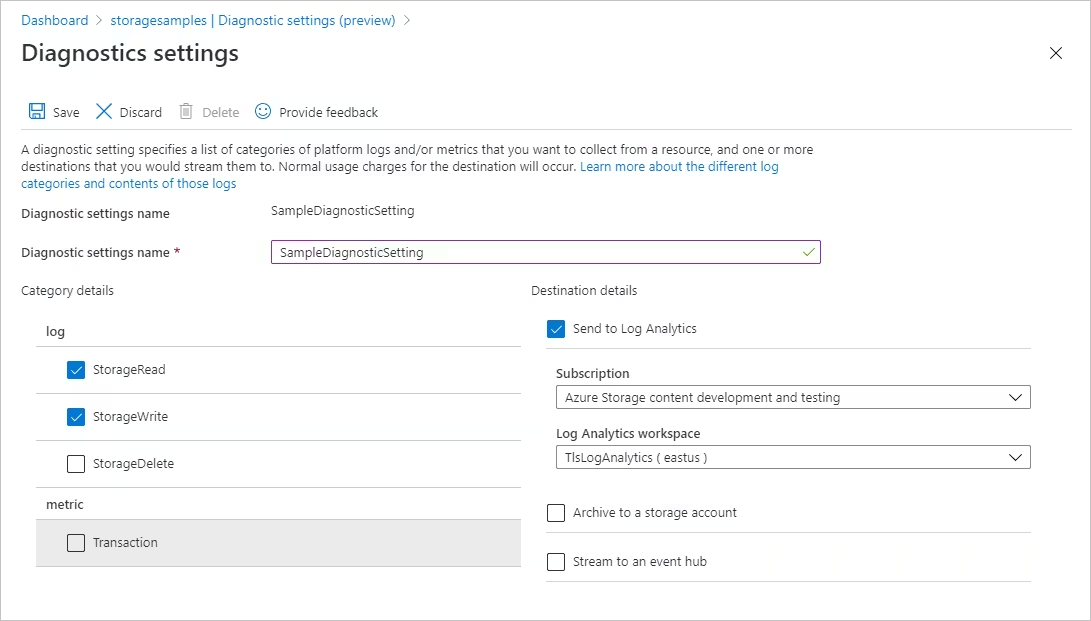
- Navigate to your storage account in the Azure portal.
- Under Monitoring, select Diagnostic settings.
- Select the storage service you want to monitor (for example, Blob).
- Select Add diagnostic setting.
- Provide a name for the setting.
- Under Category details, select the request types to log: StorageRead, StorageWrite, or StorageDelete.
- Under Destination details, select Send to Log Analytics and choose the workspace you created.
- Save the setting.
Requests to the storage account will now log to your Log Analytics workspace according to the diagnostic setting.
Step 3: Query TLS Version Distribution
Open your Log Analytics workspace and run this Kusto query to see the TLS version breakdown for the past seven days:
StorageBlobLogs
| where TimeGenerated > ago(7d) and AccountName == "<your-account-name>"
| summarize count() by TlsVersion
Replace <your-account-name> with your actual storage account name. The results show how many requests used each TLS version.
Step 4: Identify Clients Still Using Older TLS Versions
Run this query to find the specific IP addresses and user agents still sending requests below TLS 1.2:
StorageBlobLogs
| where TimeGenerated > ago(7d) and AccountName == "<your-account-name>" and TlsVersion != "TLS 1.2"
| project TlsVersion, CallerIpAddress, UserAgentHeader
Use these results to identify which applications or devices need updates before you enforce TLS 1.2.
How to Set the Minimum TLS Version to 1.2
Once you confirm that all clients support TLS 1.2, set the minimum TLS version on your storage account.
Note: Changes can take up to 30 seconds to fully propagate after you save.
Azure Portal
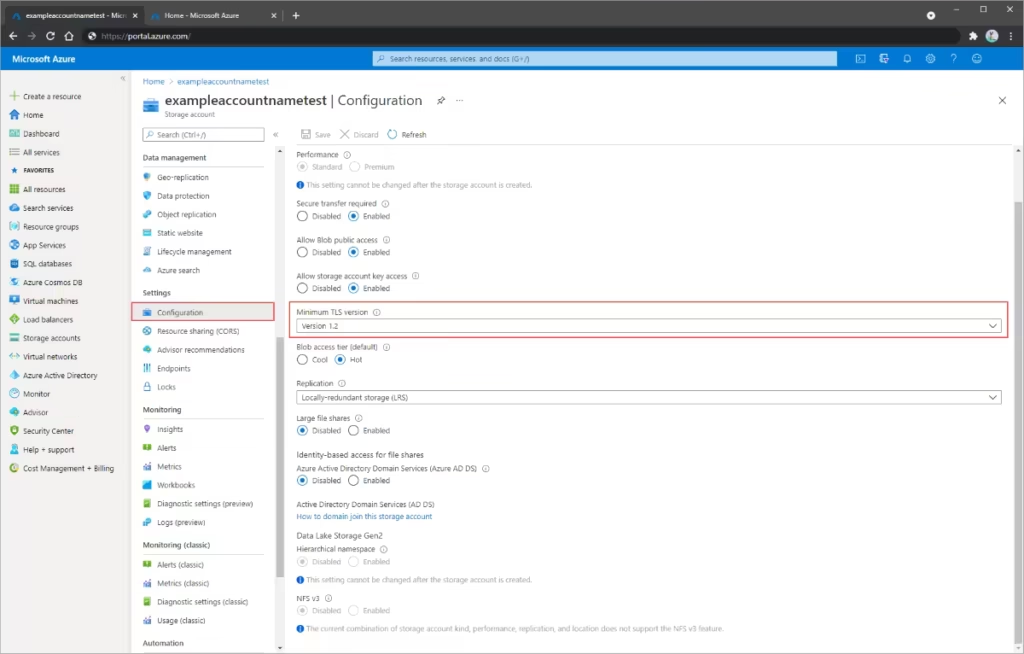
- Navigate to your storage account in the Azure portal.
- Under Settings, select Configuration.
- Under Minimum TLS version, open the dropdown and select TLS 1.2.
- Select Save.
New storage accounts created through the Azure portal already default to TLS 1.2.
PowerShell
Run the following command to set the minimum TLS version:
Set-AzStorageAccount `
    -ResourceGroupName "<resource-group>" `
    -Name "<storage-account-name>" `
    -MinimumTlsVersion TLS1_2
Azure CLI
Use this command to set the minimum TLS version from the Azure CLI:
az storage account update \
    --resource-group <resource-group> \
    --name <storage-account-name> \
    --min-tls-version TLS1_2
Note: When you create a storage account via PowerShell, Azure CLI, or an ARM template, the
MinimumTlsVersionproperty is not set by default. The account will accept TLS 1.0 or higher until you explicitly configure the minimum version.
How to Check Minimum TLS Version Across Multiple Accounts
If you manage many storage accounts, use the Azure Resource Graph Explorer to audit all accounts at once.
- In the Azure portal, search for Resource Graph Explorer and open it.
- Paste the following query and select Run query:
resources
| where type =~ 'Microsoft.Storage/storageAccounts'
| extend minimumTlsVersion = parse_json(properties).minimumTlsVersion
| project subscriptionId, resourceGroup, name, minimumTlsVersion
The results list every storage account with its current minimum TLS version setting. Any account showing null or an empty value accepts TLS 1.0 and higher.
How to Enforce TLS 1.2 With Azure Policy
Azure Policy lets you audit existing accounts for compliance and block new accounts from using TLS versions below 1.2. Similar to how Microsoft halted legacy agent data uploads in Azure Monitor as part of a broader security tightening effort, enforcing TLS 1.2 via policy is the recommended governance approach across your subscription.
Create an Audit Policy
An audit policy flags non-compliant storage accounts without blocking them. Use this to identify accounts that need remediation.
- In the Azure portal, navigate to Azure Policy.
- Under Authoring, select Definitions.
- Select Add policy definition.
- Fill in the Definition location, Name, and optional Description.
- Under Policy rule, paste this JSON into the
policyRulesection:
{
  "policyRule": {
    "if": {
      "allOf": [
        {
          "field": "type",
          "equals": "Microsoft.Storage/storageAccounts"
        },
        {
          "anyOf": [
            {
              "field": "Microsoft.Storage/storageAccounts/minimumTlsVersion",
              "notEquals": "TLS1_2"
            },
            {
              "field": "Microsoft.Storage/storageAccounts/minimumTlsVersion",
              "exists": "false"
            }
          ]
        }
      ]
    },
    "then": {
      "effect": "audit"
    }
  }
}- Save the policy.
- Under Authoring, select Assignments, then Assign policy.
- Set the Scope to the subscription or resource group you want to cover.
- Select the policy definition you just created.
- Select Review + create.
After assignment, wait a few minutes for the compliance report to populate. Open Compliance under Azure Policy and filter by your policy assignment name to see which accounts are out of compliance.
Create a Deny Policy
A deny policy actively blocks the creation of storage accounts with a minimum TLS version below 1.2 and prevents configuration changes that would lower the minimum version.
Follow the same steps as the audit policy above, but replace the "effect": "audit" line with "effect": "deny":
{
  "policyRule": {
    "if": {
      "allOf": [
        {
          "field": "type",
          "equals": "Microsoft.Storage/storageAccounts"
        },
        {
          "anyOf": [
            {
              "field": "Microsoft.Storage/storageAccounts/minimumTlsVersion",
              "notEquals": "TLS1_2"
            },
            {
              "field": "Microsoft.Storage/storageAccounts/minimumTlsVersion",
              "exists": "false"
            }
          ]
        }
      ]
    },
    "then": {
      "effect": "deny"
    }
  }
}
Once assigned, any attempt to create a storage account with TLS 1.0 as the minimum version triggers an error in the portal. Existing accounts with non-compliant settings will also block configuration changes until the minimum TLS version is set to 1.2.
Recommended Cipher Suites for Long-Term Compatibility
Your current cipher suite (TLS_RSA_WITH_AES_256_CBC_SHA256) works today with Azure Storage under TLS 1.2. However, Microsoft recommends migrating to cipher suites that support Perfect Forward Secrecy as soon as your device firmware update cycle allows. PFS cipher suites generate a unique session key for each connection, so a future key compromise does not expose past sessions.
Microsoft recommends these two cipher suites for Azure Storage connections:
| Cipher Suite | TLS Version | PFS Support |
|---|---|---|
TLS_ECDHE_RSA_WITH_AES_128_GCM_SHA256 | TLS 1.2 | Yes |
TLS_ECDHE_RSA_WITH_AES_256_GCM_SHA384 | TLS 1.2 | Yes |
To validate your device’s connectivity after a firmware update, Microsoft recommends capturing the TLS handshake to confirm the negotiated protocol and cipher suite. Set your storage account minimum TLS version to 1.2 and test one device before rolling out the firmware update across your fleet.
Note on TLS 1.3: Azure Storage now supports TLS 1.3. Clients using the latest TLS libraries will automatically negotiate TLS 1.3 if available. However, Azure Storage does not currently support enforcing TLS 1.3 as the minimum version. TLS 1.2 remains the recommended minimum.
Required Permissions to Configure Minimum TLS Version
You need permissions to create and manage storage accounts to set the MinimumTlsVersion property. The following built-in Azure RBAC roles include the required Microsoft.Storage/storageAccounts/write action:
- Owner (Azure Resource Manager)
- Contributor (Azure Resource Manager)
- Storage Account Contributor
Assign these roles at the storage account level or higher. Follow the principle of least privilege and restrict these role assignments only to users who need to create or modify storage accounts.
Security note: These roles also include
Microsoft.Storage/storageAccounts/listkeys/action, which grants access to account access keys. Users with this action can access all data in the storage account using those keys.
Network Considerations
When a client connects to a storage account, it establishes a TCP connection to the public endpoint first. Azure Storage checks the minimum TLS version setting after the connection establishes. If the request uses a TLS version below the configured minimum, the connection succeeds at the TCP layer but the request fails at the application layer.
This behavior can cause confusion when you test TLS support using low-level protocol tools. Those tools may report TLS 1.0 or 1.1 as reachable because the TCP handshake completes. The actual request still fails once Azure Storage evaluates the TLS version.
If you encounter connection issues after setting the minimum TLS version, check whether any upstream service or middleware connects to your Azure Blob Storage account using an older TLS version.
FAQs
Does Azure Storage still support TLS_RSA_WITH_AES_256_CBC_SHA256 after TLS 1.0/1.1 retirement?
Azure Storage still supports TLS_RSA_WITH_AES_256_CBC_SHA256 because it is a valid TLS 1.2 cipher suite. Devices can still connect if they complete a TLS 1.2 handshake successfully. Microsoft recommends moving to newer PFS-based cipher suites for stronger security.
What is the Azure Storage minimum TLS version after February 2026?
After February 3, 2026, Azure Storage requires a minimum TLS version of 1.2. Any request using TLS 1.0 or TLS 1.1 is rejected, usually with an HTTP 400 Bad Request response.
How do I check the minimum TLS version on my Azure Storage account?
Open your storage account in the Microsoft Azure portal, go to Settings > Configuration, and check the Minimum TLS version field. You can also review multiple accounts through Azure Resource Graph.
Can I configure Azure Storage to block specific cipher suites?
No. Azure Storage does not allow cipher suite filtering at the storage account level. You can only set the minimum TLS version. If you need custom cipher controls, place Azure Application Gateway in front of the storage endpoint.
How long does it take for the Azure Storage minimum TLS version change to apply?
After saving the change in the portal, PowerShell, or CLI, it usually takes up to 30 seconds to apply across Azure Storage endpoints.

