If you can't sign in to your Microsoft Azure account, the cause is usually one of several known issues: wrong credentials, MFA failure, a blocked or expired tenant, or a misconfigured identity provider. This guide walks through each fix in order of likelihood so you can get back in fast.
1. Verify You Are Using the Right Account Type
Azure supports two account types: personal Microsoft accounts (Outlook, Hotmail, Live) and work or school accounts (Microsoft Entra ID, formerly Azure AD). Signing in with the wrong account type is one of the most common reasons access fails.
Go to portal.azure.com and check which account you are entering. If your Azure subscription belongs to a work or school tenant, a personal Microsoft account will not work even if the password is correct.
If you are unsure which account your subscription uses, check the email address in the original sign-up confirmation.
2. Reset Your Microsoft Account Password
If your credentials are correct but sign-in still fails, a password reset clears most authentication blocks. Microsoft provides a self-service password reset tool at account.live.com/password/reset.
Many users run into the error "You can't reset your own password because you haven't registered for password reset" during this step. That error means the account has not completed password reset registration. Follow the steps in that guide to complete registration before attempting another reset.
3. Fix MFA Failures Blocking Sign-In
Multi-Factor Authentication (MFA) blocks sign-in when the second factor is unavailable or when your organization has not completed MFA enforcement. Two scenarios apply here.
- For regular users: If MFA prompts fail because you lost access to your authenticator app or phone number, contact your Azure administrator to reset your MFA registration.
- For admin accounts: If you are a Microsoft 365 global admin and MFA is locking you out with Error 500121, that guide covers emergency recovery steps including break-glass account access and MFA bypass.
If your organization has not yet configured MFA enforcement for Azure, see how to enable MFA for your tenant to avoid sign-in policy blocks tied to the October 2025 enforcement deadline.
4. Fix AADSTS Errors During Sign-In
Azure Active Directory returns specific error codes when sign-in fails at the authentication layer. Three codes appear most often in this scenario.
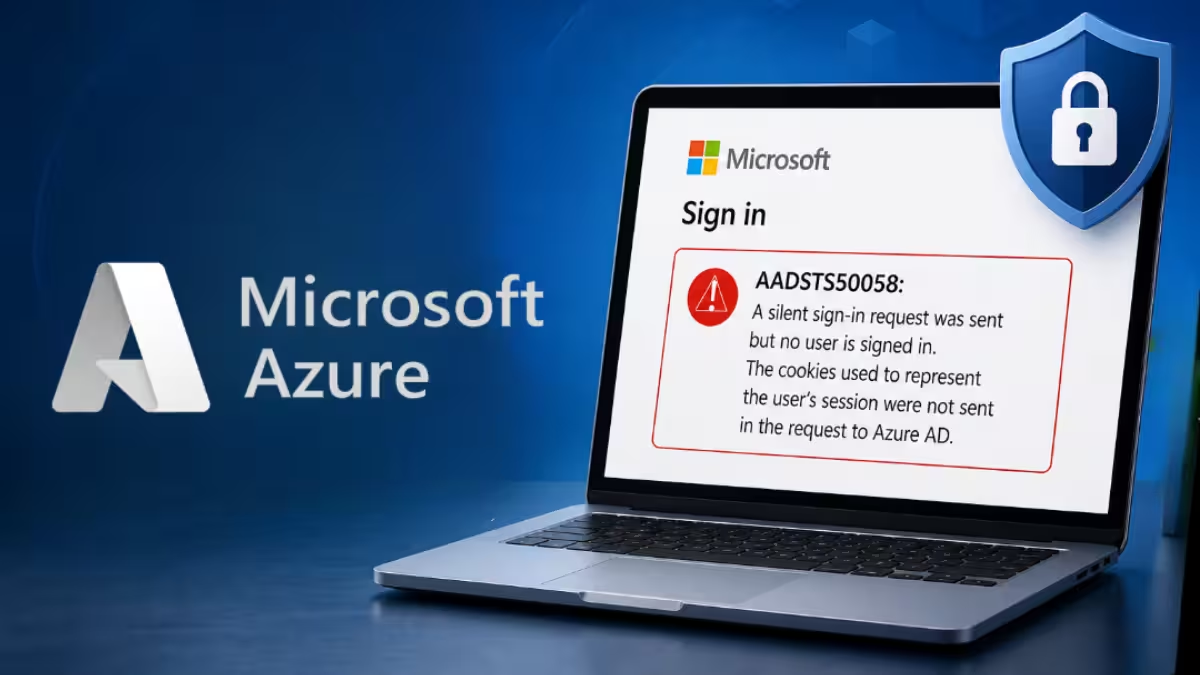
1. AADSTS50058 (Silent Sign-In Request Failed): This error means Azure AD received a silent authentication request but found no active session. It typically happens in browser environments where cookies expired or a new session context started. The fix involves clearing cookies and forcing interactive sign-in. See the full breakdown in the AADSTS50058 fix guide.
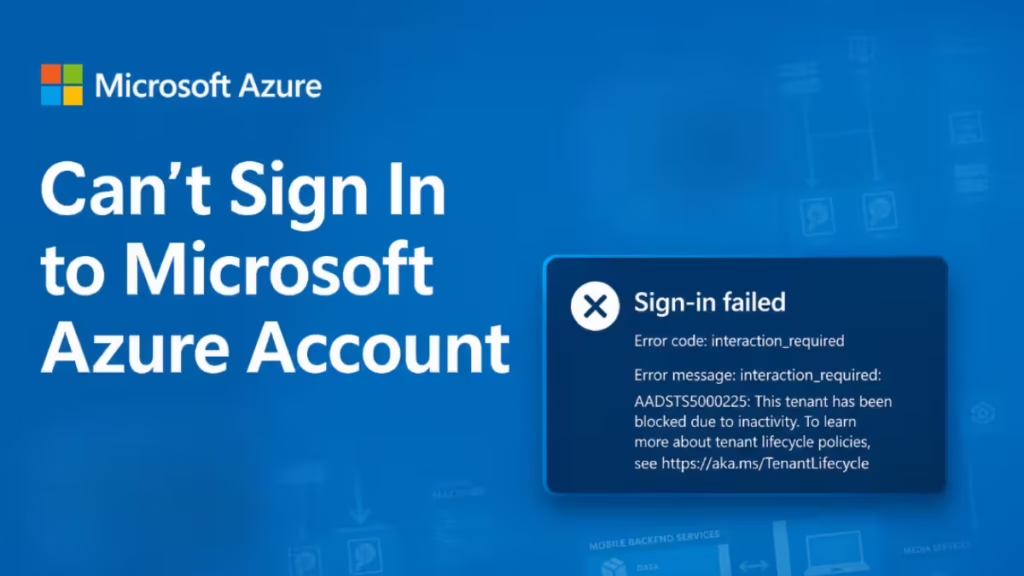
2. interaction_required + AADSTS5000225 (Tenant Blocked Due to Inactivity): This is one of the most reported sign-in failures. The Azure portal displays a "Sign-in failed" screen with error code interaction_required and the following message:
interaction_required: AADSTS5000225: This tenant has been blocked due to inactivity. To learn more about tenant lifecycle policies, see https://aka.ms/TenantLifecycle
This error means Microsoft automatically blocked your Azure AD tenant because it had no active users or sign-ins for an extended period. The interaction_required code tells Azure that silent authentication cannot proceed and a user-driven action is necessary to unblock access.
How to fix it:
- Go to portal.azure.com and attempt to sign in. Azure may present a reactivation prompt directly on the sign-in failed screen.
- Select Try again on the error page. In some cases this triggers a tenant reactivation flow.
- If the block persists, visit aka.ms/TenantLifecycle — the URL Microsoft includes in the error message — to review the tenant lifecycle policy and submit a reactivation request.
- If you have an active Azure subscription linked to the tenant, sign in to the Microsoft 365 admin center instead and check tenant status under Health.
- Contact Microsoft Support directly if the portal does not surface a reactivation option. Provide the Trace ID and Correlation ID shown on the error screen to speed up the support case.
The full walkthrough for this error is in the AADSTS5000225 fix guide.
If you are hitting a 403 error through the Entra API while authenticating programmatically, that guide covers the permission and consent fixes needed.
5. Check If Your Tenant Expired
A tenant that expired due to no active subscription causes a complete sign-in block. Azure does not delete tenants immediately after expiration, but access becomes unavailable until you recover or reactivate the subscription.
If you see messages about your tenant being deprovisioned or disabled, follow the steps in How to Recover an Expired Azure or Microsoft 365 Tenant. The recovery window is time-limited, so act quickly after you first notice the block.
6. Fix Azure Free Account Access Problems
If you created a free Azure account and the portal now redirects you to a Pay-As-You-Go upgrade prompt instead of allowing sign-in, the issue relates to subscription eligibility rather than authentication. Unable to Access Azure Free Account? covers how to resolve that specific block without upgrading your plan.
7. Configure Microsoft Account Sign-In via Azure AD B2C (For Developers)
If you are a developer and end users of your application cannot sign in with their Microsoft accounts, the Azure AD B2C identity provider setup may be incomplete. The steps below configure Microsoft as an identity provider in Azure AD B2C.
Note: As of May 1, 2025, Azure AD B2C is no longer available to new customers. Existing tenants continue to operate normally.
Create a Microsoft Account Application in the Azure Portal
- Sign in to the Azure portal.
- Go to All services and search for App registrations.
- Select New registration.
- Enter a name for your application, for example, MSAapp1.
- Under Supported account types, select Personal Microsoft accounts (e.g. Skype, Xbox).
- Under Redirect URI, select Web and enter:
https://your-tenant-name.b2clogin.com/your-tenant-name.onmicrosoft.com/oauth2/authrespReplaceyour-tenant-namewith your Azure AD B2C tenant name. If you use a custom domain, replace the base URL accordingly. - Select Register.
- Copy the Application (client) ID from the overview page.
- Go to Certificates & secrets, select New client secret, enter a description, and click Add.
- Copy the value from the Value column immediately. Azure hides it after you navigate away.
Configure Microsoft as an Identity Provider
- Sign in to the Azure portal with an account that has at least External Identity Provider Administrator privileges.
- Navigate to Azure AD B2C and select Identity providers.
- Select Microsoft Account.
- Enter a display name, for example, MSA.
- Paste the Application (client) ID you copied into the Client ID field.
- Paste the client secret into the Client secret field.
- Select Save.
Add the Microsoft Identity Provider to a User Flow
- In your Azure AD B2C tenant, select User flows.
- Open the user flow you want to update.
- Under Social identity providers, select Microsoft Account.
- Select Save.
- To test, select Run user flow, choose your registered web application, and select the Run user flow button.
- On the sign-in page, select Microsoft to authenticate.
- A successful sign-in redirects your browser to
https://jwt.mswith the token contents displayed.
If RDP authentication through Entra ID is also failing on your Azure-hosted Windows server, see How to Fix RDP to Azure Server Using Entra ID for the identity and role assignment fixes that resolve that access block.
FAQs
Why can't I sign in to my Microsoft Azure account even with the correct password?
The most common causes are MFA failure, a blocked or expired tenant, or signing in with the wrong account type. Try resetting your password first, then check if your tenant is active in the Azure portal.
What is the AADSTS50058 error when signing in to Azure?
AADSTS50058 means Azure Active Directory received a silent sign-in request but found no active user session. Clearing your browser cookies and signing in interactively fixes this in most cases.
How do I recover my Azure account if my tenant is blocked?
A blocked tenant usually triggers the AADSTS5000225 error. Sign in to the Azure portal and follow Microsoft's tenant reactivation process. If the tenant expired due to no active subscription, you need to recover it through Microsoft's admin recovery flow.
Can I sign in to Azure with a personal Microsoft account?
Yes, but only if your Azure subscription was created with a personal Microsoft account. Work or school subscriptions tied to Microsoft Entra ID will reject personal account sign-in attempts even if the credentials are valid.
Why is Microsoft Azure showing a Pay-As-You-Go prompt instead of letting me sign in?
This happens when your free Azure account subscription expires or your eligibility runs out. The portal blocks access and pushes an upgrade prompt. You need to resolve the subscription status separately before sign-in works again.