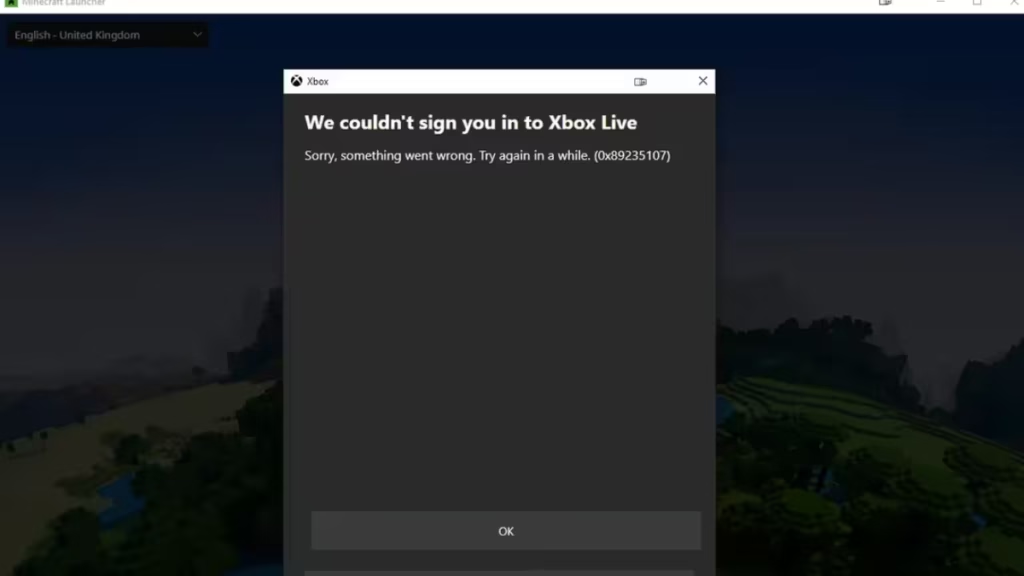
If Minecraft Bedrock Edition refuses to sign you in and throws error 0x89235107, the problem is almost always a corrupted Gaming Services package on your PC. The launcher tries to authenticate through Xbox Live via GamingServicesTcui.exe, but that process crashes immediately with a .NET CLR exception (0xe0434352), leaving you stuck at the login screen.
The frustrating part is that a standard reinstall from Microsoft Store will not fix it. The Store keeps distributing the same broken package with a version mismatch between the outer package manifest (35.112.23002.0) and the actual executable inside (34.111.2603.20001). This mismatch causes GamingServicesTcui.exe to crash every time Minecraft tries to open the Xbox sign-in window.
This guide covers every working fix, starting with the most effective approach.
What Causes Minecraft Error 0x89235107
The error appears when GamingServicesTcui.exe stops working during the Microsoft account sign-in flow. Minecraft Launcher requires Gaming Services to handle Xbox Live authentication on Windows. When the Gaming Services package is corrupted or has a version mismatch, the sign-in process fails before you ever reach the game.
Common triggers include:
- A corrupted Gaming Services package downloaded from Microsoft Store
- A version mismatch between the package manifest and the installed executable
- A failed Gaming Services update that left files in an inconsistent state
- Windows updates that conflicted with existing Gaming Services components
Fix 1: Remove Gaming Services via PowerShell and Reinstall
This is the most reliable fix. You bypass the corrupted package in the Store cache by removing the app entirely through PowerShell, then doing a fresh install.
- Right-click the Start button and select Windows Terminal (Admin) or PowerShell (Admin).
- Run this command to remove Gaming Services for all users:
Get-AppxPackage *GamingServices* | Remove-AppxPackage -AllUsers- After removal completes, restart your PC.
- Open Microsoft Store, search for Gaming Services, and install it.
- Once installed, open the Minecraft Launcher and sign in.
If Microsoft Store still installs the same broken version, move to Fix 2.
Fix 2: Reinstall Gaming Services via Winget
Winget can sometimes pull a different build than what the Store cache delivers. This bypasses the corrupted package distribution in some cases.
- Open PowerShell (Admin) or Windows Terminal (Admin).
- First remove the existing package:
Get-AppxPackage *GamingServices* | Remove-AppxPackage -AllUsers- Restart your PC.
- Open PowerShell (Admin) again and run:
winget install --id=Microsoft.GamingServices -e --accept-source-agreements- Wait for the installation to finish, then launch Minecraft.
Fix 3: Re-register the Gaming Services Package
If uninstalling causes problems or the package is partially installed, re-registering it can fix the version mismatch without a full removal.
- Open PowerShell (Admin).
- Run this command:
Get-AppxPackage -AllUsers Microsoft.GamingServices | ForEach {Add-AppxPackage -DisableDevelopmentMode -Register "$($_.InstallLocation)\AppXManifest.xml"}- Restart your PC and test Minecraft.
Fix 4: Run the Gaming Services Repair Tool
Microsoft provides a Gaming Services Repair Tool that automatically detects and attempts to fix issues with the package.
- Open Microsoft Store.
- Search for Gaming Services and open the app page.
- Look for the Repair option, or visit Xbox Support to download the standalone repair tool.
- Run the tool and follow the on-screen instructions.
- Restart your PC after the repair finishes.
Fix 5: Reset the Xbox App
A corrupted Xbox app state can block the sign-in flow that Minecraft depends on. Resetting it clears cached credentials and restores the app’s default state.
- Press Windows + I to open Settings.
- Go to Apps > Installed apps.
- Find Xbox in the list and click the three-dot menu.
- Select Advanced options.
- Scroll down and click Reset.
- Confirm the reset, then relaunch Minecraft.
Fix 6: Repair the .NET Runtime
Minecraft error 0x89235107 involves a .NET CLR crash (exception 0xe0434352). If your .NET runtime is damaged, GamingServicesTcui.exe will fail even with a clean Gaming Services package.
- Open Control Panel > Programs > Programs and Features.
- Find any installed .NET entries and click Repair if the option appears.
- Alternatively, download the latest .NET Desktop Runtime from the official Microsoft .NET download page and run the installer. It detects and repairs the existing installation automatically.
- Restart your PC after the repair.
Fix 7: Reset Microsoft Store Cache
A corrupt Store cache can keep delivering the broken Gaming Services package. Clearing it forces the Store to fetch a fresh copy.
- Press Windows + R to open the Run dialog.
- Type
wsreset.exeand press Enter. - A blank Command Prompt window opens and closes automatically. That confirms the cache cleared.
- Reopen Microsoft Store and reinstall Gaming Services if needed.
Fix 8: Run DISM and SFC
If system file corruption contributes to the issue, DISM and SFC can repair Windows component files.
- Open PowerShell (Admin) or Command Prompt (Admin).
- Run DISM first:
DISM /Online /Cleanup-Image /RestoreHealth- After DISM finishes, run SFC:
sfc /scannow- Restart your PC when both scans complete.
Note: If you already ran these commands and the error persists, system file corruption is not the cause. Focus on Fix 1 or Fix 2 instead.
Fix 9: Create a New Windows User Profile
Error 0x89235107 can attach itself to a specific Windows user profile when that profile’s AppData is corrupted. Creating a new profile gives Gaming Services a clean installation environment.
- Press Windows + I and go to Accounts > Family & other users.
- Click Add account and create a new local account.
- Log into the new account.
- Open Microsoft Store and install Gaming Services fresh.
- Sign into the Minecraft Launcher with your Microsoft account.
If this works on the new profile, the original profile’s Gaming Services installation is corrupted beyond repair. Continue on the new profile or migrate your files across.
Fix 10: Contact Microsoft Support for a Clean Package
If every fix above fails, the problem is on Microsoft’s server side. The Store is distributing a broken package, and no client-side change will resolve it until Microsoft pushes a corrected build.
In this situation:
- Report the issue on the Microsoft Community forums with your exact package version numbers. You can check via PowerShell:
Get-AppxPackage *GamingServices* - Contact Xbox Support directly and request escalation to the Gaming Services team
- Check xbox.com/status to see if a known Gaming Services distribution issue appears in the active outages list
Frequently Asked Questions
What is Minecraft error 0x89235107?
Minecraft error 0x89235107 is a sign-in failure caused by a crash in GamingServicesTcui.exe, the component that handles Xbox Live authentication on Windows. The crash typically stems from a corrupted or version-mismatched Gaming Services package that fails to initialize the .NET CLR correctly.
Why does reinstalling Gaming Services not fix error 0x89235107?
Reinstalling Gaming Services from Microsoft Store often fails to fix error 0x89235107 because the Store delivers the same corrupted package repeatedly from its distribution cache. Removing the package via PowerShell first forces a genuinely clean reinstall rather than overwriting the broken files with identical broken files.
Does error 0x89235107 affect Minecraft Java Edition?
No. Error 0x89235107 only affects Minecraft Bedrock Edition on Windows. Minecraft Java Edition uses a different authentication flow that does not depend on Gaming Services or GamingServicesTcui.exe.
Can a clean Windows install fix Minecraft error 0x89235107?
A clean Windows install will not fix error 0x89235107 if the problem is server-side. Microsoft Store will simply download the same corrupted Gaming Services package again after the reinstall. The PowerShell removal combined with a winget install is far more effective than a full OS reinstall.
Is error 0x89235107 the same as “GamingServicesTcui.exe has stopped working”?
Yes. The two messages appear together because one causes the other. When GamingServicesTcui.exe crashes with the .NET exception, Xbox Live cannot complete the authentication handshake, and Minecraft displays error 0x89235107 as a result.

