If your HP EliteBook x360 1030 G2 touchpad stopped working after a Windows update, you are dealing with a driver conflict, not a hardware failure. The touchpad still responds in BIOS, which confirms the hardware itself is fine. The problem sits entirely within Windows.
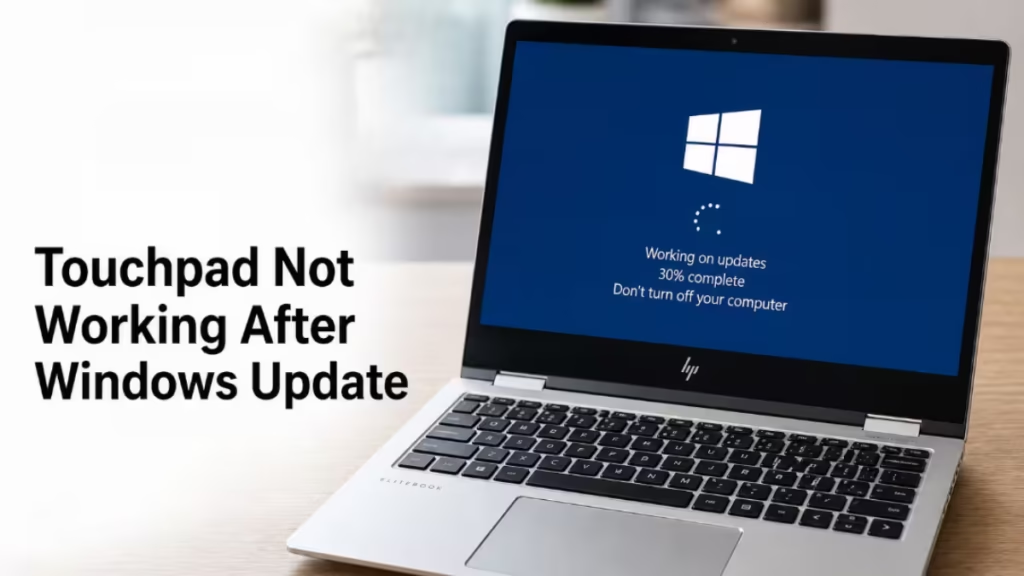
Windows Update sometimes replaces your manufacturer-specific touchpad driver with a generic one. The HP EliteBook x360 1030 G2 uses an I2C-connected touchpad, and generic drivers often fail to communicate with I2C devices correctly. The result is a touchpad that appears in BIOS but goes completely dead inside Windows.
The fixes below address every known cause, from a disabled device entry to a missing HP-specific driver.
Fix 1: Check Whether the Touchpad Is Hidden or Disabled in Device Manager
Windows Update can disable or hide the touchpad device during installation. Before reinstalling anything, check Device Manager first.
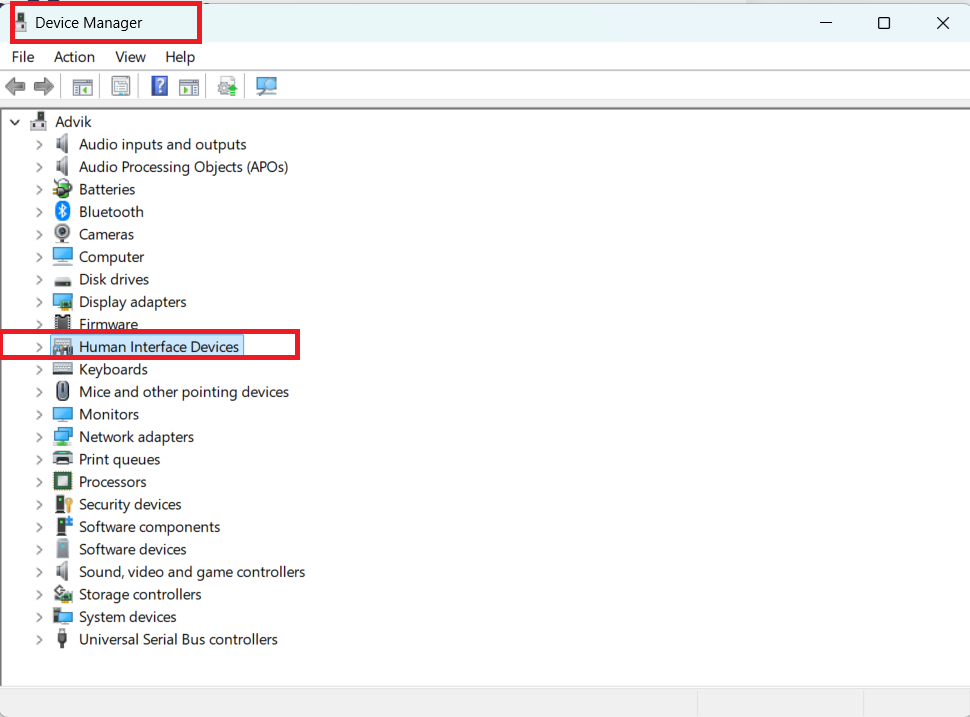
- Press Windows + X and select Device Manager.
- Expand Human Interface Devices.
- Expand Mice and other pointing devices.
- Click View in the top menu bar and select Show hidden devices.
- Look for any of these entries:
- HID-compliant touchpad
- I2C HID Device
- If you find a grayed-out or disabled entry, right-click it and select Enable device.
- Restart your laptop and test the touchpad.
If the device shows a yellow warning icon, do not enable it yet. That points to a driver error, which Fix 4 covers separately.
Fix 2: Roll Back the Touchpad Driver
Windows 11 updates frequently overwrite working drivers with newer generic versions. Rolling back restores the last driver that worked correctly.
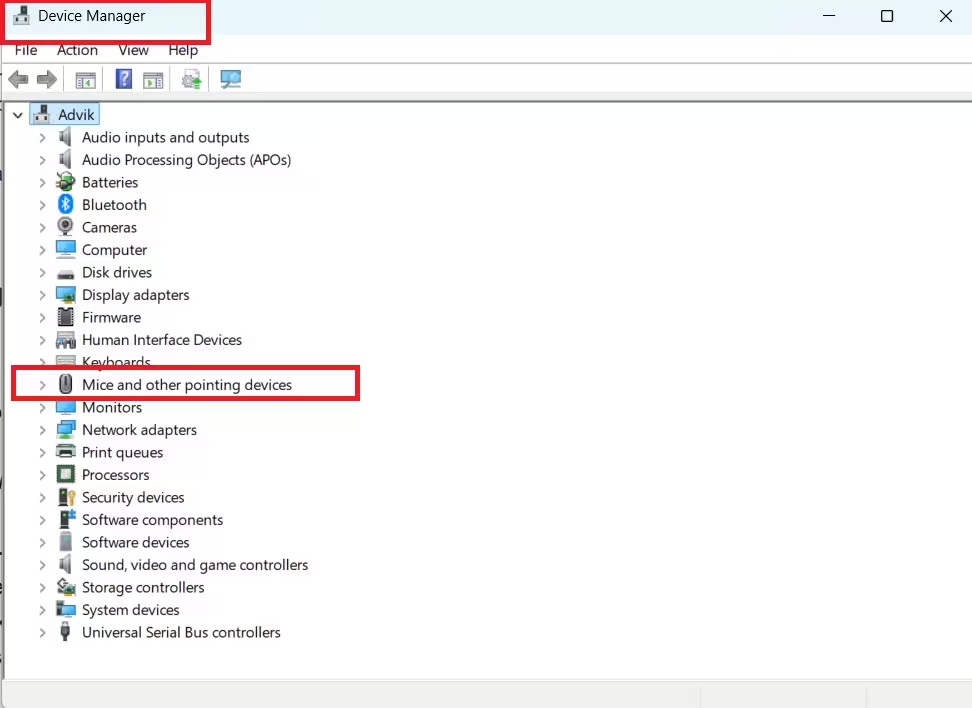
- Open Device Manager (Windows + X > Device Manager).
- Expand Mice and other pointing devices.
- Right-click HID-compliant touchpad and select Properties.
- Go to the Driver tab.
- Click Roll Back Driver if the button is available.
- Follow the on-screen prompts and restart when finished.
If Roll Back Driver is grayed out, Windows has no previous driver stored. Move to Fix 3.
Fix 3: Install the HP Driver When Touchpad Not Working After Windows Update
This is the most reliable fix for the HP EliteBook x360 1030 G2. Windows Update installs a generic touchpad driver that does not support I2C communication properly. You need to replace it with the official HP driver.
- On a working device, open a browser and go to the HP Support page.
- Search for HP EliteBook x360 1030 G2 and navigate to the Software and Drivers section.
- Download the Synaptics or ELAN touchpad driver for your version of Windows 11.
- Transfer the file to your EliteBook using a USB drive if your touchpad is the only pointing device.
- Run the installer and follow the setup steps.
- Restart the laptop after installation completes.
The HP EliteBook x360 1030 G2 uses an I2C bus to connect the touchpad to the system. Generic drivers that Windows Update installs do not include the I2C-specific communication layer that the Synaptics or ELAN driver provides. Installing the HP driver restores that layer and brings the touchpad back.
If you do not want to download manually, use a reliable driver utility. Tools listed in Best Driver Update Tools for Windows 11 (2026 Guide) can scan for and install the correct manufacturer driver automatically.
Fix 4: Check the I2C HID Device for Errors
If none of the above fixes work, the I2C controller entry itself may have a driver error. This happens when Windows Update corrupts the system-level device that manages I2C communication.
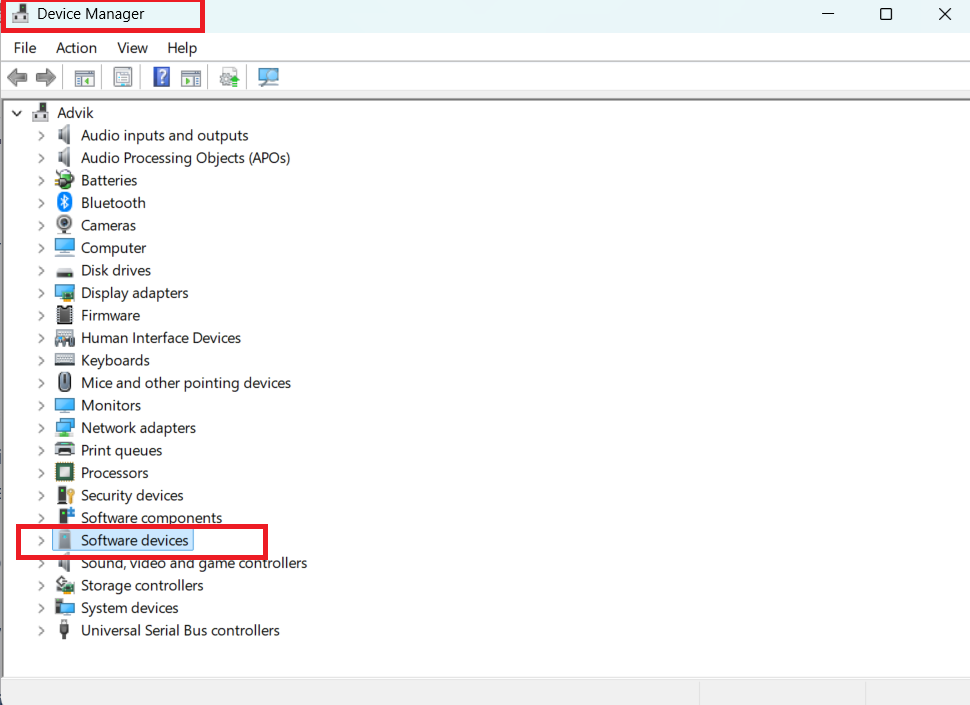
- Open Device Manager.
- Expand System devices.
- Look for I2C HID Device in the list.
- Check whether it has a yellow warning triangle next to it.
- If it does, right-click it and select Properties.
- Read the Device status field in the General tab.
A yellow warning icon on the I2C HID Device confirms a driver or communication failure at the system level. To fix it:
- Right-click I2C HID Device > Update driver > Search automatically for drivers.
- If that fails, right-click > Uninstall device, then restart. Windows will attempt to reinstall the driver on reboot.
- If Windows reinstalls a broken driver again, download the chipset or I2C driver directly from the HP support page for your model and install it manually.
After installing the correct I2C driver, return to Mice and other pointing devices and confirm the touchpad entry is active and error-free.
Fix 5: Temporarily Disable Driver Auto-Updates to Prevent Recurrence
Even after you install the correct HP driver, Windows Update may overwrite it again during the next update cycle. Block automatic driver updates to keep your fix in place.
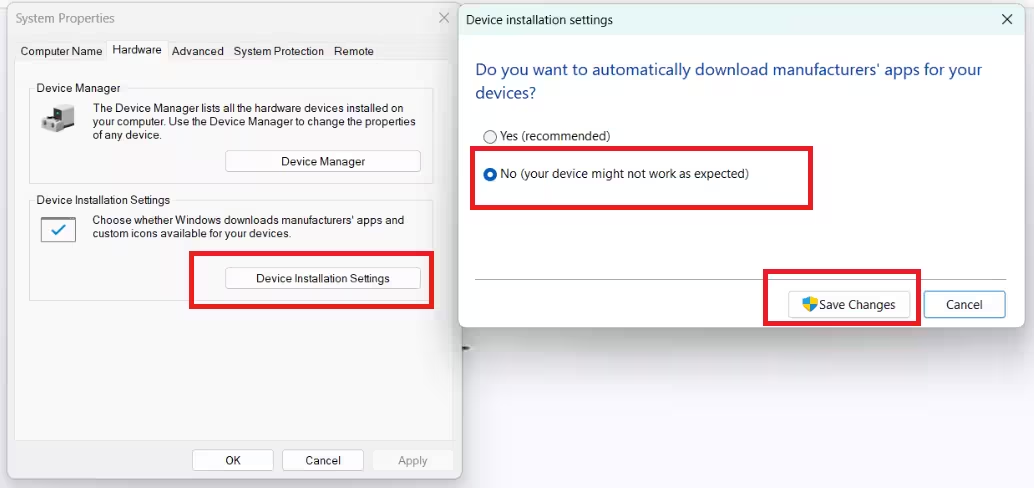
- Press Windows + R, type
sysdm.cpl, and press Enter. - Go to the Hardware tab and click Device Installation Settings.
- Select No (your device might not work as expected) and click Save Changes.
This tells Windows not to replace manufacturer-installed drivers with Windows Update versions. You can still update drivers manually whenever you choose.
FAQs
Why did my HP EliteBook touchpad stop working after a Windows update?
Windows Update may replace the HP-specific Synaptics/ELAN driver with a generic one that doesn’t support I2C, causing the touchpad to stop working.
Why does my touchpad work in BIOS but not in Windows?
If it works in BIOS, the hardware is fine. The issue is caused by a missing or incompatible Windows driver.
How do I fix the touchpad not working issue?
Check Device Manager. Enable the touchpad if disabled, or reinstall/rollback the correct Synaptics or ELAN driver from HP.
What is I2C HID Device and why is it important?
It controls communication between the touchpad and system. A bad driver breaks this connection, stopping the touchpad.
How do I stop Windows Update from breaking the driver again?
Disable automatic driver updates via Device Installation Settings to prevent Windows from replacing your touchpad driver.

