Windows 11 File Explorer crashes the moment you click a ZIP file. The window closes without warning, sometimes taking the entire taskbar with it. This is a recognized Windows 11 problem, and several targeted fixes can stop it permanently.
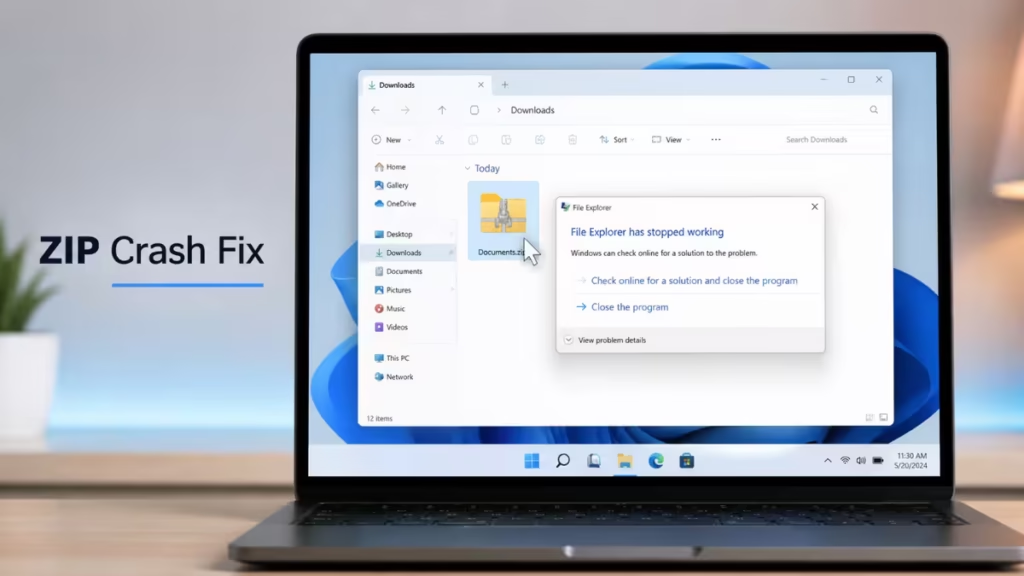
This guide covers every fix in order, starting with the quickest and moving to deeper repairs.
Why Does File Explorer Crash on ZIP Files?
Windows 11 handles ZIP files natively through a built-in shell extension. When that extension malfunctions, File Explorer crashes instead of opening the archive. The most common causes are:
- A corrupted File Explorer cache
- A third-party compression app conflicting with the ZIP shell extension
- Corrupted system files
- A recent Windows Update that introduced a bug
- A broken ZIP file association in the registry
Fix 1: Clear the File Explorer Cache
A bloated or corrupted jump list cache forces File Explorer to crash when it tries to load ZIP file previews. Clearing this cache is the fastest fix and works for most users.
- Press Windows + R to open Run.
- Paste the following path and press Enter:
%APPDATA%\Microsoft\Windows\Recent\AutomaticDestinations- Select all files inside the AutomaticDestinations folder and delete them.
- Restart your PC and click a ZIP file to test.
If File Explorer still crashes, continue to the next fix.
Fix 2: Restart File Explorer
A quick restart of the Explorer process clears temporary glitches without requiring a full reboot.
- Right-click the taskbar and select Task Manager.
- Under Processes, find Windows Explorer.
- Right-click it and select Restart.
File Explorer disappears for a moment and relaunches automatically. Test the ZIP crash after it comes back.
Fix 3: Run System File Checker (SFC)
Corrupted system files break File Explorer’s ability to handle ZIP archives. The System File Checker scan finds and repairs them automatically.
- Open the Start menu, type cmd, right-click Command Prompt, and select Run as administrator.
- Run this command:
sfc /scannow- Wait for the scan to complete. It takes 10 to 20 minutes.
- Restart your PC after it finishes, even if no issues were found.
If SFC reports it could not repair all files, run DISM next.
Fix 4: Run DISM to Repair the Windows Image
DISM repairs the Windows component store that SFC uses as its reference. When SFC cannot finish the job, DISM usually can.
- Open Command Prompt as administrator.
- Run this command:
DISM /Online /Cleanup-Image /RestoreHealth- Keep your internet connection active. DISM downloads clean files from Microsoft servers to replace damaged ones.
- Restart your PC after DISM finishes, then run
sfc /scannowonce more to confirm the repair.
Fix 5: Perform a Clean Boot
A third-party app such as WinRAR, WinZip, or Bandizip may inject a shell extension that conflicts with Windows 11’s native ZIP handler. A clean boot starts Windows with only Microsoft services active, which isolates the conflict.
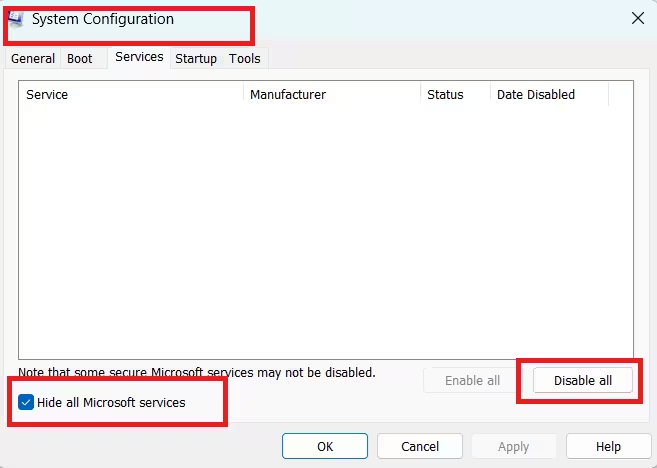
- Press Windows + R, type msconfig, and press Enter.
- On the Services tab, check Hide all Microsoft services, then click Disable all.
- Click the Startup tab, then click Open Task Manager.
- On the Startup apps tab in Task Manager, select each enabled item and click Disable.
- Close Task Manager, click OK in System Configuration, and restart your PC.
After restarting, click a ZIP file. If File Explorer no longer crashes in the clean boot environment, a third-party shell extension is the cause.
To find the conflicting app:
Re-enable services and startup items in batches of half, restarting between each test. When the crash returns, the last batch you enabled contains the problem. Narrow it down until you identify the specific program, then uninstall or update it.
To return Windows to normal startup after troubleshooting:
- Open msconfig again.
- On the General tab, select Normal Startup.
- On the Services tab, uncheck Hide all Microsoft services and click Enable all.
- On the Startup tab, open Task Manager and re-enable every item you disabled.
- Click OK and restart.
Fix 6: Re-register the ZIP Shell Extension
A damaged ZIP file association in the Windows registry causes File Explorer to crash on every click. Two commands re-register the handler and restore the correct association.
- Open Command Prompt as administrator.
- Run these two commands one at a time:
regsvr32 /u zipfldr.dllregsvr32 zipfldr.dll- Restart your PC and test by clicking a ZIP file.
Fix 7: Check for Windows Updates
Microsoft patches File Explorer crashes in cumulative updates. If a recent update introduced the bug, a newer update may already contain the fix.
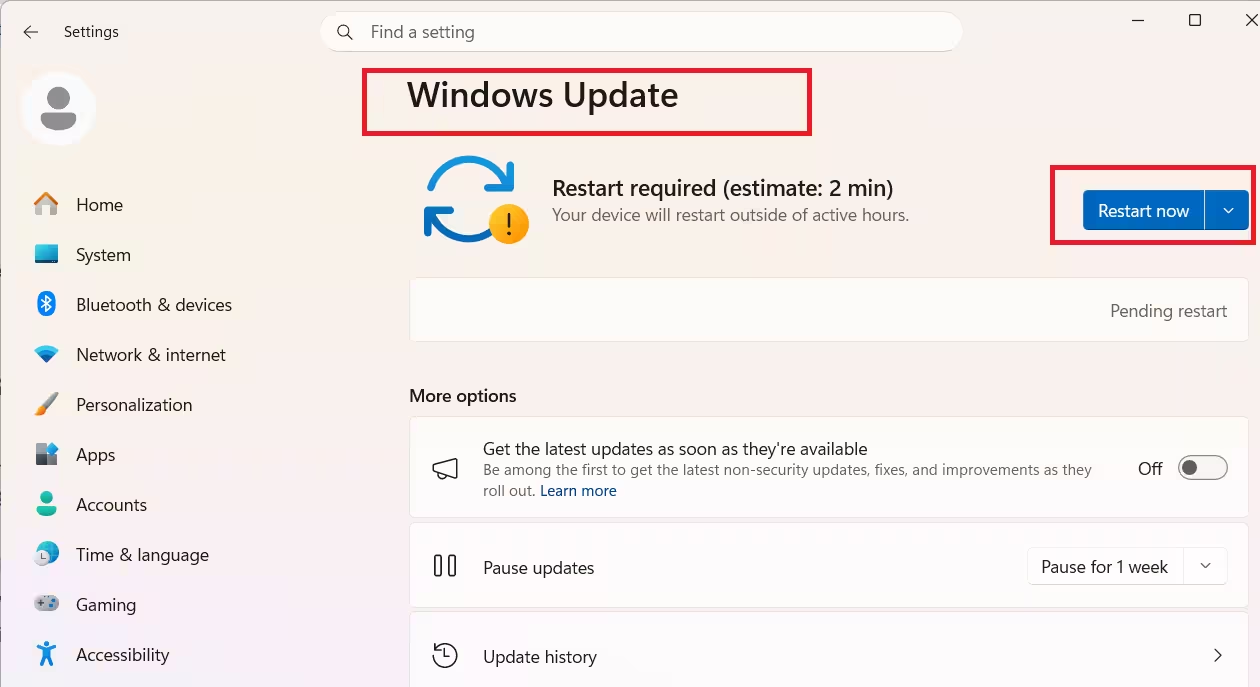
- Open Settings and go to Windows Update.
- Click Check for updates.
- Install any available updates and restart your PC.
If a Windows update caused the crash, rolling it back is worth trying. In Windows Update, click Update history, scroll to Uninstall updates, and remove the most recent cumulative update. Test after the rollback.
Fix 8: Use 7-Zip as a Workaround
If none of the fixes above stop the crash, reassign ZIP files to open with 7-Zip instead of File Explorer. This bypasses the broken Windows shell extension entirely.
- Download and install 7-Zip from 7-zip.org.
- Right-click any ZIP file and select Open with, then Choose another app.
- Select 7-Zip File Manager and check Always use this app to open .zip files.
File Explorer no longer handles ZIP files, so it will not crash when you click one. You can reverse this at any time by returning to Open with and selecting Windows Explorer.
Frequently Asked Questions
Why does Windows 11 File Explorer crash when I click a ZIP file?
File Explorer crashes on ZIP files because the built-in ZIP shell extension, zipfldr.dll, is either corrupted or conflicting with a third-party compression app such as WinRAR or WinZip. When Windows tries to hand the click off to that extension, the extension fails and takes File Explorer down with it.
Why did File Explorer only start crashing on ZIP files after a Windows Update?
Cumulative updates sometimes ship with bugs that break the ZIP shell handler or overwrite a clean version of zipfldr.dll with a faulty one. If the crash started right after an update, rolling back that update or installing the next cumulative update usually resolves it.
Does clearing the File Explorer cache actually fix the ZIP crash?
Yes, in many cases it does. The AutomaticDestinations cache stores jump list data for recently opened files. When this cache is corrupted, File Explorer crashes trying to read it during ZIP interactions. Deleting the cache forces Windows to rebuild it from scratch, which removes the corrupted entry causing the crash.
Will using 7-Zip permanently fix the File Explorer crash?
No. Using 7-Zip reassigns the ZIP file association away from File Explorer, so you stop seeing the crash. It is a workaround, not a repair. The underlying shell extension stays broken until you run SFC, DISM, or re-register zipfldr.dll.
How do I know if a third-party app is causing File Explorer to crash on ZIP files?
Perform a clean boot as described in Fix 5. If File Explorer opens ZIP files normally after the clean boot, a startup app or service is injecting a conflicting shell extension. Re-enable items in batches until the crash returns to identify the specific program.

