Hulu Live TV can stop working even when the rest of the Hulu app runs fine. You might see channels fail to load, the guide disappear, the screen go black, or the stream drop you back to the home screen without warning. On Fire TV Stick devices, Hulu Error Code P-TS207 is one of the most common signs of a playback problem tied to connection issues. Other errors, such as Hulu Error Code P-DEV318 and Hulu Error Code P-DEV320, can also appear when Live TV loses communication with Hulu’s servers.
This guide walks you through every fix that actually works, step by step.
Quick Checks Before You Start
Run through these basics first before diving into the detailed fixes:
- Confirm Hulu’s servers are up by visiting downdetector. If Hulu is down, you cannot watch Live TV until the service recovers.
- Check that your subscription includes the Live TV add-on.
- Confirm your device supports Live TV. Not all platforms do.
- Force-quit the Hulu app and relaunch it.
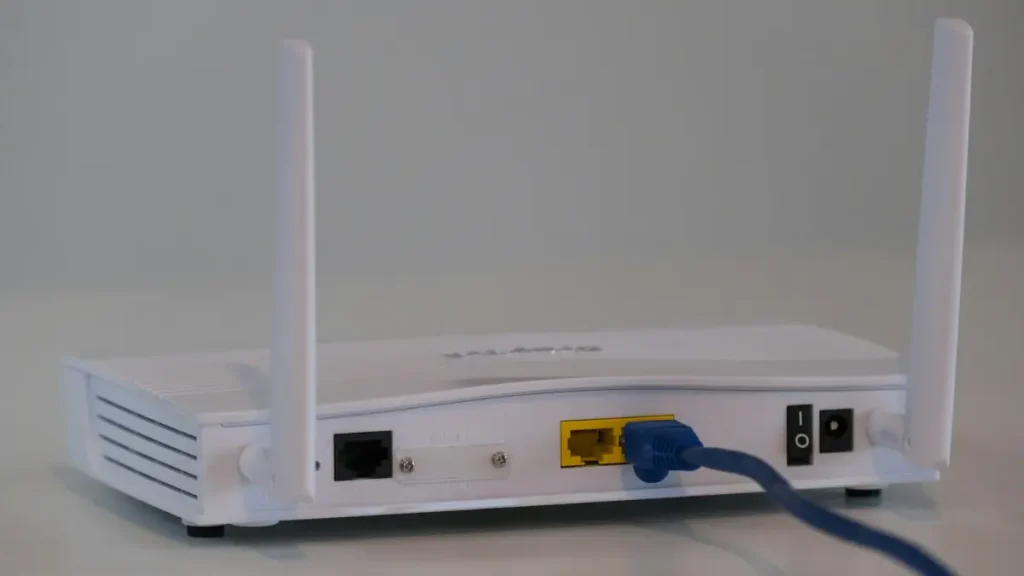
- Restart your TV or streaming device, then restart your router.
- Update the Hulu app and your device’s firmware to the latest version.
If these quick checks do not resolve the problem, move on to the fixes below.
1. Re-Log Into the Hulu App
Authorization failures between the Hulu app and its servers frequently cause Live TV to stop working. Signing out and back in forces Hulu to refresh your account credentials.
- Open Hulu and tap your profile icon.
- Select Log Out and confirm.
- Restart your device and your router.
- Reopen Hulu, sign back in, and check whether Live TV loads.
2. Open Hulu Live TV on Another Device First
Sometimes Hulu Live TV gets stuck on the last channel the app had open, especially after a brief internet drop. Launching Live TV on a second device clears this state.
- Open Hulu on your phone or computer.
- Navigate to Live TV and let a channel play for five to ten minutes.
- Return to your TV or streaming device, open Hulu, and try Live TV again.
This method works particularly well on Roku and Fire TV Stick devices where Live TV freezes silently after a connection interruption.
3. Try a Different Network
If your ISP is incompatible with how Hulu routes Live TV traffic, switching networks confirms whether the problem sits with your provider.
- Disconnect your device from its current Wi-Fi network.
- Restart the device and connect it to a different network. Avoid a phone hotspot unless you have no other option, as hotspots frequently cause additional connectivity issues with streaming devices.
- Open Hulu and test Live TV on the new network.
If Live TV works on the second network, your ISP is likely causing the issue. Contact Hulu support and provide your physical address and IP address so they can override the ISP mapping.
4. Disable IPv6 on Your Router
When your router uses IPv6 to communicate with Hulu’s servers but your ISP does not fully support IPv6, Live TV service breaks. Disabling IPv6 on the router resolves this conflict.
- Log in to your router’s admin portal through its app or a web browser.
- Navigate to Advanced > IPv6.
- Disable IPv6 and save the setting.
- Restart your router, streaming device, and TV.
- Relaunch Hulu and check Live TV.
If IPv6 was already off, try enabling it instead. Some ISP configurations require it to be on.
If the issue persists after changing the router setting, disable IPv6 on the device itself through its network settings.
5. Set or Change Your Home Location in Hulu
Hulu requires location authorization to deliver Live TV channels. If your location is not properly authenticated, channels either fail to load or do not appear at all.
- Open a browser and go to the Hulu website.
- Sign in, click your profile icon, and go to Privacy and Settings.
- Click Set or Change Home and enter your correct home address.
- On your streaming device, open Hulu and sign out.
- Restart the device, sign back in, and confirm the channel filter is set to All.
Do this step while you are physically at home, as Hulu uses your network location to verify the address.
6. Remove Your Device from Your Hulu Account
When your device loses proper communication with Hulu’s servers, removing it from your account and re-authorizing it resets the link.
- Go to the Hulu account page in a browser.
- Select Manage Devices and remove the device causing the problem.
- On that device, open Hulu and sign out. If you use an iOS device, also remove Hulu from Settings > TV Provider.
- Restart the device and your router.
- Reopen Hulu, sign in, and test Live TV.
7. Reinstall the Hulu App
Corrupted app files, often from a recent update, can break the Live TV function while leaving the rest of the app intact.
On Android:
- Go to Settings > Applications > Hulu.
- Tap Force Stop, then clear the app’s cache and storage.
- Tap Uninstall and confirm.
- Restart your device, reinstall Hulu from the Play Store, and sign in.
On Roku:
- Highlight Hulu on the home screen, press the Star (*) button, and select Remove Channel.
- Restart your Roku.
- Go to Streaming Channels, find Hulu, and reinstall it.
On Fire TV Stick:
- Go to Settings > Applications > Manage Installed Applications > Hulu.
- Select Clear Cache, then Clear Data, then Uninstall.
- Restart the device and reinstall Hulu from the Amazon Appstore.
8. Factory Reset Your Streaming Device
Corrupted firmware on your TV or streaming device can prevent Hulu from running Live TV correctly. A factory reset clears all damaged system data.
Back up any important settings before you proceed.
On Roku:
- Go to Settings > System > Advanced System Settings > Factory Reset.
- Select Factory Reset Everything and let the process complete.
- Set up your Roku, reinstall Hulu, and sign in.
On Fire TV Stick:
- Go to Settings > My Fire TV > Reset to Factory Defaults.
- Confirm and wait for the reset to finish.
- Set up the device, reinstall Hulu, and test Live TV.
If Live TV still fails after the factory reset, contact Hulu Support directly. They can check your account’s IP configuration and reset it if necessary.
Why Hulu Live TV Buffers During Peak Hours
If Live TV works but buffers heavily around 10 PM Eastern Time, you are dealing with server congestion rather than a device or network problem. Hulu sends video in successive data packets, and during peak viewing windows, especially for live sports, the delivery slows and causes replay loops.
You can usually confirm this is the cause if Hulu works fine on your phone or computer while buffering only on the TV. There is no client-side fix for this. Reducing video quality in the Hulu app settings can help slightly, but the root cause sits with Hulu’s delivery infrastructure.

