If your GA4 dashboard is suddenly showing thousands of active users with 0% engagement rate while your server logs stay completely quiet, you are dealing with ghost traffic, not real visitors. This specific pattern heavy traffic from Singapore and Vietnam that inflates pageviews but never touches your server is a Measurement Protocol attack. Bots inject fake hits directly into your GA4 property using your Measurement ID. Your server never sees a single request.

The result is brutal for publishers: inflated pageviews with zero engagement drag your RPM down fast, because advertisers pay for engaged sessions and your stats no longer reflect real ones.
This guide walks you through creating a Cloudflare WAF rule that blocks this bot traffic before it reaches your site, without touching legitimate crawlers like Googlebot or Bingbot.
What Is Ghost Traffic and Why Does It Crash Your RPM
Ghost traffic bypasses your server entirely. Bots send POST requests directly to the Google Analytics Measurement Protocol endpoint using your GA4 Measurement ID. Since these requests never hit your origin, your server logs show nothing unusual. Cloudflare logs show nothing. Only GA4 sees the flood.
The damage shows up in three ways:
- Pageview counts spike sharply, sometimes thousands of sessions in minutes
- Engagement rate drops toward 0% because the fake sessions have no real interactions
- RPM falls because your traffic metrics look unhealthy to ad networks
This is different from a standard DDoS attack where bots hammer your server directly. Ghost traffic attacks your analytics layer, not your infrastructure.
How to Identify the Attack in GA4
Before building a WAF rule, confirm you are dealing with ghost traffic and not a real traffic anomaly.
Open GA4 and check these signals:
- Engagement rate near 0%: Real visitors generate engagement events. Bot sessions generate none. If your engagement rate drops below 2% during the spike, the traffic is fake.
- Single-page sessions dominating: Ghost traffic sessions show one pageview and immediate exit with 0 seconds of engagement time.
- Traffic source looks organic or direct: Measurement Protocol injections often appear as direct traffic or organic, making them harder to spot at a glance.
- Server logs are quiet: Check your Hostinger access logs or Cloudflare Analytics during the spike window. If requests per minute stay normal while GA4 shows thousands of active users, your server never received those sessions.
- Geographic concentration: Current attack waves concentrate in Singapore (SG), Vietnam (VN), and sometimes China (CN), Hong Kong (HK), Indonesia (ID), and Russia (RU).
How to Block Bot Traffic in Cloudflare WAF
Cloudflare WAF lets you write custom firewall rules that challenge or block requests matching specific conditions. The rule below targets traffic from the countries involved in current ghost traffic campaigns while preserving verified good bots like Googlebot and Bingbot.
Step 1: Open the Cloudflare WAF Dashboard
- Log in to your Cloudflare account
- Select your domain
- Navigate to Security in the left sidebar
- Click WAF
- Select Custom Rules
- Click Create rule
Step 2: Name Your Rule
Give the rule a clear name so you can identify it later. Use something like: Block Ghost Traffic - SG VN Bot Countries
Step 3: Enter the WAF Rule Expression
Switch to Edit expression mode and paste the following:
(ip.src.country in {"CN" "HK" "ID" "RU" "VN" "SG"} and not cf.client.bot)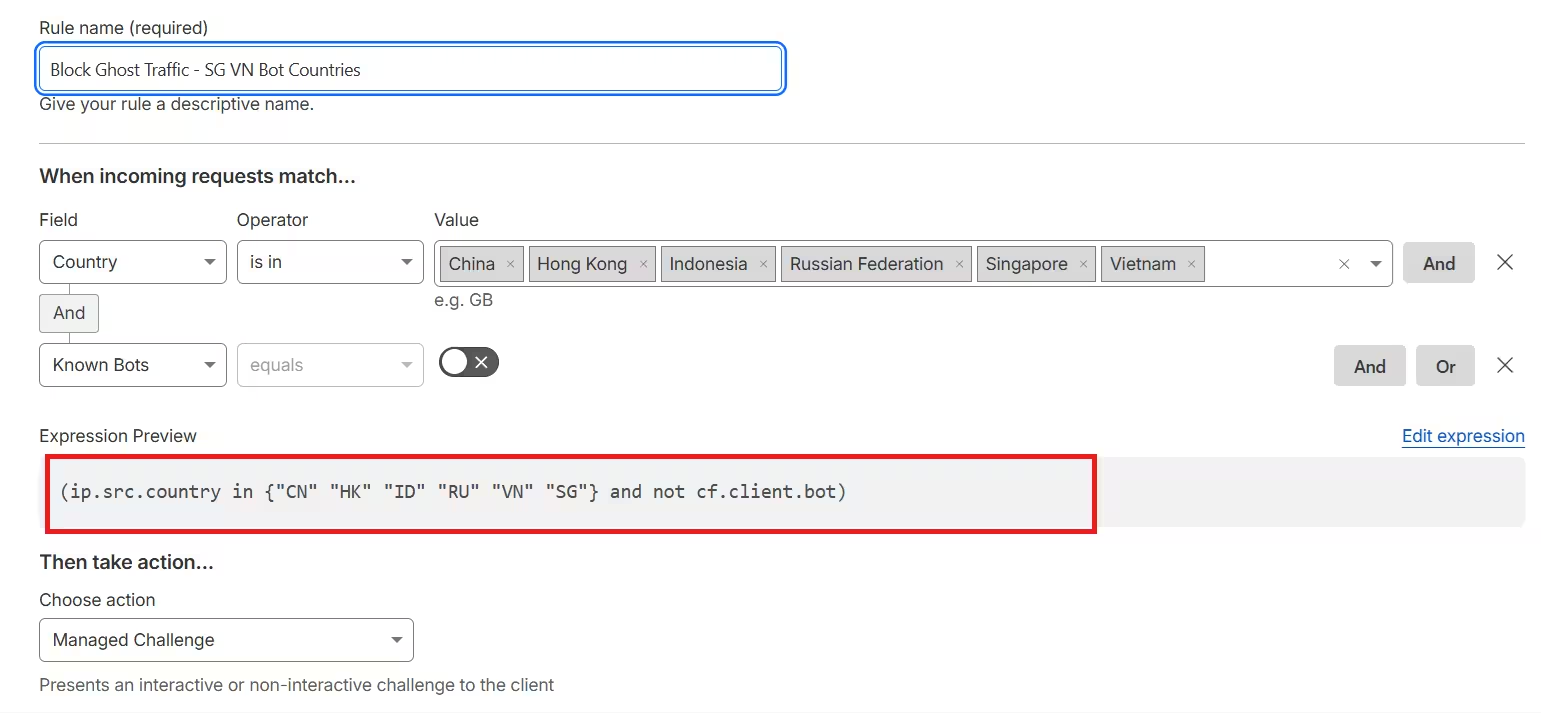
This expression targets two conditions together:
ip.src.country in {"CN" "HK" "ID" "RU" "VN" "SG"}matches requests originating from China, Hong Kong, Indonesia, Russia, Vietnam, and Singaporenot cf.client.botexcludes requests that Cloudflare has already verified as legitimate bots
Both conditions must be true for the rule to fire. A request from Vietnam that Cloudflare recognizes as Googlebot or Bingbot passes through untouched.
Step 4: Set the Action to Managed Challenge
Under Choose action, select Managed Challenge.
Do not select Block here. Block returns a hard 403 and turns away every request matching the rule permanently, including any real users from those countries. Managed Challenge presents a Cloudflare browser challenge that real human visitors solve automatically in the background, while bots fail and get stopped.
This is the same challenge mechanism that protects against bot traffic and automated scraping through Cloudflare’s Bot Fight Mode, but as a targeted custom rule.
Step 5: Save and Deploy
Click Deploy to activate the rule. Cloudflare applies it immediately with no downtime.
How cf.client.bot Protects Good Bots in Cloudflare
The cf.client.bot field is the critical part of this rule. Without it, you would block Googlebot and Bingbot requests originating from data centers in covered countries, which would destroy your search indexing.
Cloudflare maintains a list of verified good bots. When it sees a request from a crawler claiming to be Googlebot, it reverse-DNS verifies the IP against Google’s published IP ranges. If the check passes, Cloudflare sets cf.client.bot to true. Your WAF rule sees that flag and skips the challenge entirely.
This means:
- Real users from Singapore or Vietnam get a Managed Challenge (invisible to genuine browsers, stops bots)
- Googlebot, Bingbot, and other verified crawler pass through with no challenge
- Unverified bots from covered countries fail the challenge and get blocked
How to Verify the Rule Is Working
After deploying, check these data points over the next 24 to 48 hours:
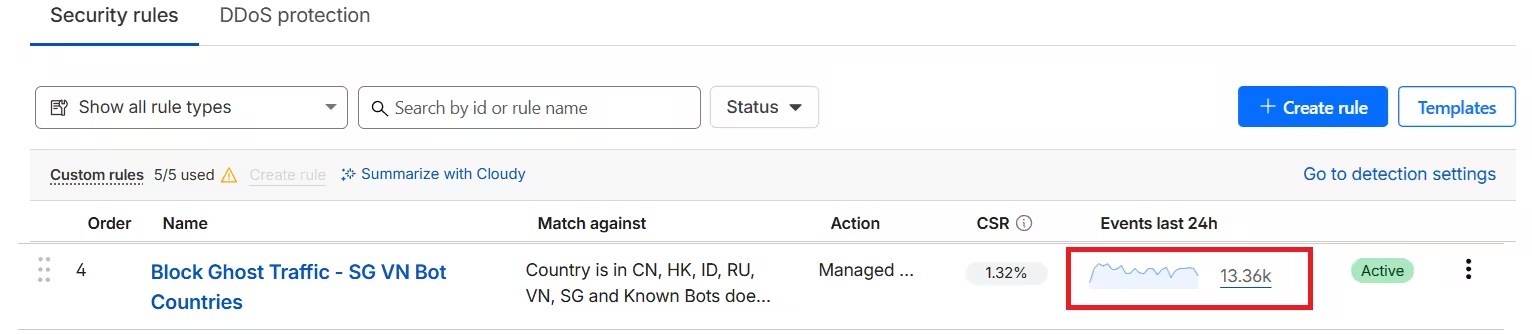
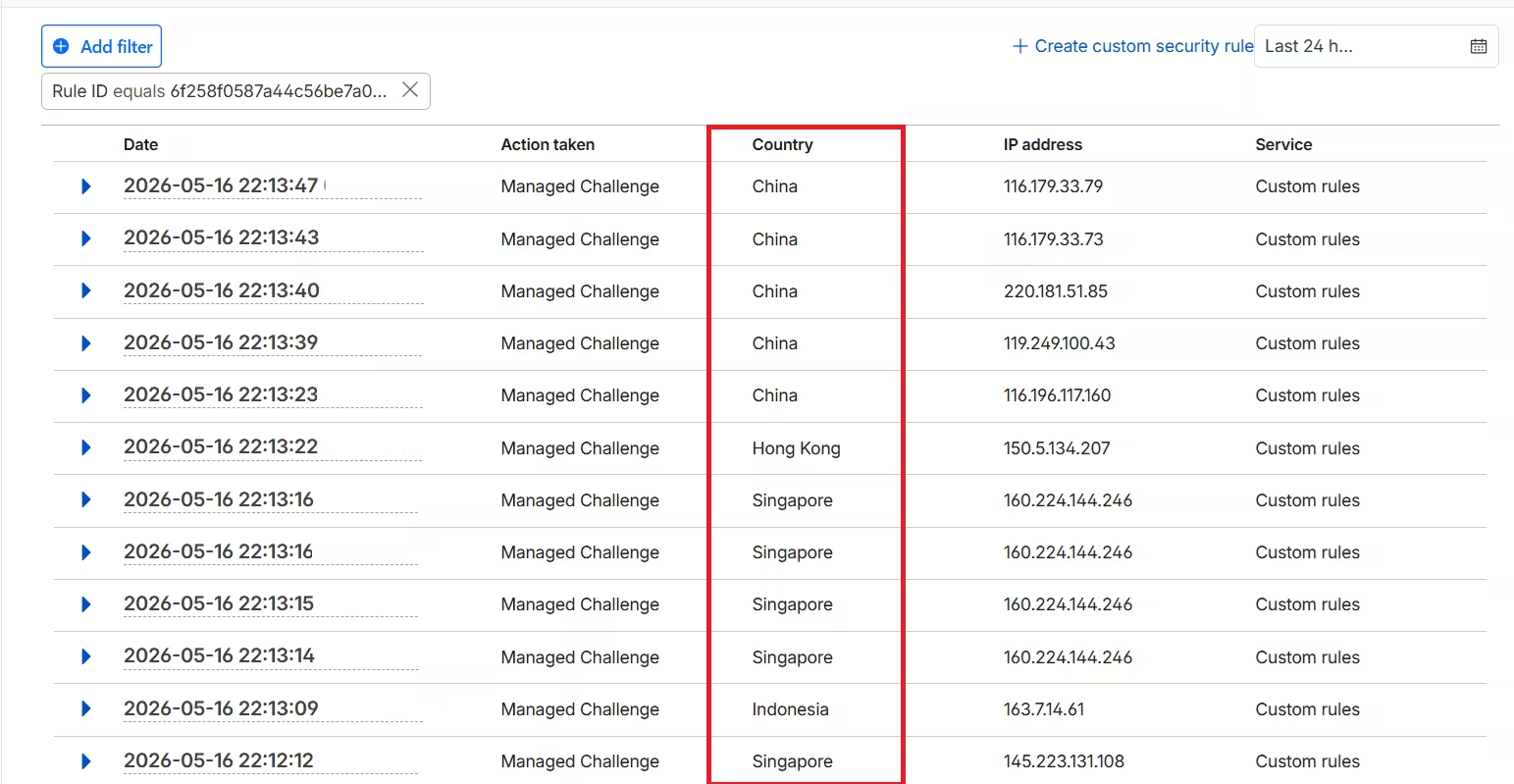
- Cloudflare Security Events log: Go to Security > Events. You should see a surge of Managed Challenge events from the targeted countries right after deployment. Challenges that are “Passed” are real human visitors. Challenges that are “Failed” or “Dropped” are bots that got stopped.
- GA4 real-time report: Watch for the spike to flatten. Ghost traffic injection does not simulate a real browser challenge response, so fake sessions stop appearing in GA4 once the WAF rule intercepts them.
- Server logs: Request volume from the covered countries should change noticeably if any real traffic from those regions was hitting your server before.
- Engagement rate recovery: Give GA4 two to three days to smooth out the metrics after you stop the bot flood.
When to Expand or Tighten the Rule
The country list in the rule reflects the current wave of Measurement Protocol ghost traffic. You can adjust it based on what your GA4 geographic report shows.
To add more countries, extend the list:
(ip.src.country in {"CN" "HK" "ID" "RU" "VN" "SG" "BD" "PK"} and not cf.client.bot)To narrow it if you have real users from some of those countries, remove the specific country code.
If you want harder enforcement against countries you have no real audience in, you can change the action from Managed Challenge to Block. Block is appropriate only when you are certain no legitimate visitors or crawlers come from those regions, and you have already confirmed cf.client.bot covers your verified crawlers.
Does This Fix the GA4 Ghost Traffic Completely?
Cloudflare WAF stops bots that route through standard HTTP requests. However, Measurement Protocol attacks send POST requests directly to Google’s servers using your GA4 Measurement ID, not to your server. Cloudflare sits in front of your origin, so it cannot intercept traffic that never reaches it.
This means a WAF rule alone does not stop pure Measurement Protocol injection. What it stops is the bot infrastructure making requests to your site that trigger the GA4 tracking code on your actual pages.
For full protection against Measurement Protocol spam, you also need GA4-side filters.
In GA4, go to Admin > Data Streams > your stream > Configure tag settings > Define internal traffic, and create filters for known bot IP ranges. You can also enable the Filter out known bots and spiders option under Admin > Reporting Identity settings.
The WAF rule handles the traffic hitting your actual site. GA4 filters handle the Measurement Protocol injections going around your server entirely. Both layers together give you full coverage.

