Disney Plus Error Code 83 means the app hit an unknown streaming error tied to your device, connection, or account. The message reads: “Something went wrong. Please try again. If the problem persists, visit the Disney+ Help Centre (error code 83).”
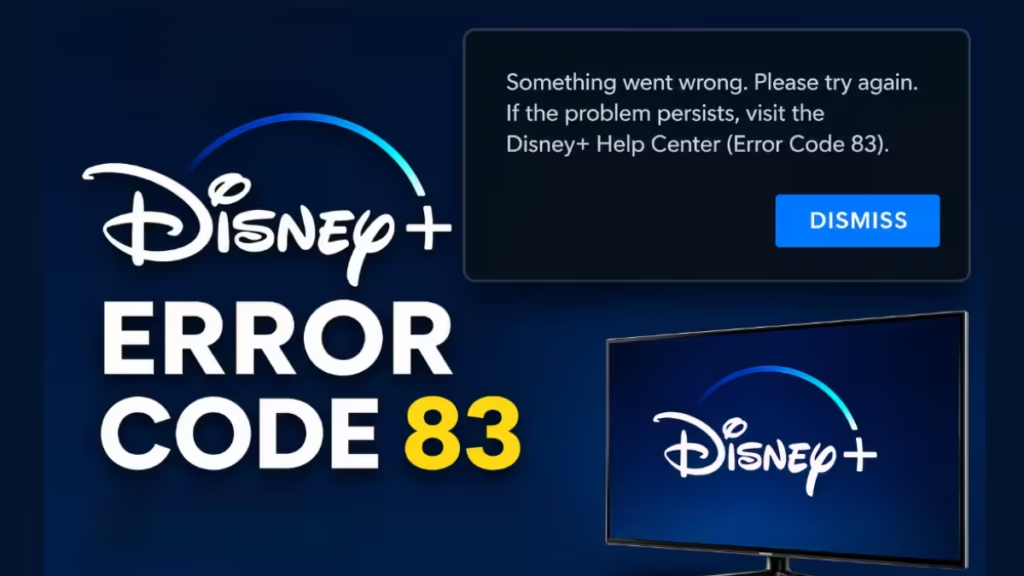
Unlike Disney Plus Error Code 42, which points directly to a server connectivity failure, Error Code 83 covers three distinct problem areas: device compatibility, network quality, and account status. That range is what makes it tricky. You need to identify which bucket your problem falls into before the fix sticks.
What Causes Disney Plus Error Code 83?
Disney+ officially lists these as the primary causes:
- You are using an unsupported device or browser (including app emulators)
- Your internet connection is unstable or too slow for the selected stream quality
- Your account has a payment or subscription problem
- A VPN or proxy is interfering with the stream
Linux is not a supported platform for Disney+. Browser choice on an unsupported OS will not help.
Fix 1: Switch to a Supported Browser
Disney+ on desktop only works on Chrome, Edge, Firefox, and Safari (macOS). If you run it on an unsupported browser (Opera, Brave with shields up, older Chromium builds, any Linux browser), you will hit Error Code 83 regardless of your connection quality.
Steps:
- Close your current browser.
- Open Chrome or Edge.
- Go to DisneyPlus.com and try playing the video again.
If you are on Linux, the browser switch will not resolve the error. Disney+ does not support Linux distributions. Use a supported device instead.
Fix 2: Check Your Internet Speed Against Disney+ Minimums
Disney+ requires specific minimum speeds:
| Content Quality | Minimum Speed |
|---|---|
| Standard Definition | 1.5 Mbps |
| High Definition | 5.0 Mbps |
| 4K UHD | 25.0 Mbps |
A connection that drops below these thresholds mid-session causes the app to throw Error Code 83 instead of simply buffering.
Steps:
- Go to fast.com and run a speed test.
- If your speed falls below the threshold for your selected quality, continue below.
- Move your device closer to the router or switch from Wi-Fi to an Ethernet cable. A wired connection eliminates wireless interference entirely.
- Disconnect other devices on the same network that are actively streaming or downloading.
- If speeds are consistently low, contact your ISP. Some ISPs throttle streaming traffic, which produces errors like this one and Samsung TV Error Code 202.
Fix 3: Power Cycle Your Modem and Router
Restarting your device alone does not clear network state issues. You need to power cycle the modem and router separately.
Steps:
- Unplug the power cable from your modem. Then unplug your router.
- Wait 60 seconds. Do not just press the reset button. A full power-off clears the device’s RAM and forces it to re-establish a fresh connection.
- Plug in the modem first and wait for all its lights to stabilize (30 to 60 seconds).
- Plug in the router and wait another 30 seconds.
- Reconnect your streaming device and relaunch Disney+.
This fix resolves cases where your ISP recently had a brief outage. The modem holds a stale connection state that does not self-correct without a full power cycle.
Fix 4: Disable Your VPN or Proxy
Disney+ actively blocks VPN and proxy traffic. If you route your connection through a VPN server in a different region, or if your router has a proxy configured, Disney+ reads that as a device or region incompatibility and throws Error Code 83.
Steps:
- Disconnect your VPN client completely. Pausing or temporarily disabling it is not always enough. Exit the application.
- On mobile, go to Settings > VPN and make sure no active VPN profile is connected.
- On a router-level VPN, log into your router admin panel and disable the VPN for your network or create a split-tunnel rule that excludes Disney+ traffic.
- Relaunch Disney+ and test playback.
Fix 5: Update the Disney+ App
An outdated Disney+ app loses compatibility with current DRM and streaming protocols, which produces Error Code 83 on content that previously worked.
On Android:
- Open the Google Play Store.
- Tap your profile icon and select “Manage apps and device.”
- Find Disney+ in the list and tap Update if available.
On iOS:
- Open the App Store.
- Tap your profile icon and scroll to Pending Updates.
- Tap Update next to Disney+.
On Smart TV or Streaming Stick (Roku, Fire TV, Apple TV):
- Go to the app store on your device.
- Find Disney+ and check for an available update.
- Install it and relaunch.
Fix 6: Clear Disney+ App Cache and Data
On Android and Android-based smart TVs, a corrupted cache causes Error Code 83 even when the network and account are fine. Clearing the cache forces the app to rebuild its local data cleanly.
On Android phone or tablet:
- Go to Settings > Apps > Disney+.
- Tap Storage.
- Tap “Clear Cache” first and retest.
- If the error continues, tap “Clear Data.” This logs you out of the app. Log back in afterward.
On Android TV or Google TV:
- Go to Settings > Apps > See All Apps > Disney+.
- Select “Clear Cache” then retest.
- If needed, select “Clear Data” and sign back in.
On iOS, Roku, and Apple TV, the app does not expose a cache-clear option. Uninstall and reinstall the app instead.
Fix 7: Check Your Disney+ Account Status
A lapsed payment or a region mismatch on your account causes Error Code 83 at the login or playback stage, not just at stream start.
Steps:
- Log into your Disney+ account on a web browser at disneyplus.com.
- Go to Account > Subscription.
- Confirm your subscription is active and the billing date has not passed.
- Check that your payment method is current and not expired.
- If your account shows active but the error continues on one specific device, log out of Disney+ on that device, then log back in.
Fix 8: Reinstall the Disney+ App
If none of the above fixes work, the app installation itself may be corrupted. A clean reinstall replaces all app files.
Steps:
- Uninstall Disney+ from your device completely.
- Restart the device.
- Reinstall Disney+ from the official app store for your platform.
- Log back in and test playback before restoring any custom settings.
Disney Plus Error Code 83 points to a device, connection, or account issue. Start with your browser and internet speed since those cover most cases. If the error persists after all the fixes above, contact Disney+ support with your device model and the steps you already tried.

