The error “VCRUNTIME140.dll was not found” or “VCRUNTIME140.dll is missing” appears the moment you open an application and it cannot load the Visual C++ runtime it needs. Adobe Premiere Pro, Photoshop, Python, AutoCAD, and dozens of games trigger this error on Windows 11 when the runtime file is absent, corrupted, or the wrong version.
“The code execution cannot proceed because VCRUNTIME140.dll was not found. Reinstalling the program may fix this problem.”
What Is Vcruntime140.dll
Vcruntime140.dll belongs to the Microsoft Visual C++ 2015-2022 Redistributable package. Windows stores it in two locations:
C:\Windows\System32: serves 64-bit applicationsC:\Windows\SysWOW64: serves 32-bit applications
Hundreds of programs load this file at startup. When it is absent or corrupted, the application cannot initialize and throws the error before the main window opens.
What Causes the Vcruntime140.dll Missing Error
- The Visual C++ Redistributable package was never installed, was uninstalled by a PC cleaner tool, or became corrupted
- An application installer failed mid-way and left the runtime incomplete
- A Windows Update partially failed and damaged runtime files in System32
- Windows Defender or a third-party antivirus quarantined the DLL incorrectly
- A disk error or sudden power loss corrupted files in System32
This error follows the same root cause pattern as msvcr100.dll and msvcr110.dll missing errors on Windows 11; missing or broken Visual C++ runtimes.
Do not download vcruntime140.dll from third-party DLL sites. Those files carry no version guarantee and frequently include malware or outdated builds that cause further problems.
Fix 1: Install the Visual C++ 2015-2022 Redistributable (Primary Fix)
This resolves the error in the majority of cases. Since vcruntime140.dll belongs to this package, installing it places the correct, Microsoft-signed version directly into System32 and SysWOW64.
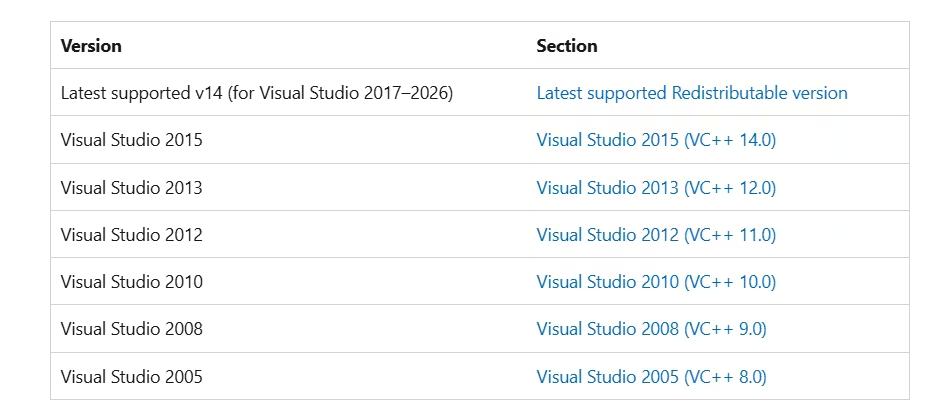
- Open your browser and navigate to:
https://learn.microsoft.com/en-us/cpp/windows/latest-supported-vc-redist - Scroll to the Visual Studio 2015, 2017, 2019, and 2022 section.
- Download the X64 installer.
- Download the X86 installer from the same section.
- Run the X64 installer first. If it reports the package is already installed, click Repair instead of Install.
- Run the X86 installer next and do the same.
- Restart your PC.
- Open the application that was failing and test.
Install both X64 and X86 even on 64-bit Windows 11. Many applications ship internal 32-bit components that require the X86 runtime separately from the main executable.
Fix 2: Run DISM, Then SFC
If Windows system files are damaged, SFC alone may fail because it pulls replacements from the component store, which may itself be corrupted. Run DISM first to repair the component store, then run SFC.
Open Command Prompt as administrator:
- Press Win, type
cmd. - Right-click Command Prompt and select Run as administrator.
Run DISM:
DISM /Online /Cleanup-Image /RestoreHealthDISM takes 10 to 20 minutes. It requires an active internet connection to pull clean file copies from Microsoft servers.
Run SFC after DISM finishes:
sfc /scannowSFC takes 15 to 30 minutes. If it finds and repairs corrupted files, restart the PC before testing. If SFC reports it could not fix all errors, run DISM once more, then repeat the SFC scan.
Fix 3: Check Antivirus Quarantine
Windows Defender and third-party antivirus programs sometimes flag vcruntime140.dll as a false positive and move it to quarantine. This removes the file from System32 with no visible warning to you.
- Open your antivirus program.
- Navigate to Quarantine, Threat History, or Protection History depending on the software.
- Look for vcruntime140.dll in the list.
- If you find it, select Restore.
- Add an exclusion for
C:\Windows\System32\vcruntime140.dllandC:\Windows\SysWOW64\vcruntime140.dllto prevent re-quarantine.
After restoring, go back and run Fix 1 to ensure the version on disk is complete and unmodified.
Fix 4: Reinstall the Application That Triggers the Error
Some programs bundle a private copy of vcruntime140.dll inside their own installation folder rather than relying on the system copy. If that private copy is damaged or the original install failed, a clean reinstall restores it.
- Open Settings > Apps > Installed apps.
- Find the application showing the error.
- Click the three-dot menu and select Uninstall.
- After uninstalling, manually delete any leftover folders from
C:\Program FilesorC:\Program Files (x86). - Download a fresh installer from the official source only.
- Install and test.
For Steam games specifically: Right-click the game in your library, go to Properties > Local Files, and click Verify integrity of game files.
Steam checks every file against its database and replaces anything missing or corrupted without redownloading the entire game. This step alone fixes many game launching errors caused by missing DLL files without a full reinstall.
Fix 5: Check Windows Event Viewer for the Exact Trigger
If the error appears inconsistently or after a specific action, Event Viewer tells you exactly which process failed and which DLL version it requested. This is useful when the error does not come from an obvious application.
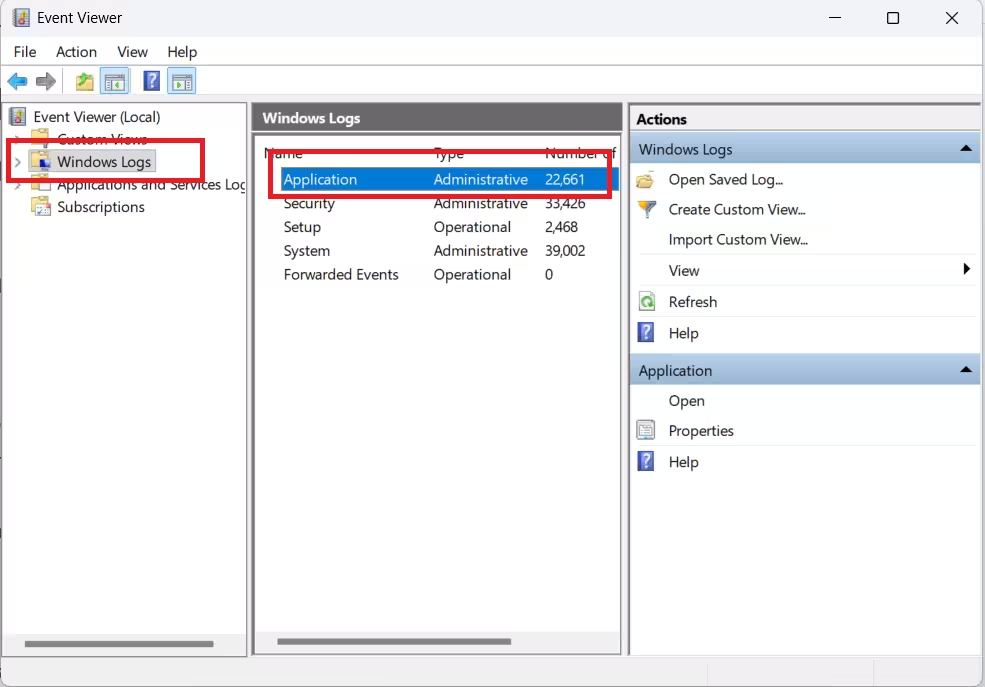
- Press Win + R, type
eventvwr.msc, and press Enter. - In the left panel, expand Windows Logs and click Application.
- Look for Error entries with a timestamp matching when the error appeared.
- Click the entry and read the General tab, it names the faulting application and module.
The log entry pinpoints which application triggered the error and sometimes reveals a version mismatch between what the application expects and what System32 contains. If you see an Event ID 1000 Application Error alongside the DLL message, that confirms the application crashed due to the missing runtime.
Fix 6: Run Windows Update
Microsoft occasionally pushes Visual C++ runtime updates through Windows Update. A pending update may already include the corrected runtime files.
- Open Settings > Windows Update.
- Click Check for updates.
- Install all available updates, including any listed under Optional updates.
- Restart and retest the application.
Fix 7: Register the DLL Manually
If the DLL file exists on disk but Windows still reports it as missing, re-registering it forces the system to recognize it.
- Open Command Prompt as administrator.
- For the 64-bit version, run:
regsvr32 C:\Windows\System32\vcruntime140.dll- For the 32-bit version on a 64-bit system, run:
regsvr32 C:\Windows\SysWOW64\vcruntime140.dll- If regsvr32 reports the file is not found, the DLL is genuinely absent. Go back to Fix 1.
- If registration succeeds, restart and test.
Fix 8: Repair or Reset Windows 11
If every fix above fails, the Windows installation itself has deep corruption that individual repairs cannot address. Windows 11 offers two options without requiring a USB drive.
Option A: Reset This PC (keeps your files)
- Open Settings > System > Recovery.
- Click Reset PC.
- Select Keep my files.
- Choose Cloud download for the cleanest result.
- Follow the prompts to completion.
Option B: Startup Repair
- Open Settings > System > Recovery.
- Click Restart now under Advanced startup.
- Go to Troubleshoot > Advanced options > Startup Repair.
A full reset replaces all system files, which eliminates any corruption causing the missing DLL error. This is a last resort after all other fixes fail.
Quick Reference: Every Fix for Vcruntime140.dll
| Fix | Best For | Difficulty | Time |
|---|---|---|---|
| Install Visual C++ Redistributable | Missing or corrupted runtime package | Easy | 5 min |
| DISM + SFC | Damaged Windows system files | Easy | 30 to 45 min |
| Check antivirus quarantine | Antivirus removed the file | Easy | 5 min |
| Reinstall application | App-bundled runtime failed or missing | Easy | 10 to 20 min |
| Event Viewer check | Inconsistent or unclear trigger | Easy | 5 min |
| Windows Update | Pending runtime update from Microsoft | Easy | 15 to 30 min |
| Register DLL manually | File exists but Windows does not recognize it | Easy | 2 min |
| Reset Windows 11 | Persistent, deep system corruption | Hard | 1 to 2 hours |
FAQs
Why does vcruntime140.dll keep going missing after I fix it?
Your antivirus is quarantining it again after every repair. Open your antivirus, restore the file, then add both C:\Windows\System32\vcruntime140.dll and C:\Windows\SysWOW64\vcruntime140.dll as permanent exclusions.
What is the difference between vcruntime140.dll and vcruntime140_1.dll?
Both belong to the Visual C++ Redistributable, but vcruntime140_1.dll ships specifically with the 2019 and 2022 versions. Some applications require both. Installing the latest Visual C++ 2022 Redistributable from Microsoft includes both files together.
Can I download vcruntime140.dll directly and paste it into System32?
No. Files from third-party DLL sites are unverified and often contain malware. The only safe source is the Microsoft Visual C++ Redistributable installer, which places the correct signed version automatically.
Does this error affect only games, or other software too?
Both. Any application built with Visual C++ can trigger it, including Adobe apps, Python, AutoCAD, and VLC. Games are common victims because they rarely prompt you to install runtimes separately.
Is vcruntime140.dll a virus?
No. It is a legitimate Microsoft-signed runtime library. If yours is flagged, check its location. The real file lives in C:\Windows\System32\. Malware uses the same filename but runs from C:\Users\ or C:\Temp\ instead.

