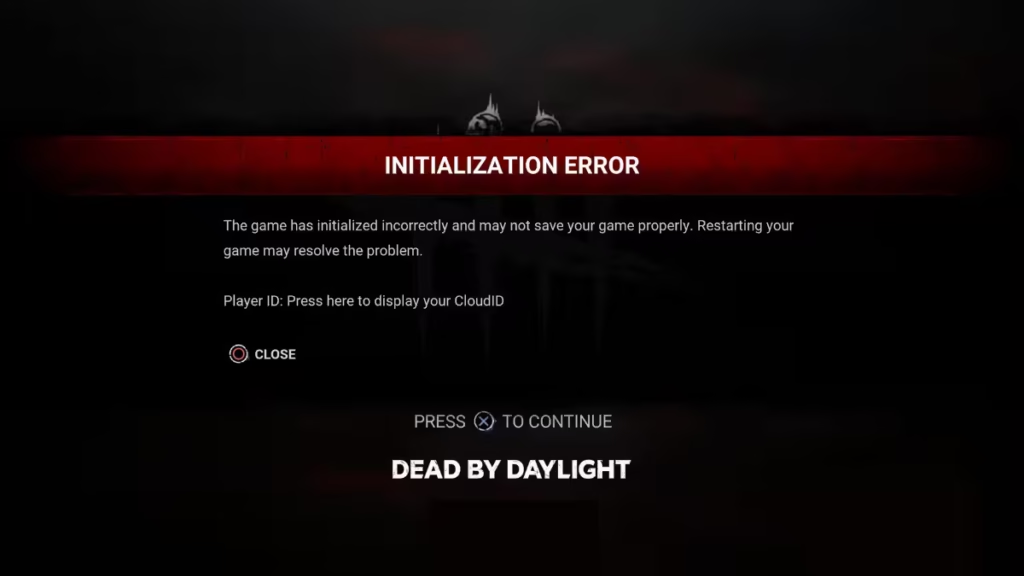
The Dead by Daylight initialization error appears at launch and warns that the game has initialized incorrectly and may not save your progress. This error shows up on PS5, PC, and Xbox, and it usually points to one of four root causes: the DBD servers are down, a strict NAT type is blocking the connection, your game files are corrupted, or a time synchronization issue is confusing the game’s authentication.
Check the official Dead by Daylight X (Twitter) page or a server status tracker before anything else. If the servers are down for maintenance, no fix on your end will help. Once you confirm the servers are online, work through the platform-specific fixes below.
What Causes the Dead by Daylight Initialization Error
- DBD servers are offline for maintenance or experiencing an outage
- Strict NAT type (Type 3 / Type C) blocking data between your console or PC and the game servers
- Corrupted game files on PC that prevent the game from loading correctly
- Time sync mismatch on PS5 or Nintendo Switch causing authentication to fail
Fix Dead by Daylight Initialization Error on PS5
Fix 1: Change Your DNS to Google DNS
This is the most confirmed fix for PS5 players. Multiple users have resolved the initialization error by switching to Google’s public DNS servers.
- Turn off your PS5 completely.
- Unplug the power cables from both the PS5 and your modem or router.
- Wait 3 minutes, then plug both devices back in and power them on.
- Wait for all lights on your modem or router to normalize.
- On the PS5 home screen, go to Settings > Network > Set Up Internet Connection.
- Select Wi-Fi or LAN depending on how you connect.
- Select Custom.
- If using Wi-Fi, select your network and enter the password.
- Set the following options:
- IP Address Settings: Automatic
- DHCP Host Name: Do Not Use
- DNS Settings: Manual
- Primary DNS:
8.8.8.8 - Secondary DNS:
8.8.4.4
- Select Next.
- Set MTU Settings to Automatic and Proxy Server to Do Not Use.
- Select Test Internet Connection.
- Launch Dead by Daylight.
If you want a deeper look at DNS issues on PS5, see the complete guide on how to fix PS5 DNS error.
Fix 2: Check Your NAT Type
A strict NAT type (Type 3) actively blocks game server connections. NAT Type 1 or Type 2 is required for Dead by Daylight to connect properly.
- Go to Settings > Network > Connection Status.
- Check the NAT Type listed. Type 1 or Type 2 is fine. Type 3 means your router is blocking the connection.
- If you have NAT Type 3, access your router’s admin settings and enable UPnP (Universal Plug and Play). This automatically opens the ports Dead by Daylight needs.
If enabling UPnP alone does not help, you need to manually open these ports for DBD on PS5:
- TCP: 1935, 3478, 3479
- UDP: 3074, 3478, 3479
This same NAT issue triggers many online connection errors on PS5. If you run into similar problems in other games, check the fix for Arc Raiders online connection error on PS5.
Fix 3: Sync Your PS5 Clock
A time mismatch between your PS5 and the actual time can cause the game’s authentication to fail.
- Go to Settings > System > Date and Time.
- Select Set Using Internet to sync the clock automatically.
- Restart Dead by Daylight.
Fix 4: Check Privacy Settings on All Profiles
Some PS5 users resolved the error by updating privacy settings on secondary profiles sharing the console.
- Switch to each secondary account on your PS5.
- Go to Settings > Users and Accounts > Privacy.
- Accept any pending privacy policy updates.
- Switch back to your main account and launch DBD.
Fix 5: Close the Game and Check Network Connection
A quick but genuinely effective option that works for many players:
- Close Dead by Daylight completely.
- Go to Settings > Network > Test Internet Connection.
- Wait for the test to complete successfully.
- Relaunch the game.
Fix Dead by Daylight Initialization Error on PC (Steam)
Fix 1: Delete the Steam Userdata Folder for DBD
Corrupted local save data in Steam is the most common PC cause. Deleting this folder forces Steam to re-download clean data from the cloud.
Before you start: confirm Steam Cloud Sync is enabled.
- Open Steam and go to Steam > Settings > Cloud.
- Make sure Enable Steam Cloud synchronization is turned on.
- Close Steam completely.
- Navigate to:
C:\Program Files\Steam\userdata - Find the folder named 381210 and delete it. (381210 is Dead by Daylight’s Steam App ID.)
- Reopen Steam and launch Dead by Daylight. The game will download missing files from the cloud and start normally.
Fix 2: Verify Game File Integrity (Steam)
If deleting the userdata folder does not fix it, verify that your game files are intact.
- Open Steam and go to your Library.
- Right-click Dead by Daylight and select Properties.
- Click Local Files > Verify integrity of game files.
- Wait for Steam to scan and replace any corrupted files.
- Launch the game.
Fix 3: Reinstall Dead by Daylight (Epic Games Store)
The userdata fix only works on Steam. If you play through the Epic Games Store, reinstalling is the most reliable way to replace corrupted files.
- Uninstall Dead by Daylight from the Epic Games launcher.
- Reinstall from your library.
- Launch the game after installation completes.
Fix 4: Check Your NAT Type on PC
PC players can check NAT type through their router settings. Log into your router admin panel (usually at 192.168.1.1 or 192.168.0.1) and enable UPnP. This automatically handles port forwarding for games and resolves strict NAT issues without manual port rules.
Fix Dead by Daylight Initialization Error on Xbox
Fix 1: Clear Persistent Storage
Xbox stores temporary game data in persistent storage. Clearing it removes any corrupted data causing the initialization error.
- From the Xbox home menu, go to Settings.
- Select Devices and Connections > Blu-ray.
- Select Persistent Storage.
- Select Clear Persistent Storage.
Fix 2: Power Cycle Your Xbox
After clearing persistent storage, do a full power cycle to flush any remaining cached data.
- Power off your Xbox completely.
- Unplug the power cable from the console.
- Wait 5 minutes.
- Plug the power cable back in and turn on the console.
- Launch Dead by Daylight.
Fix Dead by Daylight Initialization Error on Nintendo Switch
Fix 1: Sync Your System Clock
Time sync errors are the primary cause of the initialization error on Nintendo Switch.
- Go to System Settings > System > Date and Time.
- Enable Synchronize Clock via Internet.
- Restart Dead by Daylight.
Which Fix Works Best?
| Platform | Best Fix |
|---|---|
| PS5 | Change DNS to 8.8.8.8 / 8.8.4.4 |
| PC (Steam) | Delete the 381210 userdata folder |
| PC (Epic) | Reinstall the game |
| Xbox | Clear Persistent Storage + power cycle |
| Nintendo Switch | Sync clock via internet |

