PS5 error CE-108262-9 appears when the console fails to read system software or application data. It can show up during game launch, after a failed system update, or when the console wakes from rest mode. The crash is real and repeatable, but it points to a specific set of causes you can fix yourself.
This guide walks you through every working fix, starting with the most common causes first.
Fix 1: Update PS5 System Software
Sony has released targeted hotfixes for the CE-108262-9 crash. If your console runs an outdated firmware version, this is almost certainly the cause.
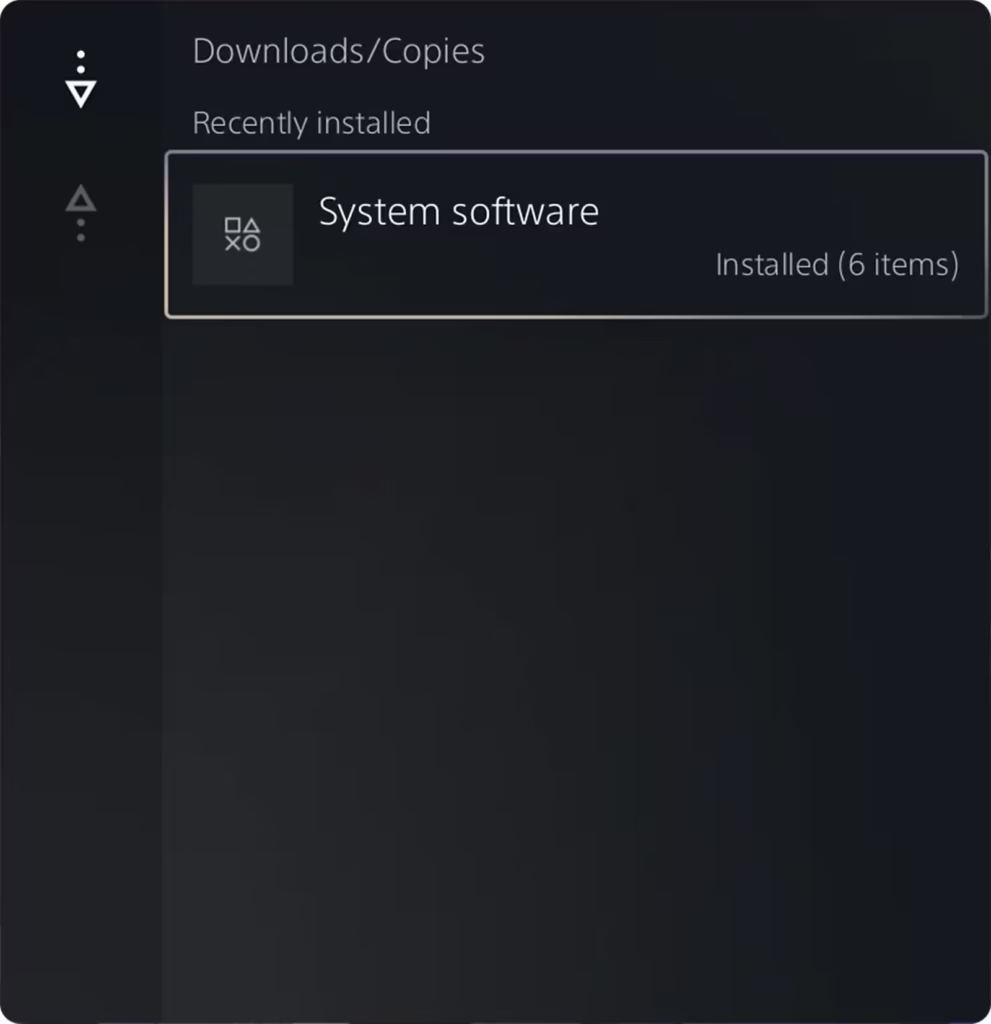
- Press the PS button on your DualSense controller to open the control center.
- Select Downloads / Uploads.
- Select Downloads / Copies from the left menu, then choose Update System Software on the right.
- Select Update, confirm, and wait for the installation to finish.
- Restart your console when prompted.
If the download gets stuck or fails repeatedly, update via USB instead:
- Format a USB drive as FAT32 or exFAT.
- Create a folder named
PS5on the drive, then create a folder namedUPDATEinside it. - Download the PS5 update file from PlayStation’s official site and save it as
PS5UPDATE.PUPinside theUPDATEfolder. - Plug the USB drive into your PS5 and start the console in Safe Mode (hold the power button until the second beep).
- Select Update System Software, then choose Update from USB Storage Device.
Use uppercase letters for all folder and file names. The console will not recognize the file otherwise.
Fix 2: Delete and Reinstall the Problem Game or App
If the error only appears when launching a specific title, the installed data for that game is corrupt.
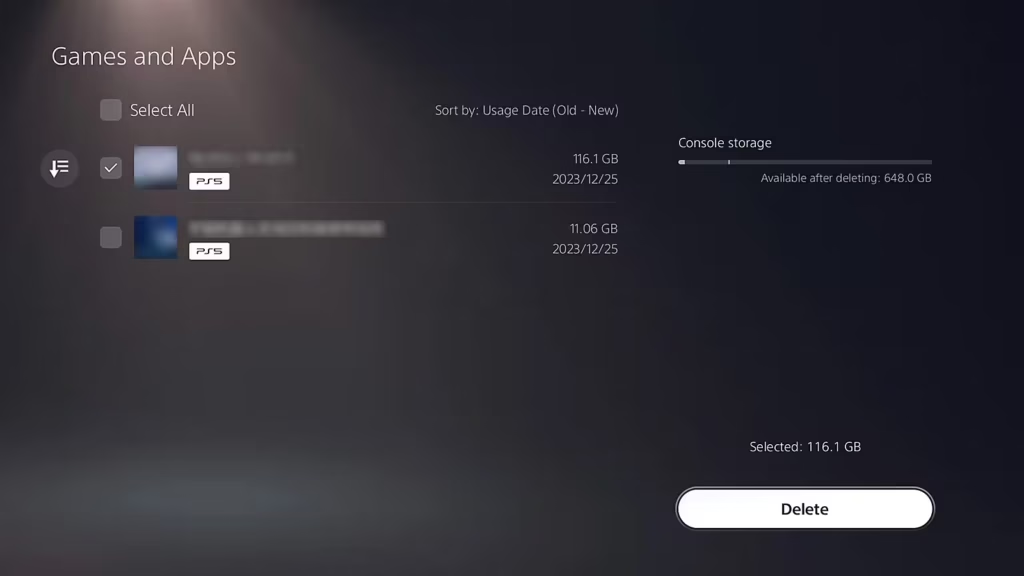
- Go to Settings > Storage.
- Select the game or app showing the error.
- Delete it completely, including any update files.
- Reinstall from your library or disc.
Before you delete, upload your save data to cloud storage if you have PlayStation Plus:
- Go to Settings > Saved Data and Game/App Settings.
- Select Saved Data (PS5) or Saved Data (PS4) depending on the game.
- Select Upload and confirm.
Fix 3: Disable HDMI Device Link
HDMI Device Link allows any connected HDMI device, like a TV or soundbar, to send power signals to your PS5. If an external device sends a shutdown signal during gameplay, the PS5 crashes and logs it as CE-108262-9.
- From the PS5 home screen, go to Settings.
- Select System, then choose HDMI from the left menu.
- Disable the Enable HDMI device link toggle.
- Make sure the HDCP toggle stays enabled.
- Restart your console.
Test by playing for a session as normal and check whether the crash returns.
Fix 4: Disable Rest Mode
If CE-108262-9 appears while your console sits idle or tries to resume from rest mode, rest mode itself is the trigger. An aggressive rest mode timer combined with certain background processes causes the console to crash on wake.
- Go to Settings > System.
- Select Power Saving, then choose Set Time Until PS5 Enters Rest Mode.
- Set both During Media Playback and While Playing Games to Don’t Put in Rest Mode.
- Return to the home screen to save the change.
This fix is especially relevant if you notice the error most often after leaving your console idle.
Fix 5: Rebuild the Database in Safe Mode
A corrupted storage database causes the console to misread software data repeatedly, even after reinstalling games. Rebuilding the database fixes this without deleting your games or saves.
- Turn off your PS5 completely by holding the power button for three seconds.
- Once the console is fully off, press and hold the power button again.
- Release it after the second beep (approximately seven seconds after the first).
- Connect your DualSense with a USB cable and press the PS button.
- In Safe Mode, select Clear Cache and Rebuild Database, then choose Rebuild Database.
The rebuild can take several minutes depending on how much data is on your console. Do not power off the PS5 during this process.
Fix 6: Reset Your PS5 Console (Last Resort)
If every fix above fails and the error still appears across multiple games, a full console reset removes persistent software corruption that a database rebuild cannot reach.
Back up your data before proceeding. A reset erases everything on console storage.
Back up via USB:
- Connect a FAT32 or exFAT formatted USB drive to your PS5.
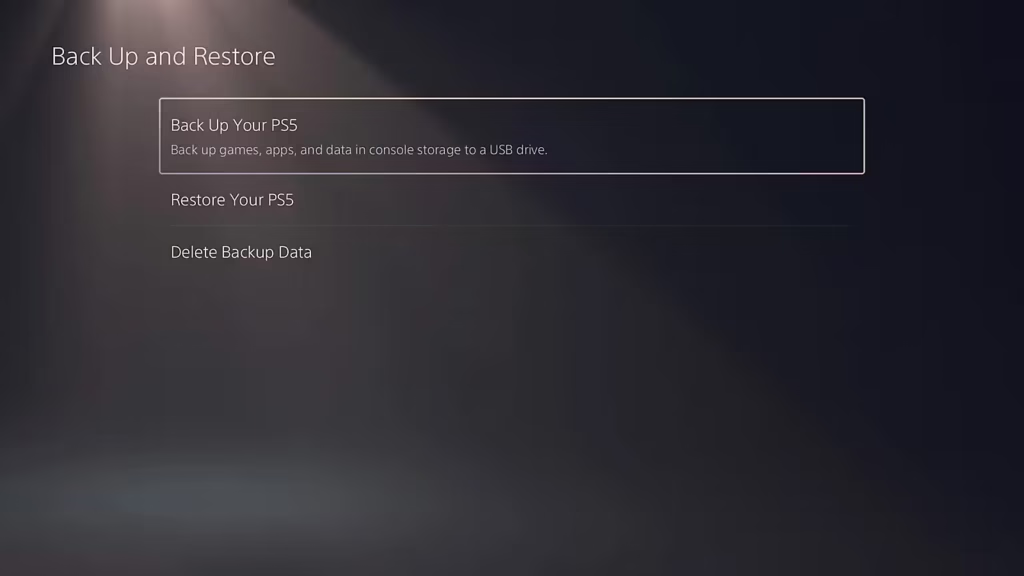
- Go to Settings > System > System Software > Back Up and Restore > Back Up Your PS5.
- Select the data types you want to save, then confirm the backup.
Reset the console:
- Go to Settings > System > System Software > Reset Options.
- Select Reset Your Console and confirm.
- After the reset completes, reinstall your games and restore your backup.
When restoring from backup, the current system software version must match or be newer than the version that was running when the backup was created.

