Natalia Sidorska was driving alone late at night along Horseshoe Pass in Wales when she missed a tight bend on an unfamiliar road. Her car went off the edge, rolled 330 feet down a mountainside, and caught fire. She managed to escape seconds before the vehicle exploded. What she did not know at the time was that her iPhone had already contacted emergency services. First responders arrived 20 minutes later.
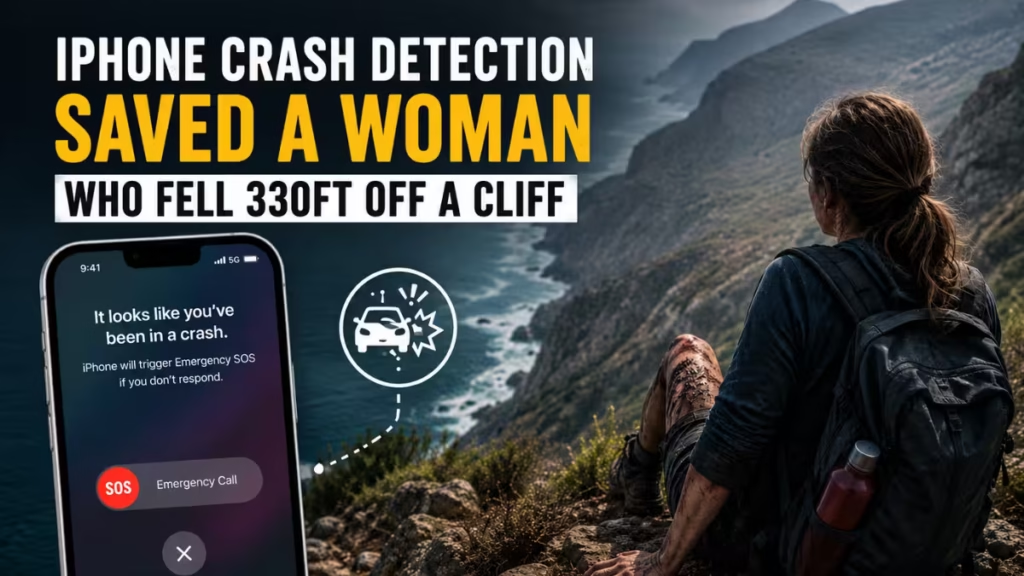
Crash Detection had triggered automatically, without any action from her. This guide explains what iPhone Crash Detection does, which devices support it, and exactly how to configure it so it works correctly when you need it most.
What Is iPhone Crash Detection?
Crash Detection is a built-in safety feature Apple introduced in 2022. It uses sensors inside your iPhone or Apple Watch to detect the sudden forces of a serious vehicle collision. When it detects a crash, it attempts to contact emergency services on your behalf, even if you are unconscious or unable to reach your phone.
The feature works automatically in the background and requires no manual activation during an emergency. Apple designed it specifically for situations where a person cannot call for help themselves.
How Crash Detection Works
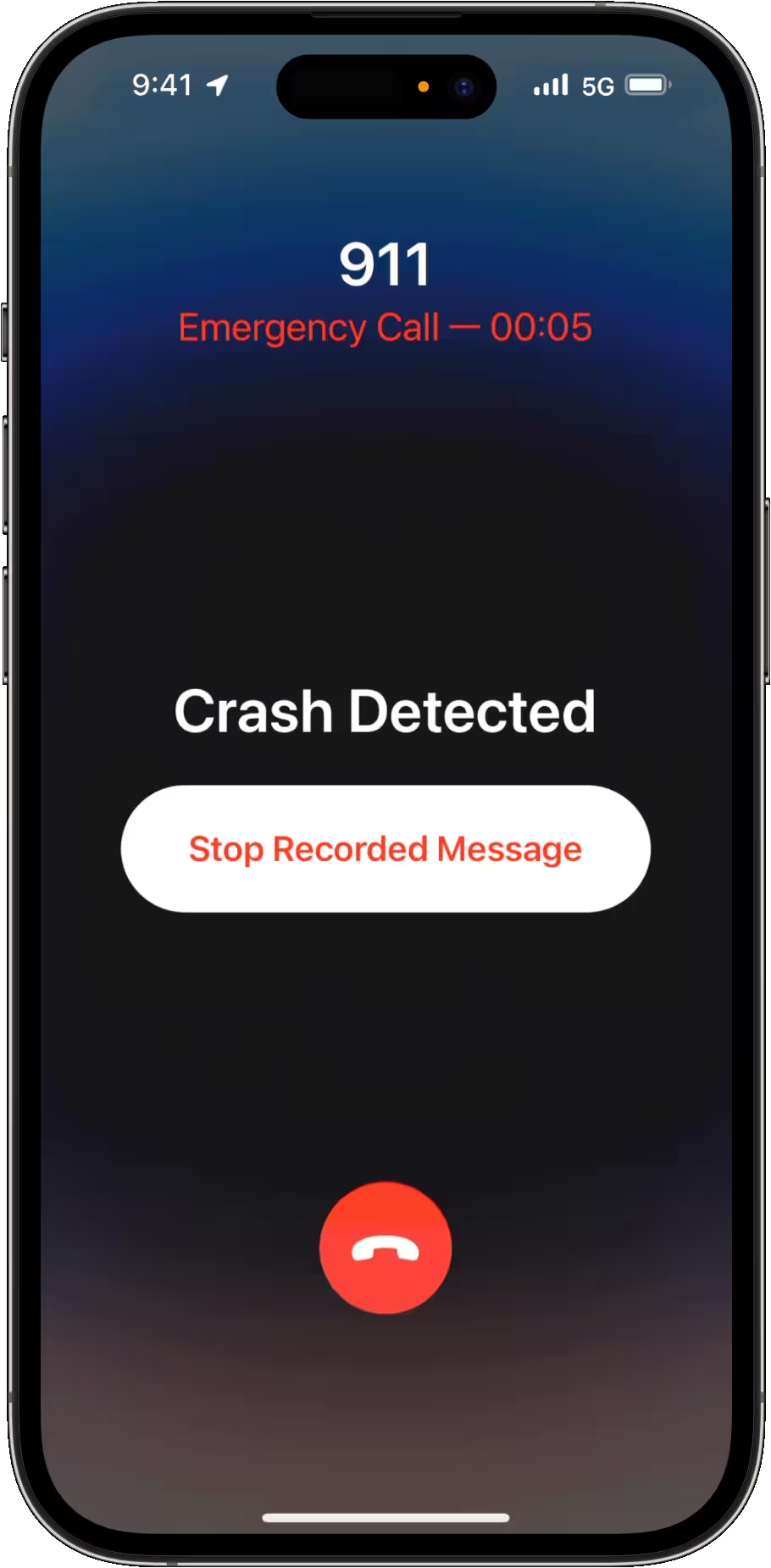
When your iPhone detects a hard impact consistent with a vehicle crash, it begins a 10-second countdown and sounds an alarm to alert you. A notification appears on screen asking if you need help.
If you dismiss the countdown, nothing happens. If you do not respond within those 10 seconds, your iPhone automatically calls your local emergency services number.
Along with that call, Crash Detection shares your precise GPS location with emergency responders so they can find you quickly. It also reads out any relevant information stored in your Medical ID, including allergies, blood type, medical conditions, and emergency contacts. That information can matter a great deal in the first minutes after a serious crash.
Once the call completes, your iPhone also sends a notification to the emergency contacts you have set up in the Health app.
Which Devices Support Crash Detection
Apple introduced Crash Detection with a specific hardware requirement because the feature relies on a high-g accelerometer and barometer. Not every Apple device includes it.
The following devices support Crash Detection:
- iPhone 14 and all later models
- iPhone 14 Plus, 14 Pro, and 14 Pro Max and all later models
- Apple Watch Series 8 and later
- Apple Watch SE (2nd generation) and later
- Apple Watch Ultra (original) and later
If you own an iPhone 13 or earlier, your device does not support Crash Detection regardless of your iOS version.
How to Enable Crash Detection on iPhone
Crash Detection is on by default on supported devices. However, it is worth confirming the toggle is active, especially if you have reset your settings or restored your device.
- Open the Settings app on your iPhone.
- Scroll down and tap Emergency SOS.
- Look for the Call After Serious Crash toggle.
- Make sure it is switched on (green).
That is all you need to do. Crash Detection runs in the background whenever you are in a moving vehicle and does not drain noticeable battery life during normal use.
How to Enable Emergency Location Sharing
For Crash Detection to send your location to first responders, iOS Location Services must allow it. This setting is separate from standard app location permissions.
- Open Settings.
- Tap Privacy & Security.
- Tap Location Services.
- Scroll down and tap System Services.
- Find Emergency Calls & SOS and switch it on.
Without this setting enabled, emergency services will know you have been in a crash but will not receive your GPS coordinates automatically.
How to Set Up Your Medical ID
Medical ID stores health information your iPhone passes to emergency responders during a Crash Detection call. If you have not filled it in, first responders arrive without knowing your medical history, allergies, or who to contact.
Setting it up takes a few minutes and could make a significant difference in how quickly you receive proper care.
- Open the Health app on your iPhone.
- Tap the Summary tab at the bottom.
- Tap your profile picture or avatar in the top-right corner.
- Tap Medical ID.
- Tap Edit and fill in your name, date of birth, blood type, medical conditions, allergies, medications, and any other relevant details.
- Add at least one emergency contact by tapping Add Emergency Contact.
- Enable Show When Locked so responders can access your information without your passcode.
- Enable Share During Emergency Call so your Medical ID information gets shared when Crash Detection places a call.
- Tap Done.
Your Medical ID information becomes available to first responders the moment Crash Detection places an emergency call.
A Few Things to Know About Crash Detection
False positives can happen: Apple has acknowledged that Crash Detection sometimes triggers on rollercoasters, skiing runs, and other high-speed activities that produce sharp deceleration. If you are doing an activity that might cause a false trigger, you can temporarily disable the feature in Settings > Emergency SOS and re-enable it afterward.
It works even without a signal: On supported iPhone models with Emergency SOS via satellite, Crash Detection can contact emergency services even where there is no cellular coverage. This is available in select countries and requires iOS 16.1 or later.
Your emergency contacts get notified: After Crash Detection places a call, your iPhone sends a text message to each emergency contact listed in your Medical ID. The message includes your location and a note that you may have been in a crash.
It cannot replace seatbelts or safe driving: Crash Detection is a last-resort safety net. It works after a crash has already occurred. The best outcome is always avoiding the crash in the first place.
Set It Up Before You Need It
Natalia Sidorska had no idea her iPhone would save her life that night on Horseshoe Pass. She had not configured the feature intentionally. It worked because Apple enables it by default. But without a filled-in Medical ID or confirmed location sharing, emergency services would have arrived without knowing her blood type, her allergies, or who her family was.
Take five minutes to go through each step in this guide. Confirm Crash Detection is on, enable emergency location sharing, and fill out your Medical ID completely. If you ever need it, those five minutes will have been worth every second. The full story was reported by BBC News.

