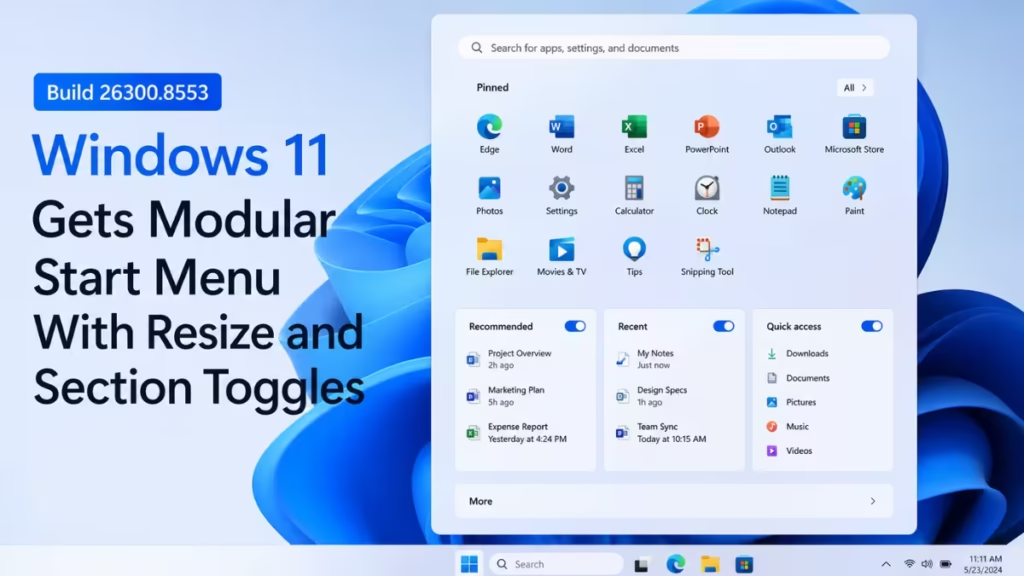
Microsoft released two new Windows 11 Insider builds on May 29, 2026, bringing significant changes to the Start menu, search, taskbar, and printing. Build 26300.8553 lands in the Experimental Channel (formerly Dev Channel) with a fully redesigned, modular Start menu. Build 26220.8544 lands in the Beta Channel with updated spinners and a new Windows Ready Print toggle. Both builds also include a new substring-based file search feature.
Here is everything that changed.
What Is New in Build 26300.8553 (Experimental Channel)
Start Menu Gets Section Toggles and Resize Options
The biggest change in this build is the new modular Start menu design. Microsoft introduced section-level toggles that let you independently show or hide three areas: Pinned, Recommended, and All Apps. Previously, you could not remove one section without affecting the others. Now each section works independently.
Microsoft also renamed the old “Recommended” section to “Recent,” both in the Start menu itself and in the Settings page. The new name better reflects what the section actually shows.
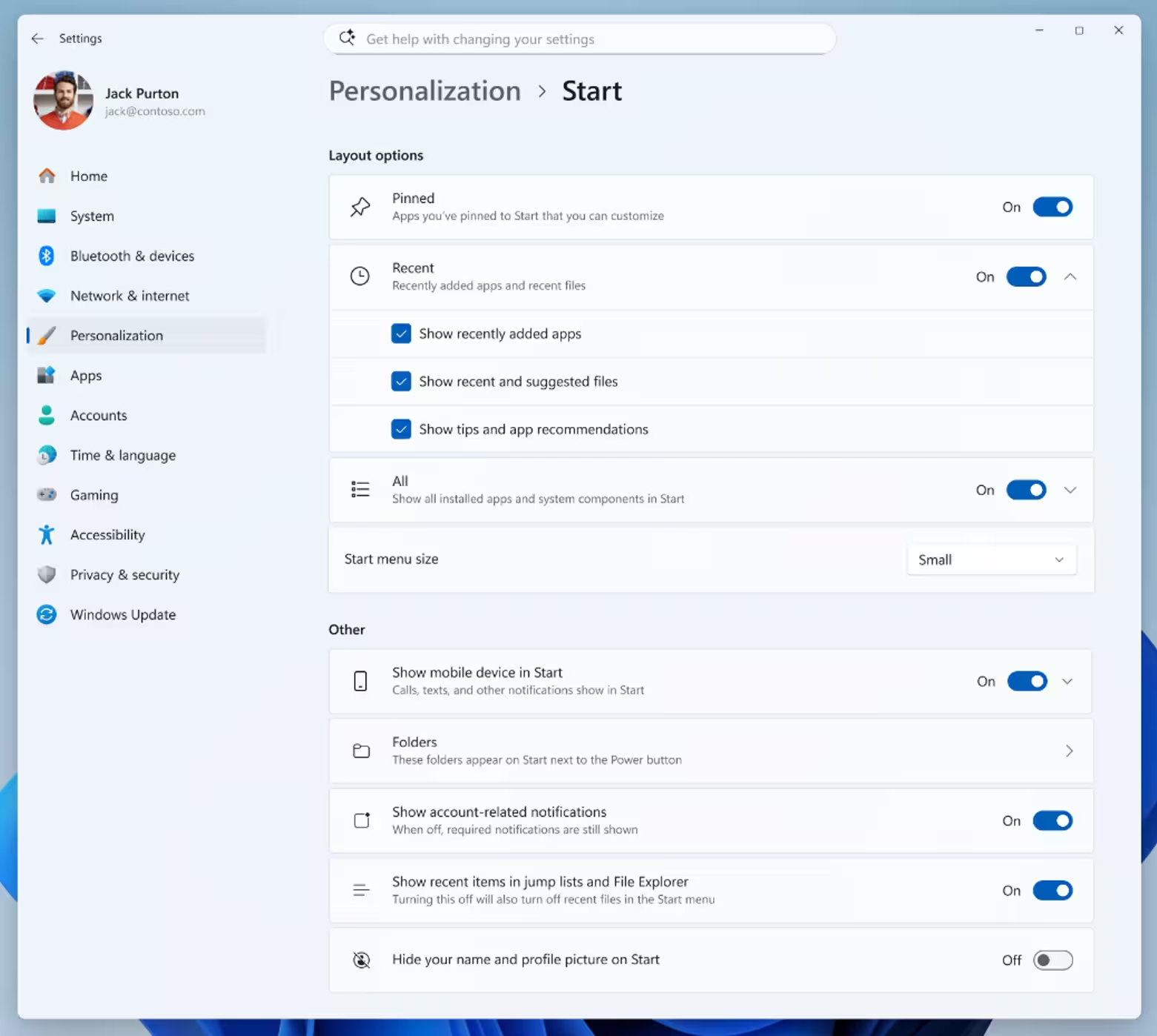
You can now choose between a small and large Start menu size. The existing “Automatic (default)” option stays available. This gives you three sizing choices instead of one.
A new option lets you hide your name and profile picture from the Start menu. If you share a screen or simply prefer a cleaner look, this toggle removes your account details from the Start menu header.
Microsoft also redesigned the Start menu settings page to match these new controls. All options now live in one updated, organized settings layout.
To share feedback on the Start menu changes, press Win + F to open Feedback Hub and navigate to Desktop Environment > Start.
Search Now Finds Files by Partial Word
Build 26300.8553 adds substring-based file search to Windows 11. When you search for a partial word, Windows now matches files with compound names that contain that string. For example, searching “april” finds a file named MeetingNotesApril, and searching “status” finds ProjectStatusReport.
This search behavior applies to both file names and file content. It closes a long-standing gap where you had to type the exact beginning of a file name to find it.
Taskbar Fixes for Alternate Positions
Microsoft fixed several small visual issues that appeared when using the taskbar in a non-default position. These were polish-level bugs, not functional failures.
Touch support now works for taskbar invocation in alternate positions. You can swipe to bring up the taskbar when it sits at the top or sides of your screen.
What Is New in Build 26220.8544 (Beta Channel)
New Consistent Spinners Across Windows Scenarios
Microsoft replaced the old loading spinner visuals across several system screens. The new spinners use a solid donut shape and appear during Boot, Logon, Restart, Shutdown, and Windows Update. Each spinner now shows a matching status text label such as “Restarting,” “Working on updates,” or “Welcome.”
The goal is a more cohesive look across these screens. The previous spinner visuals varied in style and did not align with the current Windows design language. This update standardizes them.
Windows Ready Print Toggle Added to Settings
Last month, Microsoft changed new printer installations to use IPP (Internet Printing Protocol) by default when the printer supports it. This month, the company added a manual toggle so you can control that behavior yourself.
You can find the new toggle at Settings > Bluetooth and devices > Printers and scanners > Default install printers using Windows Ready Print.
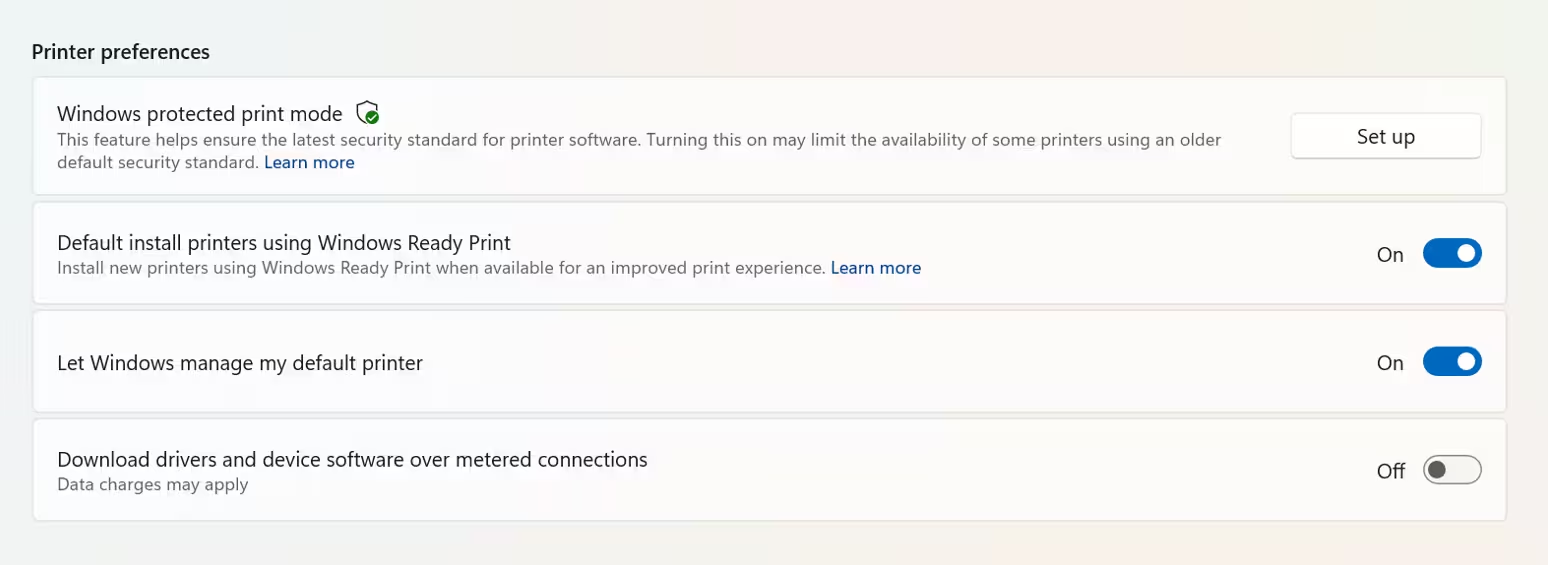
When you turn the toggle on, Windows installs supported printers using IPP by default. When you turn it off, Windows falls back to other available installation methods including third-party drivers.
Microsoft calls this new printing platform Windows Ready Print. It replaces the older per-printer driver model for supported hardware and aims to simplify printer setup. For background on the driver deprecation timeline, Microsoft published an End of Servicing Plan for Third-Party Printer Drivers on Windows.
Search by Substring
Beta Channel build 26220.8544 also includes the same substring file search feature described above for the Experimental Channel build. Searching a partial string now matches compound file names and file content.
Known Issues
One known issue affects the Reset PC feature. Resetting a PC using “Reset this PC” with the local reinstall option may get stuck. Microsoft marked this as fixed in build 26300.8553, but if you hit the issue, use the Cloud Download (Cloud PBR) option instead of local reinstall to complete the reset successfully.
How to Get These Builds
These builds are available to Windows Insider Program members only.
- Build 26300.8553 is available in the Experimental Channel (formerly Dev Channel)
- Build 26220.8544 is available in the Beta Channel
Both builds run on Windows 11, version 25H2 via an enablement package.
Microsoft uses Controlled Feature Rollout for many of these features, meaning not every Insider sees them immediately. Features roll out to a small group first, then expand. If you want to enable features early, check Settings > Windows Update > Windows Insider Program > Feature flags for toggles.
Keep in mind that Experimental Channel features are pre-release concepts. Microsoft may change, remove, or cancel them before any public release.
Related Guides

