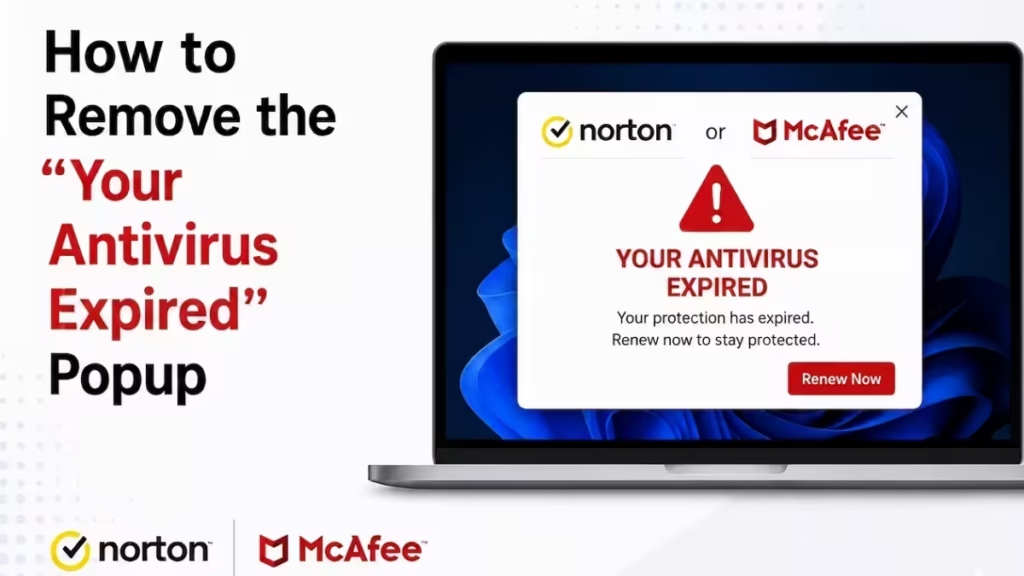
That popup claiming your Norton or McAfee antivirus has expired is not a real security alert. It is a browser notification pushed by a scam website you accidentally allowed to send you notifications. The domain behind it varies, but it is always a random-looking address you never intentionally visited, and it has no connection to Norton or McAfee. Running antivirus scans will not stop it because there is no malware to detect. The notification permission sitting inside your browser is the actual source, and that is what you need to remove.
Remove the Scam Site from Browser Notification Permissions
This is the root cause. At some point, a deceptive site tricked you into clicking “Allow” on a browser notification prompt. Revoking that permission stops the popups immediately.
Google Chrome
- Open Chrome and paste this into the address bar:
chrome://settings/content/notifications - Press Enter.
- Scroll down to the Allowed to send notifications section.
- Look for any domain you do not recognize. These are often random-looking addresses with extensions like
.co.nz,.xyz,.top, or.clickthat you never intentionally subscribed to.
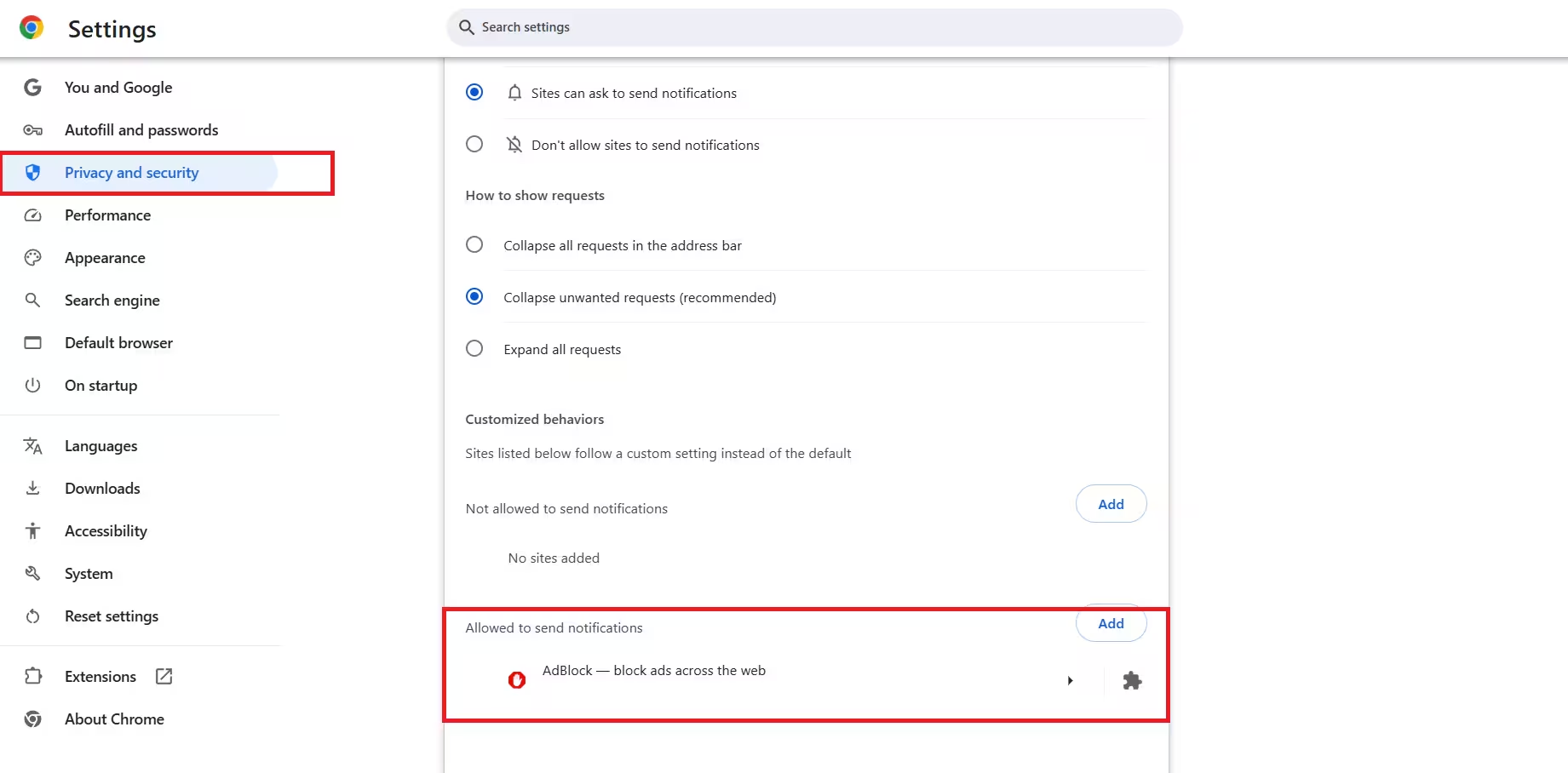
- Click the three-dot icon next to the suspicious entry.
- Select Remove.
Repeat for every suspicious domain in that list.
Microsoft Edge
- Open Edge and paste this into the address bar:
edge://settings/content/notifications - Press Enter.
- Under Allow, find the suspicious domain.
- Click the three-dot icon next to it.
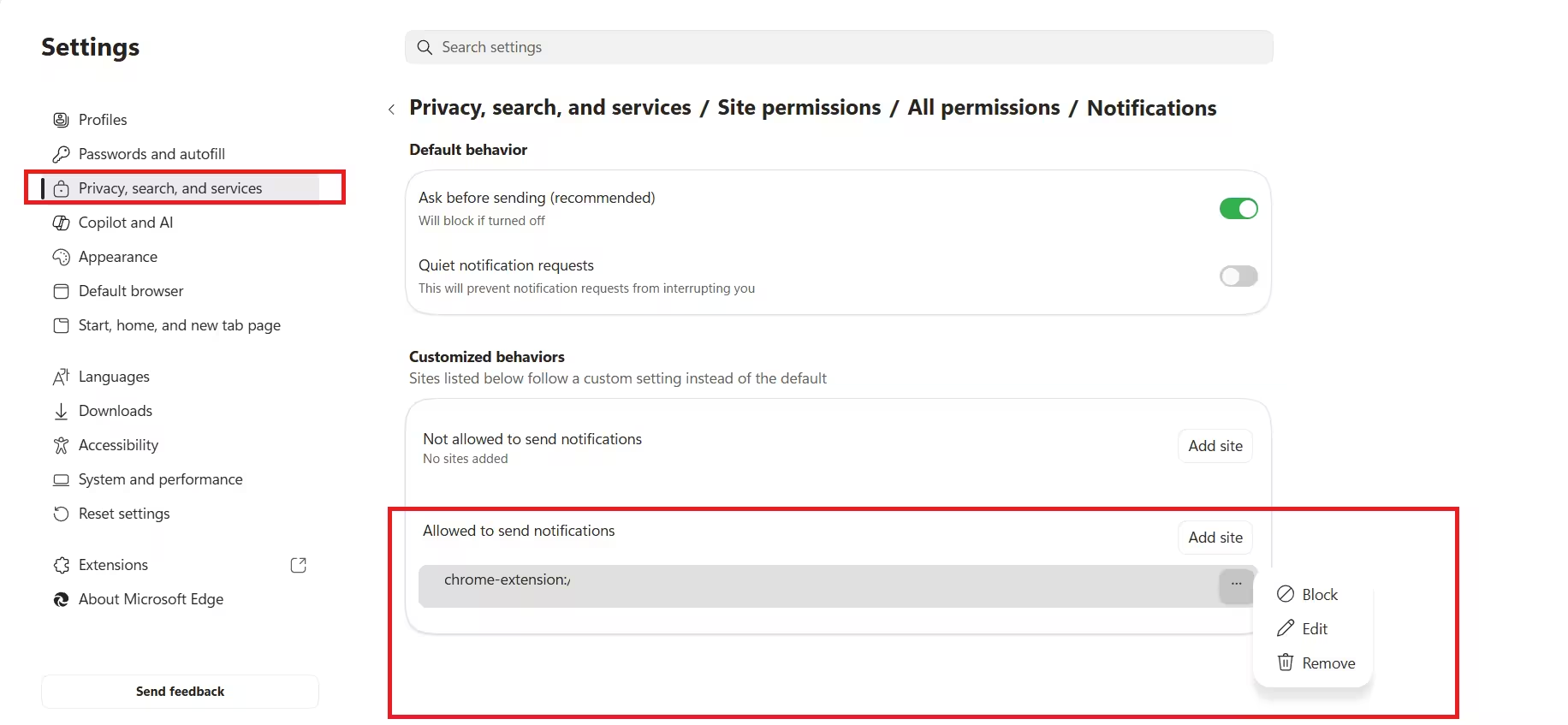
- Select Remove.
Mozilla Firefox
- Open Firefox and click the hamburger menu (three lines) in the top right.
- Go to Settings and then Privacy and Security.
- Scroll to the Permissions section.
- Click Settings next to Notifications.
- Find the offending domain in the list.
- Select it and click Remove Website.
- Click Save Changes.
Check for Suspicious Browser Extensions
Scam notification sites often spread through shady browser extensions that reinstall permissions or redirect you back to the same domains. If the notification keeps coming back after you remove it, a rogue extension is likely the reason.
Chrome and Edge
- For Chrome, go to
chrome://extensions. For Edge, go toedge://extensions. - Look for any extension you do not remember installing, especially ones with vague names like “Search Manager,” “PDF Converter,” or “Web Booster.”
- Toggle off any suspicious extension, then click Remove.
Firefox
- Click the hamburger menu and go to Add-ons and Themes.
- Under Extensions, disable or remove anything unfamiliar.
Run AdwCleaner to Clean Adware from Your Browser
Microsoft Safety Scanner and Bitdefender scan for traditional malware. AdwCleaner specifically targets adware, browser hijackers, and unwanted programs that those tools often miss.
- Download AdwCleaner from the official Malwarebytes site: https://www.malwarebytes.com/adwcleaner
- Run the downloaded file. No installation is needed.
- Click Scan Now.
- Once the scan finishes, review the results and click Quarantine to remove everything flagged.
- Restart your computer when prompted.
AdwCleaner specifically looks for browser notification hijackers, PUPs (potentially unwanted programs), and adware bundles that tag along with free software downloads.
Block All Notification Requests Globally (Optional but Recommended)
If you do not rely on browser notifications for anything, turning them off entirely prevents any site from ever prompting you again.
Chrome
- Go to
chrome://settings/content/notifications. - Under Default behavior, select Don’t allow sites to send notifications.
Edge
- Go to
edge://settings/content/notifications. - Toggle off Ask before sending.
Firefox
- Go to Settings, then Privacy and Security.
- Under Permissions, check the box next to Block new requests asking to allow notifications.
Reset Browser Settings If the Popup Persists
If removing the notification permission and cleaning extensions does not solve it, resetting your browser wipes all modified settings, including any notification permissions the adware may have locked in.
Warning: A reset removes your saved passwords, extensions, and browsing history. Export any saved passwords before you proceed.
Chrome
- Go to
chrome://settings/reset. - Click Restore settings to their original defaults.
- Click Reset settings to confirm.
Edge
- Go to
edge://settings/reset. - Click Restore settings to their default values.
- Confirm by clicking Reset.
Firefox
- Type
about:supportin the address bar and press Enter. - Click Refresh Firefox in the top right corner.
- Confirm the refresh.
Why Antivirus Scans Did Not Find It
Tools like Microsoft Safety Scanner and Bitdefender scan for files and processes. A browser notification permission is not a file. It is a setting stored inside your browser’s local data. No antivirus will flag it because it does not look like malware to the scanner. The fix lives entirely inside your browser settings, which is why the steps above work when a full system scan does not.

