Paramount Plus error code 3005 appears when the app or website fails to start or continue video playback. You press play, the screen buffers or goes black, and the error message shows instead of your show or movie.
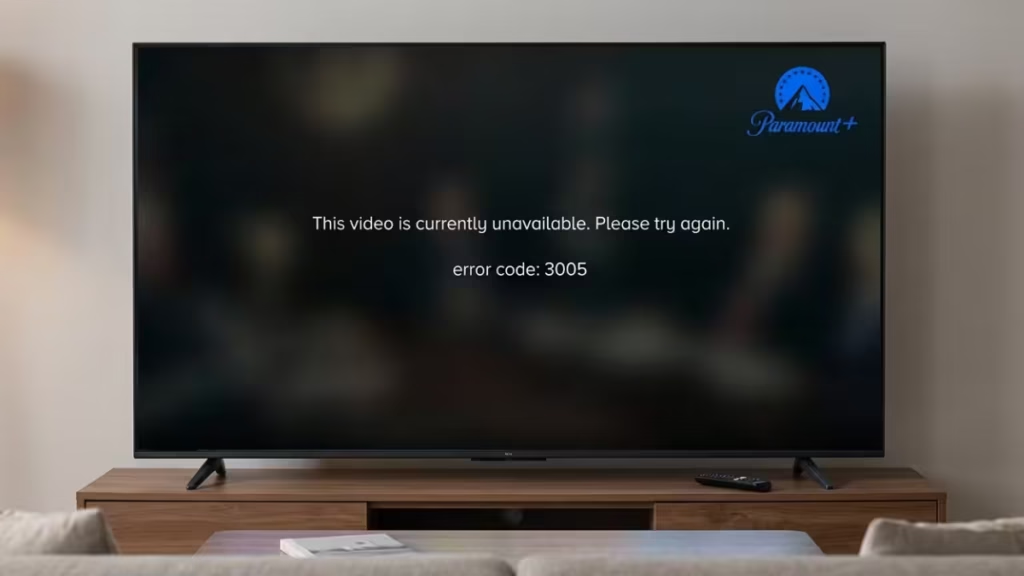
The error can happen on web browsers, phones, tablets, smart TVs, Roku, Fire TV, Apple TV, and game consoles. It usually points to a connection problem, corrupted cache, outdated app, VPN interference, or a temporary issue on Paramount’s servers.
This guide walks through every fix, starting with quick checks and moving into device-specific steps.
What Is Paramount Plus Error Code 3005?
Error code 3005 is a playback failure. Paramount Plus shows it when the service cannot load or continue streaming a video. The message typically reads: “Sorry, this video is currently unavailable. Please try again. Error 3005.”
The error does not mean your account is banned or your subscription canceled. It relates to streaming conditions rather than account status.
You might see error 3005 when:
- A movie or show fails to load after pressing play
- Playback stops mid-stream and cannot resume
- The app freezes or crashes after an ad break
- A live channel refuses to start
Error code 3005 is different from subscription or billing errors. If your plan has expired or a title is unavailable in your region, Paramount Plus usually shows a different message.
Common Causes of Paramount Plus Error Code 3005
Several issues can trigger error code 3005, depending on your device and setup:
- Unstable or slow internet connection: Streaming needs consistent bandwidth. Even if your connection appears active, brief drops or low speeds can break playback.
- Corrupted cache or cookies: Old cached data, expired login sessions, or stale site files can prevent the Paramount Plus player from loading correctly.
- Outdated app or browser: Older versions may lack current DRM support or playback features that Paramount Plus requires.
- VPN or proxy interference: VPNs and proxy services can increase latency or cause Paramount Plus to block playback when a location mismatch is detected.
- Ad blockers or browser extensions: Ad blockers, script blockers, and privacy tools can stop the video player or DRM checks from working.
- Device-specific issues: Low storage, too many background apps, or a frozen app process can prevent Paramount Plus from streaming.
- Temporary Paramount Plus outage: Server-side issues or regional outages can cause error 3005 across multiple devices at once.
Quick Checks Before Troubleshooting
Run through these steps before changing any settings.
Check if Paramount Plus is down: Visit the Paramount Plus Help Center to see if there is an active outage. You can also check Downdetector for real-time user reports, which is especially useful during live events or peak hours when server load spikes. If the service is down, no local fix will help. Wait for Paramount Plus to restore the service, then try again.
Test your internet connection: Open another app or website and play a short video from a different service. If other services also buffer or fail to load, restart your modem and router by unplugging them for 30 seconds, then reconnecting. For HD streaming, aim for at least 5 Mbps. For 4K playback, a faster and more stable connection is needed.
Try a different title: If only one show or movie fails, the issue may be with that specific stream rather than your device or account. Test another title to narrow down the cause.
Test another device: If Paramount Plus works on your phone but not your smart TV, focus on the TV app or device settings. If it fails on every device, focus on your internet connection or account status.
Sign out and sign back in: An expired session can trigger playback errors even when the app opens normally. Signing out and back in refreshes your authentication token.
Fix 1: Restart the Paramount Plus App
Restarting the app clears temporary glitches and refreshes the streaming session. This is the easiest first step for any playback error.
- On phones and tablets, swipe the app away from the recent apps screen, then reopen it.
- On smart TVs and streaming sticks, back out of the app fully, return to the home screen, and relaunch Paramount Plus.
- On web browsers, close the tab, open a new private or incognito window, sign back in, and try the same title. If playback works in incognito, your regular session has a cookie, cache, or extension conflict.
If the error continues after restarting the app, restart the entire device. A full reboot clears stuck background processes and expired playback sessions.
For smart TVs and streaming devices, power cycle the device instead of just restarting it. Unplug the power cable, wait 30 to 60 seconds, then plug it back in. This clears more temporary memory than a standard restart.
Paramount Plus also provides official documentation on force restarting the app if you are unsure how to close it completely on your device.
Fix 2: Check and Improve Your Internet Connection
Paramount Plus requires a stable connection to stream video. A weak or inconsistent signal causes buffering and playback failures that trigger error 3005.
Steps to improve your connection:
- Move your device closer to the Wi-Fi router.
- Disconnect unused devices that may be consuming bandwidth.
- Close other apps or browser tabs that use the internet on the same device.
- If you are on Wi-Fi, switch from the 2.4 GHz band to the 5 GHz band in your router settings. The 5 GHz band provides a faster and more stable connection for streaming.
- Switch from Wi-Fi to a wired Ethernet connection if your device supports it.
- Restart your modem and router by unplugging them for 30 seconds.
- Try switching networks. Test on mobile data instead of Wi-Fi, or use a different Wi-Fi network.
Paramount Plus recommends a minimum of 2 Mbps for video-on-demand and live TV, and 25 Mbps for 4K content. If your connection sits near the minimum, lowering the video quality setting inside the app reduces the required bandwidth and can stop playback errors from recurring.
Fix 3: Clear Cache and Cookies
Corrupted or outdated cached data is one of the most common triggers for error code 3005. Clearing it forces Paramount Plus to load fresh files and start a new playback session.
On a Web Browser (Chrome)
- Click the three-dot menu and select Settings.
- Go to Privacy and Security > Site Settings > View permissions and data stored across sites.
- Search for paramountplus.com.
- Click the trash icon to delete all stored data for that domain.
- Close the browser completely and reopen it.
- Sign back in to Paramount Plus and test streaming.
On Windows (Paramount Plus App)
- Press Win + I to open Settings.
- Go to Apps > Installed Apps.
- Find Paramount Plus, click the three dots beside it, and select Advanced Options.
- Scroll down and click Reset.
- Reopen the app and sign back in.
On Android or Fire TV
- Go to Settings > Apps > Manage Installed Applications.
- Select Paramount Plus.
- Tap Clear Cache, then confirm.
- Reopen the app and test playback.
On iPhone, iPad, Apple TV, and Roku
These devices do not offer a direct cache-clearing option for individual apps. Reinstalling the Paramount Plus app (see Fix 6) removes the cached data on these platforms.
On Smart TVs
Go to device or system settings and look for an app storage option under Paramount Plus. If no option appears, power cycling the TV clears some temporary data.
Fix 4: Disable VPN, Proxy, or Ad Blockers
VPNs, proxies, and ad blockers frequently interfere with Paramount Plus playback. Paramount Plus may block IP addresses associated with VPN services, and if a location mismatch is detected, error 3005 can appear.
Ad blockers are especially likely to break playback on an ad-supported plan or when watching live TV.
To disable a VPN or proxy:
- Close the Paramount Plus app or browser.
- Open your VPN or proxy application
- Click Disconnect or Turn Off.
- Confirm the VPN icon has disappeared from the system tray.
- Restart your internet connection.
- Reopen Paramount Plus and try playing the video.
To disable browser extensions:
- Click the extensions icon at the top of your browser.
- Temporarily disable the ad blocker and any other extensions.
- Reload the Paramount Plus page and test streaming.
- If playback works, turn extensions back on one at a time until you find the one causing error 3005.
- Once identified, either remove the extension or add paramountplus.com to its allowlist.
For Windows users with firewall issues:
Windows Defender Firewall or third-party antivirus firewalls can sometimes block Paramount Plus incorrectly.
- Press the Win key, type Windows Defender Firewall, and press Enter.
- Select Turn Windows Defender Firewall On or Off.
- Temporarily turn off the firewall for both private and public networks.
- Test Paramount Plus.
- If error 3005 clears, add Paramount Plus to the list of allowed apps in your firewall settings before re-enabling it.
For third-party antivirus software, right-click the antivirus icon in the system tray and select the option to disable it temporarily. If disabling resolves the error, add Paramount Plus as an allowed application in your antivirus settings before re-enabling protection.
Fix 5: Update the Paramount Plus App or Browser
An outdated app or browser can cause streaming errors because older versions may lack current DRM support, security features, or streaming protocols that Paramount Plus requires.
- On phones and tablets: Open the App Store (iPhone or iPad) or Google Play Store (Android), search for Paramount Plus, and install any available update.
- On Roku: Highlight the Paramount Plus channel, press the star button, and select the update option if shown. Then restart the Roku from Settings > System.
- On Fire TV: Visit the Paramount Plus app page in the Amazon Appstore and install any pending update. Restart from Settings > My Fire TV.
- On Apple TV: Check the App Store for updates or enable automatic updates in Settings. Restart from Settings > System.
- On Smart TVs: Open the TV’s app store and check for a Paramount Plus update. Also install the latest firmware from the TV’s support or system menu.
On web browsers:
- Chrome, Firefox, Edge: Click the three-dot menu, go to Help > About [Browser Name], and install any pending updates.
- Safari: Go to System Settings > General > Software Update and install available updates.
After updating the app, check for operating system or firmware updates on the device as well. Outdated system software can cause the same compatibility issues as an outdated app.
Fix 6: Reinstall the Paramount Plus App
If clearing the cache and updating the app did not resolve error 3005, reinstalling the app removes all corrupted data, expired sessions, and broken local settings.
- Delete the Paramount Plus app from your device.
- Restart the device to clear any temporary files linked to the app.
- Open your device’s app store.
- Download and install a fresh copy of Paramount Plus.
- Sign in to your account and test playback with more than one title.
If one movie or episode fails but others play normally, the issue may be with that specific stream rather than your device or account.
Fix 7: Restart or Update Your Streaming Device
Long device uptime, pending firmware updates, or outdated system software can affect streaming performance and trigger error 3005 on smart TVs and streaming devices.
Smart TVs: Power cycle the TV by unplugging it for 30 seconds. Install any available firmware updates from the TV’s settings menu. Disable quick-start or instant-on features if the Paramount Plus app keeps reopening in a broken state after a standard restart.
Samsung TVs (extra steps): Samsung TV users frequently encounter error 3005 due to DNS or network configuration issues. Try these additional steps if the general fixes above have not worked:
- Change DNS settings: Go to Settings > General > Network > Network Status > IP Settings > DNS Settings. Switch from automatic to manual and enter Google’s public DNS: 8.8.8.8 (primary) and 8.8.4.4 (secondary). Confirm and restart the TV.
- Reset network settings: Go to Settings > General > Network > Reset Network. This clears any misconfigured network settings that may be blocking the streaming handshake.
- Sign out and back in: Open the Paramount Plus app on your Samsung TV, navigate to account settings, and sign out completely. Sign back in to refresh the session token.
Roku: Restart from Settings > System > System Restart after updating or reinstalling the app. Do not use only the remote power button, as this puts the device to sleep rather than restarting it.
Fire TV: Restart from Settings > My Fire TV > Restart.
Apple TV: Check for tvOS updates, confirm the device date, time, and region are set correctly, and force close Paramount Plus before reopening it.
Chromecast with Google TV: Clear the Paramount Plus app cache, update Google Play Services if available, and restart the device from system settings.
Game consoles: Update the console software, run a network connection test, and reinstall Paramount Plus from the console’s store.
After each change, test Paramount Plus before moving to the next fix. This approach makes it easier to identify whether the error was caused by the app, the device, or the network.
Fix 8: Contact Paramount Plus Support
If none of the fixes above resolve error code 3005, the problem may involve your account, subscription status, regional access, device compatibility, or a server-side issue that only support can investigate.
Before contacting support, confirm that your TV or device model is still on Paramount’s officially supported device list. Some older smart TV operating systems eventually lose support, and error 3005 can appear on unsupported devices even after reinstalling the app.
Contact Paramount Plus support and include the following details to speed up the process:
- The exact error message, including “error code 3005” and any additional text shown on screen
- Your device model (for example, iPhone 14, Samsung Smart TV, Roku Ultra, or Fire TV Stick 4K)
- Operating system or firmware version
- Paramount Plus app version, or browser name and version if you are streaming on the web
- Connection type (Wi-Fi, Ethernet, mobile data, VPN, or hotspot)
- The title triggering the error (show name, episode, movie, or live channel)
- Troubleshooting steps you have already tried
Contact support sooner if your subscription shows as inactive after a recent payment, if you cannot sign in at all, or if Paramount Plus asks you to subscribe again despite an active plan. Billing and entitlement issues can appear as streaming errors rather than clear payment messages.
If Paramount Plus confirms a service outage, the best option is to wait and try again later. Uninstalling apps, resetting devices, or changing account settings will not fix a platform-side problem.
Frequently Asked Questions
Does error code 3005 mean my Paramount Plus account is banned?
Usually not. Error code 3005 is most often a playback failure caused by connection problems, corrupted app data, browser conflicts, or a temporary service issue. Sign out and back in, check your subscription status, and verify your payment method if the error appears on every device.
Why does error 3005 appear on one device but not others?
This usually points to a device-specific problem rather than an account-wide issue. The affected device may have an outdated Paramount Plus app, corrupted cache data, old firmware, or a weak Wi-Fi connection. Updating the app, restarting the device, clearing cache, or reinstalling Paramount Plus often fixes it.
How do I fix error code 3005 in a web browser?
Start in a private or incognito window. Clear site data for paramountplus.com, disable ad blockers and privacy extensions, and make sure your browser is fully updated. If the error continues, try a different browser such as Chrome, Firefox, Edge, or Safari.
What should I do if error code 3005 keeps appearing on my smart TV?
Power cycle the TV, update the firmware and Paramount Plus app, and clear the app cache if your TV supports it. If the problem continues, uninstall and reinstall the app, sign back in, and test playback with multiple titles.
Is error code 3005 different from error code 3205?
Yes. Error code 3205 is a separate Paramount Plus playback error with its own causes and fixes.
When should I contact Paramount Plus support about error code 3005?
Contact support if the error continues after you have tested another device, restarted your network, updated or reinstalled the app, and confirmed your subscription is active. You should also reach out if Paramount Plus fails on every device while other streaming services work normally.

