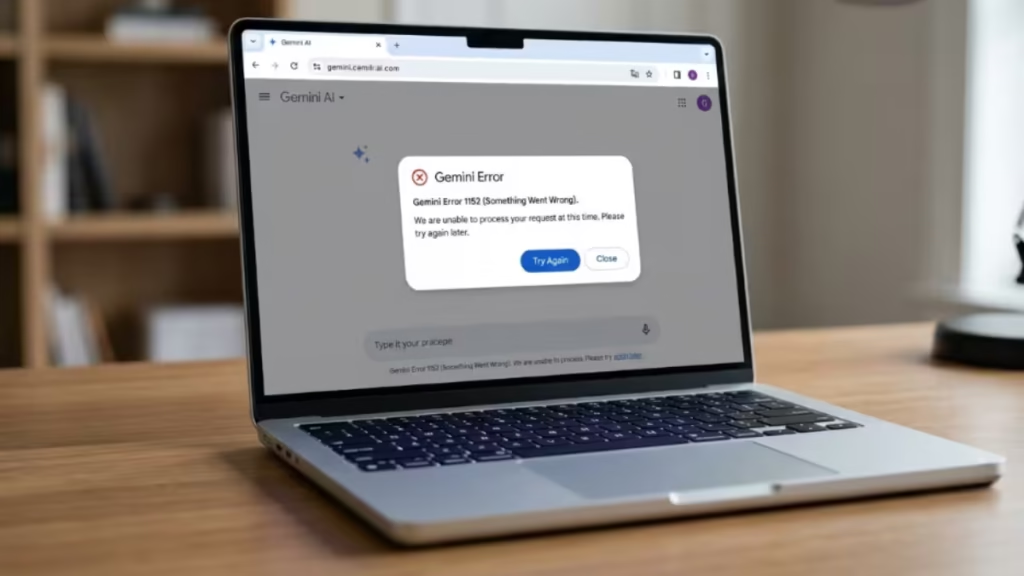
Gemini error 1152 appears as “Something went wrong (1152)” inside the Gemini chat window on desktop. The error blocks all prompt input and returns no response regardless of what you type. It hits hardest during long Canvas sessions, and multiple users on the Google Gemini Community thread have confirmed the same pattern: extended Canvas work triggers it, and switching to the mobile app does not always bypass it.
What Is Gemini Error 1152
Error 1152 indicates that Gemini cannot complete a backend request between the user interface and Google’s servers. It is a temporary session desync or backend processing bottleneck, not a permanent account issue. Google has not publicly documented the exact cause, but reports across the Gemini support community consistently point to session overload, rate limits, and server-side glitches as the main triggers.
Error 11 on Mobile
If you try to work around the desktop error by switching to the Gemini Android or iOS app, you may encounter “Something went wrong (11)” instead. Error 11 and error 1152 are related. When both appear around the same time on different devices, it confirms the problem ties to your Google account session on the server side, not to any single device or browser. Clearing your phone’s cache or reinstalling the app will not fix it in this case.
What Causes Gemini Error 1152
Canvas session overload: Creating and continuously editing a Canvas requires a large amount of context and processing power. Google applies hidden rate limits for sustained, heavy Canvas sessions, and error 1152 is one of the ways that limit surfaces. Checking your Gemini usage limit can help you understand where you stand before a session crashes.
Long conversations outside Canvas: Even in standard Gemini chat, extremely long threads can overload the context window. As conversation history grows, the system struggles to process it and eventually times out. Error 1152 is not exclusive to Canvas users.
Server-side traffic or regional outages: High demand on specific regional nodes can cause Gemini Pro and Advanced features to bottleneck. Traffic spikes can cause temporary service degradation on backend infrastructure even without a full listed outage on Google’s status dashboard.
Account session sync glitch: When error 1152 appears on desktop and then follows you to the Android app, the problem ties to your Google account session state on the server side. Some users on Gemini plans report the error attaches to their premium account while a secondary free-tier account on the same device works fine, which further confirms it is account-level rather than device-level.
Browser-related interference: Ad-blockers, script-blockers, and outdated browser engines can interfere with Gemini’s real-time streaming scripts and trigger a timeout. This is less common than server-side causes but worth isolating when other fixes fail.
How to Fix Gemini Error 1152
1. Start a Completely New Thread
If you have been using the same chat window for hours, close it. Open a completely fresh prompt window at gemini.google.com/app and test with a simple message. Copy any important text or code from the crashed Canvas before closing it, then paste into the new thread to resume. Do not continue from the stuck session.
2. Sign Out and Sign Back In Completely
Do not just close the browser tab. Click your profile icon in the top-right corner of Gemini, log completely out of your Google account, and log back in. This forces a fresh session handshake with the servers and resets your account state. On Android, go to Settings, remove the Google account from the Gemini app, and add it again.
3. Switch Off Canvas Mode
Open a new chat and try a basic text prompt without enabling Canvas. If Gemini responds normally, the issue is isolated to the Canvas feature. Use standard Gemini to continue your work while the Canvas session recovers. Once access returns, you can share Gemini chats and canvases via Google Drive to keep your work accessible across devices.
4. Open Gemini in Incognito Mode
Your main browser session may carry corrupted cookies or cached session data that disrupts the backend connection. Open a private browsing or Incognito window, navigate to Gemini, sign in to your Google account, and test with your prompt. If Gemini works normally in Incognito mode, a browser extension or stored session data is contributing to the issue in your primary window.
5. Disable Browser Extensions
Aggressive ad-blockers, privacy extensions, and script-blockers can block Gemini’s real-time streaming scripts and trigger timeouts.
- In Chrome, navigate to
chrome://extensionsand toggle off all extensions, especially uBlock Origin, Privacy Badger, or custom script managers. - In Edge, navigate to
edge://extensionsand do the same.
Reload your Gemini tab and test again. Re-enable extensions one by one to identify which one causes the conflict.
6. Clear Site-Specific Cookies and Cache
Clearing your full browser cache rarely helps with error 1152. Clearing cookies specifically for gemini.google.com is more targeted and more effective.
- In Chrome: click the padlock icon in the address bar while on Gemini, select “Site settings,” and click “Clear data.”
- In Edge: click the padlock, navigate to “Cookies and site data,” and remove data related to Gemini.
This forces your browser to load a fresh version of the web app without broken local scripts.
7. Update Your Browser
Gemini relies on updated browser rendering engines to handle live Canvas edits and streaming text. Running an outdated browser can cause WebSocket connections to drop under load.
- Chrome: click the three dots, go to Help > About Google Chrome, and let it update.
- Firefox: click the menu button, go to Help > About Firefox.
Restart the browser after the update and reopen Gemini before testing again.
8. Switch Networks or Disconnect Your VPN
Corporate firewalls, school Wi-Fi, and VPN configurations can drop Gemini’s continuous server communication. If you are on a VPN, disconnect it and test again. If you are on restricted Wi-Fi, switch to a personal mobile hotspot to rule out network filtering as the cause.
9. Check for an Outage
If all the above steps fail, check whether the error is a platform-level problem. Visit the Google Workspace Status Dashboard for official service status, or check Downdetector to see whether other users are reporting the same issue at the same time. If a known incident is active, wait for Google to resolve it.
10. Wait and Retry
Because error 1152 often ties to server-side rate limits or traffic spikes, waiting 30 to 60 minutes before retrying resolves it without any other action. Avoid sending repeated prompts during this window, as that can extend the rate-limit timer on your account.
How to Prevent Gemini Error 1152
Once you restore access, these habits keep your workflow uninterrupted:
- Keep Canvas sessions short: Periodically move completed blocks of text or code out of the thread and start a fresh Canvas to avoid overloading the context window.
- Avoid rapid prompt modifications: Toggling, rewriting, and generating complex structures too quickly within Canvas can trigger hidden rate limits.
- Refresh your session before major work: Reload the browser window before starting a long prompt engineering task to ensure a clean server connection.
- Keep local backups: Copy long-form writing or code to a local document so you never lose data if a thread suddenly fails.
- Monitor your usage: Track your session length and prompt volume so you can spot when a heavy session is approaching its ceiling before an error interrupts it.
Related Gemini Errors
Error 1152 is one of several session and backend errors in Gemini. Gemini error 1076 locks you out of sending prompts mid-session in a similar way. Gemini error 1099 appears specifically during the Analysis phase with Pro and Thinking modes. If text input stops working altogether rather than returning an error code, that usually points to Gemini error 13.
Frequently Asked Questions
Is Gemini error 1152 permanent?
No. Error 1152 is a temporary session or rate-limit issue, not a permanent account ban. Starting a new thread, signing out and back in, or waiting 30 to 60 minutes resolves it in most cases.
Does error 1152 affect Gemini Advanced and Pro users?
Yes. Gemini Advanced and Pro users encounter this error frequently, particularly during heavy Canvas sessions or long complex chats. Paying for a higher plan does not exempt your account from session rate limits.
Can a long prompt cause error 1152?
Yes. Feeding Gemini an extremely long prompt or maintaining a conversation with thousands of tokens can overload the context window. The backend times out and returns error 1152 when the context load exceeds its processing limit.
Why does Gemini work in a new chat but not the old one?
An old chat may have an overloaded context window or a corrupted session state on Google’s servers. A new chat starts with zero context load, which bypasses the glitch tied to the previous thread entirely.
Will clearing my browser cache fix error 1152?
A full browser cache clear rarely fixes it because error 1152 is a server-side account communication issue, not a local browser problem. Clearing cookies specifically for gemini.google.com is more effective. Full cache clears and Incognito mode help rule out browser interference but do not reset your Google account session on the server.
Are there rate limits on Gemini Canvas?
Yes. Because heavy Canvas editing requires high processing power to maintain context in real time, Google enforces hidden token limits on sustained sessions. Error 1152 is one of the ways those limits surface when you push a Canvas session too hard for too long.
Why does the Gemini mobile app show error 11 at the same time?
Error 11 on mobile and error 1152 on desktop share the same root cause: a stuck Google account session on the server side. When both appear together, it rules out any device or browser problem and points directly to your account session state.
Is Gemini down right now?
Check the Google Workspace Status Dashboard for official service status or Downdetector to see real-time user reports. If multiple troubleshooting steps fail at once, a regional or global outage is the likely cause.

