Windows 11 received a hidden performance feature called Low Latency Profile with the June 2026 Security Update (KB5089573). The feature temporarily boosts CPU frequency for one to three seconds whenever you open the Start menu, Windows Search, or the Notification Center. The goal is to make core shell experiences feel snappier and more responsive.
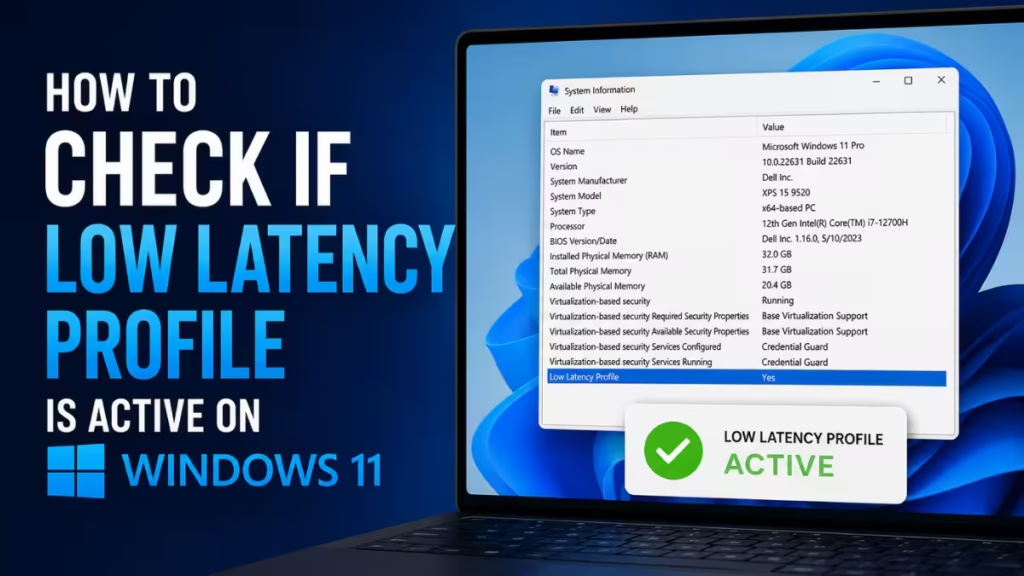
The challenge is that Windows gives you no toggle, no notification, and no Settings page entry to confirm the feature is running. Verification requires observing actual CPU behavior using monitoring tools, not hunting through any menu.
This guide covers two methods to check whether Low Latency Profile is active on your Windows 11 PC, plus steps to force-enable it if Microsoft has not yet pushed it to your device.
What Is Low Latency Profile on Windows 11?
Low Latency Profile is part of Microsoft’s Windows K2 initiative to improve system responsiveness. Instead of sustaining high CPU frequency continuously, the feature applies short, sharp processor bursts only when the system detects you interacting with specific shell elements.
According to Microsoft, the feature can deliver up to 40% faster app launch times and up to 70% faster interaction times for elements like the Start menu and context menus. It activates automatically, works in the background, and requires no user configuration once enabled.
The feature targets these interactions specifically:
- Opening the Start menu
- Triggering Windows Search
- Opening the Notification Center (Action Center)
- Opening context menus and quick settings
Important: Low Latency Profile benefits vary by hardware. Older and low-end PCs tend to see the most noticeable improvement. Modern high-end hardware is often fast enough that the difference feels subtle at best.
Before You Start: Check Your Windows Version
Low Latency Profile requires one of the following updates on a supported Windows 11 version:
- Windows 11 24H2 or 25H2 with the June 2026 Security Update (KB5089573) or any later cumulative update installed
To check your current version and update status:
- Open Settings using
Windows key + I. - Go to System > About and confirm you are running Windows 11 24H2 or 25H2.
- Go to Windows Update and install any pending updates.
If your PC shows Windows 11 23H2 or an older version, the feature is not available on your device yet.
How to Check If Low Latency Profile Is Active on Windows 11
Use either method below to confirm whether the feature is running on your PC.
Method 1: Check Using HWiNFO (Most Reliable Method)
Task Manager updates its CPU readings too slowly to catch the brief frequency spikes Low Latency Profile triggers. HWiNFO is a free hardware monitoring tool with a fast polling rate that catches these spikes accurately. This is the recommended method.
Step 1: Install HWiNFO
- Press
Windows key + Sto open Windows Search. - Type Command Prompt, right-click the top result, and select Run as administrator.
- Run the following command to install HWiNFO via winget:
winget install --id XP9CS6FHQ00B8J- Wait for the installation to finish, then close Command Prompt.
Alternatively, download HWiNFO directly from hwinfo.com.
Step 2: Set Up HWiNFO for CPU Monitoring
- Open HWiNFO from the Start menu.
- Select Sensors-only mode when prompted, then click Start.
- In the sensors window, locate the CPU section. You want to monitor the core clock speeds in real time.
- Close all open applications and browser tabs to reduce background CPU noise.
- Let the system sit at idle for one to two minutes until CPU activity settles completely.
Tip: Background startup processes can cause their own CPU spikes for several minutes after boot. Testing too early produces unreliable results. Wait until the readings look consistently low before running any test.
Step 3: Run the Three Shell Tests
With HWiNFO running and CPU readings at idle, perform these three tests one at a time:
Test 1: Start Menu
- Press the Windows logo key to open the Start menu.
- Watch the HWiNFO CPU core frequency readings immediately.
- Close the Start menu and wait for readings to return to idle.
Test 2: Windows Search
- Press
Windows key + Sto open Windows Search. - Watch the HWiNFO CPU core frequency readings immediately.
- Close Search and wait for readings to return to idle.
Test 3: Notification Center
- Press
Windows key + Nto open the Notification Center. - Watch the HWiNFO CPU core frequency readings immediately.
- Close the panel and let readings settle.
Repeat each test two or three times to confirm a consistent pattern.
What a Positive Result Looks Like
If Low Latency Profile is active, you will see a very specific CPU response pattern across all three tests:
- All CPU cores spike simultaneously to maximum or near-maximum frequency the moment you trigger each shell action.
- The spike lasts one to three seconds, then frequency drops back to idle immediately.
- The spike is tightly aligned with the action itself, not delayed.
- There is no sustained high CPU load after the spike.
Alongside the frequency spikes in HWiNFO, you should also notice a behavioral change: the Start menu, Search, and Notification Center appear instantly without any visible slide-in delay or frame hesitation, and they do so consistently across repeated attempts.
If you see these sharp spikes locking with shell interactions every single time, Low Latency Profile is active and working on your device.
Method 2: Quick Check Using Task Manager (Less Reliable)
Task Manager has a polling rate that is too slow to reliably catch the brief CPU spikes Low Latency Profile produces. However, on low-end or older hardware, the spikes can be large enough that Task Manager still shows them.
- Press
Ctrl + Shift + Escto open Task Manager. - Click the Performance tab and select CPU from the left panel.
- Close all open apps and wait for CPU usage to settle at idle.
- Open the Start menu, Windows Search, and Notification Center one at a time while watching the CPU graph.
On low-end hardware, you may see sudden CPU usage spikes during each shell interaction. On modern hardware, Task Manager often misses these spikes entirely because they resolve faster than the graph updates.
Use Task Manager only as a quick initial check. If results are unclear, switch to HWiNFO for an accurate reading.
What If Low Latency Profile Is Not Active Yet?
Microsoft is rolling out Low Latency Profile gradually using Controlled Feature Rollout (CFR). Even with KB5089573 installed, many PCs will not receive the feature immediately. This is normal behavior, not a bug or a missing setting.
If your device does not show CPU spikes during the tests above, you have two options:
Option 1: Wait for the Broad Rollout
Microsoft is expected to bundle Low Latency Profile into a mandatory update in a future Patch Tuesday release. Installing updates through Settings > Windows Update and checking back after the next cumulative update is the simplest path.
Option 2: Force-Enable Using ViveTool
ViveTool is a command-line utility that can enable Windows features still locked behind Controlled Feature Rollout flags. To force-enable Low Latency Profile:
- Download ViveTool from its GitHub releases page and extract it to a folder such as
C:\ViveTool. - Open Command Prompt as administrator.
- Navigate to the ViveTool folder:
cd C:\ViveTool- Run this command to enable Low Latency Profile:
vivetool /enable /id:58989092- Restart your PC.
After the restart, re-run the HWiNFO tests from Method 1 to confirm activation. Forcing the feature on via ViveTool is safe for general use, but Microsoft recommends letting the standard rollout deliver it on production machines.
Frequently Asked Questions
Does Low Latency Profile affect gaming performance?
Low Latency Profile specifically targets core shell interactions like the Start menu and Notification Center. When a game runs in full-screen mode, these shell elements are not active, so the feature trigger logic stays dormant. Gaming FPS and latency are not affected.
Does it affect laptop battery life?
Yes, but minimally. The CPU burst lasts only a few seconds per interaction at most. Microsoft designed the feature to keep thermal and battery impact low because the boost duration is short, not sustained.
Can you turn Low Latency Profile off?
Currently, there is no Settings toggle, Group Policy option, or registry key to disable it. Microsoft has not confirmed whether a management option will be added in a future update.
Does it work for all apps?
As of the June 2026 update, the feature primarily targets core Windows shell experiences. Microsoft has indicated support for app launches is planned, but behavior for third-party apps varies and is not yet consistent across all hardware.

