Microsoft is testing a new performance feature for Windows 11 called Low Latency Profile. It temporarily boosts your CPU to maximum frequency for one to three seconds whenever you launch an app, open the Start menu, or trigger a flyout. Early testers report up to 40% faster app load times and 70% faster interface launch times.
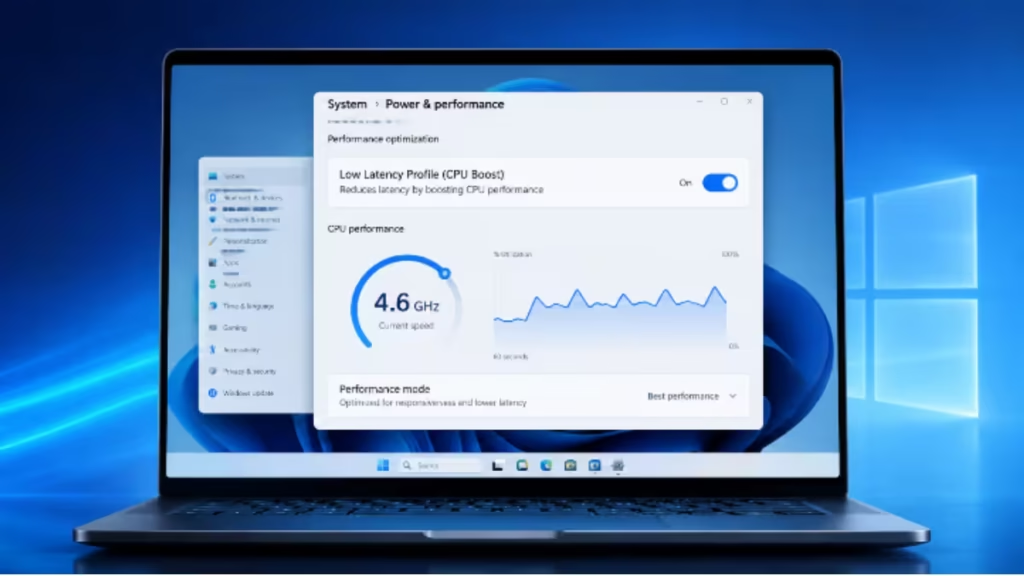
The feature is not yet available in stable builds. However, you can enable it early on supported Insider preview builds using ViveTool, the same tool Microsoft enthusiasts use to unlock hidden Windows features before they ship publicly.
This guide explains what Low Latency Profile does, how it works, and how to enable or disable it on your Windows 11 PC.
What Is Low Latency Profile on Windows 11?
Low Latency Profile (LLP) is part of Microsoft’s Windows K2 initiative, a broader effort to make Windows 11 feel faster, smoother, and more responsive. For years, users have complained that Windows 11 feels sluggish during everyday interactions, especially when opening apps or navigating system menus.
LLP targets exactly those moments. Instead of trying to improve raw sustained performance, it focuses on the brief interactions that users notice most: the delay before an app window appears, the lag when the Start menu opens, or the slight hesitation before a context menu loads.
The feature is automatic and invisible to the user. You do not toggle it manually during use. When Windows detects a high-priority interaction, LLP fires silently, boosts the CPU, then steps back as soon as the interaction completes.
How Low Latency Profile Works
Low Latency Profile works by pushing your processor to its maximum clock frequency for a very short window: typically one to three seconds. Once that burst ends, the CPU returns to its normal operating state.
This approach requires aggressive clock parking. The CPU must stay ready to shift into high gear instantly the moment Windows calls for it. That rapid state change is what allows LLP to produce a noticeable speed improvement without running the CPU at full tilt continuously.
Microsoft VP and senior developer Scott Hanselman addressed community criticism of this approach on X, pointing out that other operating systems, including Linux and iOS, already use similar CPU frequency boosting for high-priority interactions. The technique is standard across modern platforms; Windows 11 is simply catching up.
What Tasks Trigger the CPU Boost?
Low Latency Profile activates for high-priority UI interactions, including:
- Launching applications
- Opening the Start menu
- Loading flyout panels (volume, network, notifications)
- Triggering context menus
- Loading Microsoft apps such as Edge and Outlook
Microsoft has not published a full list of qualifying third-party applications. The feature targets interactions where perceived speed matters most, not sustained workloads like video rendering or gaming.
How to Enable Low Latency Profile on Windows 11 Using ViveTool
Before you start, confirm your PC runs a Windows 11 Insider preview build. This configuration was tested on build 26200.8346. Results vary by build, and the feature may not be active in all preview versions.
Step 1: Download ViveTool
- Open your browser and go to the ViveTool GitHub page.
- Download the latest ViveTool-vx.x.x.zip release file.
Step 2: Extract the ZIP File
- Open File Explorer and locate the downloaded zip file.
- Double-click the zip folder to open it.
- Click Extract all.
- Choose a destination folder and click Extract.
- Copy the full path to the extracted ViveTool folder.
Step 3: Open Command Prompt as Administrator
- Press the Windows key to open the Start menu.
- Type Command Prompt in the search bar.
- Right-click the top result and select Run as administrator.
Step 4: Navigate to the ViveTool Folder
Type the following command and press Enter. Replace the path with the actual folder path on your system:
cd C:\folder\path\ViveTool-v0.x.xStep 5: Enable Low Latency Profile
Type the following command and press Enter:
vivetool /enable /id:60716524,61391826This command enables two flags:
LowLatencyProfileLowLatencyProfileForApplicationLaunch
Step 6: Restart Your PC
Restart Windows 11 to apply the changes. The feature activates automatically after the restart. You do not need to configure anything else.
How to Disable Low Latency Profile
If you want to undo the change, open Command Prompt as administrator, navigate to the ViveTool folder, and run:
vivetool /disable /id:60716524,61391826Restart your PC after running the command. This removes both flags and returns your system to its default CPU scheduling behavior.
Will This Affect Battery Life or CPU Temperature?
According to Microsoft’s sources cited by Windows Central, the impact on battery life and thermals is minimal. The CPU boost lasts only one to three seconds per interaction, so the processor returns to a low-power state almost immediately.
On laptops and handheld PCs, the aggressive clock parking required for LLP actually works in your favor. The CPU spends more time in a deep idle state (C-state) between bursts, which can offset some of the power cost from the brief maximum-frequency periods.
On desktop PCs and gaming rigs, the temperature impact is negligible given how short each boost cycle runs.
That said, results depend on your specific hardware. If you notice increased fan noise or battery drain after enabling this feature on an Insider build, disable it using the command in the previous section and wait for the stable release.
Does ViveTool Always Work for This Feature?
Not always. ViveTool unlocks feature flags baked into your current Windows build, but those flags only produce results if Microsoft has included the underlying code for that build. The tester who originally documented this configuration on build 26200.8346 reported no noticeable improvement, which confirms that the feature may be present in traces but not fully active in all builds.
If you see the ViveTool command succeed without errors but notice no change in responsiveness, the feature code is likely incomplete in your current build. Waiting for a newer Insider preview may produce better results. The feature is expected to ship in a future stable update as part of the Windows K2 rollout.
FAQs
Does Windows 11 Low Latency Profile work on stable builds?
No. Low Latency Profile is only available in Windows Insider preview builds as of May 2026. Stable Windows 11 users need to wait for Microsoft to officially roll it out through Windows Update.
Will enabling Low Latency Profile damage my CPU or reduce its lifespan?
No. The CPU only spikes to maximum frequency for one to three seconds per interaction, then immediately drops back to its idle state. This is far too brief to cause any thermal stress or long-term hardware damage.
Does Low Latency Profile improve gaming performance on Windows 11?
Not directly. Low Latency Profile targets UI interactions like app launches, the Start menu, and context menus. For gaming-specific performance improvements, Microsoft separately released Xbox Mode on Windows 11, which lets games bypass OS overhead for lower latency.
Can I enable Low Latency Profile on a laptop without draining the battery?
Yes. Microsoft confirmed the impact on battery life is minimal because the CPU boost lasts only one to three seconds before returning to a low-power idle state. The aggressive clock parking required for the feature actually keeps the CPU in a deep idle state between bursts.
What happens if ViveTool shows no improvement after enabling Low Latency Profile?
It means the feature code is incomplete or inactive in your current Insider build. The ViveTool command may succeed without errors, but the underlying functionality is not yet fully active in every preview build. Updating to a newer Insider build or waiting for the stable release is the only fix.

