Microsoft quietly added an AI model management page to Windows 11 in the latest Experimental build, giving users the ability to view installed models and remove at least one of them directly from the Settings app. The change arrives in Build 26300.8553, released on May 29, 2026, and marks one of the first times Windows has treated AI components as manageable, removable software rather than invisible background assets.
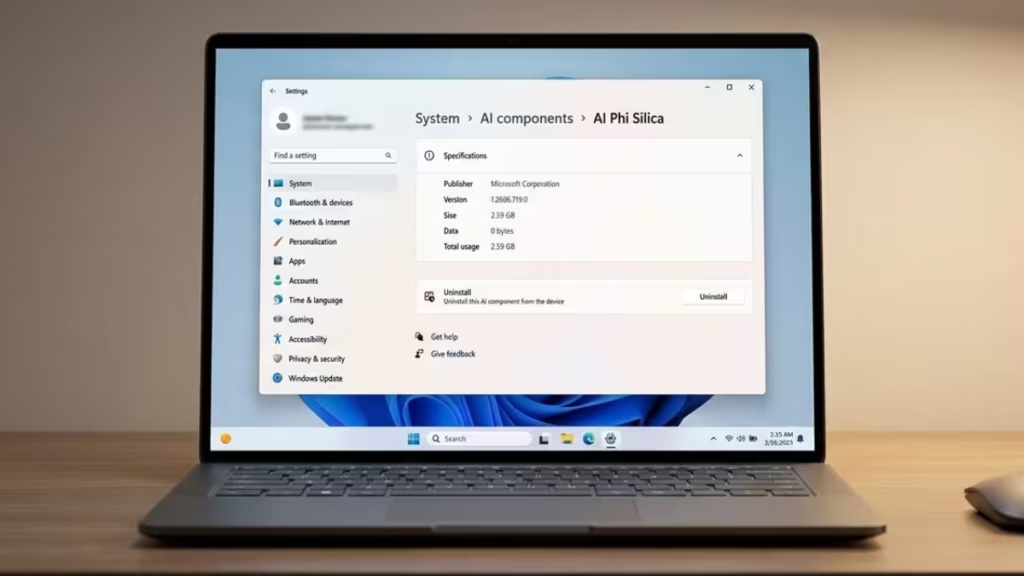
The hidden page sits inside the AI Components section of Settings and surfaces details that were previously buried or inaccessible to most users.
What the New AI Model Page Shows
The new subpage for AI models displays a clean set of technical details for each installed model, including:
- Publisher
- Version
- Installation date
- File size
- Total usage
Treating AI models this way, as discrete components with version numbers and storage footprints, represents a shift in how Windows presents AI to users. Previously, models downloaded silently in the background with no visible entry point for review or removal.
Windows Insider @phantomofearth first shared screenshots of the hidden interface, with credit going to @techosarusrex for the original screenshot. Microsoft has not officially announced the change, but the interface is functional in the Experimental channel build.
The Phi Silica Uninstall Button
The most significant part of the update is the Uninstall button that appears on the Phi Silica model subpage. As of Build 26300.8553, Phi Silica is the only model that exposes this option through the new interface.
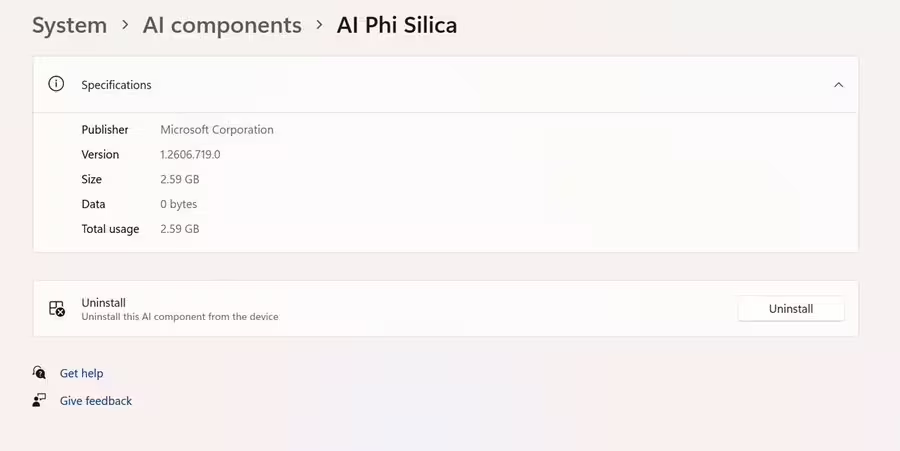
Phi Silica is Microsoft’s on-device language model built specifically for Copilot+ PCs. It runs locally rather than in the cloud and powers several AI features in Windows, including text summarization, response generation, and the Text Intelligence Skills API. Microsoft optimizes it for the NPU (neural processing unit) found in Copilot+ hardware.
Because Phi Silica runs locally, it occupies storage on the device and processes data on-device. Users have long asked whether they can remove it, and until now there was no clear answer. The new uninstall option provides one.
Whether uninstalling Phi Silica disables related AI features or simply removes the model files is not yet fully documented, but the option existing at all changes the conversation around user control.
Why Microsoft Made This Change
For the past two years, Microsoft has pushed AI deeper into Windows 11. Copilot entry points appeared across the taskbar, Start menu, and system settings. AI models downloaded in the background without visible prompts. Storage space disappeared without clear explanations.
Earlier in 2026, Microsoft acknowledged that AI was becoming too prominent throughout the operating system and said it would reduce some Copilot entry points. That effort trimmed how often users encountered the assistant, but it did not address the underlying question of what models were installed and whether users could remove them.
The new AI model page starts to answer that. By surfacing model details and providing an uninstall path for Phi Silica, Microsoft acknowledges that users deserve visibility into what AI software runs on their machines.
What Build 26300.8553 Also Includes
The AI model management changes are not the only updates in Build 26300.8553. The same build ships a redesigned Start menu experience with several new options, along with search and taskbar improvements.
Windows 11 Gets Modular Start Menu With Resize and Section Toggles in Build 26300.8553 covers those changes in detail, including independent section toggles for Pinned, Recent, and All, a small and large Start menu size option, and the ability to hide your name and profile picture.
Other changes in the build include:
- Search by substring: Files with compound names like “MeetingNotesApril” now appear when you search for “april” or “notes”
- Taskbar alternate positions: Touch swipe now works to invoke the taskbar when it sits at the top or sides of the screen
What to Expect Next From Windows 11 AI Model Controls
The biggest open question is whether Microsoft extends the uninstall option to other AI models beyond Phi Silica. The new AI Components section of Settings could accommodate multiple models once Microsoft decides how broadly to apply this level of control.
For now, the feature is hidden inside the Experimental channel and uses Microsoft’s Controlled Feature Rollout system. That means not every Experimental Insider sees it immediately. Microsoft rolls it out to a subset of testers first and expands based on feedback before pushing it to the full channel.
If the response is positive, the uninstall option and the model details page could reach the broader Windows 11 user base in a future stable release. Microsoft has not confirmed a timeline.

