If you see the error LoadLibrary failed with error 87: The parameter is incorrect on Windows, your system is telling you that a driver or DLL load request was rejected at a low level. This is not a missing file error. Windows found the component but refused the request because something in the configuration, driver stack, or registry does not match what the system expects.
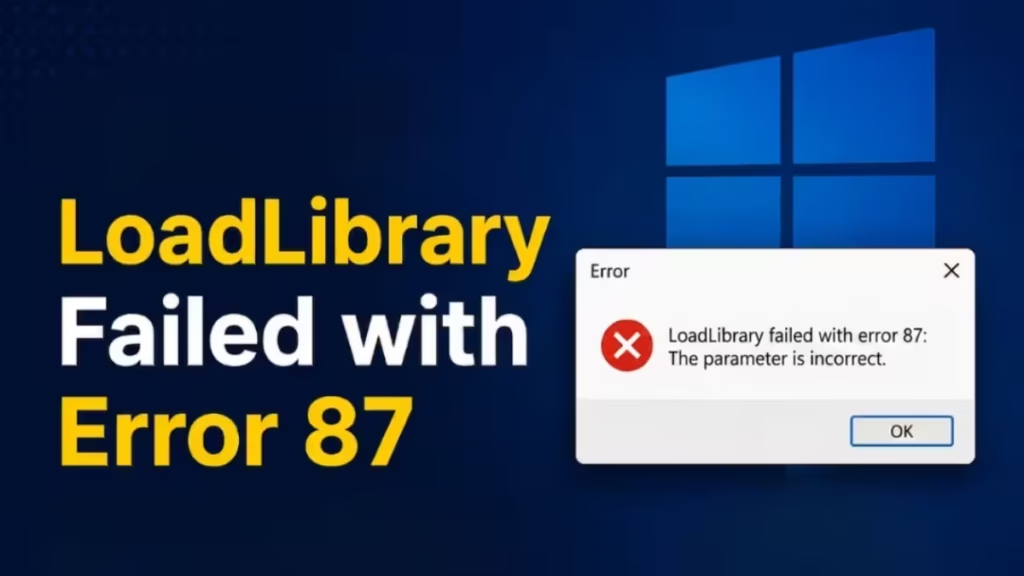
This error appears most often on machines with AMD graphics cards. It commonly triggers when you launch games, 3D design software like AutoCAD or Blender, or any application that uses DirectX, OpenGL, or vendor-specific GPU libraries. It can also appear after a Windows update, a driver install, or a system cleanup tool that quietly changed critical settings.
What Causes LoadLibrary Failed with Error 87
The most common trigger is a corrupt or outdated AMD graphics driver. Specifically, a faulty version of the atig6pxx.dll file, which is the PowerXpress Vista OpenGL Driver module for AMD ATI graphics cards, causes Windows to reject the load request entirely.
Other causes include:
- An outdated or conflicting GPU driver installed over a previous version without a clean removal
- A dual GPU setup where Windows or an app picks the wrong adapter
- Corrupt system files in the Windows image
- Missing or mismatched Visual C++ Redistributable packages
- An app-specific conflict with a DLL version it depends on
Fix 1: Force Restart Your PC
Sometimes the error appears as a temporary glitch, especially after a driver update or a long session. When the error dialog opens, it may block you from closing it or accessing anything else on the screen. In that case, a force shutdown is necessary.
Hold the Power button on your PC or laptop until it shuts down completely. Wait a few seconds, then press the Power button again to restart.
If your system uses an external monitor connected via HDMI or DisplayPort, disconnect it before you restart. A secondary display can trigger this error during initialization on AMD machines. Reconnect it after Windows loads fully and check whether the error returns.
Fix 2: Rename the atig6pxx.dll File
This is the most effective fix for the majority of cases. The atig6pxx.dll file is a graphics driver module for AMD ATI cards. Renaming it forces Windows to skip loading the problematic version.
Standard method:
- Press the Win key and type
atig6pxx.dllin the search bar. - Right-click the result and select Open File Location (the file is typically in
C:\Windows\System32). - Right-click the file and select Rename.
- Change the name to
atig6pxx.dll.bakand press Enter. - Click Continue when Windows asks for administrator permission.
If you cannot rename the file due to a permissions error even as an administrator, use the Command Prompt method below.
Command Prompt method (if permissions block you):
First, boot into Safe Mode to avoid the file being locked by active processes.
Once in Safe Mode:
- Press the Win key, type
cmd, right-click Command Prompt, and select Run as administrator. - Run the following commands one by one, pressing Enter after each:
cd \Windows\System32
takeown /f atig6pxx.dll
icacls atig6pxx.dll /grant everyone:full
attrib -r -s atig6pxx.dll
ren atig6pxx.dll atig6pxx.dll.bak- Restart your PC normally and check whether the error is gone.
Fix 3: Update Your AMD Graphics Driver
An outdated AMD driver is the second most common cause of this error. Windows may have installed a generic display adapter driver that does not fully support your GPU, especially after a fresh install or a major Windows update.
To update your AMD driver:
- Press Win + X and select Device Manager.
- Expand Display adapters.
- Right-click your AMD GPU and select Update driver.
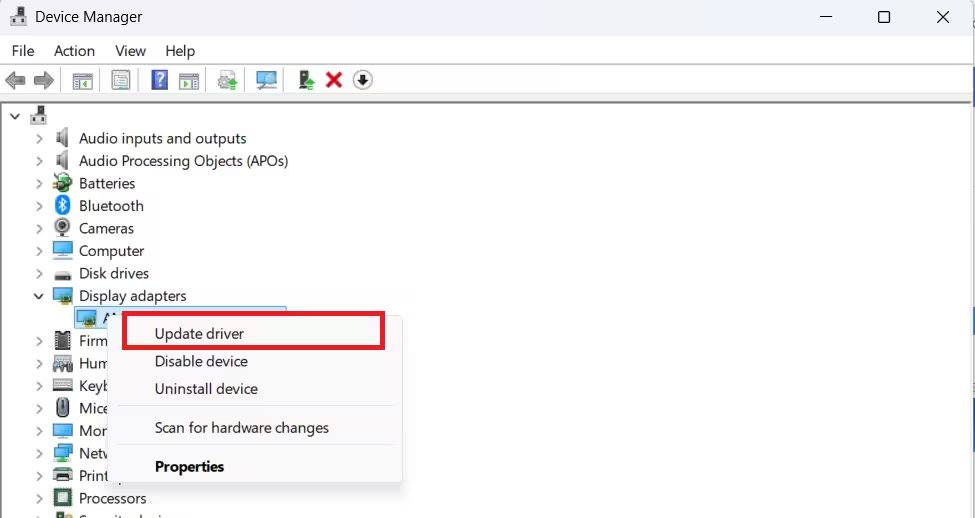
- Choose Search automatically for drivers.
For a more reliable update, use the official AMD Driver Autodetect tool or download the correct driver package from AMD’s official support page by entering your exact GPU model.
According to Microsoft documentation, LoadLibrary validates the file, checks architecture compatibility, resolves dependencies, and passes initialization parameters to the module before any DLL executes. When the driver rejects those parameters, Windows throws Error 87: ERROR_INVALID_PARAMETER.
After the update completes, restart your PC and test whether the error returns.
Fix 4: Roll Back the Graphics Driver
If the error appeared after a recent AMD driver update, the new version may be incompatible with your system or a specific application. Rolling back to the previous driver version is often the fastest resolution in this scenario.
- Press Win + X and open Device Manager.
- Expand Display adapters.
- Right-click your AMD GPU and select Properties.
- Go to the Driver tab and click Roll Back Driver.
- Select a reason when prompted and click Yes.
- Restart your PC after the rollback completes.
If the Roll Back Driver button is greyed out, Windows does not have a previous driver version stored and you cannot use this option. Move to Fix 5 instead.
Fix 5: Uninstall and Reinstall the Graphics Driver
A corrupt graphics driver installation causes this error even when the driver version appears correct. A clean uninstall removes all broken components before you reinstall a fresh copy.
Step 1: Uninstall the driver from Device Manager
- Press Win + R, type
devmgmt.msc, and click OK. - Expand Display adapters.
- Right-click your AMD GPU and select Uninstall device.
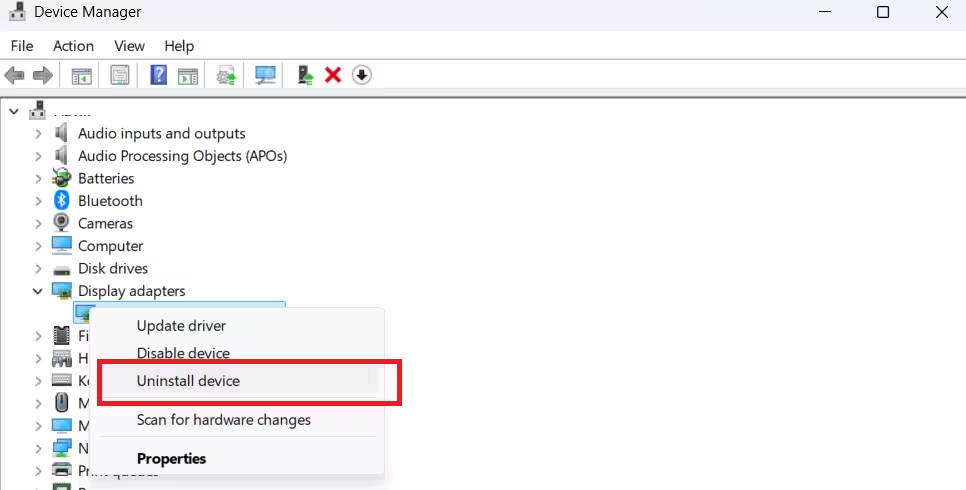
- Check the box for Attempt to remove the driver for this device and click Uninstall.
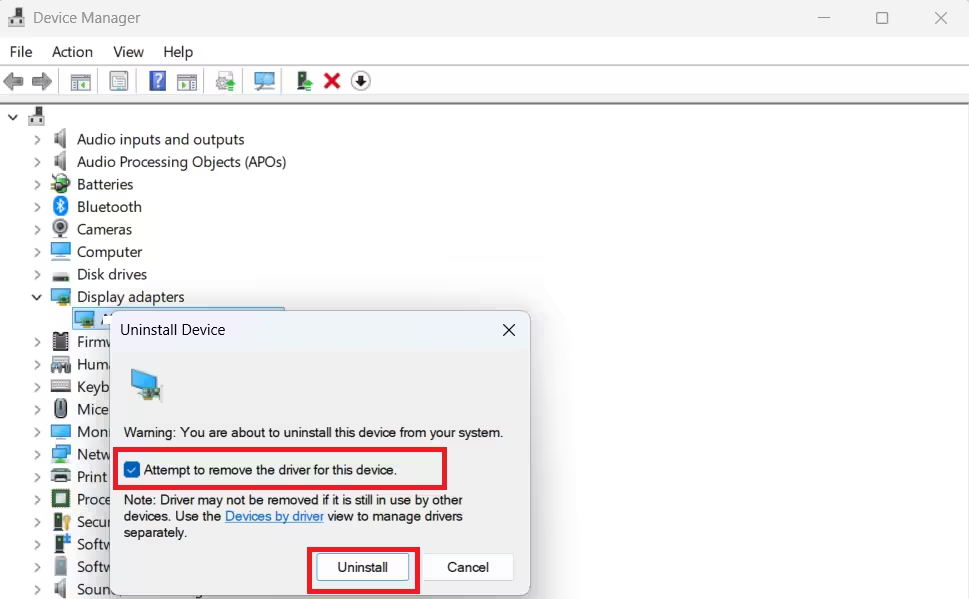
- Restart your PC.
Step 2: Perform a clean reinstall
After the restart, download the latest driver from AMD’s official support page. During installation, select the Clean Install option if the installer offers it.
For a deeper removal before reinstalling, boot into Safe Mode and use Display Driver Uninstaller (DDU) to remove all GPU driver traces completely. This prevents leftover files from corrupting the new installation. After DDU finishes, restart normally and install the fresh driver.
Fix 6: Resolve a Dual GPU Conflict
If your machine has both a dedicated AMD GPU and an integrated Intel or AMD GPU, a conflict between the two can cause LoadLibrary failed with error 87, especially during Remote Desktop sessions or when launching 3D applications.
Remote Desktop Protocol (RDP) connects to the built-in Intel adapter by default, not the dedicated GPU. This mismatch causes the 3D application to request a GPU context that Windows cannot resolve with the current adapter assignment.
To isolate which GPU is causing the conflict:
- Press Win + X and open Device Manager.
- Expand Display adapters.
- Right-click the first GPU (usually the integrated card) and select Disable device.
- Restart and try launching the application.
- If it works, re-enable the first GPU, disable the second, restart, and test again.
- Re-enable both GPUs after testing.
If disabling one GPU resolves the error, the conflict is confirmed. You can configure AMD Radeon settings to always run the affected application in High Performance mode to force it onto the dedicated GPU:
- Right-click the desktop and open AMD Radeon Settings.
- Go to System, then Switchable Graphics.
- Find the affected application in the list.
- Change its mode from Power Saving to High Performance.
- Restart the application.
Fix 7: Run SFC and DISM to Repair System Files
Corrupt Windows system files can prevent DLLs from loading correctly even when the driver and application are in good shape. The System File Checker (SFC) and DISM tools scan for and repair this type of damage.
Run SFC first:
- Press the Win key, type
cmd, right-click Command Prompt, and select Run as administrator. - Type the following command and press Enter:
sfc /scannow- Wait for the scan to complete. It may take several minutes.
- Restart your PC after SFC finishes.
Run DISM if SFC reports errors it cannot fix:
- Open Command Prompt as administrator again.
- Run these two commands in order:
DISM.exe /Online /Cleanup-image /Scanhealth
DISM.exe /Online /Cleanup-image /Restorehealth- Restart your PC when DISM finishes.
If you see SFC reporting unfixable errors, that usually means the Windows component store itself is damaged. DISM repairs it by pulling clean files from Windows Update servers, which is why an active internet connection is helpful during this step.
Fix 8: Reinstall Visual C++ Redistributables
Many applications that use DirectX or GPU-accelerated rendering depend on specific Visual C++ runtime libraries. If those libraries are missing, outdated, or mismatched in architecture (x86 vs x64), Windows rejects the DLL load with Error 87 before the application even initializes.
- Press Win + I to open Settings.
- Go to Apps, then Installed apps.
- Search for Microsoft Visual C++ and uninstall all listed versions.
- Go to Microsoft’s Visual C++ Redistributable download page and download both the x64 and x86 versions of the latest release.
- Install both versions and restart your PC.
For applications that are older or use legacy components, installing the latest package alone may not be enough. If the error persists after installing the current version, install older Visual C++ Redistributable packages (2015, 2013, 2012) as well, since some games and 3D tools still depend on them. Also install the DirectX End-User Runtime to restore legacy DirectX components that older games and tools still require.
Fix 9: Reinstall the Affected Application
If the error only appears when you launch a specific application, the problem may be isolated to that app’s installation rather than your system-wide driver or runtime configuration.
- Press Win + I and go to Apps, then Installed apps.
- Search for the application, click the three-dot menu beside it, and select Uninstall.
- Confirm the uninstall and wait for it to complete.
- Restart your PC.
- Download the latest version from the official vendor website and perform a clean install.
Before reinstalling, check whether the vendor has released a patch or update that addresses AMD GPU compatibility. Applications like AutoCAD, Blender, ArcGIS Pro, and Chief Architect occasionally release driver-specific fixes when a new AMD driver breaks compatibility.

