The error “User Profile Service failed the sign-in. User profile cannot be loaded” appears right after you enter your password at the Windows login screen. Your default profile fails to launch, and a temporary or corrupt profile takes over instead, replacing your desktop background and lock screen. In most cases, you cannot access your files or settings at all.
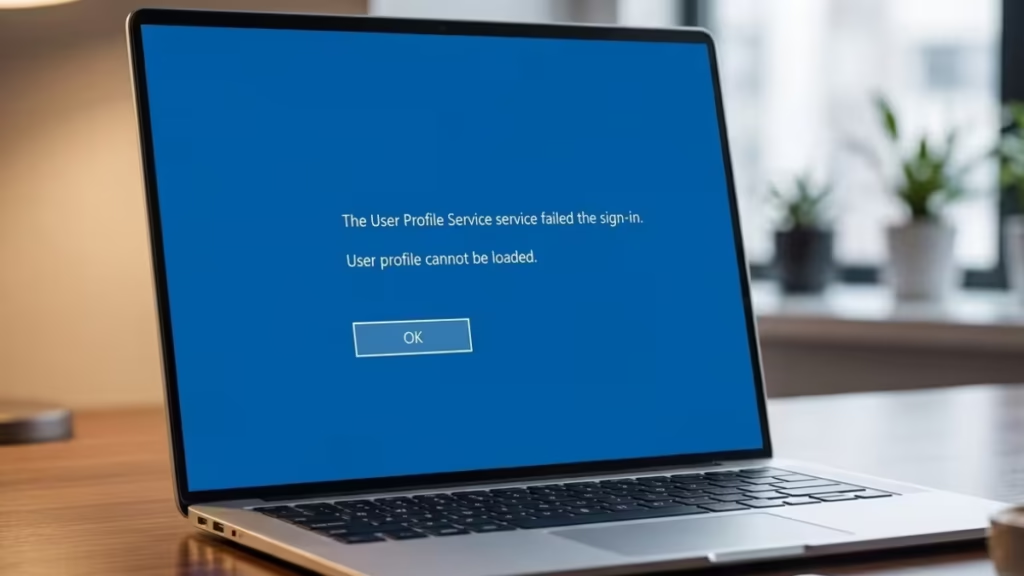
This error affects both Windows 10 and Windows 11. The right fix depends on how badly the profile is damaged, so start with the simpler methods and work down the list.
User Profile Service Failed the Sign-In: Common Causes
- Corrupted user profile files, including a damaged or missing NTUSER.DAT file
- Bad ProfileList registry entry, where the stored profile path points to a folder that no longer exists
- Incomplete or failed Windows Updates, which can corrupt UAC-related host files
- Antivirus software that scans profile files during startup and interrupts the loading process
- Partition resizing errors, which can corrupt the system drive
- Improper shutdowns or forced restarts, especially on guest or local accounts
- Incorrect NTFS permissions on the user profile directory
- Domain environment issues, such as roaming profile sync failures, Group Policy misconfiguration, or FSLogix container problems
Check Event Viewer Before You Start
Before you touch any registry keys or profile files, open Event Viewer to identify the exact cause. This step saves time by pointing you directly to the right fix.
- Press Win + R, type
eventvwr.msc, and press Enter. - Navigate to Windows Logs > Application.
- Also check Applications and Services Logs > Microsoft > Windows > User Profile Service > Operational.
- Look for errors logged at the time of the failed sign-in.
Common Event IDs to watch for:
| Event ID | Meaning |
|---|---|
| 1509 | Windows cannot copy file (corruption or permission issue) |
| 1511 | Windows signed in with a temporary profile |
| 1530 | Registry handle leak during logoff |
You can also pull these events directly from PowerShell:
Get-WinEvent -LogName "Microsoft-Windows-User Profile Service/Operational" |
Where-Object { $_.Id -in 1509, 1511, 1530 } |
Select-Object TimeCreated, Id, LevelDisplayName, Message
Use the Event ID and message to choose the most appropriate fix below.
Fix 1: Restart from the Lock Screen
A clean restart resolves temporary glitches that cause the User Profile Service to fail on a single login attempt.
- On the login screen, press Win + L to return to the lock screen.
- Click the Power icon in the bottom-right corner.
- Hold Shift and click Restart.
- After the PC restarts, click Continue to boot back into Windows normally.
- Try signing in again.
Fix 2: Enable and Restart the User Profile Service
Third-party software can stop the User Profile Service from running automatically at startup. You can restart and re-enable it from Command Prompt as administrator.
- Open Command Prompt as administrator.
- Run this command to set the service to start automatically:
sc config ProfSvc start= auto- Then start the service immediately:
sc start ProfSvc- Restart your PC and try logging in.
If those commands do not run, boot into Safe Mode first and repeat the steps above.
You can also set the service startup type manually:
- Press Win + R, type
services.msc, and press Enter. - Scroll down to User Profile Service.
- Right-click it and choose Properties.
- Set Startup type to Automatic.
- Click Start if the service is not already running, then click Apply and OK.
- Restart your computer.
Fix 3: Boot into Safe Mode to Access Your Profile
If you cannot log into any account, Safe Mode loads Windows with minimal drivers and services, which often lets the profile load partially or temporarily. You need this access to run most of the fixes below.
- On the sign-in screen, click the Power icon.
- Hold Shift and click Restart.
- On the blue screen, go to Troubleshoot > Advanced Options > Startup Settings > Restart.
- Press F4 to enable Safe Mode.
- Enter your password at the login screen.
If you still cannot log in, enable the built-in Administrator account:
- On the sign-in screen, hold Shift and click Restart.
- Go to Troubleshoot > Advanced Options > Command Prompt.
- Run the following command:
net user administrator /active:yes- Type
wpeutil rebootand press Enter to restart. - On the login screen, click the Administrator account (leave the password blank unless you set one previously).
After you finish all repairs, disable the Administrator account again with this command:
net user administrator /active:noFix 4: Fix the ProfileList Registry Key
A corrupted or duplicate entry in the ProfileList registry key is one of the most common root causes of this error. Run this fix while logged into Safe Mode or the built-in Administrator account.
Back up the registry key before making any changes:
Open an elevated Command Prompt and run:
reg export "HKLM\SOFTWARE\Microsoft\Windows NT\CurrentVersion\ProfileList" C:\ProfileList_backup.regThis creates a backup you can restore if something goes wrong.
Now apply the fix:
- Press Win + R, type
regedit, and press Enter. - Navigate to:
HKEY_LOCAL_MACHINE\SOFTWARE\Microsoft\Windows NT\CurrentVersion\ProfileList- Expand the ProfileList key in the left pane and look through the entries.
- Find two keys with similar names where one ends in .bak. This duplication means Windows created a temporary profile because the original failed to load.
- Rename the key without the
.bakextension: right-click it and append.oldto the name. - Rename the key with the
.bakextension: remove.bakfrom its name. - The key that previously had
.bakis now the active profile entry.
No .bak entry?
Open File Explorer and navigate to C:\Users\Default\AppData\Local\Application Data. If you see another nested folder named Application Data inside it, delete that folder and restart your PC. If this path does not exist on your system, skip this step.
Fix 5: Correct ProfileImagePath, State, and RefCount Values
After fixing the registry keys in Fix 4, confirm the profile path and DWORD values are correct. Incorrect values here prevent the profile from loading even after the key rename.
- In the Registry Editor, expand the profile key you renamed (the one now without any extension).
- In the right pane, double-click ProfileImagePath and confirm it points to the correct folder, for example
C:\Users\YourUsername. If it points to a path that does not exist, update it to the correct location. - Double-click State and set its value to 0. Click OK.
- Double-click RefCount and set its value to 0. If RefCount does not exist, right-click an empty area in the right pane, choose New > DWORD (32-bit) Value, name it
RefCount, and set it to 0. Click OK. - Close the Registry Editor and restart your PC.
To find the correct SID for your user account, run the following from PowerShell:
Get-LocalUser | Select-Object Name, SIDMatch the SID in the output to the registry key to confirm you are editing the right entry.
Fix 6: Run SFC and DISM Scans
Corrupted system files can prevent the User Profile Service from loading profiles correctly. Running System File Checker and DISM repairs those damaged files, including profile-related dependencies.
Run DISM first, then SFC:
- Open Command Prompt as administrator.
- Run the DISM health restore scan:
DISM /Online /Cleanup-Image /RestoreHealth- After DISM finishes, run the System File Checker:
sfc /scannow- Also check your system drive for file system errors:
chkdsk c: /f- When Windows prompts you to schedule the disk check at the next restart, press Y and Enter.
- Restart your PC and let the disk check run before Windows loads.
Fix 7: Move or Replace the NTUSER.DAT File
The NTUSER.DAT file in each user profile folder stores that user’s registry hive and application settings. A missing or corrupted NTUSER.DAT causes the profile to fail at login.
Option A: Move NTUSER.DAT to the Default folder
- Open File Explorer and navigate to
C:\Users\YourUsername. - If NTUSER.DAT is not visible, go to View > Show > Hidden items.
- Right-click NTUSER.DAT and cut it.
- Navigate to
C:\Users\Defaultand paste the file there. - Delete the local account folder for the affected user.
- Restart your PC and check whether the profile loads correctly.
Option B: Replace NTUSER.DAT from the Default template
Use this option only after Fix 4, Fix 5, and Fix 6 fail to resolve the problem. Replacing NTUSER.DAT resets all user settings and application configurations for that profile. Back up the original file first.
- Log in with an administrator account.
- Open an elevated PowerShell prompt.
- Rename the damaged file:
Rename-Item "C:\Users\YourUsername\NTUSER.DAT" "NTUSER.DAT.old"- Copy the default template file into the profile:
Copy-Item "C:\Users\Default\NTUSER.DAT" "C:\Users\YourUsername\NTUSER.DAT"- Restart your PC and sign in.
Fix 8: Use System Restore
If the error appeared after a recent change such as a Windows Update, a new app install, or a driver update, System Restore rolls your system back to a point before the problem started. Personal files remain untouched.
- Press Win + R, type
rstrui.exe, and press Enter. - Click Next in the System Restore window.
- Select a restore point created before the sign-in error appeared, then click Next.
- Click Finish to start the restoration.
- After your PC restarts, try signing in again.
If a recently installed app triggered the error, uninstall it by going to Settings > Apps > Installed apps, selecting the app, and clicking Uninstall.
Fix 9: Reset Your PC (Keep Your Files)
If none of the methods above work, resetting Windows reinstalls the operating system while keeping your personal files, such as documents, pictures, and downloads. Apps and custom settings are removed in the process.
- Press Win + I to open Settings.
- Go to System > Recovery.
- Under Recovery options, click Reset your PC.
- Choose Keep my files.
- Select Cloud download for a fresh Windows image downloaded from Microsoft, or Local reinstall to use the recovery files already on your drive.
- Click Next, review the summary, then click Reset.
- Wait for the process to complete. Depending on your system and internet speed, this can take anywhere from 30 minutes to a few hours.
For Domain and Virtual Desktop Environments
If this error appears on domain-joined PCs or virtual desktops running FSLogix, the fix typically involves a Group Policy change rather than local registry edits.
- Press Win + R, type
gpedit.msc, and press Enter to open the Group Policy Editor. - Navigate to Computer Configuration > Administrative Templates > System > User Profiles.
- Double-click Delete cached copies of roaming profiles.
- Set it to Enabled, then click Apply and OK.
- Restart the PC and test the sign-in.
For persistent roaming profile sync failures, also check network connectivity to the domain controller and review GPO settings related to folder redirection and profile paths.
Frequently Asked Questions
What does Event ID 1511 mean?
Event ID 1511 means Windows signed you in with a temporary profile because it could not load your actual user profile. Any changes you make on a temporary profile do not save after you log out.
Is replacing NTUSER.DAT safe?
Replacing NTUSER.DAT resets the user’s registry hive, which means that account loses its settings, app preferences, and personalization data. Always back up the original file before replacing it. Treat this step as a last resort.
Can a Windows Update cause this error?
Yes. An interrupted or incomplete update can corrupt UAC-related files or User Profile Service dependencies. If the error appeared right after a Windows Update, go to Settings > Windows Update > Update history > Uninstall updates, select the most recent update, and restart your PC.
Why does ctfmon.exe block Safe Mode login on some PCs?
Some PCs throw a ctfmon.exe error during Safe Mode login. Press Ctrl + Shift + Esc to open Task Manager, choose Run new task, type cmd.exe, and press Enter to open a Command Prompt session from there.
What if my account is the only administrator account on the PC?
Enable the built-in Administrator account using the steps in Fix 3. Once you resolve the profile issue, log back into the built-in Administrator account and disable it with the command net user administrator /active:no

