The Apple Pay “Payment Not Completed” error stops your transaction before it finishes. You see it when shopping in apps, on websites, or at in-store contactless terminals. The cause is almost always something fixable on your device or card settings, not a permanent problem with Apple Pay itself.
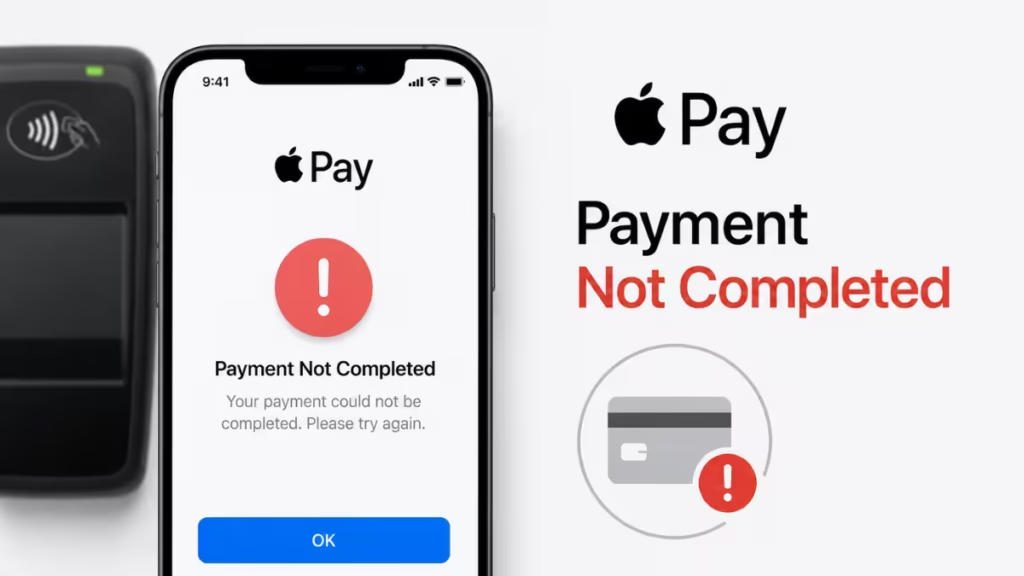
This guide covers 8 fixes to clear the Apple Pay payment not completed error on iPhone and iPad.
Why Apple Pay Payment Not Completed Error Appears
Apple Pay depends on three systems working together: your device, your bank or card issuer, and the merchant’s payment terminal. When any one of them fails, the payment does not go through.
The most common triggers are:
- Incorrect or mismatched billing address on the card
- Expired or recently reissued card still saved in Wallet
- A glitch in Face ID or Touch ID authentication
- An active VPN blocking the payment request
- Outdated iOS causing compatibility issues
- A temporary Apple Pay service disruption
Work through the fixes below in order. Most users resolve the Apple Pay payment not completed error by Fix 3 or Fix 4.
Fix 1: Check and Update Your Payment Method
A mismatched billing address or outdated card details are the most frequent cause of the Apple Pay payment not completed error.
- Open the Settings app on your iPhone or iPad.
- Tap your name at the top of the screen.
- Tap Payment and Shipping.
- Tap the card you are using with Apple Pay.
- Verify the card number, expiration date, CVV, and billing address.
- Update any detail that does not match your bank records.
- Tap Done, then retry your purchase.
If the details look correct, remove the card entirely and add it again. Tap Edit, select Delete, confirm by tapping Remove, then tap Add Payment Method to re-enter the card.
Fix 2: Check Your Internet Connection
Apple Pay requires an active internet connection to verify and authorize payments, even for in-store NFC transactions in some configurations.
- Swipe down from the top-right of your screen to open Control Center.
- Make sure Airplane Mode is off (the airplane icon should be grey).
- Connect to a stable Wi-Fi network or switch to mobile data.
- Retry the Apple Pay payment.
If your Wi-Fi connection is unstable, try resetting network settings: go to Settings > General > Transfer or Reset iPhone > Reset > Reset Network Settings. Note that this clears all saved Wi-Fi passwords.
Fix 3: Check the Apple Pay System Status
Occasionally, a widespread Apple Pay service issue triggers the payment not completed error for all users.
- Open a browser and go to apple.com/support/systemstatus.
- Find Apple Pay and Wallet in the list.
- A green circle means the service is running normally.
- A yellow or red indicator means Apple is aware of an issue and working on it.
If a service outage is active, wait for Apple to resolve it before retrying.
Fix 4: Restart Your iPhone or iPad
A restart clears temporary software glitches that can cause the Apple Pay payment not completed error without any obvious reason.
- On iPhone X or later / iPad with Face ID: Press and hold the Side button and either Volume button together. Drag the power slider, wait 30 seconds, then press the Side button to turn it back on.
- On iPhone SE (2nd or 3rd generation) / older iPhone: Press and hold the Side or Top button. Drag the power slider, wait 30 seconds, then press the button again to restart.
After the restart, open Wallet and attempt your payment again.
Fix 5: Disable Face ID or Touch ID Temporarily
A bug in the biometric authentication step can trigger the Apple Pay payment not completed error even when your card and network are working fine.
- Go to Settings > Face ID and Passcode (or Touch ID and Passcode).
- Enter your passcode.
- Toggle off Apple Pay under the Face ID or Touch ID section.
- Restart your device.
- Try the payment again using your passcode instead of biometrics.
If the payment completes, the issue is with your Face ID or Touch ID setup. To fix it:
- Go back to Face ID and Passcode settings.
- Tap Reset Face ID (or delete saved fingerprints under Touch ID).
- Re-enroll your face or fingerprints, then re-enable Apple Pay.
Fix 6: Update iOS to the Latest Version
Running an outdated version of iOS can prevent Apple Pay from working correctly. Apple regularly pushes Wallet and payment-related fixes in iOS updates.
- Go to Settings > General > Software Update.
- If an update is available, tap Download and Install.
- Wait for the update to complete and your device to restart.
- Open Wallet and test your Apple Pay payment.
Fix 7: Disable Your VPN
An active VPN can interfere with Apple Pay’s payment verification process. Apple Pay sends authentication requests to Apple’s servers, and some VPN configurations block or reroute that traffic.
- Go to Settings > VPN.
- Toggle the VPN connection off.
- Attempt your Apple Pay payment.
- If the payment goes through, the VPN was the problem. Re-enable it after completing your purchase.
You can also disable a VPN directly from Control Center if your VPN app adds a shortcut there.
Fix 8: Contact Apple Support or Your Bank
If none of the fixes above resolve the Apple Pay payment not completed error, the issue likely requires direct support.
Contact your bank first if:
- Apple Pay declines even after you re-add the card
- You see a specific decline code or “Payment Declined” message
- You recently received a new or replacement card
Your bank can confirm whether the card is authorized for mobile wallet payments and whether international purchases are enabled.
Contact Apple Support if:
- The issue persists across multiple cards
- Wallet shows no cards or fails to add a card
- You see error codes specific to Apple Pay
Reach Apple Support at 1-800-APL-CARE or visit support.apple.com to start a chat, email, or callback request.
Apple Pay Payment Not Completed: Quick Reference
| Fix | What It Resolves |
|---|---|
| Check payment method | Wrong billing address, expired card |
| Check internet connection | No network access for payment verification |
| Check Apple system status | Widespread Apple Pay outage |
| Restart device | Temporary software glitch |
| Disable Face ID or Touch ID | Biometric authentication bug |
| Update iOS | Outdated software compatibility issue |
| Disable VPN | VPN blocking payment request |
| Contact support | Bank-side decline or persistent Wallet error |
Related Guides
- How to Fix Wi-Fi Not Connecting on Windows, Android, and iPhone (2026)
- iPhone Personal Hotspot Not Working? 11 Fixes That Actually Work
- How to Fix Apple CarPlay Not Working on iPhone: 10 Proven Fixes
- How to Clear System Data on iPhone (Free Up Storage Fast)
- How to Clear Cache on iPhone (Safari, Chrome, Firefox & Apps)

