The Windows key sits at the center of your keyboard workflow. It opens the Start menu, triggers shortcuts like Win + R or Win + E, and connects you to core Windows features. When it stops responding, those tasks require extra clicks and slow everything down.
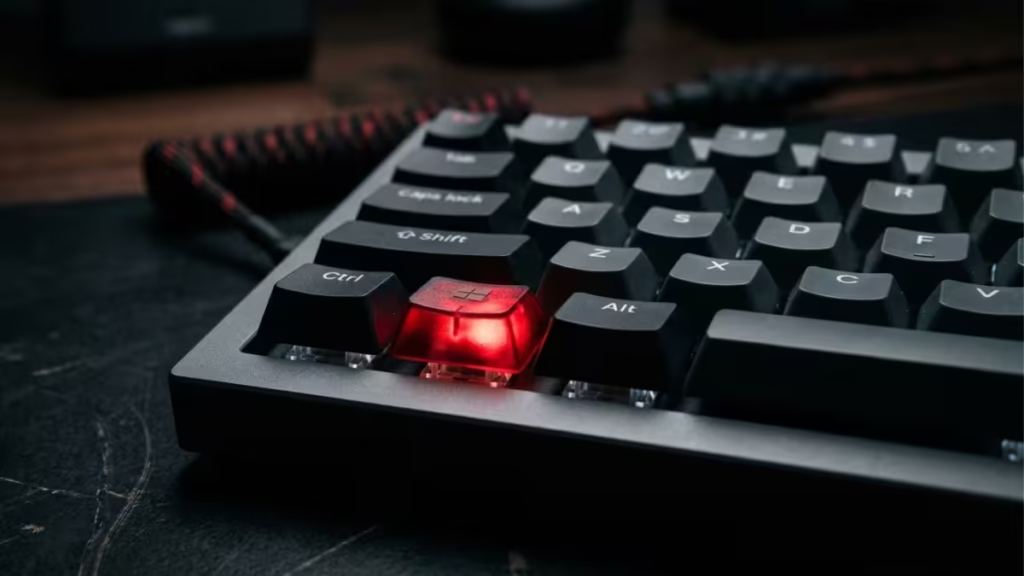
This guide walks you through 10 targeted fixes for the Windows key not working issue on Windows 10 and Windows 11, starting with the quickest checks and moving to deeper system-level solutions.
What Causes the Windows Key to Stop Working
Here are the most common reasons the Windows key stops working:
- Gaming keyboard lock: Many gaming keyboards include a Windows key lock (FN combo or a dedicated lock button) to prevent accidental Start menu popups during gameplay.
- Filter Keys or Sticky Keys: These accessibility features can interfere with modifier key behavior, including the Windows key.
- Game Mode or Xbox Game Bar: Game Mode can disable the Windows key as a side effect of its performance optimizations.
- Scancode Map registry entry: A custom keyboard remap stored in the registry can block the Windows key entirely.
- Corrupted or outdated keyboard driver: A broken driver prevents the key signal from reaching Windows.
- Corrupted system files: Damaged Windows system files can cause sporadic keyboard behavior.
- Physical damage: A worn-out or stuck key switch on the keyboard itself.
How to Fix the Windows Key Not Working on Windows 10/11
Fix 1: Check Your Keyboard’s Windows Lock Key
This is the most common cause on gaming keyboards and takes seconds to check.
Many keyboards from Corsair, Razer, SteelSeries, and Logitech include a Windows key lock feature. Look for a dedicated lock button on your keyboard, often marked with a Windows logo and a padlock icon. If the indicator light is on, the Windows key is locked.
Press the lock button once to unlock it.
If your keyboard does not have a dedicated lock button, try these key combinations:
- FN + F6
- FN + F12
- FN + Windows key
Check your keyboard’s manual if none of these work, as the exact combo varies by model.
Fix 2: Disable Filter Keys
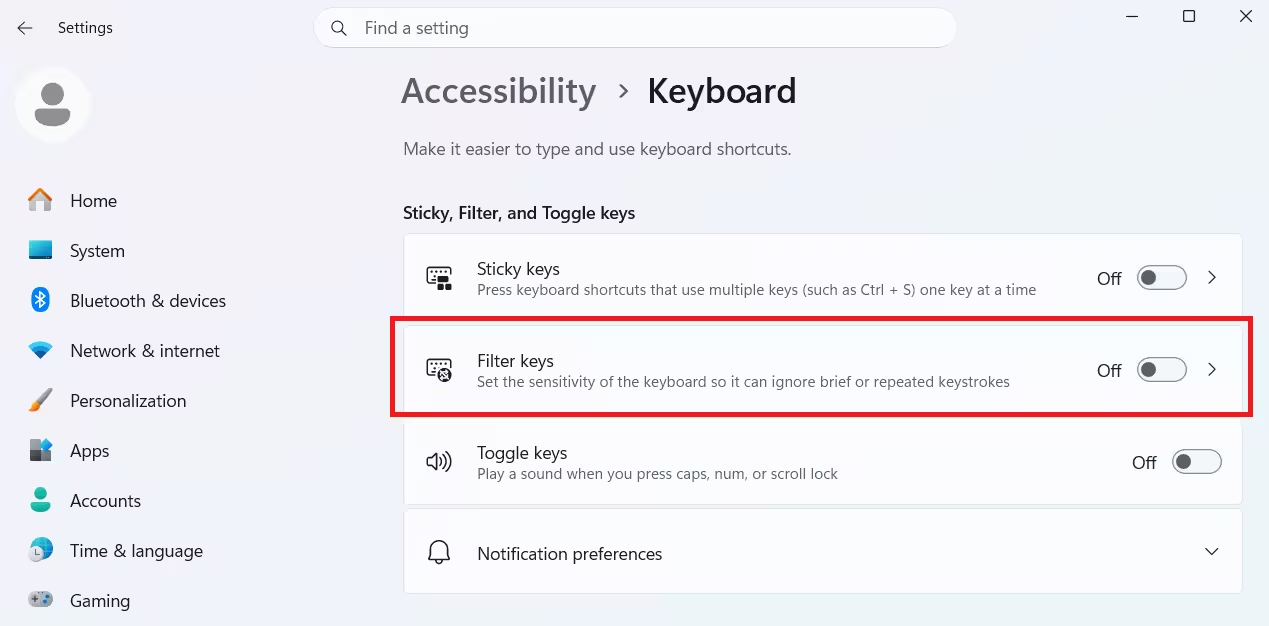
Filter Keys is a Windows accessibility feature that adjusts how the keyboard registers repeated or brief key presses. A known bug in this feature can prevent the Windows key from registering.
On Windows 11:
- Open Settings with Win + I (use the on-screen keyboard if needed).
- Go to Accessibility > Keyboard.
- Toggle off Filter Keys.
On Windows 10:
- Right-click the Start menu icon and select Settings.
- Go to Ease of Access > Keyboard.
- Toggle off Use Filter Keys.
Test the Windows key after disabling this feature.
Fix 3: Disable Sticky Keys
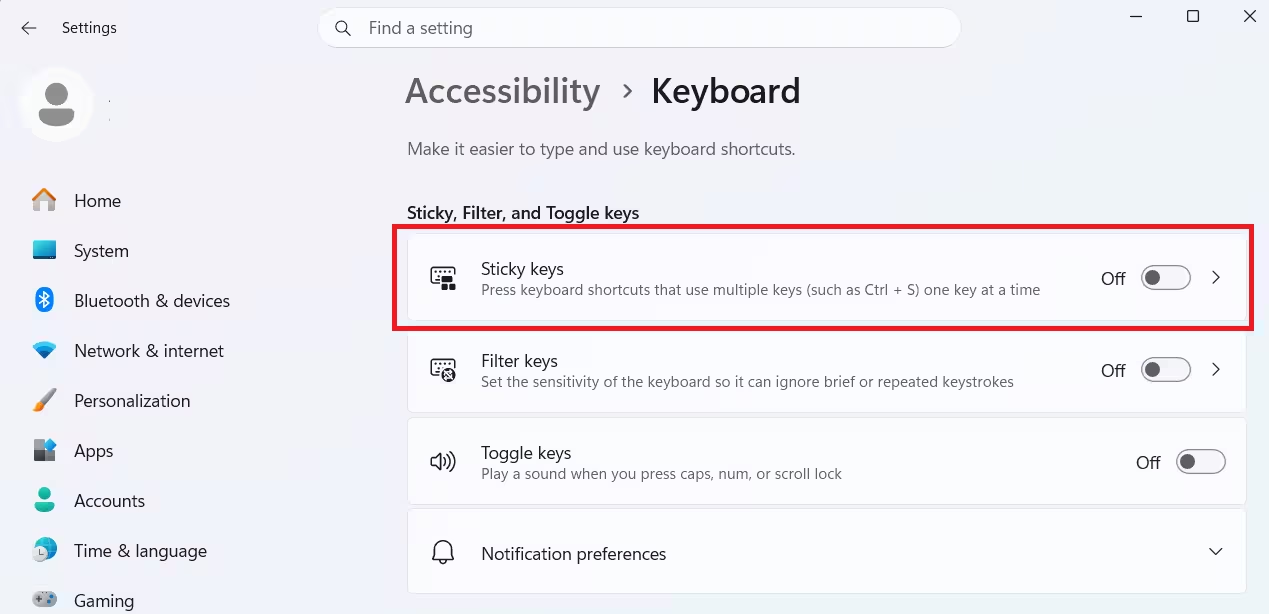
Sticky Keys lets you press modifier keys (like Shift or Windows) one at a time instead of holding them in combination. When it behaves abnormally, it can cause unexpected Windows key behavior.
- Open Settings > Accessibility > Keyboard (Windows 11) or Ease of Access > Keyboard (Windows 10).
- Toggle off Sticky Keys.
- Test the Windows key.
Fix 4: Disable Game Mode
Game Mode optimizes system resources for gaming, but it can inadvertently disable the Windows key in some configurations.
- Open Settings (Win + I).
- Go to Gaming > Game Mode.
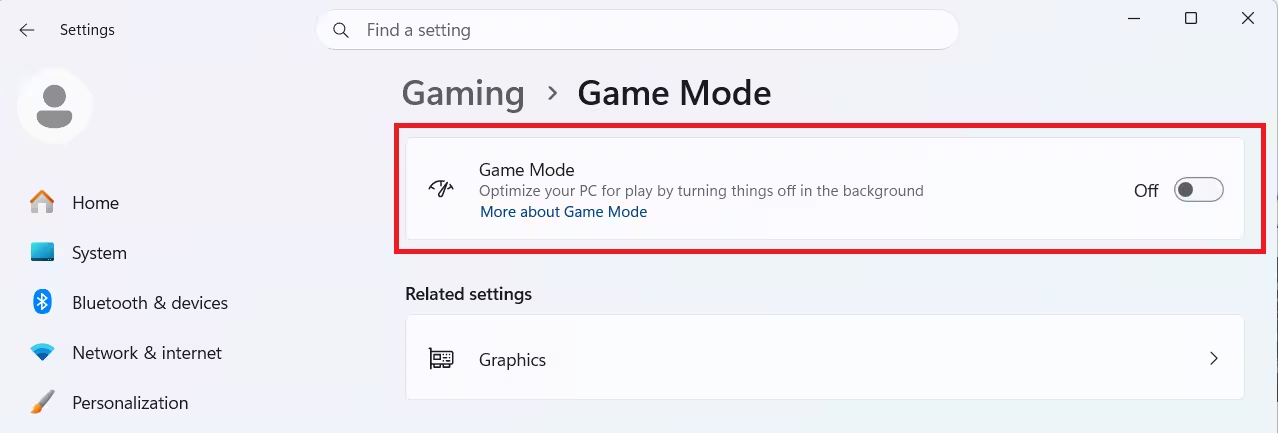
- Toggle Game Mode to Off.
Also disable the Xbox Game Bar if it is active:
- Go to Gaming > Xbox Game Bar.
- Toggle it Off.
Restart your PC and test the Windows key.
Fix 5: Restart Windows Explorer
A glitched Windows Explorer process can make the Windows key appear non-functional, even when the key hardware and drivers are fine.
- Press Ctrl + Shift + Esc to open Task Manager.
- Find Windows Explorer in the Processes list.
- Right-click it and select Restart.
The taskbar will flicker briefly, then reload. Test the Windows key immediately after.
Fix 6: Delete the Scancode Map Registry Entry
Games and third-party apps sometimes write a Scancode Map entry to the Windows registry to disable the Windows key. Removing this entry restores the key’s default behavior.
Warning: Editing the registry incorrectly can cause system instability. Back up your registry before making any changes.
- Press Win + R, type
regedit, and press Enter (use on-screen keyboard if needed). - Navigate to the following path:
HKEY_LOCAL_MACHINE\SYSTEM\CurrentControlSet\Control\Keyboard Layout- Look for a value named Scancode Map in the right pane.
- If it exists, right-click it and select Delete.
- Confirm the deletion and restart your PC.
If no Scancode Map entry exists at this path, move on to the next fix.
Fix 7: Run the Keyboard Troubleshooter
Windows includes a built-in keyboard troubleshooter that can detect and resolve common issues automatically.
On Windows 11:
- Open Settings > System > Troubleshoot > Other troubleshooters.
- Find Keyboard and click Run.
- Follow the on-screen prompts.
On Windows 10:
- Open Settings > Update & Security > Troubleshoot.
- Click Additional troubleshooters.
- Select Keyboard and click Run the troubleshooter.
After the troubleshooter finishes, restart your PC and test the Windows key.
Fix 8: Update or Reinstall the Keyboard Driver
An outdated or corrupted keyboard driver breaks the communication between your keyboard hardware and Windows. Updating or reinstalling it can fix the Windows key not working issue.
To update the driver:
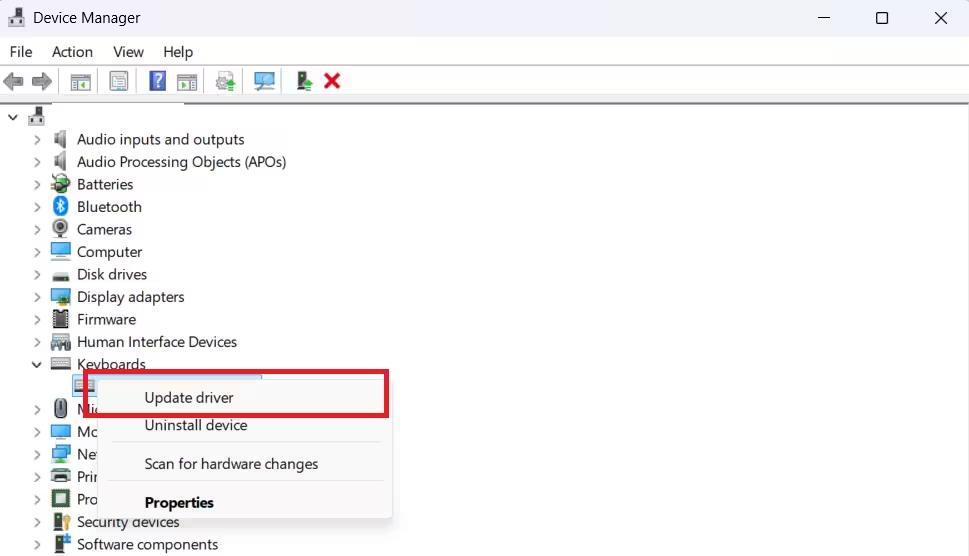
- Right-click the Start button and select Device Manager.
- Expand Keyboards.
- Right-click your keyboard and select Update driver.
- Choose Search automatically for drivers.
- Install any available update and restart your PC.
To reinstall the driver:
- In Device Manager, right-click your keyboard and select Uninstall device.
- Confirm the uninstall.
- Restart your PC. Windows reinstalls the driver automatically on the next boot.
If the standard driver causes issues, try switching to the generic HID keyboard driver:
- In Device Manager, right-click your keyboard and select Update driver.
- Click Browse my computer for drivers.
- Select Let me pick from a list of available drivers.
- Choose HID Keyboard Device and click Next.
Fix 9: Run DISM and SFC Scans
Corrupted Windows system files can cause erratic keyboard behavior. The DISM and SFC tools scan and repair these files.
- Press Win + S, search for cmd, right-click Command Prompt, and select Run as administrator.
- Run the DISM scan first:
DISM.exe /Online /Cleanup-image /Restorehealth- Wait for the process to complete. Then run the SFC scan:
sfc /scannow- Wait for the scan to finish. Restart your PC when done.
If the SFC scan reports repaired files, test the Windows key after restarting.
Fix 10: Re-Register Windows Apps via PowerShell
A damaged Windows app manifest can break certain system integrations, including the Start menu and Windows key behavior. Re-registering all built-in apps via PowerShell can resolve this.
- Press Win + S, search for PowerShell, right-click it, and select Run as administrator.
- Paste the following command and press Enter:
Get-AppXPackage -AllUsers | Foreach {Add-AppxPackage -DisableDevelopmentMode -Register "$($_.InstallLocation)\AppXManifest.xml"}- Ignore any red error messages during the process.
- Close PowerShell once it finishes and restart your PC.
Still Not Working? Check the Hardware
If none of the software fixes above resolve the issue, the Windows key itself may have a physical problem.
- Connect a different keyboard to your PC and test the Windows key. If it works on the second keyboard, your original keyboard has a hardware fault.
- On a laptop with an integrated keyboard, connect a USB keyboard and check whether the Windows key works there.
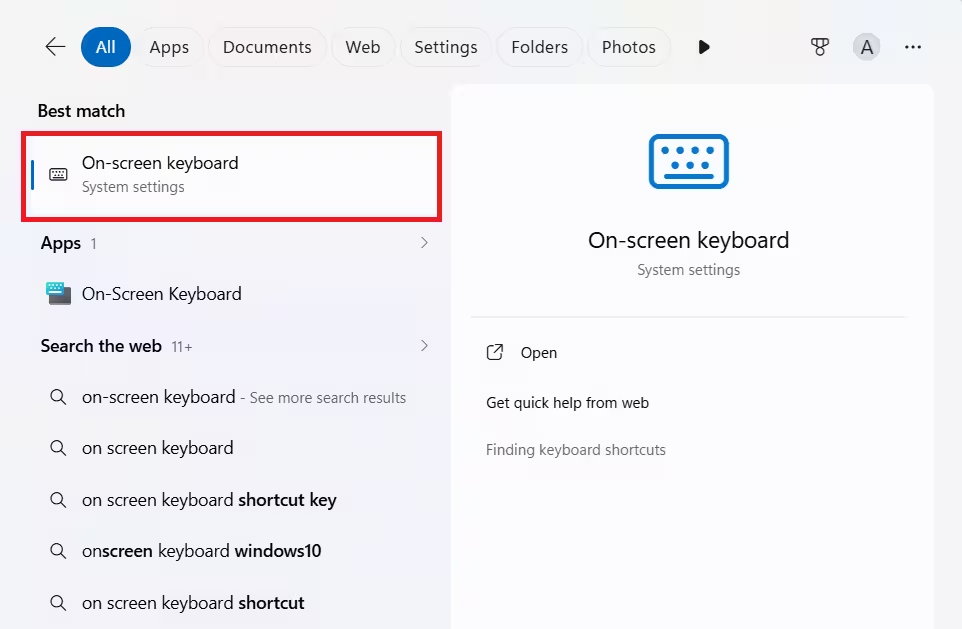
- Use the on-screen keyboard (search for it in the Start menu) as a temporary workaround while you troubleshoot the hardware.
If your keyboard is under warranty, contact the manufacturer for a replacement.
Frequently Asked Questions
Why did my Windows key suddenly stop working?
The most common causes are an accidental gaming keyboard lock, Filter Keys being enabled, or a Scancode Map entry in the registry blocking the key. Start with Fix 1 and Fix 2 before moving deeper.
How do I unlock the Windows key on a gaming keyboard?
Press the keyboard’s Windows lock button, or try the key combination FN + F6, FN + F12, or FN + Windows key. Check your keyboard’s manual for the exact shortcut.
Does Game Mode disable the Windows key?
It can. Game Mode and the Xbox Game Bar have been known to suppress the Windows key on some systems. Disabling both in Settings often resolves the problem.
Can malware disable the Windows key?
Yes. Some malware writes a Scancode Map entry to the registry to disable the Windows key. Run a full malware scan and check the registry path listed in Fix 6.
What if the Windows key works for some shortcuts but not the Start menu?
This usually points to a Start menu issue rather than a keyboard problem. Test by clicking the Start icon with your mouse. If that also fails, troubleshoot the Start menu directly.
Related Guides
- How to Fix Wi-Fi Not Connecting on Windows, Android, and iPhone (2026)
- How to Check If Low Latency Profile Is Active on Windows 11
- How to Uninstall AI Model in Windows 11 Settings (Remove Phi Silica)
- How to Clean Install Windows 11 from USB (Step-by-Step Guide)
- How to Run Disk Cleanup on Windows 11 (9 Methods)

