Accessing the BIOS lets you change boot order, enable or disable Secure Boot, monitor hardware temperatures, and tweak system-level settings that Windows itself cannot touch. This guide walks you through every reliable method to enter BIOS on Windows 10 and Windows 11, whether your PC boots normally or refuses to start Windows at all.
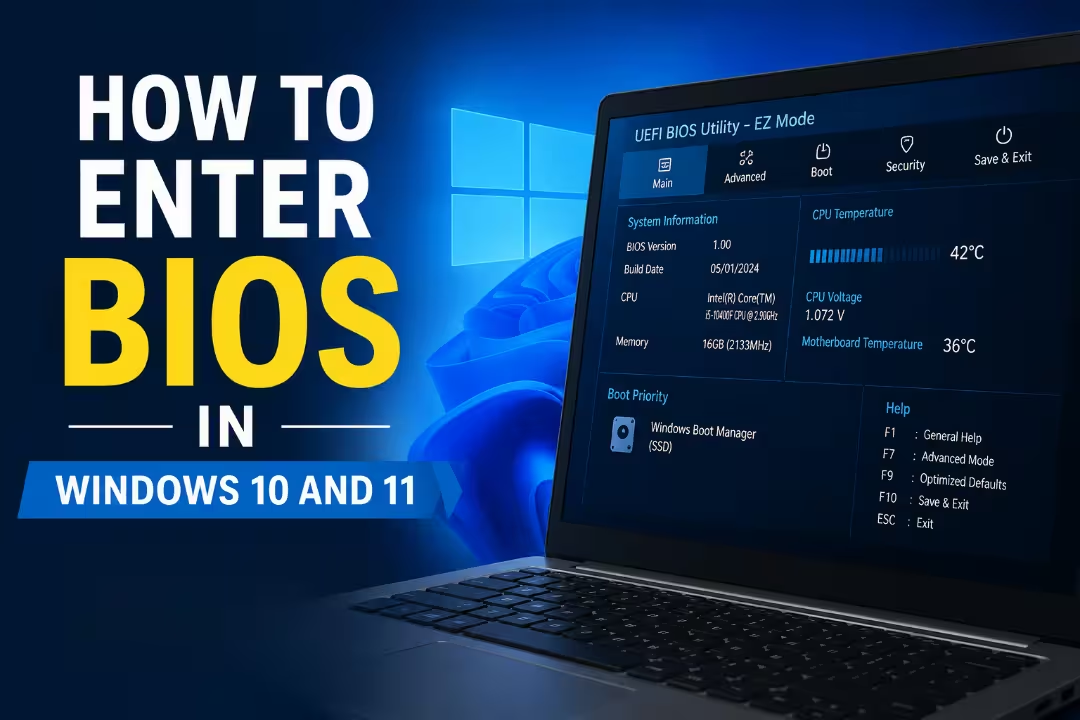
What Is BIOS and Why You May Need to Access It
BIOS (Basic Input/Output System) is firmware stored on your motherboard. It runs before Windows loads and handles communication between the operating system and hardware components like the CPU, RAM, and storage drives. Newer systems use UEFI (Unified Extensible Firmware Interface), an advanced replacement for legacy BIOS, but the term “BIOS” is still widely used for both.
You may need to access BIOS for any of the following:
- Changing the boot device order to boot from a USB drive or disc
- Enabling or disabling Secure Boot and TPM
- Checking CPU temperature and fan speeds
- Configuring XMP/DOCP memory profiles
- Troubleshooting hardware detection issues
Method 1: Press the BIOS Key at Startup (Fastest Method)
This is the most direct way to enter BIOS. You press a specific key immediately after powering on the PC, before Windows starts loading.
Step 1: Shut down or restart your computer completely.
Step 2: The moment the manufacturer logo appears on screen, press your BIOS key repeatedly. Do not wait.
Step 3: The BIOS or UEFI interface loads. Release the key once you see it.
If Windows begins to load, you missed the window. Restart and try again.
BIOS Keys by Manufacturer
| Manufacturer | BIOS Key |
|---|---|
| ASUS | F2 (laptops and most PCs), Del (some motherboards) |
| Dell | F2 or F12 |
| HP | F10 |
| Lenovo | F1 (desktops), F2 or Fn+F2 (laptops) |
| Acer | F2 or Del |
| MSI | Del |
| Samsung | F2 |
| Toshiba | F2 |
| Microsoft Surface | Volume Up button |
Note: On gaming handhelds like the ASUS ROG Ally, hold the Volume Down button, then press the power button to access BIOS.
Method 2: Enter BIOS from Windows Settings
Use this method when you cannot press the BIOS key in time during startup, or when your system boots too fast to catch the key press window.
Windows 11
Step 1: Open the Start menu and go to Settings.
Step 2: Navigate to System, then select Recovery.
Step 3: Under Advanced startup, click Restart now.
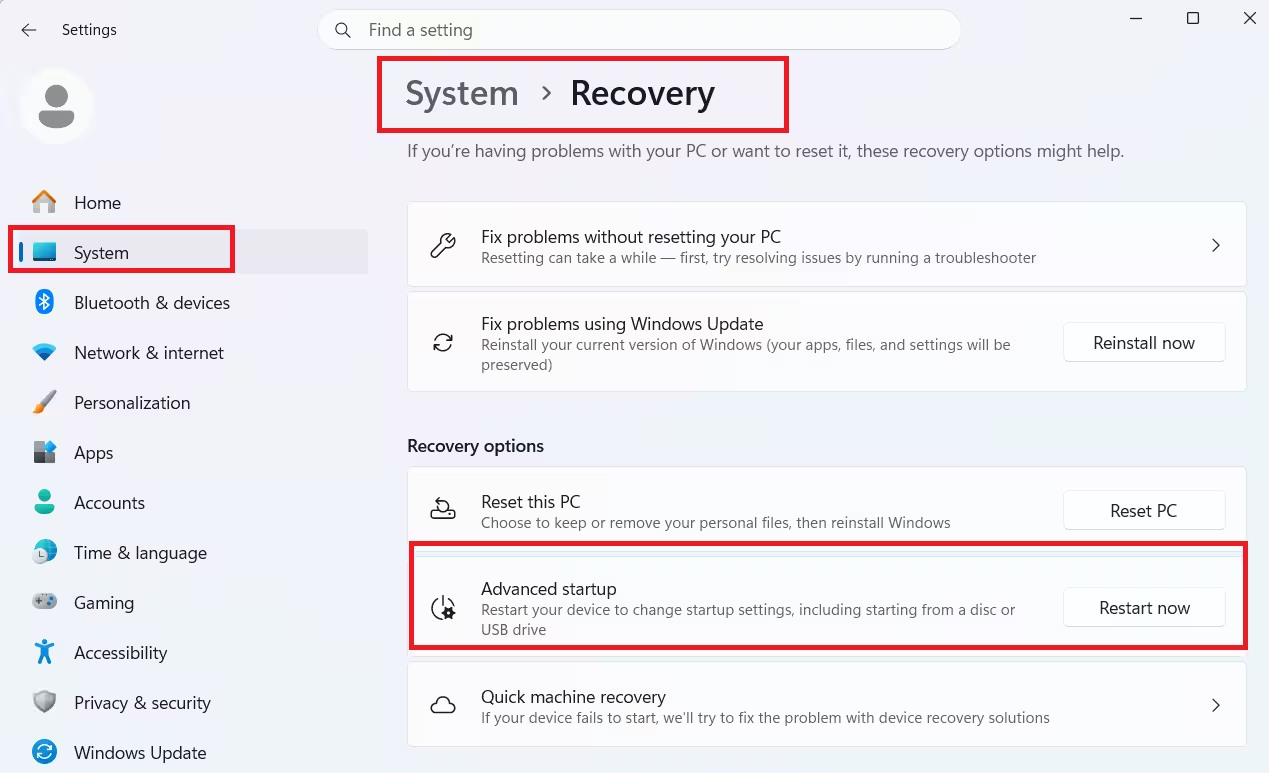
Step 4: Save any open work, then confirm by clicking Restart now again.
Step 5: After the restart, select Troubleshoot.
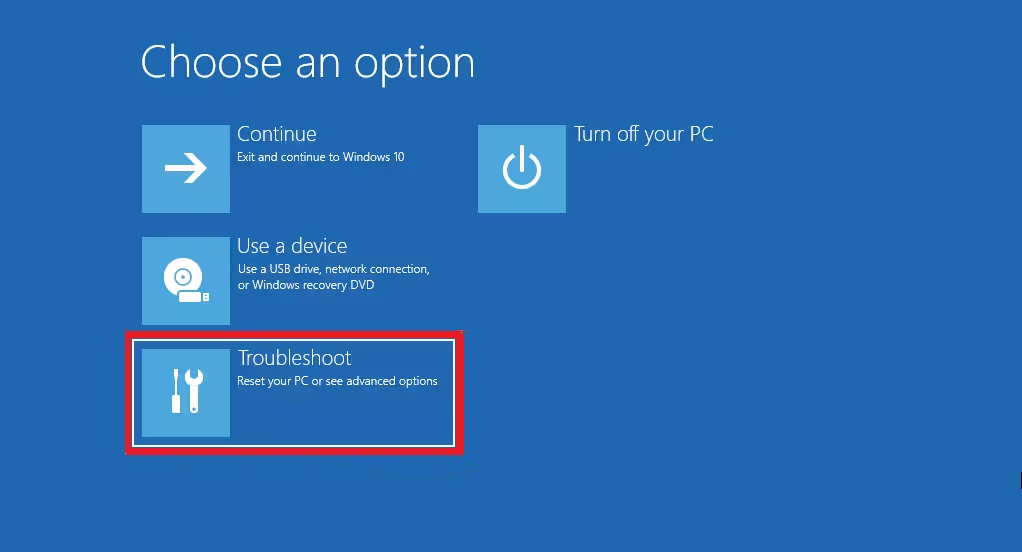
Step 6: Select Advanced options.

Step 7: Select UEFI Firmware Settings.
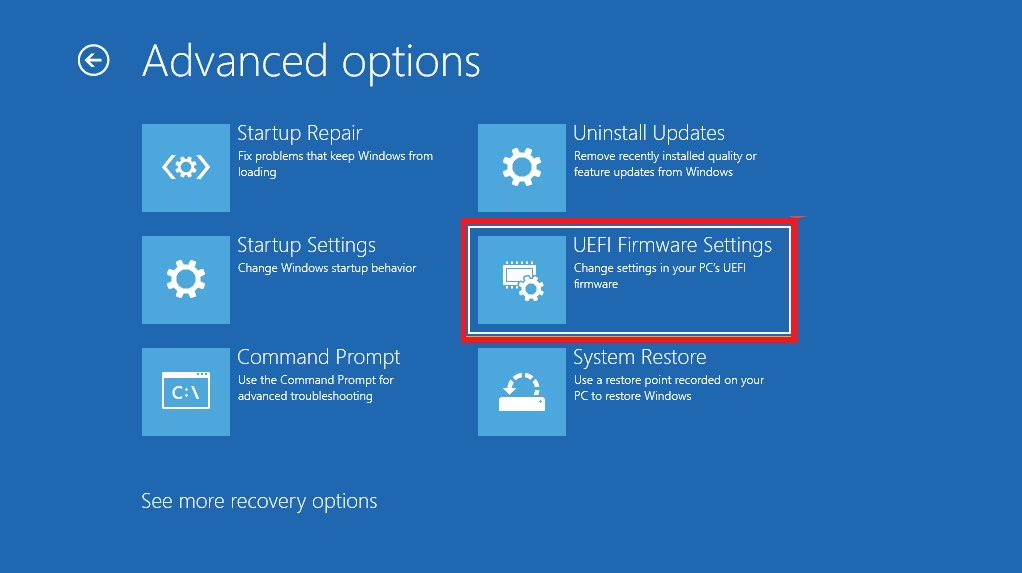
Step 8: Click Restart. Your PC will boot directly into BIOS.

Windows 10
Step 1: Open Settings and go to Update & Security.
Step 2: Select Recovery from the left sidebar.
Step 3: Under Advanced startup, click Restart now.
Step 4: After the restart, select Troubleshoot.
Step 5: Select Advanced options.
Step 6: Select UEFI Firmware Settings.
Step 7: Click Restart to enter BIOS.
Tip: You can also search for “Change advanced startup options” in the Windows search bar and click Open to reach the same Advanced startup section faster.
Method 3: Use Shift + Restart
This shortcut bypasses the need to navigate through Settings. It works on both Windows 10 and Windows 11.
Step 1: Click the Start menu and select the Power icon.
Step 2: Hold the Shift key on your keyboard.
Step 3: While holding Shift, click Restart.
Step 4: After the system restarts to the blue menu, select Troubleshoot > Advanced options > UEFI Firmware Settings.
Step 5: Click Restart to boot into BIOS.
Method 4: Use the Command Prompt
This method suits users comfortable with the command line. It triggers an immediate restart into Advanced Startup Options.
Step 1: Press Windows + X and select Command Prompt (Admin) or Windows PowerShell (Admin).
Step 2: Type the following command and press Enter:
shutdown /r /o /f /t 00Step 3: Your PC restarts into the Advanced Startup menu. Select Troubleshoot > Advanced options > UEFI Firmware Settings.
Step 4: Click Restart to enter BIOS.
Method 5: Use the Run Dialog (msconfig)
You can reach BIOS through the System Configuration utility as well.
Step 1: Press Windows + R to open the Run dialog.
Step 2: Type msconfig and press Enter.
Step 3: In the System Configuration window, click the Boot tab.
Step 4: Check the Safe Boot checkbox, then click OK.
Step 5: Restart your PC. It will load into the Advanced Startup Options menu.
Step 6: Select Troubleshoot > Advanced options > UEFI Firmware Settings, then click Restart.
Important: After you finish with BIOS, go back into msconfig and uncheck Safe Boot. Leaving it enabled will force your PC to boot into Safe Mode every time.
Method 6: Enter BIOS Before Windows Loads (for Devices That Cannot Boot Windows)
Use this method when Windows fails to start or your system has a serious error that prevents a normal boot.
Step 1: Shut down the computer completely. Wait until all lights and fans stop.
Step 2: Hold the F2 key on your keyboard.
Step 3: While holding F2, press the Power button to turn on the PC.
Step 4: Keep holding F2 until the BIOS configuration screen appears.
Note: On some older desktop models, use the Del key instead of F2. Check the manufacturer list in Method 1 for the correct key for your system.
Types of BIOS Interfaces You May See
Once inside BIOS, you will encounter one of three interface types depending on your device:
- UEFI Interface: A modern graphical interface with mouse support, detailed hardware info, and advanced settings menus.
- Legacy Interface: An older text-based blue or gray screen navigated with keyboard arrow keys.
- MyASUS in UEFI: An ASUS-specific interface available on select ASUS laptops and desktops, with a simplified layout and easy-access features.
The interface style varies by model and BIOS version. The core settings remain the same regardless of which interface your system uses.
BIOS Not Opening? Quick Fixes to Try
- BIOS key is not working: Your PC may boot too fast for traditional key presses. Use Method 2 or Method 3 instead.
- UEFI Firmware Settings option is missing: Your system may run legacy BIOS rather than UEFI. Try Method 1 or Method 6 with the Del key.
- Changes are not saving: Always use the Save & Exit option inside BIOS before restarting. Pressing the power button directly may discard your changes.
- System entered BIOS on its own: This can happen after a failed Windows update or hardware change. Check boot settings and confirm the correct boot device is selected.
Entering BIOS on Windows 10 and Windows 11 takes only a few steps once you know the right method for your system. If your PC boots fast, use the Settings or Shift+Restart approach. If Windows fails to load, the pre-boot F2 key method gets you in every time. Once inside, make sure you save any changes before exiting so your settings take effect.

